Google Photos can now detect AI-enhanced images
Google has added a new feature to its Photos app that can read a photo's metadata and tell you whether it has been enhanced by AI in the past.
Google Photos for Android has been updated with exciting new features, including optimized backup speed and intuitive emoji-based photo search. Download Google Photos now to manage your photos and experience smarter viewing options.
Like many current cloud storage applications, Google Photos allows users to store and back up photos and videos effortlessly. It stands out with three key features: unlimited storage capacity, high-quality support for photos and videos, and being entirely free to use.
| No. | Feature | Description |
|---|---|---|
| 1 | Smart Filters | New group of powerful photo filters for one-touch artistic processing. |
| 2 | Advanced Editing Options | Includes sliders for brightness, color correction, and specialized effects like Deep Blue for enhancing skies. |
| 3 | Video Creation | Easily create video stories from your photos for events, travels, or memories. |
| 4 | Google Lens Integration | Utilize Google Lens directly within the app to enhance your photo experience. |
Key Features of Google Photos for Android

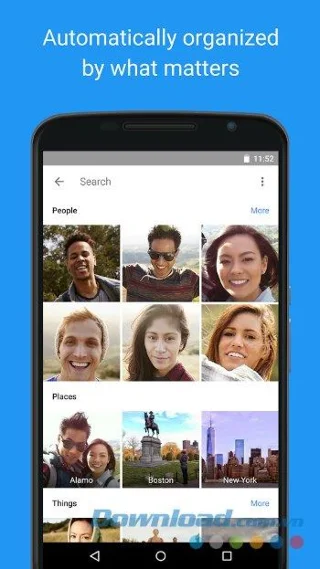
Search your collection by image description, such as locations and specific objects. For example, search for "Hawaii" or "food" to locate specific images effortlessly.
Secure all your photos and videos across devices without limitations on storage capacity. Free options are available for backing up high-quality images.
Save space on your device as Google Photos automatically saves your media, allowing you to keep device storage in check without deleting important files.
Create unique stories and animations with your photos using the application's intuitive tools.
Transform your photos with one-tap editing options, powerful filters, and color adjustments to create stunning visuals.
Easily share hundreds of photos via link, or use the Shared Album feature for collaborative albums with friends and family.
Open the app to view all your media; activate backup to sync everything to your Google Photos library.
Open photos, select the pencil icon for edits, apply filters, and save your images effortlessly.
Share your edited images through various messaging platforms, even if the recipient doesn't have Google Photos.
Remove blurry or unnecessary images from your library to streamline your collection. Deleted images go to Trash for potential recovery.
Ensure that every photo taken with your mobile device is backed up to your Google Photos account for easy access anywhere.
Adjust your backup and sync settings within the app to ensure your preferences are met.
For various tips and tricks, including how to download photos or create animations, explore additional resources available in the application.

Google has added a new feature to its Photos app that can read a photo's metadata and tell you whether it has been enhanced by AI in the past.
Some people have considered switching to Microsoft's OneDrive, because it offers great storage for Microsoft 365 subscribers and integrates with Windows. But is it a wise choice?
Besides the main function of storing images and videos, Google Photos allows users to edit photos with the built-in editor.
Samsung Gallery has quietly become a favorite of many, and it beats Google Photos in some key aspects.
Here are the 5 best automatic photo backup apps for Android that you can refer to and use.
While Google Lens is available as a standalone app, you can still access its features in Google Photos if you want to use them on existing photos on your device.
This Photos update now lets you free up that space to save more important files without deleting photos on your phone.
How to sharpen and denoise photos in Google Photos The new Sharpen and Denoise tools in Google Photos can help you create better photos. Down here
Shadows are a common problem when taking photos. How to delete them the easiest way? Join us to find out how to remove the shady shadow image effect offline!
This article will evaluate the advantages and disadvantages of Google Photos and OneDrive so that you can choose the best photo backup tool for yourself.
Google Photos is currently one of the best photo apps on smartphones. With infinite storage capacity, intelligent AI automatically classifies and has a built-in photo editor, it deserves to be in the top 1. But that doesn't mean Google Photos is perfect.
All Google services drain your battery and violate your privacy. Fortunately, you can limit the amount of data they share with Google and the amount of battery they use by uninstalling, disabling or reconfiguring them.
Tired of Microsoft Teams VDI errors crashing your virtual machine calls? Get step-by-step fixes for audio glitches, video freezes, and optimization issues on Citrix, VMware, or RDP setups. Boost productivity now!
Struggling with Microsoft Teams Error AADSTS70011? Discover step-by-step fixes for invalid scope errors, clear cache tips, and quick authentication resets to get back to seamless collaboration in minutes. Updated with latest Teams patches.
Stuck with Microsoft Teams unknown error "Something Went Wrong"? Discover quick, effective troubleshooting steps to resolve it instantly. Updated with the latest fixes for seamless collaboration.
Is Microsoft Teams download not working on your PC? Discover proven fixes for installation errors, slow downloads, and crashes. Get Teams running smoothly in minutes with our step-by-step guide.
Tired of the frustrating Microsoft Teams Wiki Tab Missing error? Follow our proven, step-by-step guide to restore your Wiki tab instantly and boost team collaboration without hassle.
Tired of Microsoft Teams chat messages failing to send? Follow our expert, step-by-step guide to fix the "Failed to Send" error quickly and get back to productive chats without frustration. Proven solutions for all users.
Tired of Microsoft Teams "How Update" Error 2026 blocking your updates? Follow our proven, step-by-step solutions to resolve it fast and restore smooth teamwork. Works for latest Teams versions!
Discover how to use Microsoft Teams for business with this complete guide. Learn setup, meetings, collaboration, and pro tips to supercharge your workflow and team efficiency.
Master how to record a Microsoft Teams meeting with this simple step-by-step guide. Capture every detail effortlessly—perfect for work, training, or reviews. Updated for the latest features.
Struggling with Microsoft Teams 'OneDrive Error' syncing issues? Discover proven, step-by-step troubleshooting tips to resolve OneDrive sync errors in Teams quickly and restore seamless collaboration. Updated with the latest fixes.
Tired of Microsoft Teams password error blocking your work? Master solving Microsoft Teams "Password Error" recovery with proven, step-by-step fixes. Regain access fast and frustration-free!
Struggling with Microsoft Teams installation errors on Windows 11? Get step-by-step fixes for common issues like 0x80070005, 80070422, and more. Quick, effective troubleshooting to get you back to collaborating seamlessly.
Tired of Microsoft Teams "Screen Error" black screen ruining your meetings? Discover proven, step-by-step troubleshooting fixes for Teams black screen issues, screen sharing errors, and more. Get back to seamless collaboration fast!
As you age, many of your bodys organs can weaken, but it doesnt have to be that way if you take care of yourself. Here are the most essential vitamins for women over 50.
Frustrated with the endless Microsoft Teams Update Error loop? Discover step-by-step fixes to resolve stuck updates, clear cache, reinstall, and more. Get back to seamless collaboration fast!