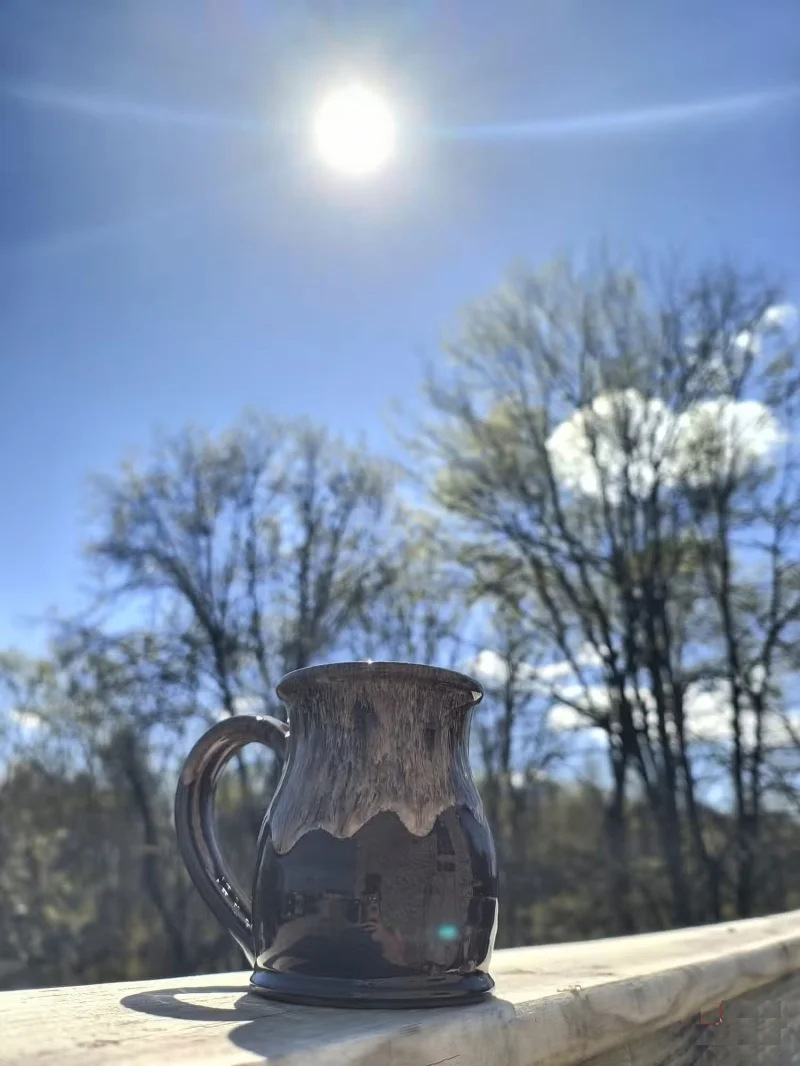
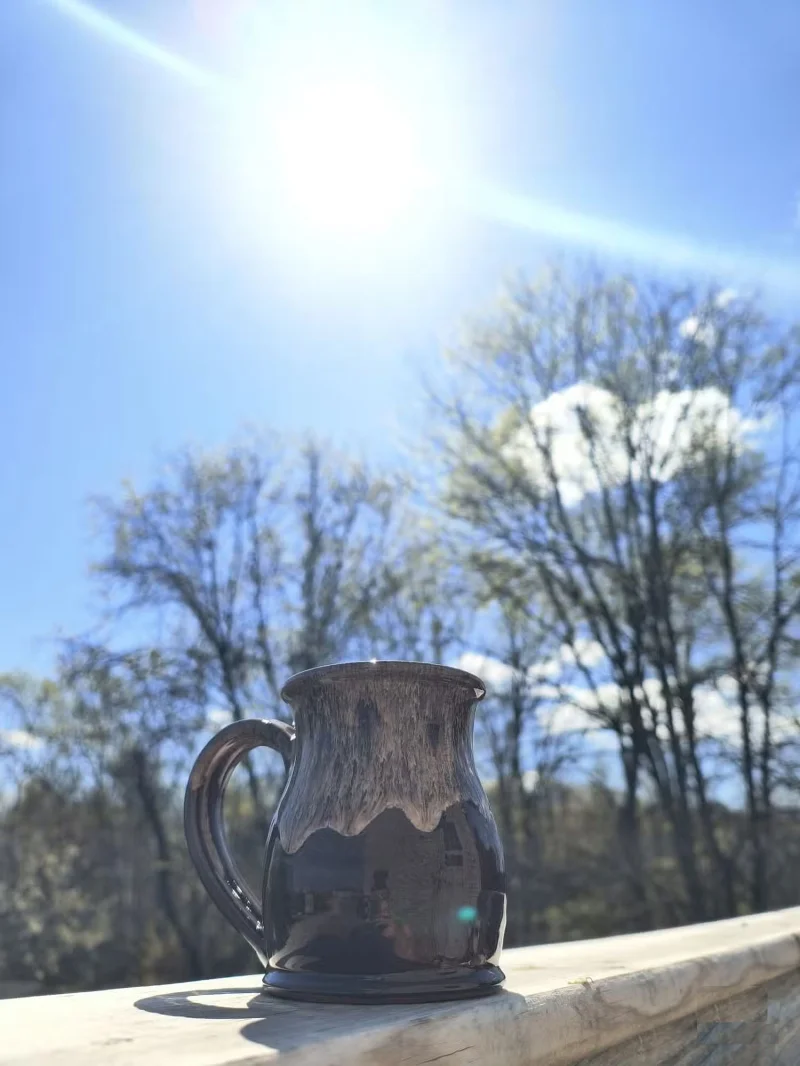
A phone's HDR may seem like it's crucial to great photos, but testing shows otherwise. Turning off a phone's HDR results in unimpressive, inconsistent results and is a feature that's often not important.
In my first test, I took a photo of a simple mug with the sun behind it and a clear blue sky above. With HDR turned on by default, the photo looked sharp, and the outline of the sun was crisp and clear against the sky. The image looked balanced and natural, despite the high contrast between the mug and the bright sun.
With HDR off, the sun loses its sharp edges, becoming softer and brighter without defined edges. The entire photo still looks great; it has a more natural, less processed feel. Colors are more vibrant and realistic, but there is a slight loss of texture in the wood with HDR off.
The loss of fine detail isn't enough to stop many people from turning HDR off. They're more drawn to the simple beauty of natural sunlight than the subtle changes in wood grain.
4. Reflective surface in harsh light
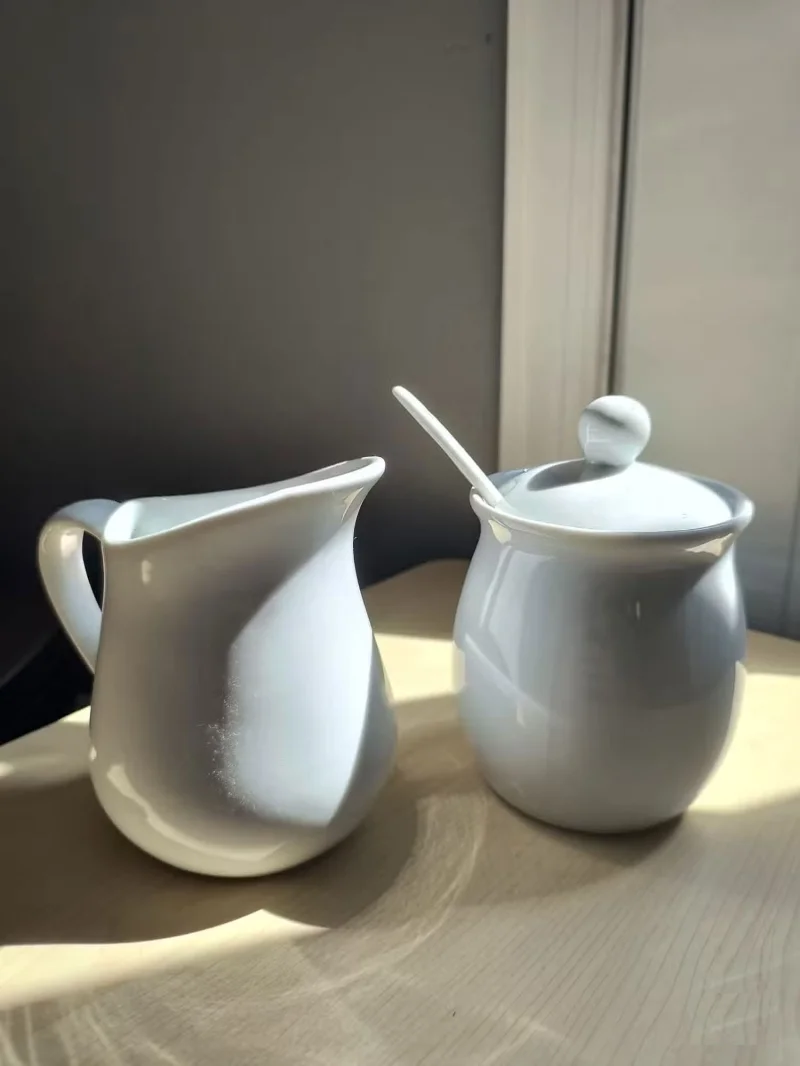
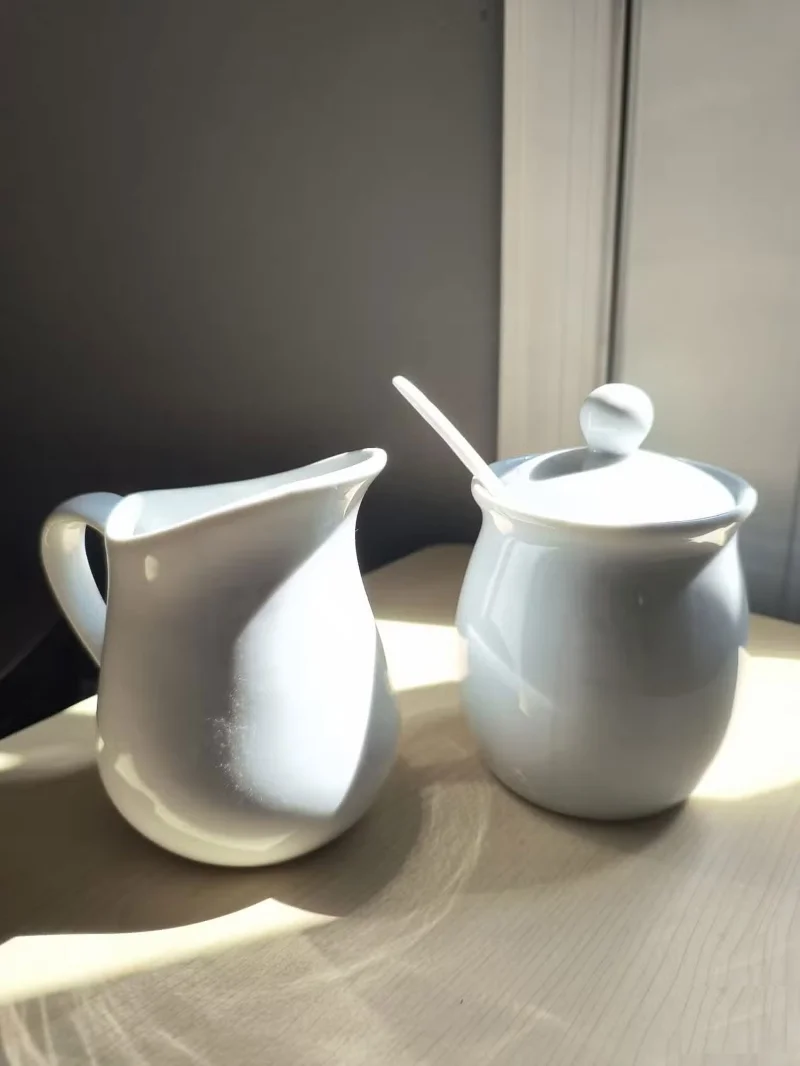
Next, I tested HDR on a set of white and cream porcelain set placed in direct sunlight indoors. With HDR, the reflections on the porcelain were more balanced, with controlled highlights and shadows. The image was softer, without any big blown out spots or overexposed areas. The HDR version was well-lit and captured every detail without any bright spots.
With HDR off, the reflections on the ceramics become a little more pronounced, with some of the highlights being slightly overexposed. The contrast between the shadows and highlights increases, giving the photo a more dramatic feel. The difference is small, but noticeable. Without HDR, the image looks more vibrant, with more light intensity, but at the cost of losing some fine detail in the reflections.
Overall, HDR makes the image look more controlled and polished, while turning HDR off adds a bit of harshness and contrast. Both versions work, but HDR gives a more balanced result.
3. Glare and shine under direct sunlight
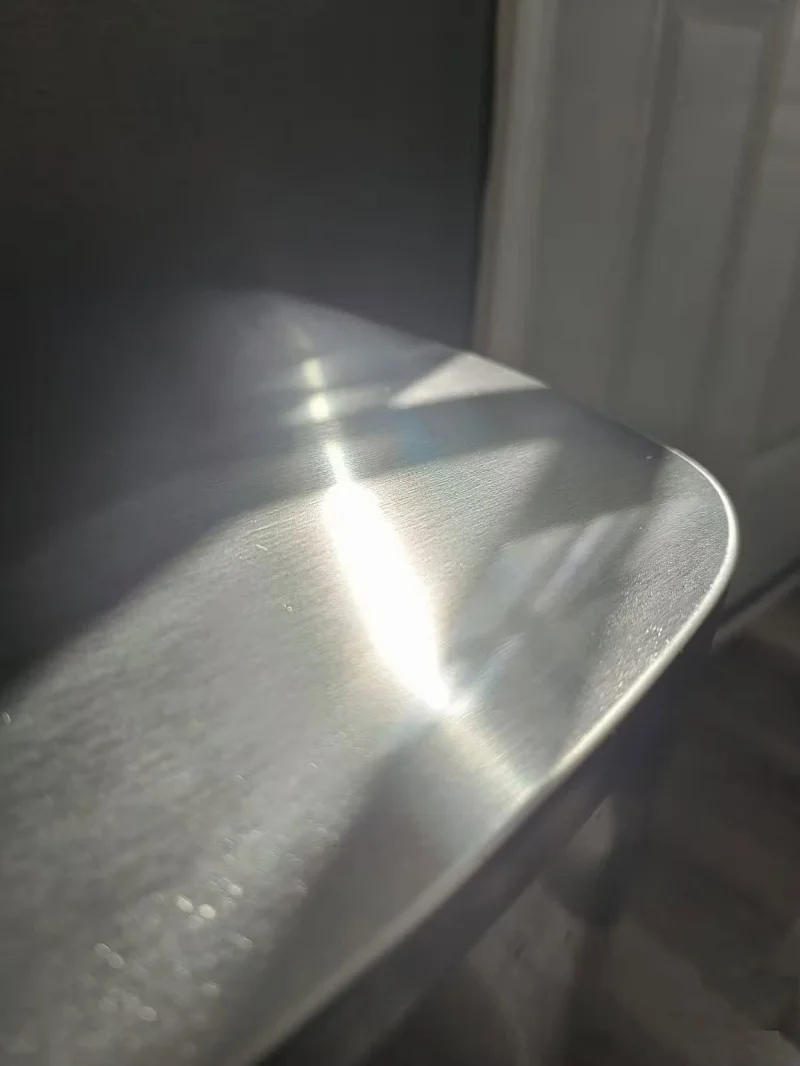
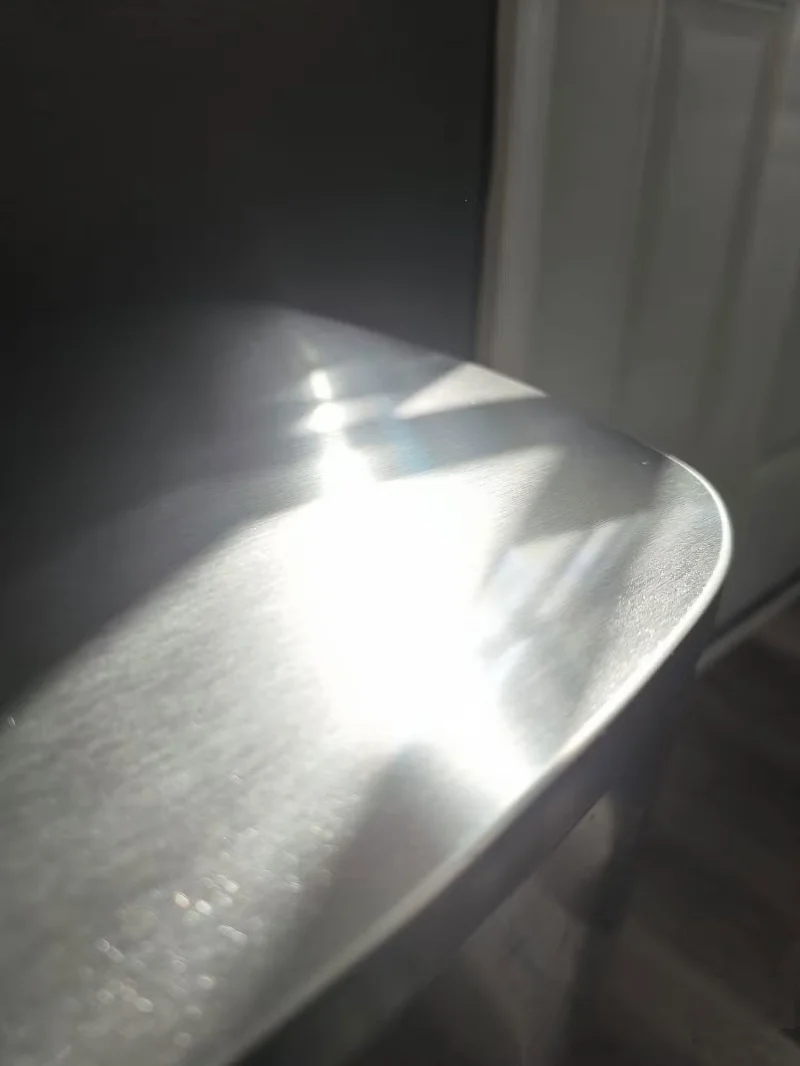
Similar to the previous test, the author decided to test HDR with a metal trash can reflecting direct sunlight into the camera lens. HDR handled the glare as well as possible, balancing the bright sunlight and the reflective surface of the trash can. This kept the image from being overexposed and the contrast between the sun and the trash can looked relatively natural.
Without HDR, glare becomes more pronounced, making reflections appear larger and more intense. Contrast is sharper and the image feels more dynamic. It’s a more realistic snapshot, with the sunlight having a chance to fully show through. HDR shots feel softer, while non-HDR photos feel true to how your eyes perceive the scene.
The difference between the two photos here is more noticeable than in any other side-by-side comparison. This combination of images best highlights HDR's tendency to prioritize balance over realism - resulting in a controlled image, but at the expense of some of the scene's coarseness.
2. Low light scenes with minimal contrast
HDR isn’t just for bright conditions, it can also help you take better photos in low-light environments. For this test, I set up the scene in a near-black room with only a small nightlight for illumination. I expected to see some clear benefits from HDR in this dark setting.
The photo focuses on the wooden frame and decorative wreath, illuminated only by the dim glow of a nightlight. Surprisingly, both the HDR and non-HDR photos look almost identical—there are no noticeable differences in brightness, clarity, or detail.
The lighting is so flat and minimal that HDR doesn’t do much. Both photos look dull and grainy, as you’d expect in low light. In this case, HDR doesn’t add anything noticeable, and turning HDR off has little effect on the final image.
1. Shadows in the bright sky
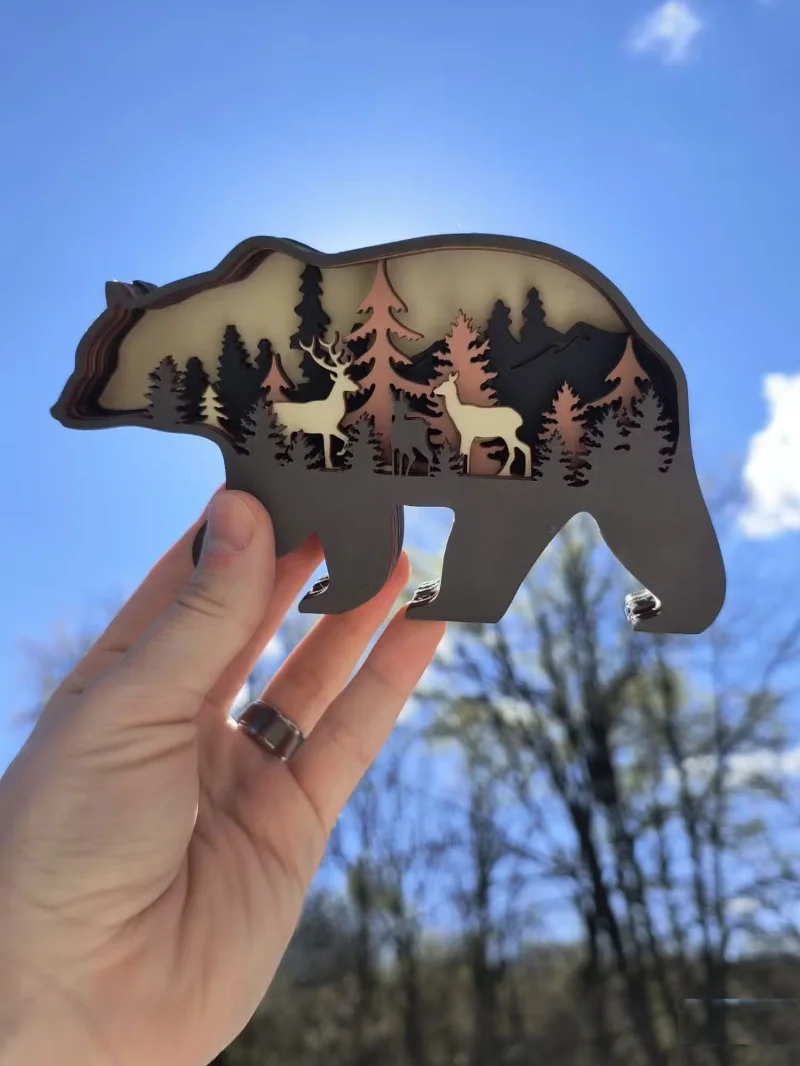
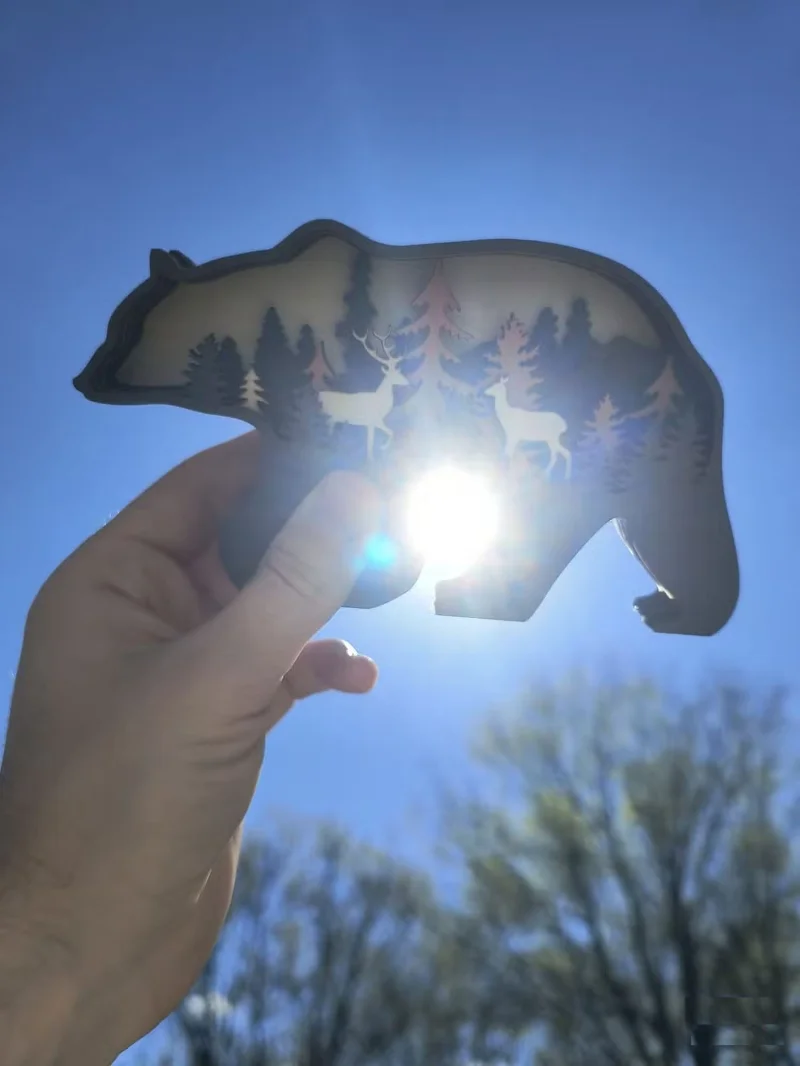
The author did some testing using a small bear ornament to see how HDR handled direct sunlight and high contrast in a simple setup. Does HDR preserve detail or does the glare overwhelm the scene?
Bear in front of the sun ornament
For comparison, hold a bear ornament up to the sun. With HDR turned on, the photo remains well-balanced. The ornament features are still visible, while the brightness of the sun doesn’t overwhelm the background of the image. The HDR version captures all the subtle details without making the shadows too dark or the highlights too bright.
With HDR off, the photo remains pretty much the same, with the bear’s decorative features still visible against the sun. Not much of a difference. While I expected the sun to burn out the photo more without HDR, that didn’t happen. The result is a scene that still feels as real as you see it; HDR doesn’t add much to the situation.
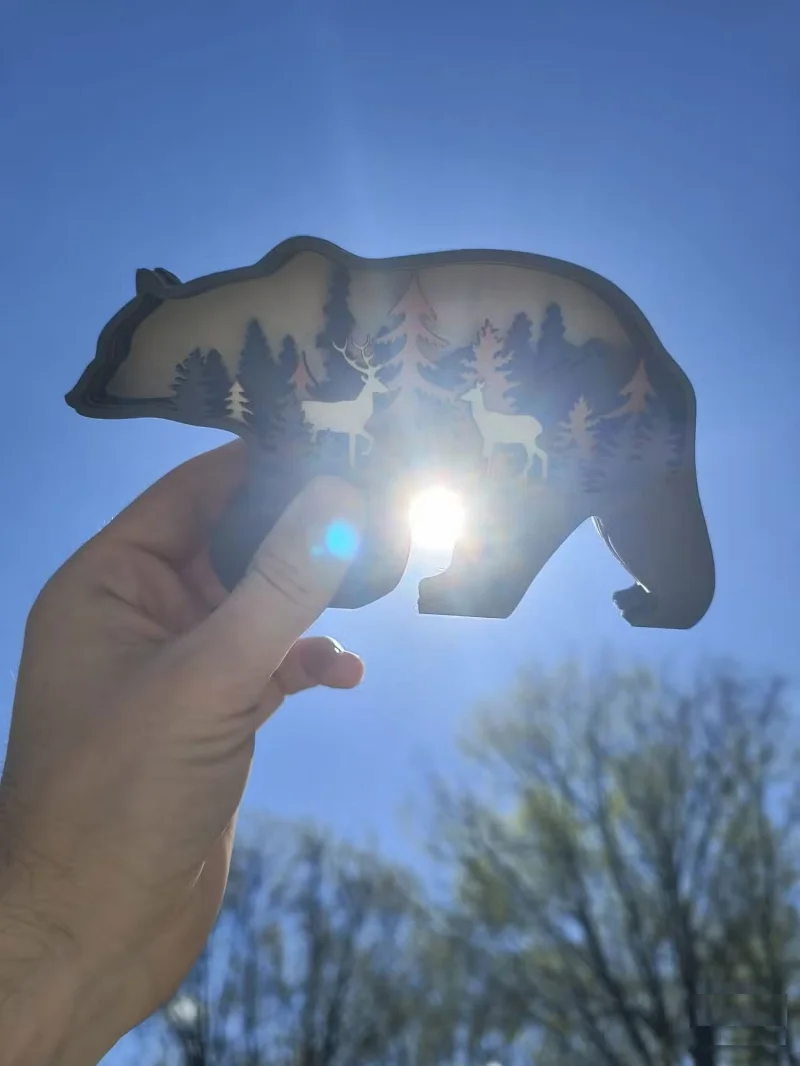
Sun through the bear's paw
Next, I adjusted the scene so that the sun peeked through the bear’s paws, creating a strong contrast between the subject and the foreground. In this case, HDR had a very small impact, ensuring that the sun wasn’t too bright but still allowed the bear’s details to be seen. However, with HDR turned off, the photo felt a little more realistic. The sun was slightly flared, mimicking the way you would see it with your own eyes at that moment.
The lack of HDR allows for a more realistic representation of the intensity of the sun, with a bit of flare and a softer overall look. While the HDR photo shows a bit more detail in the bear’s paw, the non-HDR photo looks more natural. Both photos are nearly identical, but the non-HDR photo is slightly better for its realism.
After experimenting with HDR in a variety of scenes, you may find that it doesn’t make much of a difference to your final results. While it can help balance out high-contrast scenes, it’s not always necessary and can sometimes look artificial. In situations where there’s no noticeable contrast in lighting, it doesn’t have a noticeable effect. Whether or not you should use HDR is a matter of personal preference, but it’s certainly not a requirement for taking great photos.