How to Delete Microsoft Edge History, Cache, and Cookies Completely

Feeling bogged down by old browsing data? Whether it's for privacy, speed, or a fresh start, knowing how to delete Microsoft Edge history, cache, and cookies completely is a game-changer. Microsoft Edge makes it simple in its latest version, and this guide walks you through every step with precision. You'll reclaim storage, boost performance, and surf worry-free. Let's dive in! ✅
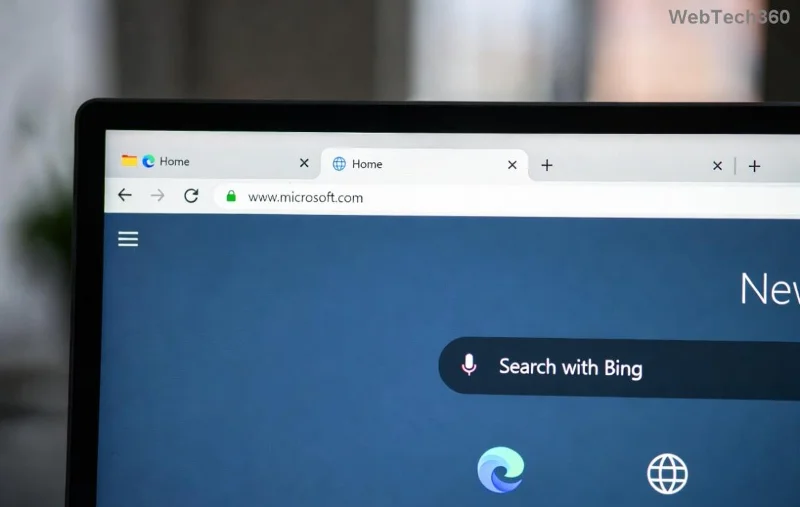
Microsoft Edge clear browsing data interface

Why Clear Microsoft Edge History, Cache, and Cookies?

Before we get to the steps, understand the benefits:

  • Privacy boost: Browsing history tracks every site; cookies store login info and trackers.
  • Faster browsing: Cache clogs up space, slowing Edge down.
  • Fewer errors: Outdated cache causes site glitches.
  • Space saver: Free up GBs on your device.

Ready? We'll cover manual methods, all-in-one clears, and pro tips.

Step-by-Step: How to Delete Microsoft Edge History

Erasing Microsoft Edge history removes visited sites, searches, and downloads. Here's how:

  1. 🔍 Open Microsoft Edge and click the three-dot menu (⋮) in the top-right.
  2. Hover over History > Select History (or press Ctrl + H).
  3. Click Clear browsing data on the left sidebar.
  4. Choose Time range: "All time" for complete deletion.
  5. ✅ Check Browsing history only (for now).
  6. Hit Clear now. Done!

Pro tip: Use Ctrl + Shift + Delete for instant access to the clear data screen. Your history vanishes in seconds.

How to Clear Cache in Microsoft Edge (Super Easy)

Cache stores images and files for quick loads but piles up fast. Clear it completely:

  1. Press Ctrl + Shift + Delete to open the Clear browsing data tool.
  2. Select All time.
  3. ✅ Tick Cached images and files.
  4. Click Clear now.

Edge will reload pages fresh next time—no more stale data! This alone can speed up your browser by 20-30%.

Step-by-step clear cache in Microsoft Edge

Delete Microsoft Edge Cookies Completely

Cookies track you across sites. Wipe them out:

  1. Open Clear browsing data (Ctrl + Shift + Delete).
  2. Pick All time.
  3. ✅ Select Cookies and other site data.
  4. Clear now.

⚠️ Note: You'll log out of sites. For selective deletion:

  1. Go to edge://settings/content/cookies.
  2. Under All cookies and site data, search and remove specific ones.

Clear Everything at Once: History, Cache, Cookies

The fastest way for a total reset:

Data Type Checkbox What It Clears
Browsing history Sites, searches, downloads
Cookies Logins, trackers
Cached images/files Temp web files
Passwords (optional) Saved logins

1️⃣ Ctrl + Shift + Delete > All time > Check all > Clear now. Boom—complete wipe! 🎉

Advanced: Use Developer Tools for Precision Clearing

For stubborn data:

  1. Right-click page > Inspect (or F12).
  2. Go to Application tab > Storage > Clear site data.
  3. Or Network tab to disable cache during sessions.

Want official details? Check Microsoft Edge Support.

Bonus Tips: Keep Your Edge Clean Long-Term

  • ⭐ Enable Clear browsing data on exit: Settings > Privacy > Choose what to clear.
  • Use InPrivate mode for sensitive browsing (Ctrl + Shift + N).
  • Extensions like "Click&Clean" automate clears.
  • Sync off: Settings > Profiles to avoid cloud history.

These habits ensure your data stays minimal. Feel the speed difference immediately!

FAQs: Quick Answers on Clearing Microsoft Edge Data

Does clearing cache delete bookmarks? No, only temp files.

How often to clear? Weekly for power users; monthly otherwise.

Mobile Edge? Same steps in Android/iOS app under Settings > Privacy.

Now your Edge is pristine! Followed these? Share your speed gains below. For more privacy hacks, stick around—next up: VPN tips for Edge. 🚀

Leave a Comment

How to Delete Microsoft Edge History, Cache, and Cookies Completely

How to Delete Microsoft Edge History, Cache, and Cookies Completely

Learn how to delete Microsoft Edge history, cache, and cookies completely with this step-by-step guide. Clear your browsing data fast and securely in the latest Edge version for ultimate privacy.

Solving Edge Browser Profile Error on Every Launch

Solving Edge Browser Profile Error on Every Launch

Tired of the frustrating Edge Browser "Profile Error" popping up every launch? Follow our step-by-step guide to solving Edge Browser "Profile Error" permanently with quick, reliable fixes for the latest versions. No tech skills needed!

Solving Microsoft Edge Precision Driver Compatibility

Solving Microsoft Edge Precision Driver Compatibility

Tired of Microsoft Edge Precision Driver compatibility glitches? Get step-by-step solutions to restore smooth performance, fix lag, and optimize your setup. Proven fixes for the latest Edge versions.

How to Customize the Microsoft Edge New Tab Page

How to Customize the Microsoft Edge New Tab Page

Discover step-by-step ways to customize the Microsoft Edge new tab page. Personalize shortcuts, backgrounds, content, and more for a tailored browsing experience. Boost productivity today!

How to Fix Microsoft Edge Youtube Error: Black Screen and Lag

How to Fix Microsoft Edge Youtube Error: Black Screen and Lag

Struggling with Microsoft Edge YouTube error like black screen and lag? Discover step-by-step fixes for smooth playback. Clear cache, toggle hardware acceleration, and more – ultimate guide to resolve black screen and lag issues fast.

How to Completely Uninstall Microsoft Edge from Windows 11 in 2026

How to Completely Uninstall Microsoft Edge from Windows 11 in 2026

Master how to completely uninstall Microsoft Edge from Windows 11 in 2026. Step-by-step, no-trace removal for gamers seeking max performance. Say goodbye to bloatware!

How to Reset Microsoft Edge to Default Settings in 2026

How to Reset Microsoft Edge to Default Settings in 2026

Discover how to reset Microsoft Edge to default settings in 2026 effortlessly. Fix crashes, slowdowns, and pop-ups with proven step-by-step methods for a fresh, blazing-fast browser.

Troubleshooting Microsoft Edge Certificate Not Trusted Warnings

Troubleshooting Microsoft Edge Certificate Not Trusted Warnings

Tired of Microsoft Edge "Certificate Not Trusted" warnings blocking your browsing? Discover proven troubleshooting Microsoft Edge "Certificate Not Trusted" warnings steps to resolve SSL errors securely and regain smooth access. Works on latest Edge versions.

Removing Your Microsoft Edge Profile and Personal Data Safely

Removing Your Microsoft Edge Profile and Personal Data Safely

Discover how to safely remove your Microsoft Edge profile and personal data without risks. Our expert guide ensures a clean slate while protecting your important info – perfect for privacy pros!

How to Change Microsoft Edge Home Page and Startup Settings

How to Change Microsoft Edge Home Page and Startup Settings

Discover simple, step-by-step instructions on how to change Microsoft Edge home page and startup settings. Customize your browser for a faster, personalized experience today!

Troubleshooting Microsoft Edge Update Errors on Windows 11

Troubleshooting Microsoft Edge Update Errors on Windows 11

Tired of Microsoft Edge update errors crashing your Windows 11 browsing? This ultimate guide delivers proven, step-by-step fixes for common issues like 0x80070005, stuck updates, and more. Update Edge effortlessly today!

How to Fix This Site is Not Secure Error in Edge Browser

How to Fix This Site is Not Secure Error in Edge Browser

Struggling with "This Site is Not Secure" error in Edge? Discover step-by-step fixes to restore secure browsing instantly. Clear cache, update certs, and more—no tech skills needed!

How to Fix Microsoft Edge 404 Not Found Browser Error

How to Fix Microsoft Edge 404 Not Found Browser Error

Tired of the frustrating Microsoft Edge "404 Not Found" error? Discover quick, proven fixes to resolve 404 errors in Edge browser. Step-by-step guide with latest tips for smooth browsing.

How to Fix Microsoft Edge Out of Memory Error During Streaming

How to Fix Microsoft Edge Out of Memory Error During Streaming

Tired of Microsoft Edge "Out of Memory" error crashing your streaming sessions? Get step-by-step fixes to resolve it fast, boost performance, and stream smoothly without interruptions. Updated with the latest tips.

Troubleshooting Microsoft Edge Cortana and Copilot AI

Troubleshooting Microsoft Edge Cortana and Copilot AI

Struggling with Troubleshooting Microsoft Edge "Cortana and Copilot" AI? Get proven fixes for crashes, unresponsiveness, and errors in the latest Edge versions. Restore your AI assistant effortlessly!








