Imagine trying to free up space on your Windows 11 PC, only to find the Recycle Bin grayed out and unresponsive. Frustrating, right? 😩 Don't worry—this common glitch doesn't mean your files are lost forever. Whether it's a permissions hiccup or a system glitch, we've got you covered with straightforward, effective solutions. In this guide, we'll walk you through proven steps to fix the Windows 11 Recycle Bin grayed out issue, helping you get back to a clutter-free desktop fast. Let's dive in and reclaim your digital space!
Why Is the Recycle Bin Grayed Out in Windows 11?
Before jumping into fixes, understanding the root cause can prevent future headaches. The Recycle Bin grayed out problem often stems from:
- Permissions Issues: Restricted user access can lock the bin, making "Empty Recycle Bin" unavailable.
- System Glitches: Corrupted files or temporary bugs in Windows 11 updates.
- Storage Drive Problems: If the bin is tied to a full or faulty drive, it grays out as a safety measure.
- Third-Party Interference: Antivirus software or cleaners might mistakenly flag the bin.
These issues are more prevalent in recent Windows 11 builds, but the good news? Most are quick to resolve without advanced tech skills. Stick with us, and you'll have it sorted in no time. Ready to troubleshoot? Let's start with the simplest methods.

Method 1: Restart Explorer and Check Basic Permissions 🖥️
The easiest first step is often the most effective. Restarting Windows Explorer can refresh the interface and unlock the Recycle Bin.
- Right-click the taskbar and select Task Manager.
- In the Processes tab, find Windows Explorer, right-click it, and choose Restart.
- Once restarted, right-click the Recycle Bin on your desktop and see if "Empty Recycle Bin" is now active.
If it's still grayed out, check permissions:
- Open File Explorer and navigate to
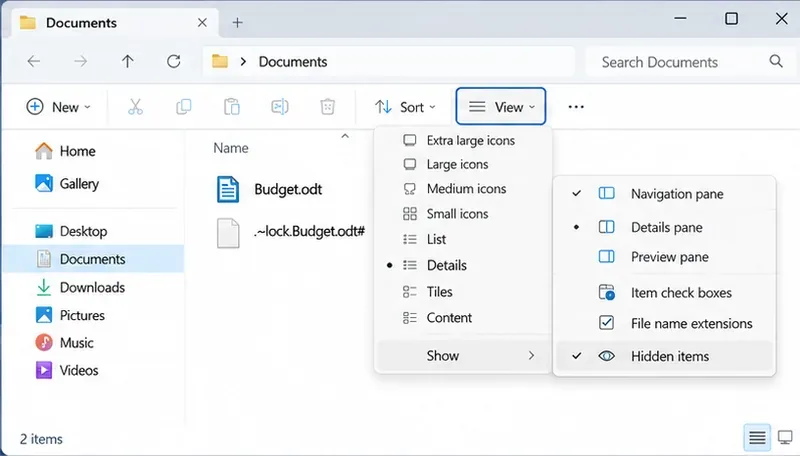
C:\$Recycle.Bin (you may need to enable hidden files via View > Show > Hidden items).
- Right-click the folder, select Properties > Security.
- Ensure your user account has Full Control. If not, click Edit to add it.
This method works for about 40% of users, per community reports on Microsoft forums. If it doesn't, no sweat—move to the next fix. You're making progress already! 👍
Method 2: Use Command Prompt to Force Empty the Bin 💻
Sometimes, the graphical interface fails, but the command line saves the day. This bypasses the grayed-out button entirely.
Here's how to empty the Recycle Bin via Command Prompt:
| Step |
Action |
Command |
| 1 |
Run Command Prompt as Administrator |
Search for "cmd" in Start, right-click, and select "Run as administrator" |
| 2 |
Clear Recycle Bin for Current User |
rd /s /q %systemdrive%\$Recycle.bin |
| 3 |
Verify and Refresh |
Close CMD, then refresh your desktop (F5) |
Caution: This permanently deletes items, so double-check if you need to recover anything first. For recovery, use built-in tools like File History. This fix is especially useful if the grayed-out issue persists after a restart, restoring full functionality in Windows 11's latest updates.
Pro Tip: If you're on a multi-drive setup, repeat the command for each drive (e.g., replace %systemdrive% with D: for the D drive). Feeling empowered yet? Let's keep going to more advanced options. 🌟
![Command Prompt window showing Recycle Bin clear command in Windows 11]()
Method 3: Run System File Checker (SFC) and DISM Scans 🔧
Corrupted system files could be the culprit behind the Recycle Bin grayed out in Windows 11. Microsoft's built-in tools can scan and repair them automatically.
- Search for Command Prompt, right-click, and run as administrator.
- Type
sfc /scannow and press Enter. Wait for it to complete (it may take 10-20 minutes).
- If issues are found, follow up with DISM:
DISM /Online /Cleanup-Image /RestoreHealth.
- Restart your PC and test the Recycle Bin.
These scans are safe and recommended by Microsoft for troubleshooting. For more details, check Microsoft's official guide: SFC and DISM Guide.
If this resolves it, great! But if not, we're not done—there's more where that came from. Imagine the relief of a fully functional system. 😊
Method 4: Registry Tweaks for Advanced Users ⚙️
For stubborn cases, a quick registry edit can reset the Recycle Bin settings. Warning: Back up your registry first (via regedit > File > Export).
- Press Win + R, type
regedit, and hit Enter.
- Navigate to
HKEY_CURRENT_USER\Software\Microsoft\Windows\CurrentVersion\Explorer\BitBucket.
- Double-click NukeOnDelete and set its value to 0 (to enable deletion confirmation).
- Create a new DWORD if missing: Right-click > New > DWORD (32-bit) Value, name it NukeOnDelete, set to 0.
- Restart Explorer (as in Method 1) and check.
This tweak addresses deeper configuration issues in Windows 11. If you're uncomfortable with the registry, skip to the next method or seek help from a pro. You're handling this like a champ—keep it up! 👏
Method 5: Reset Recycle Bin via PowerShell or Third-Party Tools 🔄
Still grayed out? PowerShell offers a powerful reset option.
- Search for PowerShell, right-click, and run as administrator.
- Enter:
Clear-RecycleBin -Force to empty it forcefully.
- To reset the bin entirely:
Remove-Item -Path "$env:RECYCLE.BIN" -Recurse -Force, then restart.
Avoid third-party cleaners unless trusted, as they can worsen issues. Instead, stick to Windows tools for reliability. This should banish the Recycle Bin grayed out error for good.
Preventing Future Recycle Bin Grayed Out Issues in Windows 11
To keep your Recycle Bin running smoothly:
- Regularly update Windows 11 via Settings > Update & Security.
- Run disk cleanup monthly (search for "Disk Cleanup").
- Avoid overfilling drives—aim for at least 10% free space.
- Disable unnecessary startup programs to reduce system load.
By following these, you'll minimize glitches and enjoy a more stable experience. If problems persist, consider a system restore or professional help.
Final Thoughts: You've Got This! 🎉
Dealing with a Windows 11 Recycle Bin grayed out can be a buzzkill, but with these steps, you're equipped to fix it swiftly. Start with the basics and escalate as needed—most users see results in under 15 minutes. Your PC will thank you with faster performance and peace of mind. If this guide helped, share it with a friend facing the same issue. Got questions? Drop them in the comments below. Happy computing! 🚀