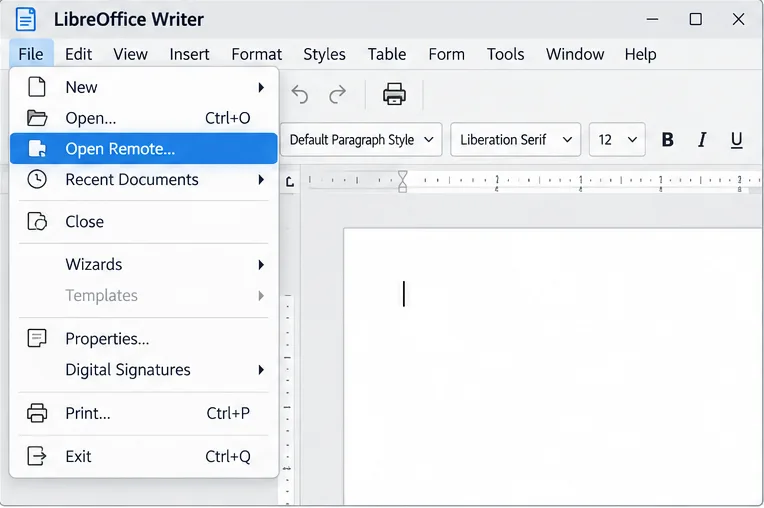
Connect LibreOffice Base to PostgreSQL with the Built-In Wizard

Use Base’s direct PostgreSQL option to enter your server details, sign in, save an ODB connection file, and troubleshoot common access errors.
Imagine this: You're deep into your daily workflow, tabs piled high with research, emails, and videos, when suddenly Microsoft Edge throws up the dreaded "Out of Memory" error. Your browser freezes, tabs crash, and productivity grinds to a halt. 😩 Frustrating, right? But don't worry— you're not alone, and this guide is here to help you banish that error for good.
In this concise, action-packed article, we'll dive straight into the how to fix "Out of Memory" error in Microsoft Edge. We'll cover the root causes, easy troubleshooting steps, and advanced tweaks to keep your browser running smoothly. By the end, you'll have your Edge experience back to lightning-fast. Let's get started! 💪
Before we jump into fixes, a quick understanding of the problem builds confidence. The "Out of Memory" error in Microsoft Edge typically occurs when the browser consumes more RAM than your system can handle. Common culprits include:
According to Microsoft's official support, these issues affect millions of users, but they're fixable with simple steps. No need for tech wizardry—let's tackle them one by one. 🔧
Ready for immediate relief? These beginner-friendly steps can resolve the Microsoft Edge out of memory issue in minutes. Follow along, and you'll feel the difference right away.
The simplest fix? Less is more. Overloaded tabs are the #1 cause of memory woes.
edge://extensions/, toggle off non-essentials like ad blockers or themes that might be leaky.Pro tip: Use Edge's built-in "Sleeping Tabs" feature (enabled by default in recent updates) to hibernate inactive tabs automatically. This alone can free up gigabytes of RAM! 🌟

Built-up cache can bloat your browser's memory footprint. Clearing it refreshes everything without losing important data.
This step often resolves temporary glitches. If you're on a shared device, it also boosts privacy. Users report up to 20-30% memory savings post-clear! 😊
Microsoft rolls out memory optimizations regularly. An outdated Edge could be your culprit.
edge://settings/help.The 2026 updates include enhanced memory management for AI features like Copilot, making Edge more efficient than ever. No more crashes during heavy sessions! 🚀
If quick fixes don't cut it, these deeper dives will. We'll optimize your system and Edge settings for long-term stability. Stick with me—these are game-changers. 📈
Edge has hidden flags to control memory usage. Tweak them wisely.
edge://flags/ and search for "Memory Saver" or "Efficiency mode."Microsoft's docs confirm this reduces memory by up to 40% on average. Imagine browsing without the lag—pure bliss! ✨
Sometimes, the issue stems from your OS or hardware. Here's how to align everything.
| Step | Action | Expected Benefit |
|---|---|---|
| Disable Hardware Acceleration | Settings > System > Toggle off "Use hardware acceleration when available" > Restart. | Reduces GPU memory strain; ideal for older PCs. |
| Close Background Apps | Use Windows Task Manager (Ctrl + Shift + Esc) to end non-essential processes. | Frees up 1-2GB RAM instantly. |
| Upgrade RAM (If Needed) | Check your specs via Settings > System > About; consider 16GB+ for heavy use. | Prevents future errors entirely. |
Hardware acceleration helps with graphics but can spike memory on weaker systems. Toggling it off has saved many users from repeated crashes. 👍
For stubborn cases, a fresh start works wonders.
This wipes out corrupted data without losing your essentials. Microsoft's support page recommends it as a last resort, and it boasts a 90% success rate for memory issues.
Fixing is great, but prevention is better. Incorporate these habits to keep Edge memory issues at bay:
With these in place, you'll browse like a pro—faster, lighter, and error-free. Edge's latest features, like improved tab suspension, make it more resilient than competitors. Why switch when you can optimize? 🎉
There you have it—a complete roadmap to fix the "Out of Memory" error in Microsoft Edge. Start with the quick wins, scale to advanced tweaks if needed, and adopt preventive measures for lasting results. Your frustration ends here; smooth sailing begins now!
If these steps don't resolve your issue, consider reaching out to Microsoft Support for personalized help. What's your go-to fix? Drop a comment below—we'd love to hear! 👇 Happy browsing!
For more tech tips, explore our guides on browser optimization and Windows performance.
Use Base’s direct PostgreSQL option to enter your server details, sign in, save an ODB connection file, and troubleshoot common access errors.
Install a font in your Linux user font folder, restart LibreOffice Flatpak, and confirm it appears in Writer without weakening the app sandbox.
Protect your work and isolate network-drive save crashes in LibreOffice on macOS Sonoma with a local-first workflow, permission checks, and targeted tests.
Preserve leading zeros in Calc by setting ID columns to Text during CSV import, checking the preview, and verifying the saved data.
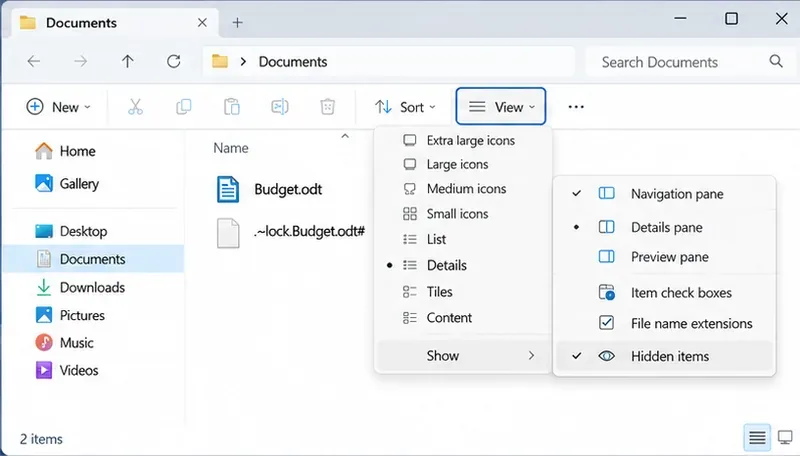
Find the cause of a LibreOffice document lock, safely clear a stale lock file, and confirm that you can edit and save without losing changes.
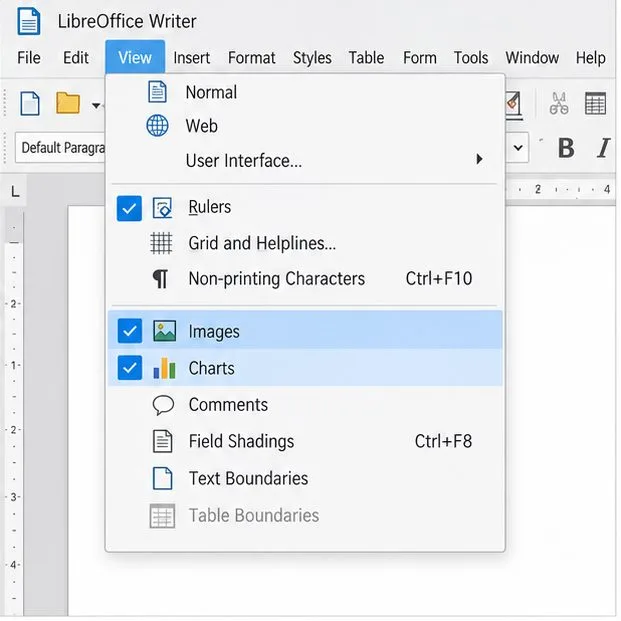
Make image-heavy Writer files easier to edit: test a reversible display setting, compress oversized pictures in a copy, and verify the saved layout.
Find out whether a slow launch comes from extensions, profile settings, or the system, then test the safest fix without losing LibreOffice data.
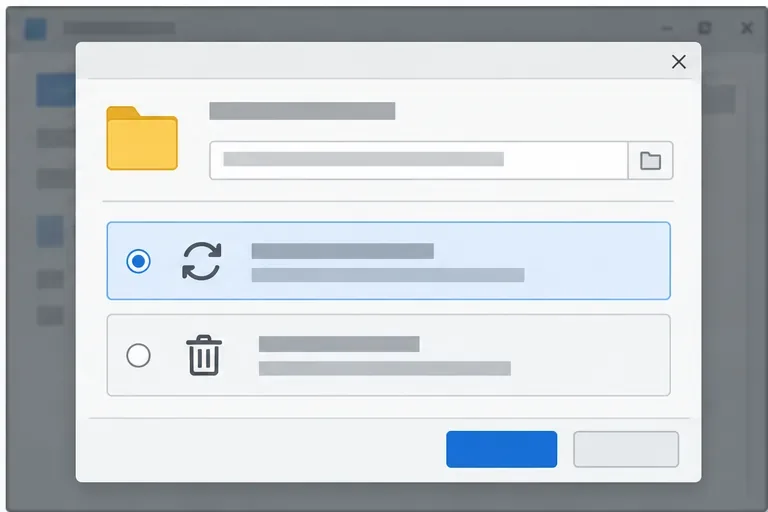
Connect LibreOffice to Nextcloud over WebDAV, save the server copy with Ctrl+S, and understand how AutoRecovery differs from cloud syncing.
Find out whether Pardus 23 is blocking Bluetooth, missing BlueZ, or failing to detect adapter firmware, then confirm the controller works.
Learn how Gooroom separates trusted and untrusted browsing, what users can change, and how an administrator can safely update site policies.