Set Gooroom Browser Isolation Through Your Organization’s Policy

Learn how Gooroom separates trusted and untrusted browsing, what users can change, and how an administrator can safely update site policies.
An internal portal opening in the wrong Gooroom browser, or an external site being blocked, usually points to a browser trust policy rather than a normal browsing preference. Gooroom’s browser protection routes sites through trusted or untrusted browser processes. In Hancom Gooroom deployments, the vendor describes GPMS as a central settings-management platform and says Gooroom Browser applies different policies by destination; see the Hancom Gooroom product page. Ordinary users may need an administrator to change a site’s classification. As of October 9, 2026, the public vendor material does not show a current click-by-click GPMS menu path, so use the manual for your specific deployment instead of guessing.
Gooroom Browser is a Chromium-based browser with separate trusted and untrusted browsing processes and policies that can differ by destination. The distinction is part of the Gooroom security design; it is not the same as choosing a privacy mode or changing a site permission such as camera access. Hancom describes this browser protection as applying policies based on access destination, including different handling for trusted and untrusted browsing. Its product page also describes GPMS as a way to manage device settings centrally.
“Gooroom OS” can refer to different editions or deployments. Hancom Gooroom and an organization’s upstream Gooroom-based image may not expose the same management tools or menus. The public product information confirms the policy model, but does not publish the current GPMS navigation, policy field names, or a universal end-user toggle. The steps below therefore focus on a safe configuration workflow rather than invented button names.
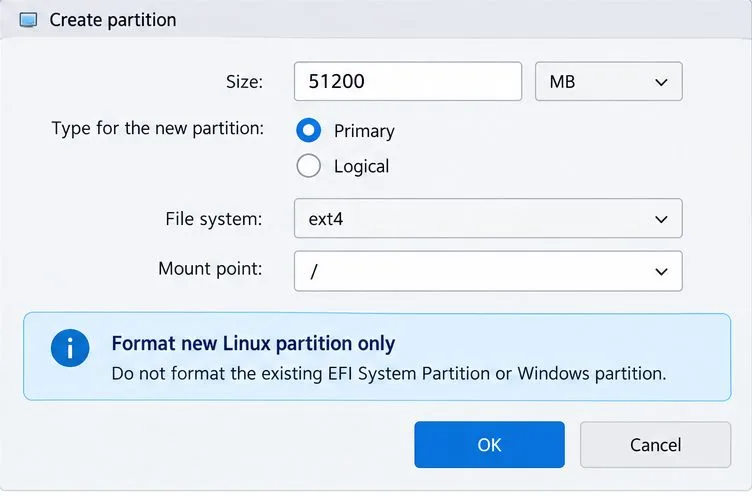
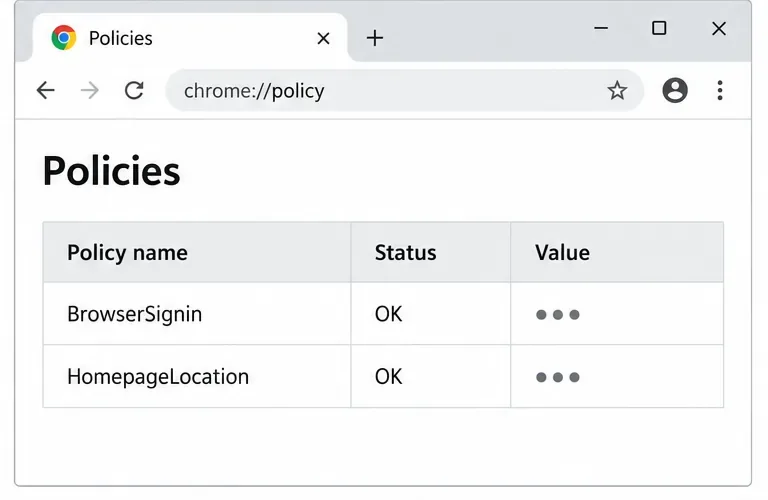
The four interface panels below are explanatory illustrations, not screenshots from a specific Gooroom release. The sample site classifications are not defaults for your organization.
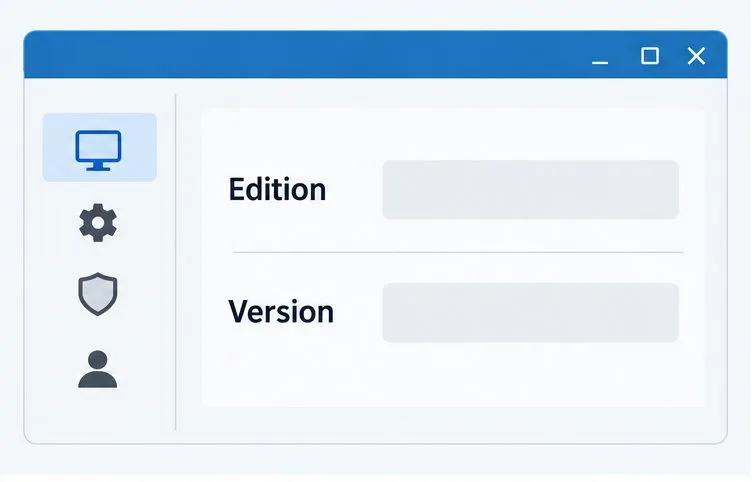
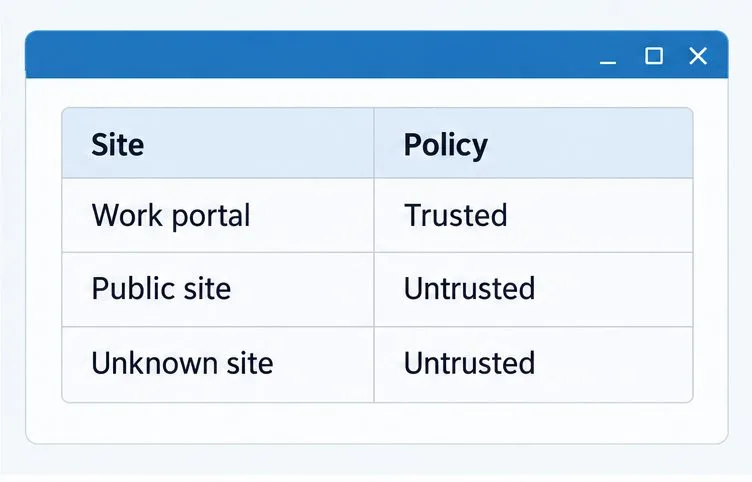
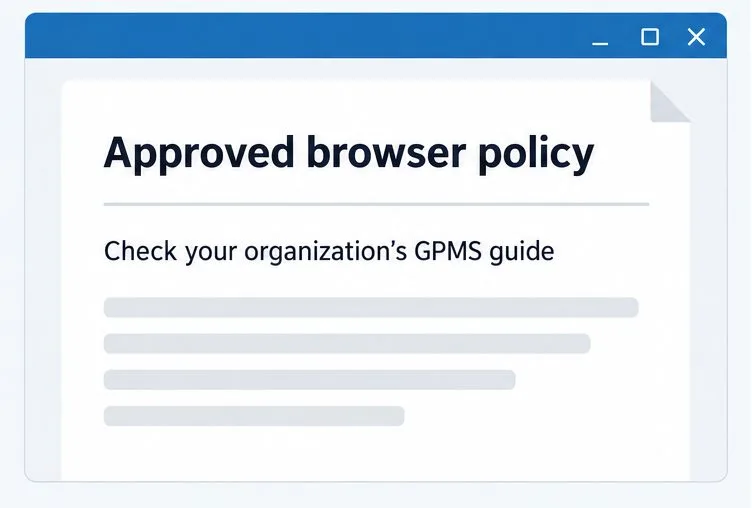
First identify the installed edition and release, and whether the computer is organization-managed. Record this information from the system’s About or system-information view if available. If GPMS is not present or you do not have an administrator role, ask the device administrator to confirm the supported policy route. Do not try to edit browser policy files or Chromium flags as a substitute; those changes may not control Gooroom’s separate browser protection and could conflict with the managed policy.
Prepare a short list of sites that need different handling. Include each service’s hostname and the business reason it needs to be trusted. A sign-in flow may redirect across several organization-controlled hostnames, so ask the service owner which destinations are required. Do not classify an entire public domain as trusted just because one page is needed.
Capture the exact address after redirects, the window or browser that opened, the device edition and release, and the time of the test. Give those details to the policy administrator so they can check the assigned rule and whether it reached the device. A missing redirect host or a rule applied to the wrong device group can explain a mismatch, but the administrator should verify that against the deployment’s policy records.
If the site is blocked, do not add it to the trusted list just to get past the block. First confirm with the service owner that the address is legitimate and required, then ask the security administrator to choose the narrowest approved exception. If the expected browser indicator or management status is not visible, use the verification method in your Gooroom release’s documentation; the public sources do not define one universal status page.
Ask the administrator to confirm that the new rule is assigned to the correct device or user group. Then verify that the approved work site opens in the trusted browser process and the untrusted test destination remains in the untrusted process, using the indicators documented for your deployment. If either destination is handled differently, report the final URL and stop expanding the trusted list until the rule has been checked.
Learn how Gooroom separates trusted and untrusted browsing, what users can change, and how an administrator can safely update site policies.
Diagnose rotated, offset, or inconsistent touch input on a Harmonica OS tablet and choose a Linux calibration method that fits its session and driver.
Switch Gooroom’s desktop session to English, verify the locale, and identify when untranslated Korean labels need an app update instead.
Arrange Pardus XFCE as a familiar bottom taskbar with an app menu, pinned launchers, open-window buttons, and a system tray.
Check your Gooroom release and administrator rules, then follow the official Debian-based setup path for Flatpak or Snap without bypassing system controls.
Learn what Pardus Image Writer can do, how to prepare installation USB safely, and which tools fit custom live images or repeatable fleet deployments.
Install Pardus alongside Windows 11 by shrinking the Windows volume, using unallocated space, and preserving the existing EFI System Partition.
Identify the RTL8821CE, install Pardus-supported Realtek firmware, and verify the driver, Wi-Fi scan, and next troubleshooting step.
Use Pardus’s hardware-aware installer to enable the right NVIDIA driver, reboot safely, and verify the active kernel module.
Install the official Chrome package safely on Gooroom OS, check compatibility, preserve device controls, and verify browser policies before use.