Dual Boot Pardus and Windows 11 Without Reformatting Windows
Install Pardus alongside Windows 11 by shrinking the Windows volume, using unallocated space, and preserving the existing EFI System Partition.
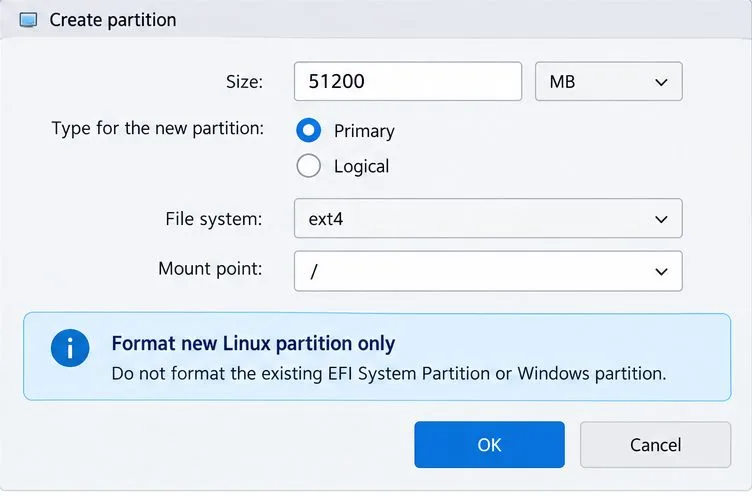
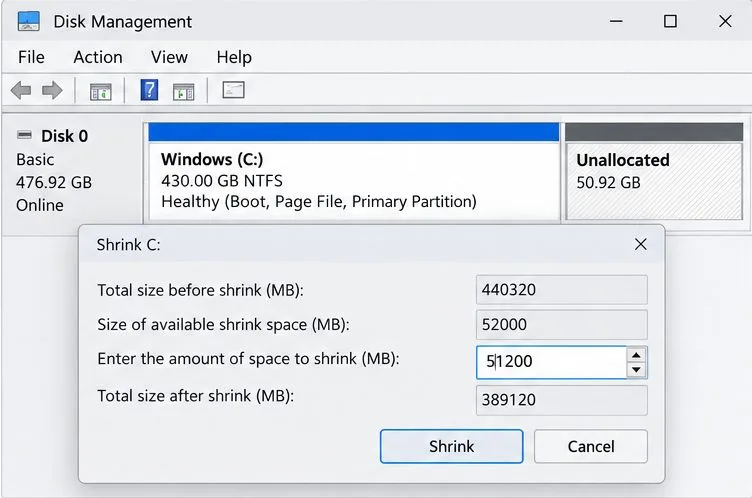
Yes. The safest route is to shrink the Windows partition in Windows Disk Management, then install Pardus into the resulting unallocated space using the same UEFI boot mode as Windows. In Pardus manual partitioning, format only the new Linux partition as ext4 and mount the existing EFI System Partition at /boot/efi without formatting it. Back up important files and save your BitLocker recovery key before changing the boot setup.
A dual boot keeps Windows and Pardus on one computer and lets you choose which operating system starts. UEFI (Unified Extensible Firmware Interface) is the modern firmware boot method; Windows Boot Manager and GRUB (the Linux boot menu) are entries it can launch. Keep both systems in UEFI mode. Do not switch the computer to Legacy or CSM mode during this process.
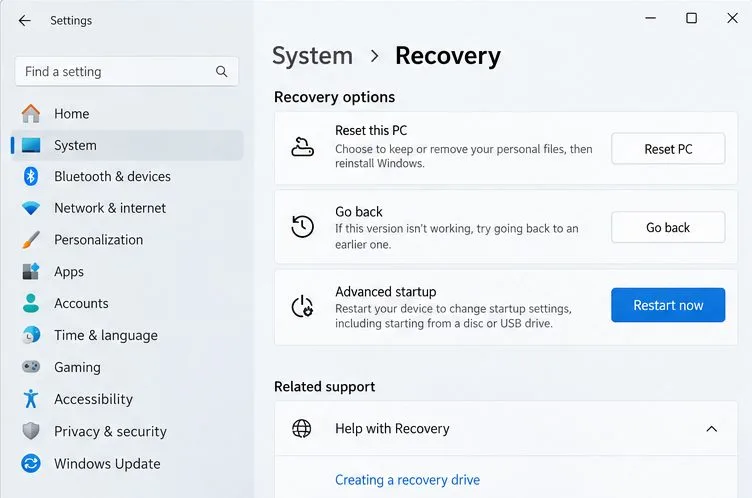
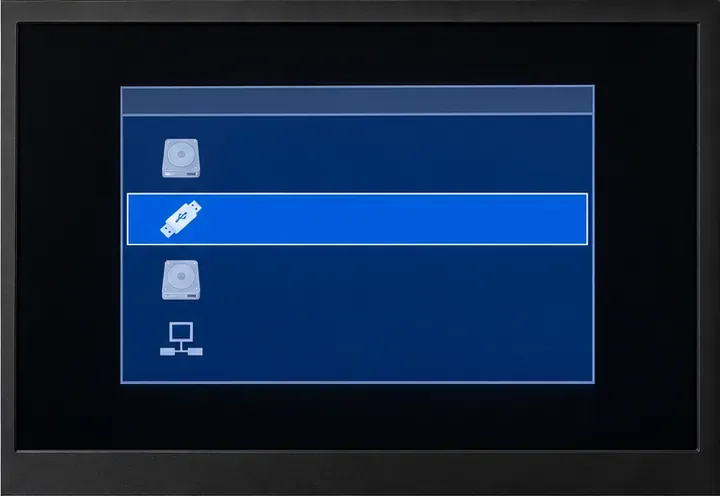
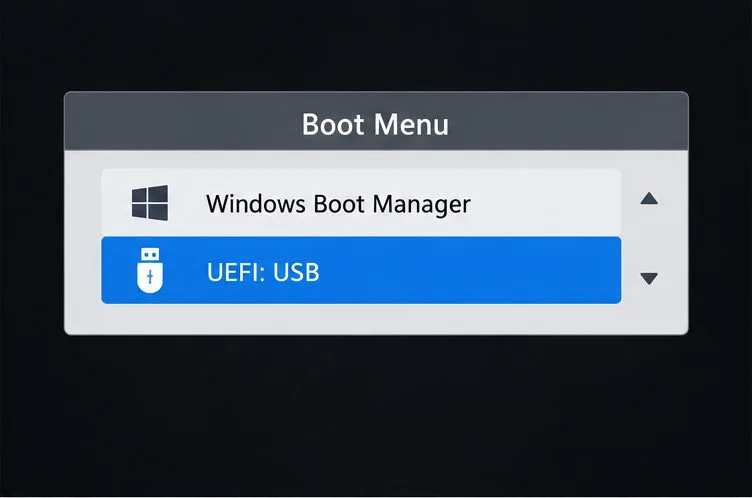
Restart Windows and open the computer’s one-time boot menu. The key varies by manufacturer, so check the PC manual or startup screen. You can also hold Shift while choosing Restart in Windows, then select the option to boot from a device; Pardus documents this route in its official dual-boot instructions. Select the USB entry marked UEFI when the menu offers both UEFI and a plain USB entry. Booting in the same mode as Windows helps the installer use the existing EFI System Partition.
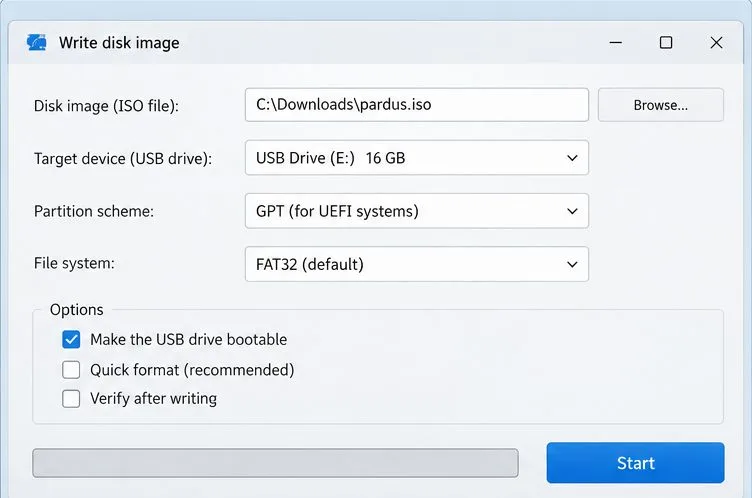
/, the root of the Pardus file system. Mark this new partition to be formatted. You usually do not need a separate swap partition for a basic desktop installation; follow the current installer’s defaults unless you have a specific layout requirement./boot/efi if the installer asks. Do not format it or delete its files: Windows uses this partition to start. Do not assign / to the EFI partition.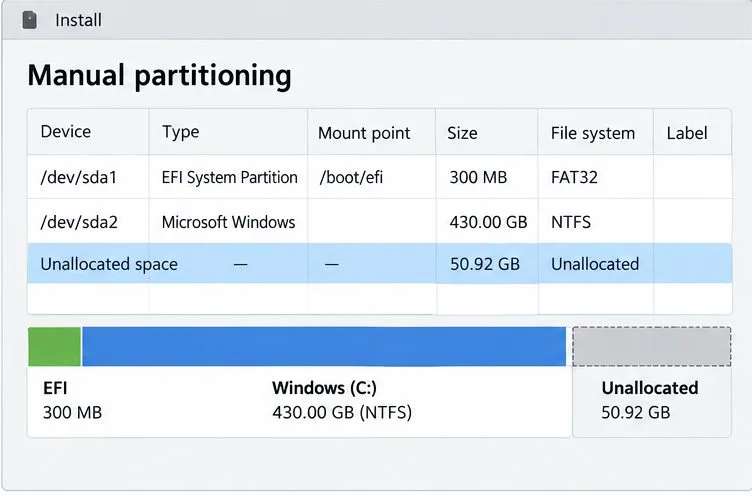
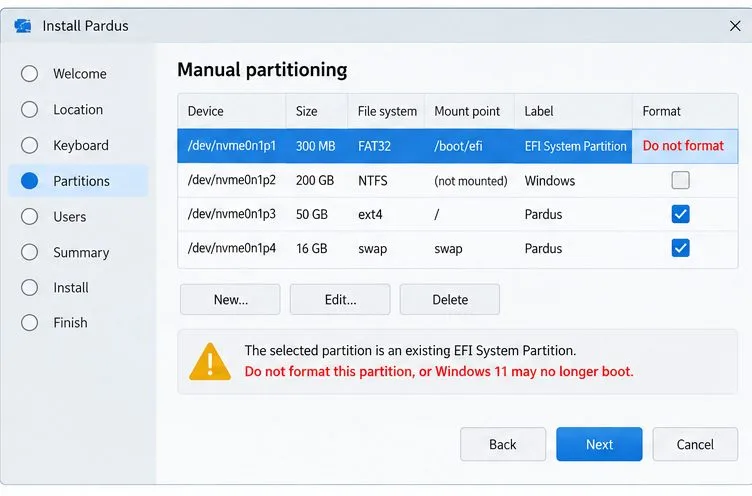
Review the installer’s final summary before confirming. It should show the new Linux partition as the one to format and should preserve the Windows and EFI partitions. If the summary proposes formatting or deleting the Windows partition, EFI System Partition, or a recovery partition, go back and correct the layout. If you cannot confidently identify the partitions, stop and ask for help with the disk layout rather than guessing.
Complete the installation, remove the USB when prompted, and restart. GRUB should offer Pardus and, on many installations, Windows Boot Manager. Use the arrow keys to select each operating system and test both at least once. Pardus’s instructions describe this menu and note that the computer may start Pardus automatically after a short timeout.
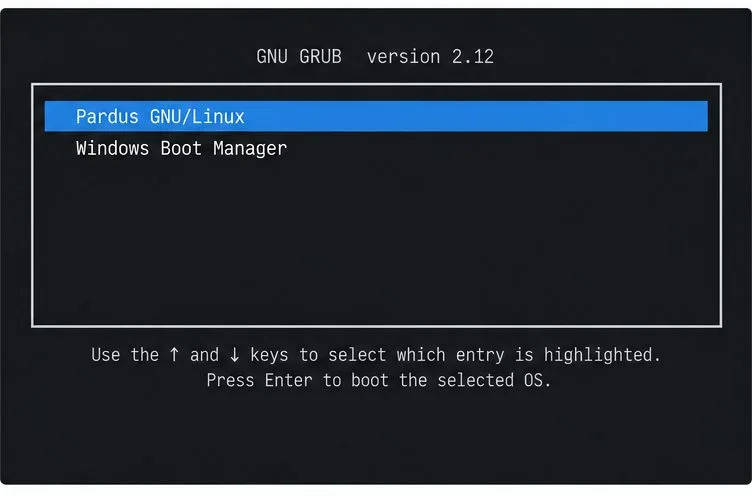
If Windows is missing from GRUB, do not reinstall Windows or format the EFI partition. First try selecting Windows Boot Manager directly from the firmware’s one-time boot menu. If it starts, Windows remains available and the issue is the boot-menu entry or configuration; consult Pardus support for the current release before changing GRUB settings. If neither operating system starts, use the saved BitLocker recovery key if prompted and seek device-specific recovery guidance.
The dual boot is working when the computer starts to a menu or firmware boot list from which you can launch Pardus and Windows, and both operating systems reach their normal sign-in screens. After confirming Windows starts, resume BitLocker protection if you suspended it. Keep the recovery key available for future firmware or boot changes. Installer wording and partition layouts can vary by Pardus edition and device; the partition roles and the instruction never to format Windows or the existing EFI partition remain the key checks.
Install Pardus alongside Windows 11 by shrinking the Windows volume, using unallocated space, and preserving the existing EFI System Partition.
Identify the RTL8821CE, install Pardus-supported Realtek firmware, and verify the driver, Wi-Fi scan, and next troubleshooting step.
Use Pardus’s hardware-aware installer to enable the right NVIDIA driver, reboot safely, and verify the active kernel module.
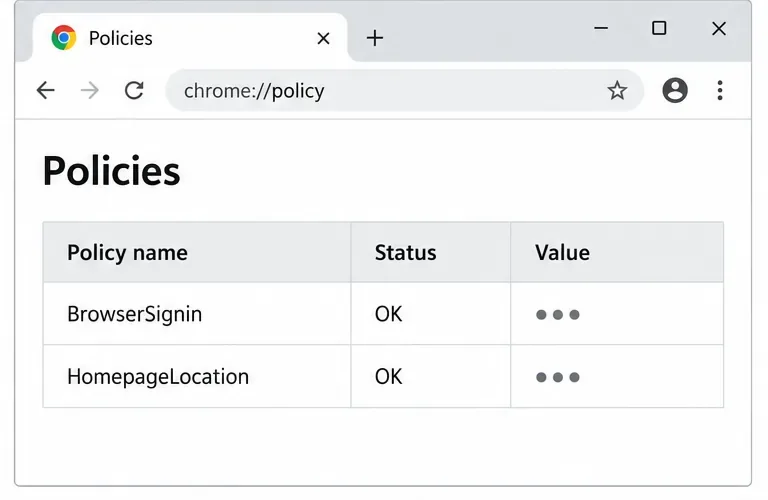
Install the official Chrome package safely on Gooroom OS, check compatibility, preserve device controls, and verify browser policies before use.
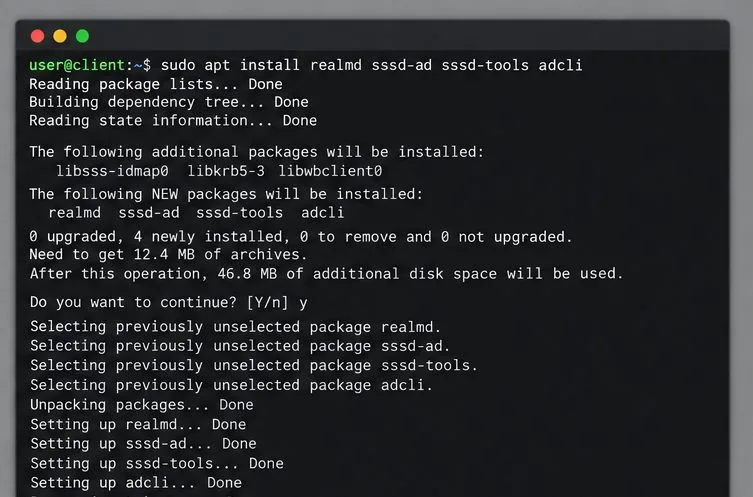
Prepare DNS and time, enroll Pardus with realmd and SSSD, and verify domain membership and user lookup before relying on AD sign-in.
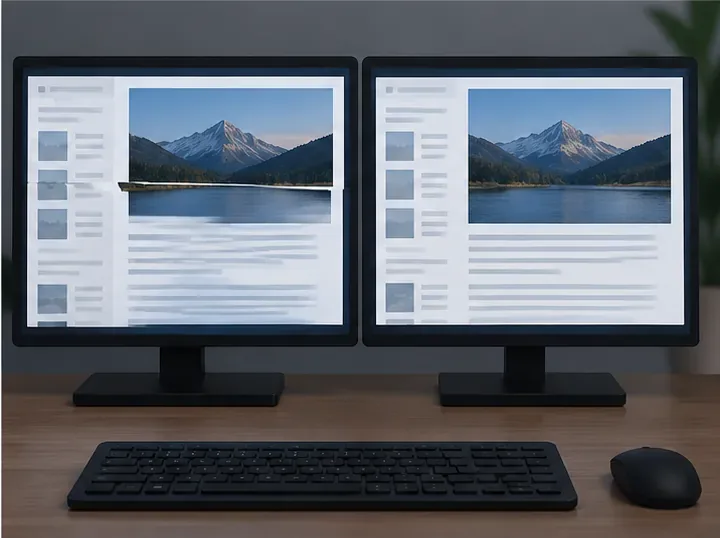
Reduce horizontal tearing in Pardus XFCE by checking your display session, enabling compositor synchronization, and applying Intel’s Xorg TearFree option only when the active driver supports it.
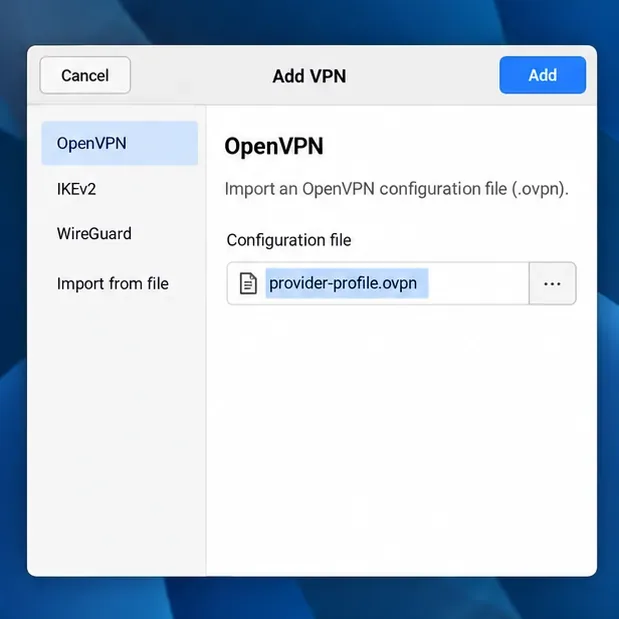
Add an OpenVPN profile to NetworkManager on Pardus, install the right plugin, protect credentials, and verify the VPN is active.
Prepare a bootable USB, check 64-bit hardware compatibility, and install Pardus 23 XFCE while protecting existing files and avoiding common legacy BIOS pitfalls.
Distribute a custom wallpaper to Pardus clients, configure Xfce or GNOME desktops, and apply Lider Ahenk user policies with safe pilot checks.
Fix a 1024 × 768 ceiling by checking SPICE, virtual video, the guest channel, and spice-vdagent—with safe checks when Pardus lacks a package candidate.