Home
» PC Tips
»
Stop Intel Screen Tearing in Pardus by Tuning XFCE VSync
Stop Intel Screen Tearing in Pardus by Tuning XFCE VSync
If a horizontal split appears while scrolling or playing video, first enable Pardus XFCE’s compositor and test its vertical-blank synchronization mode. This is the safest first fix because it does not replace the Intel driver; add Xorg’s TearFree option only if logs confirm that the session uses the legacy intel display driver.
Know which part of the graphics stack is involved
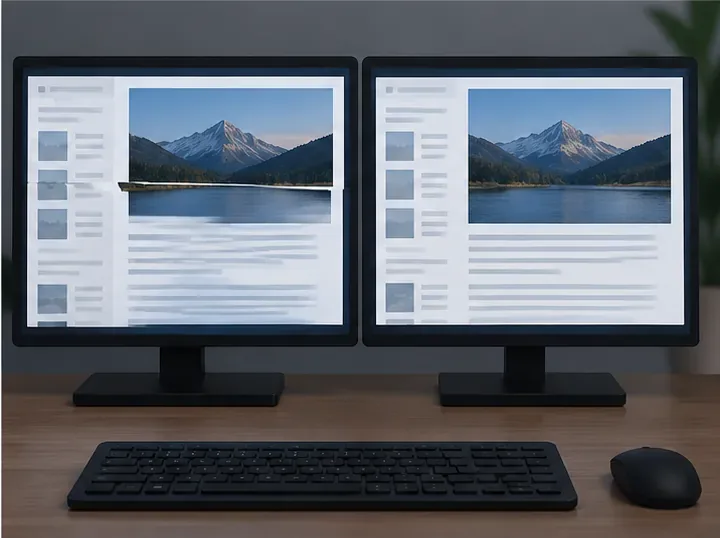
Screen tearing happens when a display begins showing a new frame before the previous frame has finished refreshing, leaving a horizontal seam between two frames. On Pardus 23, the standard desktop is XFCE 4.18. Its xfwm4 window manager includes a compositor that can synchronize desktop updates with the monitor’s vertical refresh, as described in the Xfce documentation. Intel graphics also uses the kernel’s i915 driver, while Xorg may use either its built-in modesetting driver or the separate legacy intel driver. The names are easy to confuse: i915 is the kernel driver, not proof that Xorg is using the legacy Intel DDX.
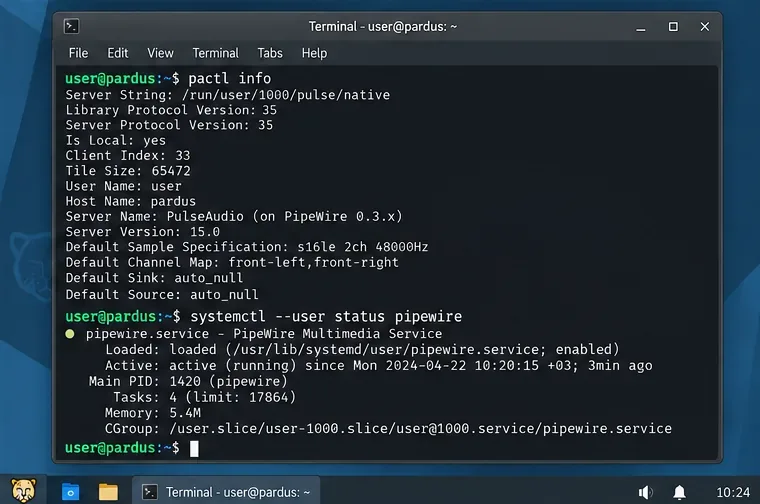
Before changing anything, save open work and note whether tearing affects the whole desktop, only video, or only one application. Open a terminal and check the session type:
echo "$XDG_SESSION_TYPE"
Pardus 23 XFCE normally uses X11, which reports x11. The Xorg configuration later in this guide does not apply to a Wayland session. To identify the graphics adapter and kernel module, run:
lspci -nnk | grep -A3 -E 'VGA|Display|3D'
This command reports the GPU and kernel driver in use. It does not identify the Xorg display driver. Xorg’s log is often at ~/.local/share/xorg/Xorg.0.log or /var/log/Xorg.0.log; search either existing file for the driver name:
If neither log exists, continue with the XFCE compositor fix. Do not install or force a different driver just to obtain a particular setting.
1. Enable XFCE compositing and test GLX synchronization
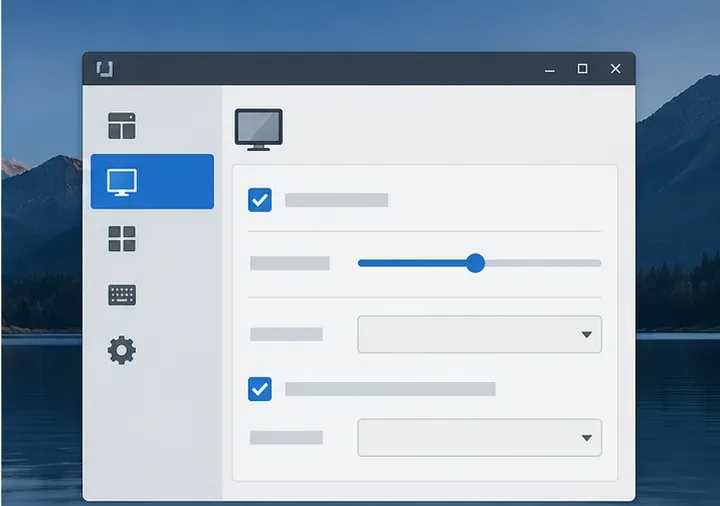
Open Settings Manager, choose Window Manager Tweaks, then open its Compositor tab. Make sure display compositing is enabled. XFCE’s compositor combines window updates before displaying them, and Xfce documents it as part of xfwm4. If it was already enabled, turn it off and back on once to restart the compositor, then reproduce the same scrolling or video symptom.
Open the desktop settings manager before changing the window manager compositor.The compositor settings area is where you check that desktop compositing is active; exact labels can differ by build.
If tearing remains, set xfwm4 to use GLX vertical-blank synchronization. GLX is a method for coordinating X11 graphics updates with display refresh. Run this command in a terminal inside the XFCE session:
The command creates or updates the setting, so it persists across logins. Log out and back in, or restart the window manager, then retest the same content. Xfwm4 supports several synchronization modes; the upstream compositor notes explain the available choices, but a mode only works if it was built into your installed version. Check the available features with xfwm4 --version. If GLX does not help and the build reports Xpresent support, test it as the alternate mode:
Test one mode at a time. To return to automatic selection, use auto instead of xpresent. Avoid setting the mode to off as a permanent fix; disabling vertical-blank synchronization can bring tearing back.
2. Use Intel TearFree only with the matching Xorg driver
Skip this section unless the Xorg log identifies the active driver as intel. The Intel Xorg driver’s TearFree option renders into a back buffer before updating the display. The Debian Bookworm driver manual says this needs an extra framebuffer-sized memory allocation and can reduce throughput and add a small amount of output latency. It may be a poor tradeoff on a machine with limited memory or performance headroom.
When the log confirms intel, create a new Xorg snippet without overwriting any existing configuration. First check that the filename is unused:
ls /etc/X11/xorg.conf.d/30-intel-tearfree.conf
If it reports that the file does not exist, create it with administrator privileges:
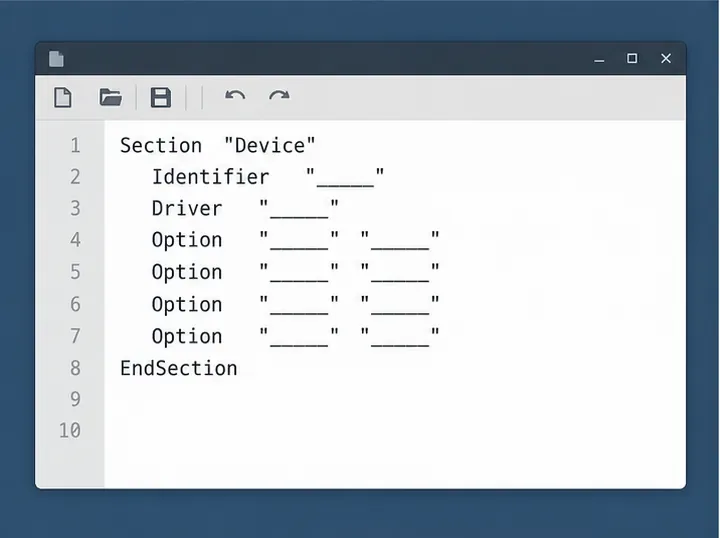
The Xorg configuration file contains a Device section; copy the exact option block from the article rather than relying on this generic editor view.
Restart the graphical session or reboot to load the change. Do not use this section for modesetting: the stanza explicitly selects the legacy Intel Xorg driver. Debian’s Bookworm package notes discourage using that separate driver for GPUs from around 2007 onward; do not install it on newer graphics just to enable TearFree. For another driver, stay with XFCE’s compositor settings and check the relevant Xorg documentation for your installed version.
If the graphical login fails after adding the file, switch to a text console with Ctrl+Alt+F3, sign in, and remove only the new snippet:
Use this rollback only if you created that exact file for this change. If the filename existed before, do not remove or replace it.
Verify the fix and know when to stop
After logging back in, test the original activity: slowly scroll a web page, move a window, and play the same video in the same size. Look for the horizontal seam rather than general stutter or low frame rate. Check a second application and, if possible, one display at a time. If a full-screen video still tears while the desktop is clean, the issue may be specific to the video player’s output path rather than XFCE compositing.
Also check Settings Manager > Display and use a resolution and refresh rate the monitor reports as supported. An incorrect mode, unstable cable, or a problem isolated to one output can resemble a driver issue. Change one setting at a time so you can tell which change helped. Stop if you see black screens, graphical corruption, or a major performance drop; revert the last change before trying a different one.
A visible horizontal seam is the symptom to compare before and after changing synchronization settings.
Image note: These panels are generic interface illustrations, not captured Pardus screenshots. Pardus and Xfce labels vary by package build; follow the setting names and commands in the text.