Create a Pardus 23 Live USB on Windows with Rufus
Download the official Pardus 23 desktop ISO, write it safely with Rufus, and boot a Windows PC into a temporary Live session.
Example scenario: Maya, a fictional Windows user, wants to try Pardus on a spare laptop without installing it. She downloads the desktop ISO, writes it to a USB drive with Rufus, and boots the laptop from that drive. This example illustrates the process; it is not a report of a real test.
To create a Pardus 23 Live USB, download a 64-bit desktop ISO from Pardus, use Rufus to write it to a removable USB drive, then select that drive from the PC’s one-time boot menu. Rufus erases the selected drive, so back up its contents and verify the device before starting.
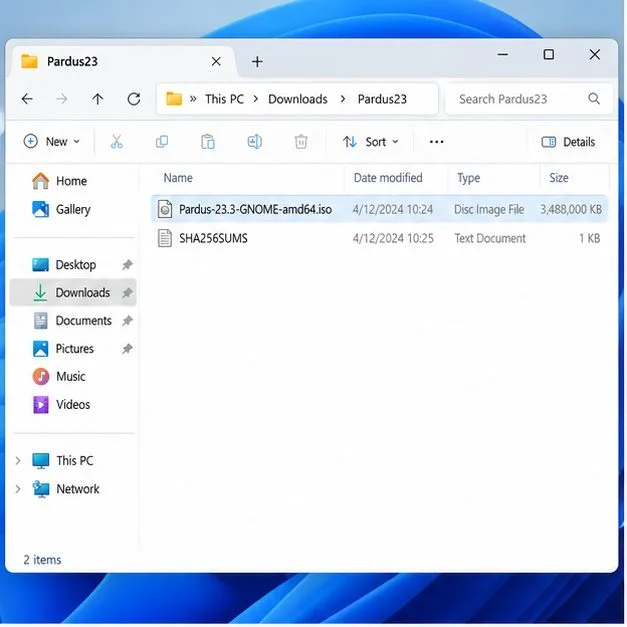
The Pardus archive currently lists Pardus 23.4 GNOME and XFCE desktop images; the GNOME amd64 ISO is about 2.6 GiB. These are listed under the Pardus 23 archive, with files dated April 9, 2025. For a new USB, use the latest 23.x desktop image offered in that official directory. The server ISO is not the right choice for a graphical Live desktop. Open the official Pardus 23 ISO directory.
Choose the GNOME or XFCE amd64 desktop file. GNOME provides the desktop experience used by many current Pardus users; XFCE is a lighter desktop choice. The Pardus archive lists the images separately, so confirm the filename ends in the desktop environment and amd64.iso, not SERVER.
Download the matching SHA256SUMS file from the same official directory. In PowerShell, move to the download folder and calculate the ISO digest:
Get-FileHash .\Pardus-23.4-GNOME-amd64.iso -Algorithm SHA256Compare the displayed hash with the line for that exact ISO filename in SHA256SUMS. The values must match character for character. If they do not, download the ISO again and do not flash the mismatched file. The checksum list is hosted beside the image; verifying its detached signature is a separate step for readers who need stronger verification of the manifest itself.
Use the current Rufus release from the official Rufus website. Connect a USB flash drive with at least 8 GB of capacity as a practical choice for the roughly 2.6 GiB GNOME image and working room. Copy any files you need elsewhere: creating boot media reformats the selected USB.
Open Rufus and inspect the Device field. If several removable drives are connected, unplug the ones you do not intend to erase. Match the displayed name and capacity to the physical stick. Maya’s fictional laptop has a modern UEFI firmware, so she keeps the USB drive connected and proceeds only after confirming the device entry.
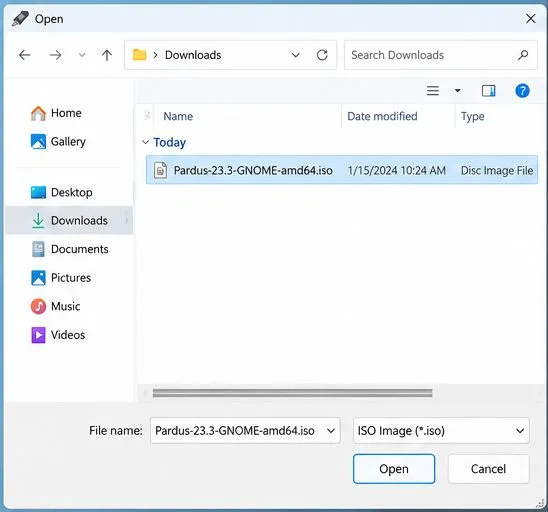
Click Select, choose the Pardus desktop ISO, and confirm that the filename appears under Boot selection. For a modern UEFI-only computer, use GPT with UEFI (non CSM) when Rufus offers those settings. For an older computer that boots in legacy BIOS or CSM mode, MBR may be required instead. The motherboard’s firmware mode—not the Windows version—determines which choice is appropriate.
If you are unsure, leave Rufus’s automatically selected defaults for the image and target system, then consult the computer maker’s boot documentation. Rufus may show a prompt to write in ISO Image mode or DD Image mode. Start with Rufus’s recommended/default choice. If the USB later fails to boot and Rufus offered DD mode, recreate it with DD mode and test again; the two write methods lay out the media differently.
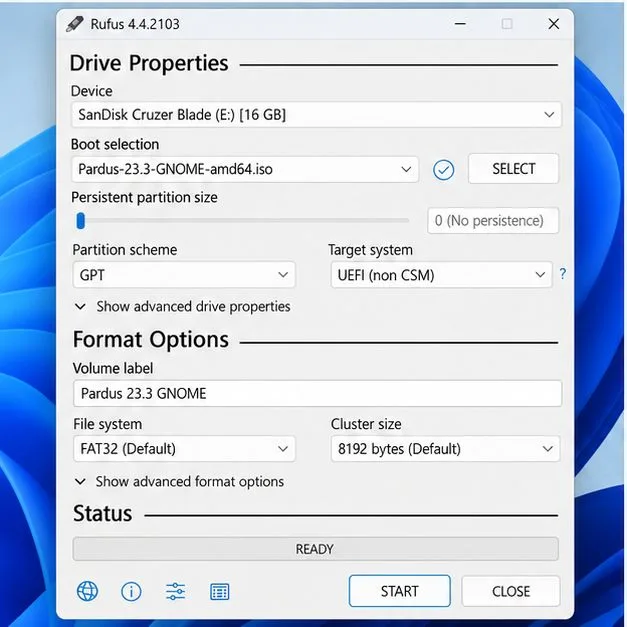
Click Start. Rufus warns that the selected USB’s data will be destroyed. Read the device name and capacity in that dialog one more time. Continue only if they identify the intended flash drive. If Rufus asks whether to download additional files, read the prompt and allow only the files required for its write method.
Wait while Rufus writes the image. Do not remove the drive, close the program, or shut down Windows during the operation. When Rufus reports READY, close the program and use Windows’ Safely Remove Hardware control before disconnecting the stick. If the process reports an error, retry with a different USB port or another flash drive before changing firmware settings.
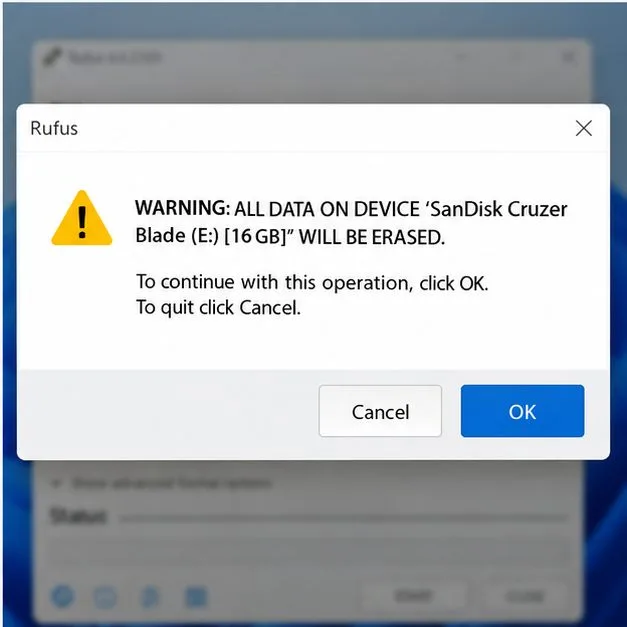
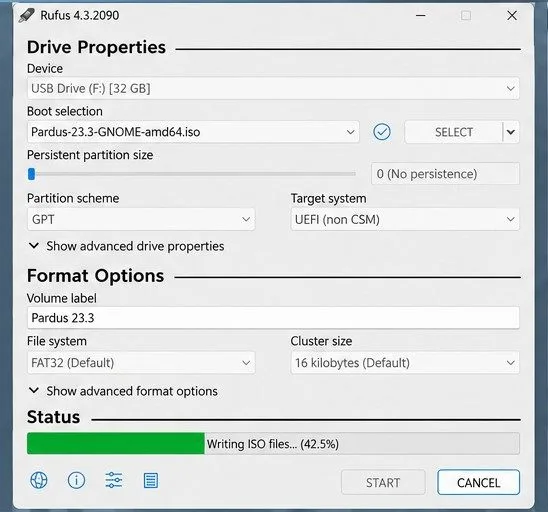
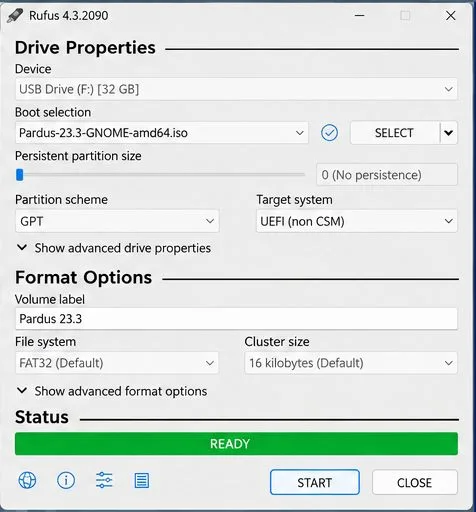
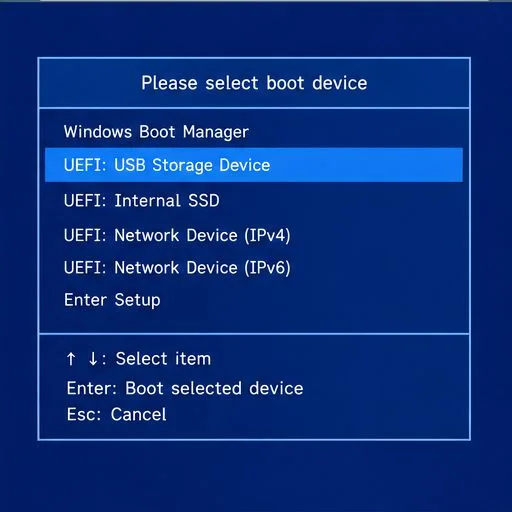
Leave the USB connected and restart the target PC. Open its one-time boot menu using the key shown by the manufacturer; common keys include F12, Esc, or F9, but the correct key varies. Select the USB entry that matches the firmware mode, such as a UEFI-prefixed option for a UEFI installation. If the menu opens too quickly, restart and press the key as soon as the manufacturer logo appears.
When the Pardus startup screen appears, choose the option that starts the live environment if one is presented. Avoid any installer choice if your goal is only to try Pardus. A successful test reaches the Pardus desktop from the USB; restart and remove the drive to return to Windows. A Live session is temporary unless a separate persistence setup is created, so do not treat files saved during the session as durable storage.
The USB is ready when Rufus completes without an error and the computer can start the Pardus desktop from it. If the stick is missing from the boot menu, confirm that Rufus wrote to the intended drive, try another USB port, and check whether the PC is set to UEFI or legacy boot. If it appears but fails to load, compare the ISO checksum again and recreate the media; try Rufus’s alternate write mode only if the prompt offered it. Firmware menus and boot keys differ by manufacturer, so use the PC maker’s instructions for model-specific settings.
Pardus’s published installation guide lists Windows tools such as Rufus for preparing installation media. For the exact release files use the Pardus 23 download archive; for current Rufus builds and write-mode behavior, see Rufus and its official FAQ. The available archive and firmware interfaces can change, so confirm the ISO filename and the target computer’s boot mode before writing.
Download the official Pardus 23 desktop ISO, write it safely with Rufus, and boot a Windows PC into a temporary Live session.
Find out why Pardus 23 cannot detect your sound card, then use targeted ALSA, firmware, and PipeWire or PulseAudio checks to restore playback.
Save HamoniKR preferences to external storage, include hidden home folders, and choose a safe restore mode when moving to a fresh installation.
Install and configure xrdp on Pardus, choose the right Xfce session, restrict network access, and verify that remote login works.
Diagnose Pardus 23 APT connection failures, confirm the official yirmiuc sources, and restore apt update without bypassing package signature checks.
Configure printers on Harmonica OS using CUPS, compare driverless IPP with legacy drivers, and verify USB or network printing with a test page.
Use a recovery shell to set a new Harmonica OS root password, with checks for encrypted disks, read-only filesystems, and accounts that use sudo.
Trace whether clipping, ALSA format conversion, or HDA power saving is causing Ubuntu 24.04 audio distortion, then apply the matching reversible fix.
Switch Debian audio between named PipeWire outputs with a pactl script that updates the default sink and reroutes streams already playing.
Get your Bluetooth headset mic working by selecting the right input, using a hands-free audio profile, and checking Ubuntu’s PipeWire route.