Pardus 23 APT Errors: Check DNS and the yirmiuc Repositories
Diagnose Pardus 23 APT connection failures, confirm the official yirmiuc sources, and restore apt update without bypassing package signature checks.
The safest fix for a Pardus 23 APT repository connection error is to run sudo apt update, read the exact failure, and repair the network path or the specific repository entry it identifies. Keep Pardus 23 on the official yirmiuc suites; switching to Pardus 25 or generic Debian repositories can mix releases and create a different package problem. As of October 9, 2026, Pardus lists 25.0 as the current release and 23.5 as supported through Q3 2027, so a Pardus 23 machine should still use its own sources.
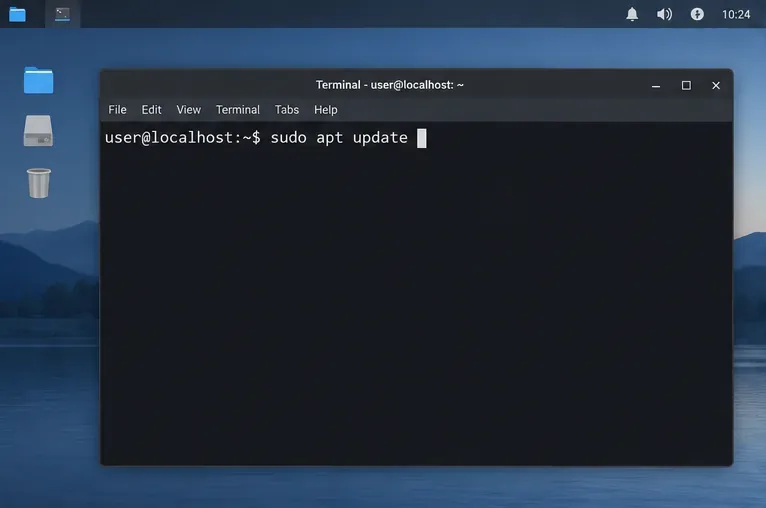
Close the Pardus Software Center or any other package manager, open a terminal, and run:
sudo apt updateThis refreshes package indexes; it does not install or remove packages. Read the first failing repository URL and the error beside it. “Temporary failure resolving” points to name resolution; “Could not connect” or a timeout points to a network path or server reachability problem; a 404 or missing Release file usually means the repository path or suite is wrong. A NO_PUBKEY or unsigned-repository message is an authentication issue, not a connection error. Use the error to choose the branch below instead of trying every fix.
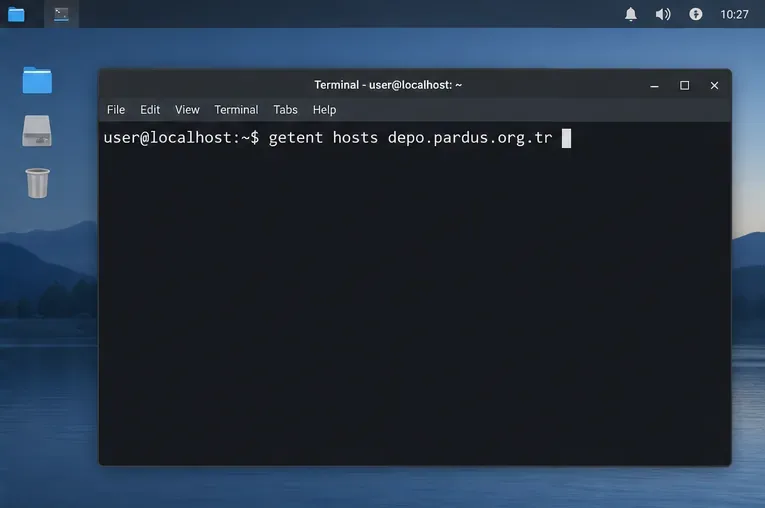
sudo apt update first and note the repository URL and exact error text it reports.If the error says the host name cannot be resolved, check whether this computer can resolve Pardus’s repository host:
getent hosts depo.pardus.org.trIf the command returns no address, reconnect to the network and check the computer’s DNS settings or the network’s DNS service. If it returns an address, DNS resolution is working; that alone does not prove the repository server or the route to it is reachable. Try the update again on another network or later if the official host is temporarily unavailable. Do not replace repository entries just because one DNS lookup failed.
If curl is already installed, you can also test the Pardus 23 index endpoint directly:
curl -I --max-time 10 http://depo.pardus.org.tr/pardus/dists/yirmiuc/InReleaseA timeout or connection refusal is consistent with a network, firewall, proxy, or temporary server problem. An HTTP response means the host answered, though a 404 still suggests a path or suite mismatch. On a managed network, ask its administrator about outbound HTTP or proxy requirements rather than changing system-wide network settings at random.
For a 404 or “does not have a Release file” message, inspect the active APT entries before changing anything:
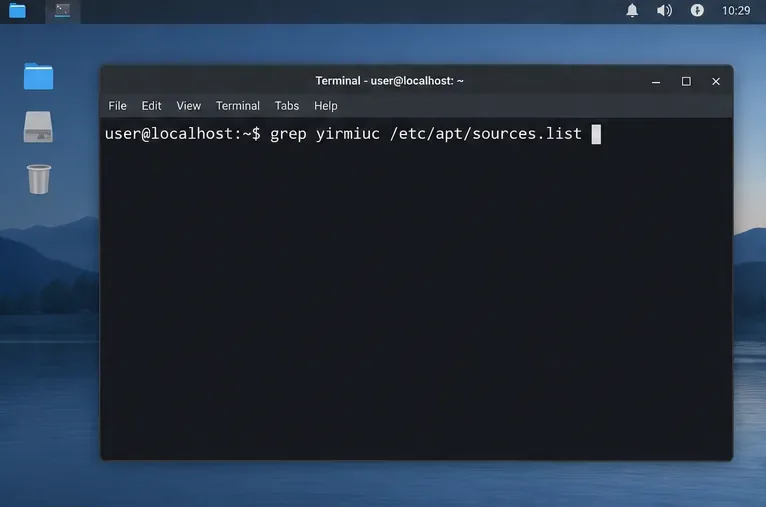
grep -RniE 'depo\.pardus\.org\.tr|yirmiuc|yirmibes' /etc/apt/sources.list /etc/apt/sources.list.d 2>/dev/nullAPT can read both traditional .list files and deb822 .sources files, so check both locations. The current Pardus version schedule and official repository list gives these Pardus 23 binary entries:
deb http://depo.pardus.org.tr/pardus yirmiuc main contrib non-free non-free-firmware
deb http://depo.pardus.org.tr/pardus yirmiuc-deb main contrib non-free non-free-firmware
deb http://depo.pardus.org.tr/guvenlik yirmiuc-deb main contrib non-free non-free-firmware
Compare your existing Pardus entries with those lines. If a Pardus 23 entry uses yirmibes, an obsolete suite, or a mistyped host, back up the file that contains it and correct only that entry. Do not paste a second copy over an existing configuration or remove unrelated third-party sources without identifying them. The official Pardus 23 release notes publish the same repository addresses.
yirmiuc and compare the result with Pardus’s published 23-series entries.If APT reports NO_PUBKEY, an unsigned repository, or an invalid signature, confirm that the failing URL is an official Pardus source and that the system date is correct. Then follow Pardus’s current keyring or update guidance for that exact error. Debian’s APT archive-authentication documentation explains why APT refuses unsigned or unauthenticated repository metadata. Do not add trusted=yes, allow insecure repositories, or disable signature checks to make the warning disappear; those settings remove a security check instead of repairing the trust problem.
A “Hash Sum mismatch” after a repository has been reachable can be a temporary mirror synchronization or cached-index issue, rather than DNS failure. Wait a few minutes and retry first. If it persists, close all package tools and clear only APT’s downloaded index files before refreshing them:
sudo rm -rf /var/lib/apt/lists/*
sudo apt update
This removes cached package lists, not installed applications or personal files; APT downloads fresh indexes on the next update. Only use it when no other APT or graphical package operation is running.
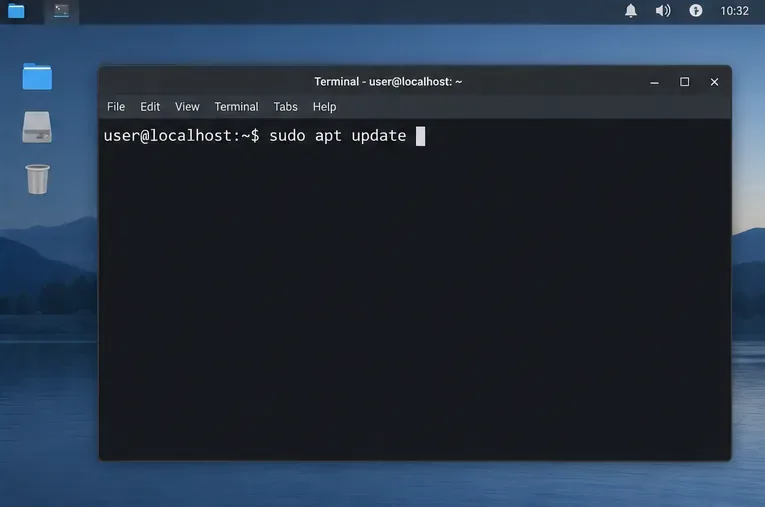
Run sudo apt update again. The fix is confirmed when APT reaches the configured Pardus 23 repositories, finishes with “Reading package lists,” and no longer reports the original failing URL. Warnings from a separate third-party repository can remain after Pardus sources work; identify that source by its URL and repair or disable only that entry if you no longer need it.
If the same official Pardus host still times out from multiple networks, or its published suite returns a persistent server error, the remaining cause may be outside the laptop. Keep the exact URL and error text and check the Pardus support schedule and repository information before reporting it. For source-file syntax, see Debian’s APT sources.list manual.
sudo apt update after the correction to confirm that the original Pardus repository error is gone.Diagnose Pardus 23 APT connection failures, confirm the official yirmiuc sources, and restore apt update without bypassing package signature checks.
Configure printers on Harmonica OS using CUPS, compare driverless IPP with legacy drivers, and verify USB or network printing with a test page.
Use a recovery shell to set a new Harmonica OS root password, with checks for encrypted disks, read-only filesystems, and accounts that use sudo.
Trace whether clipping, ALSA format conversion, or HDA power saving is causing Ubuntu 24.04 audio distortion, then apply the matching reversible fix.
Switch Debian audio between named PipeWire outputs with a pactl script that updates the default sink and reroutes streams already playing.
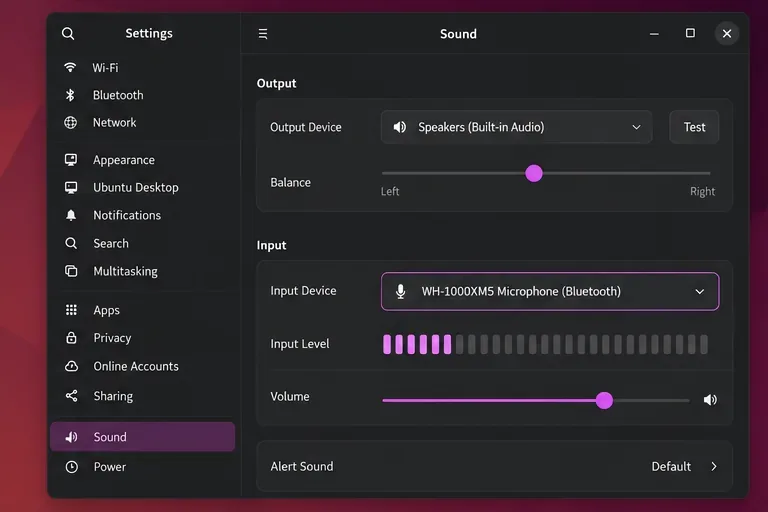
Get your Bluetooth headset mic working by selecting the right input, using a hands-free audio profile, and checking Ubuntu’s PipeWire route.
Learn why Flatpak apps may ignore Ubuntu 24.04 GTK themes and follow safe steps to check theme extensions, refresh Flatpak apps, and diagnose portal issues.
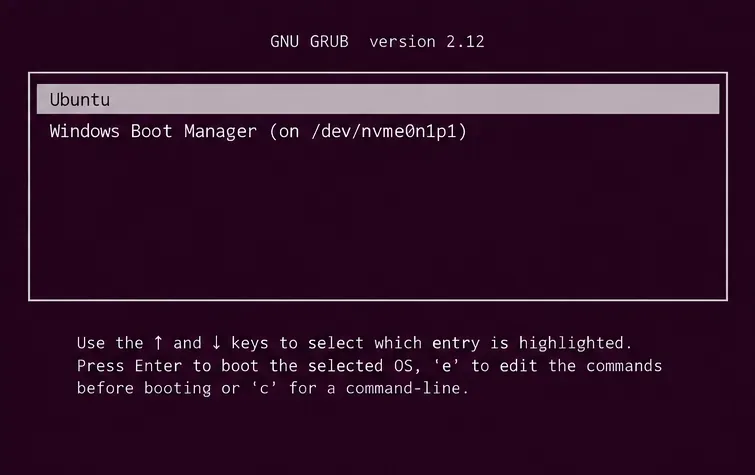
Install Ubuntu 24.04 alongside Windows 11 with BitLocker safely. Compare separate-drive and shared-drive paths, recovery keys, partitioning, and boot checks.
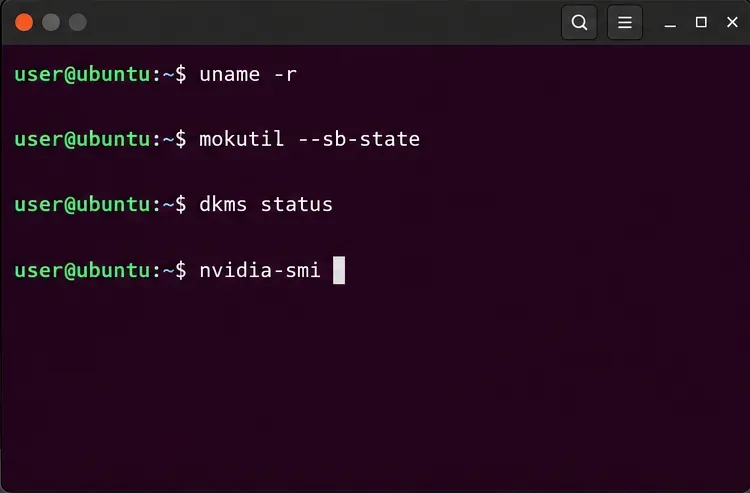
Diagnose NVIDIA driver failures after an Ubuntu kernel update. Check DKMS and Secure Boot, rebuild the matching module, enroll a MOK, and verify the fix.
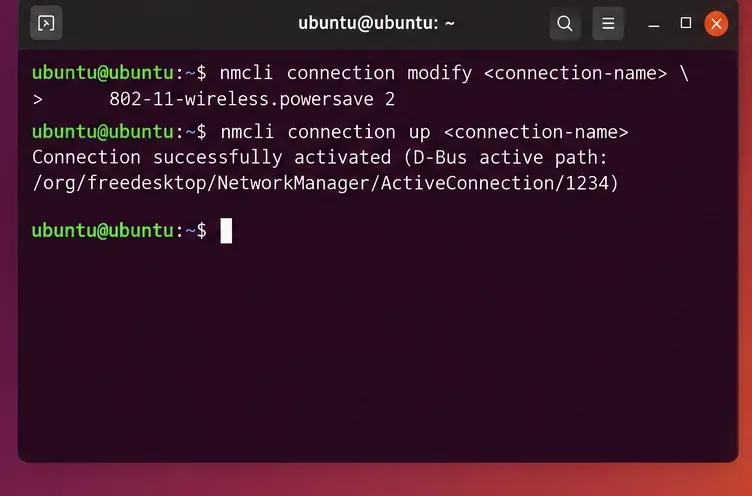
Fix Ubuntu 24.04 Wi-Fi drops after suspend with checks for NetworkManager, radio blocks, updates, power saving, and drivers—then verify each resume.