Home
» PC Tips
»
Reduce Ubuntu 24.04 Audio Distortion with Targeted ALSA Tweaks
Reduce Ubuntu 24.04 Audio Distortion with Targeted ALSA Tweaks
Start by lowering playback gain and checking whether the distortion affects every app. On Ubuntu 24.04 Desktop, PipeWire normally sits between applications and the sound device, so an ALSA tweak is useful only when it addresses the cause: use the mixer for clipping, an ALSA plug PCM for an ALSA-direct app with a format mismatch, or a power-save test for clicks after idle. Avoid replacing the system-wide ALSA default as a first step.
Does the distortion come from one app or the whole system?
That distinction determines which setting is relevant. A browser that sounds bad while system alerts and another player sound clean points to the app, its stream level, or its selected output. Distortion in every app can come from excessive playback gain, the device or cable, a driver, or a power transition. ALSA settings do not repair a damaged speaker or a poor physical connection.
Play the same short audio clip in two different apps, using the same output. Lower the app volume and Ubuntu’s output level before testing; a digital signal clipped upstream cannot be repaired by changing a hardware mixer afterward.
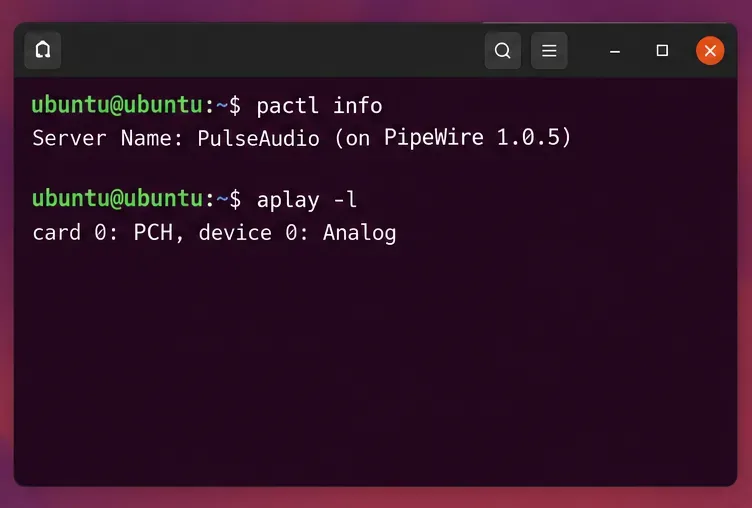
Open a terminal and run pactl info and wpctl status. These show the active audio server and available PipeWire objects when those tools are installed. Ubuntu’s desktop audio test plan documents PipeWire as the desktop sound server. If your installation has been customized, use the output of these commands rather than assuming its audio path.
Run aplay -l to list ALSA playback hardware. If the problem happens only through one headset, speaker, dock, or cable, reseat or swap that connection before changing configuration.
Illustrative terminal output showing PipeWire as the audio server and aplay listing playback devices.
Could playback gain be clipping?
Yes. When the sound gets harsh, buzzy, or broken on loud peaks, reduce gain before adding configuration. Several volume controls can stack: the application, the desktop output, and hardware controls such as Master, PCM, or Speaker. Their names differ by audio device, so change one relevant playback control at a time and listen again.
Install the mixer utility if needed with sudo apt install alsa-utils.
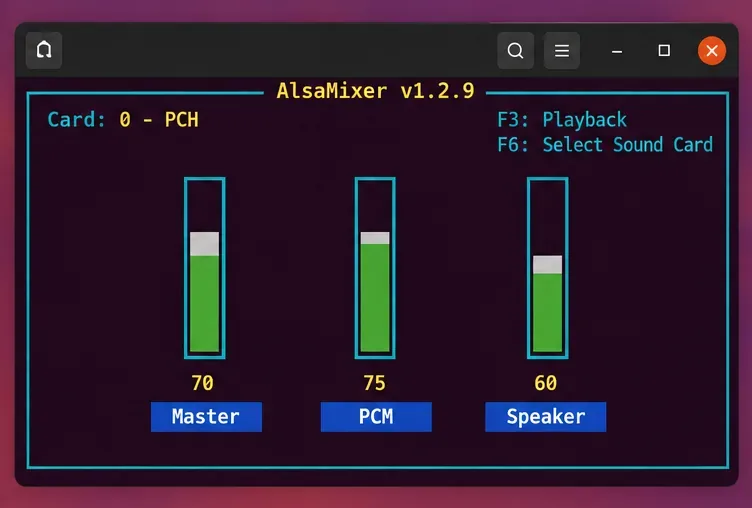
Run alsamixer. Press F6 to select the sound card, then F3 to show playback controls. Use the arrow keys to lower the likely Master, PCM, or Speaker control. The Ubuntu Noble alsamixer manual documents these card and playback views.
Also lower the app and desktop output volume to a moderate level. Do not push a control above 100 percent to compensate for a quiet source; boost can make clipping worse. Mic Boost is a capture control and is not the playback fix.
Test with the same audio passage after each adjustment. If lowering a particular hardware control clears the distortion, keep that control below the level where harshness returns. There is no universal “correct” percentage: card controls and speaker sensitivity vary.
Illustrative alsamixer playback view with Master, PCM, and Speaker controls kept below maximum.
Does the problem affect only an app that opens ALSA directly?
Try ALSA’s plug conversion before editing a default device. The plug-in can convert sample format, rate, or channel count to match the hardware. This is a good fit for a legacy or command-line program that opens ALSA directly and fails or sounds wrong with a raw hardware PCM. It does not change the route used by ordinary PipeWire applications.
Find the card and device numbers in aplay -l. For a quick test, substitute the hardware PCM shown on your machine in this command:
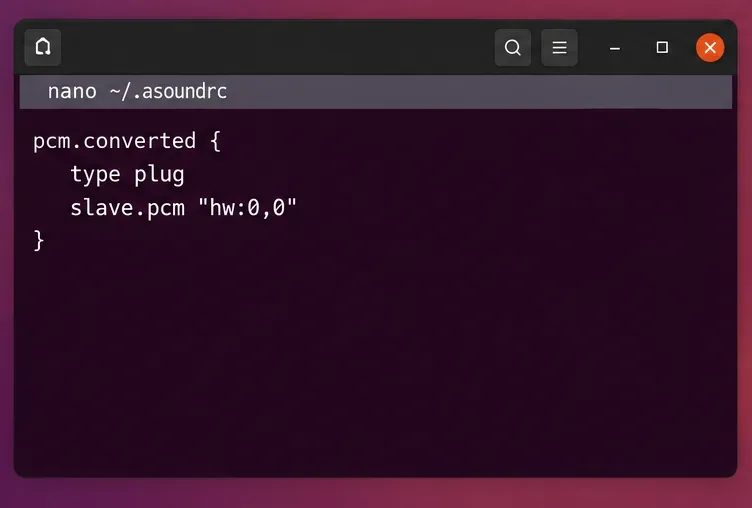
plughw:0,0 means card 0, device 0; your numbers may differ. If this conversion test sounds clean while a direct hw:0,0 test fails, you can define a named PCM in your user configuration file, ~/.asoundrc:
pcm.converted {
    type plug
    slave.pcm "hw:0,0"
}
Replace hw:0,0 with the device you identified. Select converted in the ALSA-aware application, or test it with speaker-test -D converted -c 2 -t sine -f 440 -l 1. Back up an existing ~/.asoundrc before editing it. The ALSA project’s PCM plug-in reference describes conversion, and its asoundrc guide documents user and system configuration. Avoid copying this definition into pcm.!default unless you specifically intend to replace the ALSA default for all ALSA clients; that can disrupt other devices or desktop routing.
Illustrative ~/.asoundrc snippet defining a named ALSA plug PCM for a selected hardware device.
Does it click only after silence or when playback resumes?
That pattern can point to HDA codec power saving, rather than clipping. Test the setting temporarily only if the snd_hda_intel driver and parameter exist. First inspect the current value:
If the file exists, temporarily disable the codec’s power-saving interval until reboot:
echo 0 | sudo tee /sys/module/snd_hda_intel/parameters/power_save
Play audio, leave it idle long enough for the click to occur, and resume playback. The kernel’s ALSA power-saving documentation describes the HDA power-save parameter and notes that power transitions can produce audible clicks on some hardware. Disabling this setting may use more power; it is not a general remedy for distortion during continuous playback.
If the test helps and you want it to persist, create /etc/modprobe.d/alsa-hda-powersave.conf containing options snd_hda_intel power_save=0, then reboot. To undo it, remove that file and reboot. If the sysfs path is absent, skip this tweak: the driver may not be loaded or your device may use another driver. Do not create a missing path manually.
Illustrative terminal view showing an HDA power_save value changing from 10 to 0 for a temporary test.
How can you confirm the right fix?
Replay the same passage at a moderate level in the original app and a second app. Check that peaks no longer rasp, and, for an idle-click problem, confirm that audio resumes without the click. If you added a named ALSA PCM, test it from the ALSA-aware program; a browser or other PipeWire client may not use that definition.
If distortion remains across apps, outputs, and reasonable playback levels, revert experimental settings and investigate the connection, device, or kernel driver. Ubuntu recommends checking connectors and the selected sound device for crackling. Gather aplay -l and, for PCI audio, lspci -nnk output when seeking driver-specific help. Avoid arbitrary buffer-size edits: buffer changes trade latency against underrun tolerance and should follow evidence of dropouts, not be used as a generic distortion cure.