Fix High CPU Usage by Tracker-Miner-3 in Ubuntu GNOME
Learn why tracker-miner-fs-3 uses high CPU in Ubuntu GNOME and how to check indexing, exclude folders, update Ubuntu, or safely rebuild the search index.
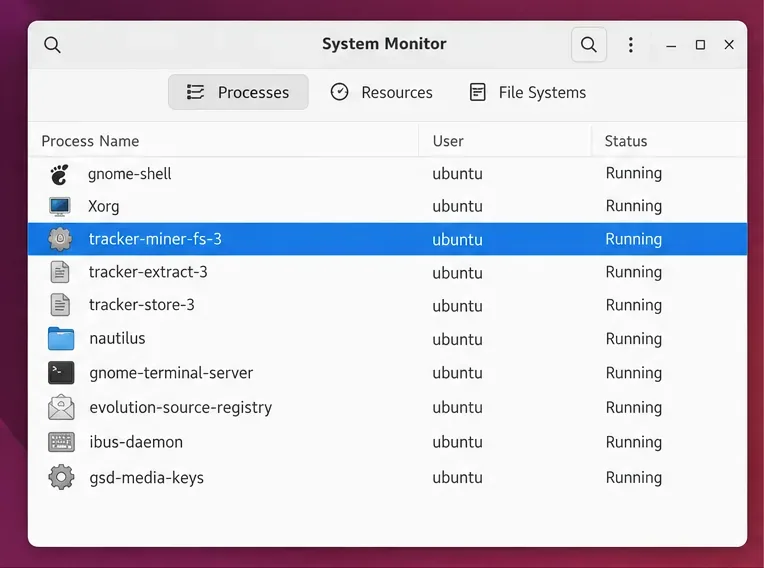
A laptop fan ramps up, the desktop feels sluggish, and System Monitor shows tracker-miner-fs-3 using a large share of the CPU. On Ubuntu GNOME, that process is part of the desktop search indexer: it scans selected locations and reads file metadata so searches can find documents, photos, music, and other content. A burst of activity after setup, a large file copy, or a system update may be normal. CPU use that stays high for hours or returns whenever the same folder is scanned deserves a closer look.
First check whether indexing is simply catching up. Then narrow the folders GNOME searches, update Ubuntu, and rebuild the search index only if simpler steps fail. The last option is safe for the underlying files, but it removes indexed data and can affect Tracker tags.
Tracker processes newly discovered and changed files. A large home directory, a folder with many photos or documents, a mounted drive, or a directory where files are constantly created and deleted can keep the indexer busy. A damaged or stale index can also cause repeated work. GNOME documentation describes Tracker as the desktop search indexer, while Ubuntu's package pages identify the filesystem miner and metadata extraction components.
The process name depends on the Ubuntu release. Ubuntu 22.04 and 24.04 use Tracker 3 and commonly show tracker-miner-fs-3 in process tools. Ubuntu 26.04 renamed the GNOME service to LocalSearch; use the localsearch commands below on that release. If you see a different name, check your Ubuntu version before copying commands.
Open System Monitor from Activities and select the Processes view. Sort by CPU and check whether the Tracker or LocalSearch filesystem process remains near the top. You can confirm from Terminal as well:
ps -eo pid,comm,%cpu,%mem --sort=-%cpu | head -n 12Do not mistake memory use for CPU use, and do not terminate the process just because it appears in the list. GNOME search relies on its index, and ending a scan can leave the work to restart later. If another process is consuming CPU, troubleshoot that process instead.
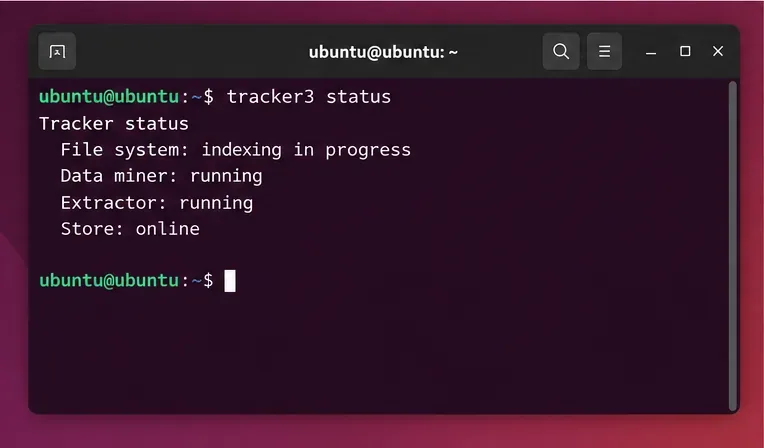
After a fresh Ubuntu installation, a major upgrade, or a large import of files, leave the computer powered on and give indexing time to settle. Avoid repeatedly restarting the service while it is processing a backlog. On Ubuntu 22.04 or 24.04, run:
tracker3 statusThe status command reports the current index state and recorded metadata-indexing failures. Run it again later. A status that changes and eventually reports indexing complete points to a catch-up scan. The command may also reveal repeated failures associated with a file; if so, note the path and check that file or its containing folder.
On Ubuntu 26.04, the equivalent command is:
localsearch statusThese commands are release-specific. If a command is not found, do not install random packages from third-party sources; confirm your Ubuntu release and use its own package archive and manual pages.
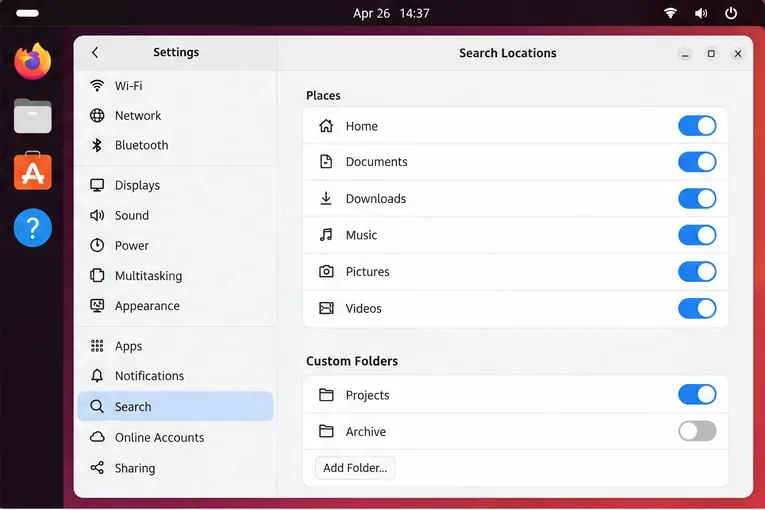
If the CPU spike lines up with a large archive or a folder that changes constantly, exclude that location from search. In Activities, search for Search to open Settings, then choose Search Locations. Turn off default locations you do not need in Activities search. GNOME also supports custom search locations. To exclude a custom directory, use the matching index command below and substitute its exact path.
This changes what GNOME indexes for search; it does not delete or move the files. You may lose search results for a location you turn off, so keep Documents, Pictures, or other frequently searched folders enabled when you rely on them. To check the configured folders from a terminal, Ubuntu 24.04 provides:
tracker3 indexUbuntu 26.04 provides:
localsearch indexThese list indexed locations. To remove a custom directory that should not be indexed, use the matching command and substitute its exact path:
tracker3 index --remove /path/to/archiveOn Ubuntu 26.04, use localsearch index --remove /path/to/archive. Ubuntu documents these changes as persistent across restarts. To add a location back, use the corresponding index --add command after checking its syntax with the release’s manual page.
Before resetting anything, install updates from Ubuntu’s normal update channel. The Tracker components differ between Ubuntu releases, and fixes arrive through the packages provided for that release. Open Software Updater, install available updates, and restart if Ubuntu requests it. You can also use Ubuntu’s standard package commands:
sudo apt update
sudo apt upgrade
Do not add a PPA or replace GNOME search components just to address a high CPU reading. If the problem began immediately after a particular update and persists after indexing finishes, check the Ubuntu package changelog or report a bug with your release and package versions.
If the process repeatedly scans the same content, the index status reports persistent failures, or CPU use remains unusually high after reducing locations and updating, rebuild the filesystem index. This step clears the search database and makes the indexer scan the selected locations again. It does not remove files, but Ubuntu’s manual warns that the reset is irreversible and that Tracker tags may be affected. Expect CPU and disk activity to rise temporarily while the index is rebuilt.
On Ubuntu 22.04 or 24.04, use:
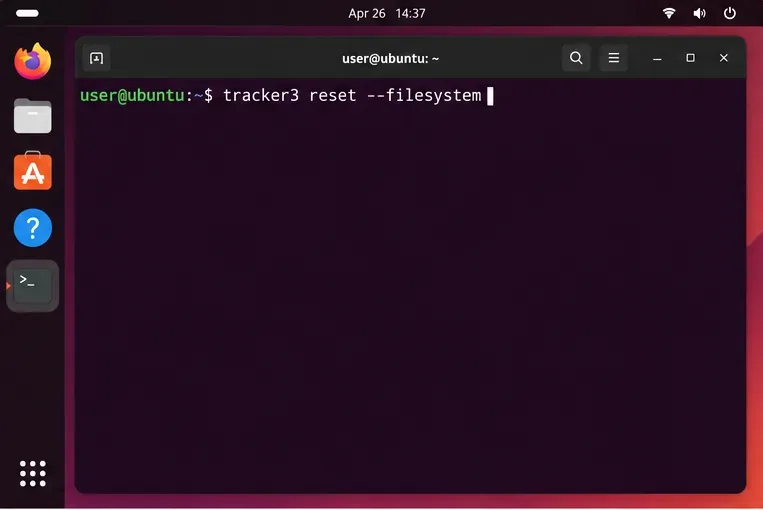
tracker3 reset --filesystemOn Ubuntu 26.04, use the renamed command:
localsearch reset --filesystemDo not manually delete directories under ~/.cache or ~/.local/share as a substitute. The supported reset command targets the index and lets the service recreate its cache. After issuing the command, allow the new scan to finish before judging the CPU usage.
Use a simple before-and-after check:
lsb_release -a.tracker3 status on Ubuntu 22.04/24.04 or localsearch status on Ubuntu 26.04, and check whether indexing is progressing or complete.If the issue continues after the scan completes, record your Ubuntu version, the exact process name, the output of the matching status command, and the location of any repeatedly failing file. Use Ubuntu’s bug-reporting tools or the GNOME LocalSearch issue tracker with that information. Avoid posting private filenames or document contents publicly.
Learn why tracker-miner-fs-3 uses high CPU in Ubuntu GNOME and how to check indexing, exclude folders, update Ubuntu, or safely rebuild the search index.
Fix Debian’s UEFI boot error by checking boot mode, the EFI System Partition, GRUB files, and firmware boot order—without reinstalling Debian first.
The Outlook Inbox Repair Tool fixes corrupted PST files quickly so you can recover emails and restore normal Outlook function. Follow these exact steps to run scanpst.exe without data loss.
Get the Adobe PDF Installer Offline to install Acrobat Reader on any PC without needing internet during setup. Follow these exact steps for the full standalone package.
Learn how to Chromecast from laptop to TV with this step-by-step guide. Stream browser tabs, videos, or your full screen from Windows or Mac to your TV in minutes.
Learn how to edit an Adobe PDF file in Adobe Acrobat with precise steps for text, images, and layout changes. Make professional edits quickly and save time.
Get your Free Foxit Reader Free Download from the official source with this step-by-step guide that ensures a safe and quick installation for viewing PDFs.
Learn how to get help in Windows 11 with built-in tools like the Get Help app and Quick Assist for fast, official support without third-party downloads.
Learn how to retract an Outlook email in Microsoft Outlook when you need to correct a mistake before the recipient opens it. Follow these precise steps for Exchange accounts.
Learn how to Chromecast in Samsung TV by connecting a Chromecast device and streaming from your phone or computer in just a few minutes.