Fix “No Bootable Device Found” After Installing Debian on UEFI
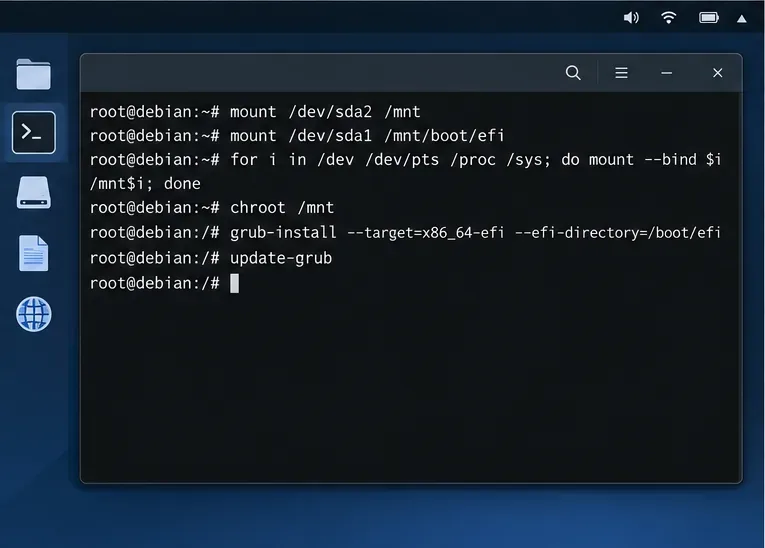
Fix Debian’s UEFI boot error by checking boot mode, the EFI System Partition, GRUB files, and firmware boot order—without reinstalling Debian first.
When a PC shows “No Bootable Device Found” immediately after a Debian installation, the files may still be intact. The firmware may be starting in the wrong mode, the EFI System Partition (ESP) may not be mounted where GRUB expects it, or the firmware may have lost or deprioritized Debian’s UEFI boot entry. Work through those checks in order before changing partitions.
This guide assumes a typical 64-bit x86 PC using UEFI and Debian with GRUB. Commands that name a disk or partition are examples only: identify your own devices with lsblk -f. Do not format the ESP or reinstall Debian as a first response.
UEFI firmware reads an EFI program from a FAT-formatted ESP and can use a saved NVRAM boot entry to find it. Legacy BIOS/CSM boot follows a different path. An installer USB started in Legacy mode can therefore set up a boot path that does not match the installed machine’s UEFI configuration.
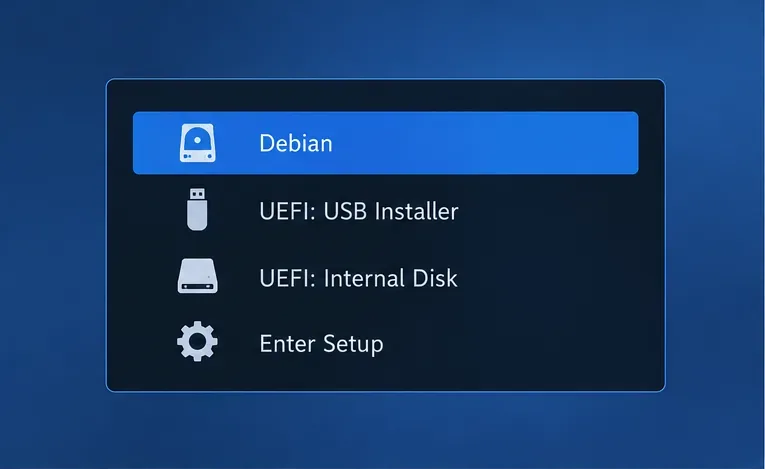
Open the one-time boot menu or firmware setup during startup. First choose an entry named Debian, if present. If it boots, open firmware setup and move Debian above the internal disk or other operating systems in the boot order. Menu names vary by manufacturer, so consult the computer maker’s instructions for the correct startup key and menu labels.
If you need rescue media, select the USB option that begins with “UEFI.” Once Debian Live or the installer rescue shell has started, check its mode:
test -d /sys/firmware/efi && echo "Booted in UEFI mode" || echo "Booted in Legacy mode"If the result says Legacy, restart and choose the UEFI USB entry. Tools such as efibootmgr cannot manage firmware variables from a Legacy-booted environment. If no UEFI USB choice appears, check that UEFI boot is enabled in firmware; avoid changing Secure Boot or storage-controller settings unless you know the consequences for the existing installation.
From the UEFI-booted live environment, inspect devices and filesystems:
lsblk -fLook for the Debian root filesystem, often ext4 or btrfs, and a small FAT32 partition with the GPT type “EFI System.” The ESP may be shared with Windows; that is normal. The example labels /dev/sda1 and /dev/sda2 below are placeholders, not defaults. NVMe drives commonly use names such as /dev/nvme0n1p1.
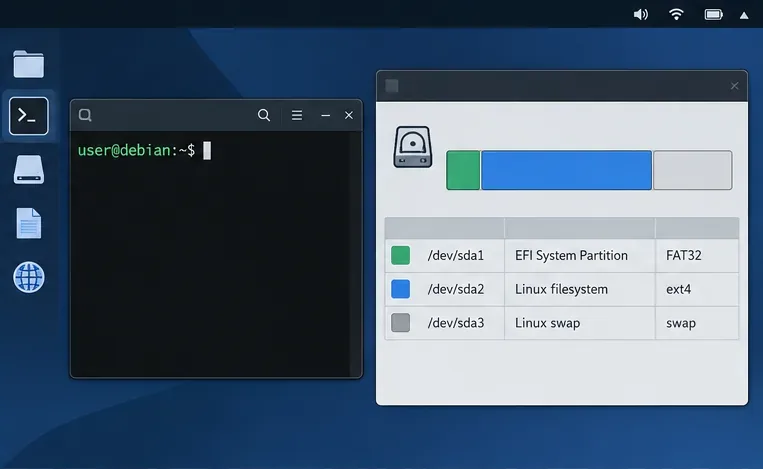
Mount the root partition read-only first if you only need to inspect it, or mount it normally for repair after identifying the correct partition. If your installation uses a separate /boot partition, mount it beneath /mnt/boot before mounting the ESP. Do not create or format a replacement ESP simply because it is not obvious in the listing.
For a common layout with root on /dev/sda2 and ESP on /dev/sda1, a repair mount looks like this:
mount /dev/sda2 /mnt
mkdir -p /mnt/boot/efi
mount /dev/sda1 /mnt/boot/efi
cat /mnt/etc/fstab
Compare the ESP UUID reported by lsblk -f with the entry for /boot/efi in /mnt/etc/fstab. If it differs, stop and confirm which partition belongs to this Debian installation. Some systems mount the ESP at /boot or use a different arrangement; reproduce the installed system’s layout rather than blindly using the example mount point.
Once the root, any separate /boot, and the ESP are mounted at their intended locations under /mnt, bind the running system directories and enter the installation:
for i in /dev /dev/pts /proc /sys /run; do mount --bind "$i" "/mnt$i"; done
chroot /mnt
Inside the chroot, verify that /boot/efi is the ESP and that the installed system is the one you intend to repair. For a standard Debian amd64 GRUB installation with Secure Boot disabled, reinstall the EFI loader and rebuild the menu:
grub-install --target=x86_64-efi --efi-directory=/boot/efi --bootloader-id=debian
update-grubThe --target value above is for amd64 PCs. Debian ARM64 systems use a different target. GRUB’s official man page defines --efi-directory as the ESP root and documents UEFI Secure Boot options. If Secure Boot is enabled, keep using Debian’s signed boot chain: do not force an unsigned loader onto the ESP. Debian’s signed GRUB and shim packages provide the appropriate path; follow the Debian Secure Boot documentation for your release and architecture.
If grub-install reports that EFI variables are unavailable, check again that the live USB was booted in UEFI mode and that /sys/firmware/efi exists. If firmware variables remain unavailable, you may be able to place the loader on the ESP but not register its NVRAM entry from this session; use the firmware’s “Boot from EFI file” option or repeat the repair from a correctly booted UEFI environment. Do not treat a warning as confirmation that the firmware entry was created.
Exit the chroot, then inspect the UEFI boot variables:
exit
efibootmgr -v
Look for a Debian entry and note BootOrder. If Debian is listed but another device appears first, use firmware setup to place Debian first. This is often easier and safer than rewriting a full boot order in a command. The efibootmgr man page documents how entries are named and how BootOrder determines which active entry firmware tries first.
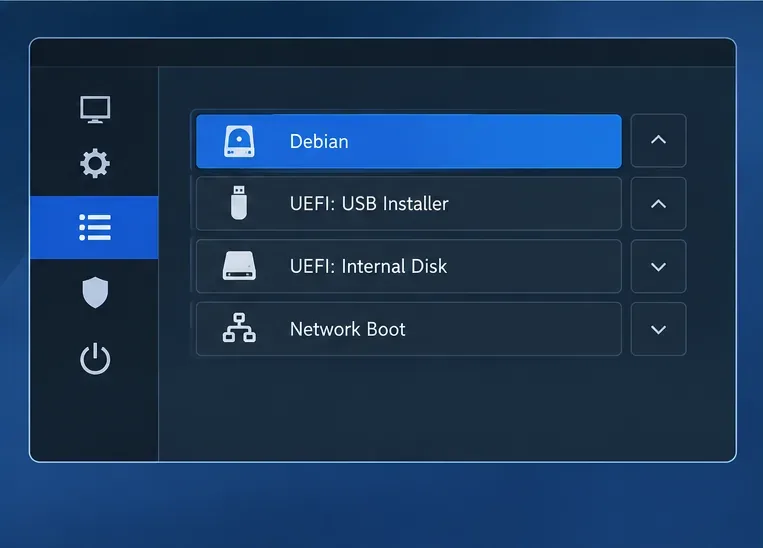
If the Debian entry is missing but the ESP contains EFI/debian, use the firmware’s file browser, when available, to select Debian’s EFI loader. With Secure Boot enabled this is normally the signed shim file, such as EFI/debian/shimx64.efi on amd64; with Secure Boot disabled, the GRUB EFI file may be available. Exact filenames differ by architecture and package state. If the firmware offers no file browser, rerun the GRUB repair with NVRAM access available.
Some firmware updates or settings resets remove Linux entries, and some firmware implementations fail to retain newly created entries. Debian’s UEFI documentation also describes a fallback removable-media path, but that should be a deliberate compatibility workaround, not a reason to copy EFI files over existing files without checking them.
efibootmgr cannot access variables: restart the rescue media in UEFI mode.grub-install.Debian 13 (Trixie) introduced an optional systemd-boot with shim setup documented by Debian. If you deliberately installed that boot manager instead of GRUB, use the matching systemd-boot recovery guidance; running GRUB repair commands does not repair systemd-boot’s entries. For a typical installer-selected Debian GRUB system, the checks above remain the relevant path.
Leave the chroot, unmount filesystems in reverse order, remove the rescue USB, and restart. If an unmount reports that a target is busy, close shells using that mount and retry rather than forcing a shutdown while filesystems are active. Confirm that the firmware starts Debian without the USB attached. Then check that the expected kernel and desktop load and that a second reboot still works. If it fails again, write down the exact firmware message, the output of lsblk -f, and whether efibootmgr -v shows a Debian entry; those details distinguish a missing entry from a loader or filesystem problem.
Fix Debian’s UEFI boot error by checking boot mode, the EFI System Partition, GRUB files, and firmware boot order—without reinstalling Debian first.
The Outlook Inbox Repair Tool fixes corrupted PST files quickly so you can recover emails and restore normal Outlook function. Follow these exact steps to run scanpst.exe without data loss.
Get the Adobe PDF Installer Offline to install Acrobat Reader on any PC without needing internet during setup. Follow these exact steps for the full standalone package.
Learn how to Chromecast from laptop to TV with this step-by-step guide. Stream browser tabs, videos, or your full screen from Windows or Mac to your TV in minutes.
Learn how to edit an Adobe PDF file in Adobe Acrobat with precise steps for text, images, and layout changes. Make professional edits quickly and save time.
Get your Free Foxit Reader Free Download from the official source with this step-by-step guide that ensures a safe and quick installation for viewing PDFs.
Learn how to get help in Windows 11 with built-in tools like the Get Help app and Quick Assist for fast, official support without third-party downloads.
Learn how to retract an Outlook email in Microsoft Outlook when you need to correct a mistake before the recipient opens it. Follow these precise steps for Exchange accounts.
Learn how to Chromecast in Samsung TV by connecting a Chromecast device and streaming from your phone or computer in just a few minutes.
Get the official Adobe Acrobat DC Reader free download safely. Follow this step-by-step guide to install the latest version for viewing and editing PDFs on Windows or Mac.