How to retract an Outlook email works only when both sender and recipient use the same Microsoft Exchange or Microsoft 365 account and the message remains unread. This feature lets you delete or replace a sent message directly from the recipient's mailbox under those conditions. The guide below walks through the exact process in the Outlook desktop application.
Requirements Before You Retract an Outlook Email
You must use the full Outlook desktop client on Windows connected to an Exchange mailbox. The web version of Outlook and the new Outlook app do not include the retract option. Confirm your account type in File > Account Settings > Account Settings before starting. The recipient must also be on the same Exchange server for the feature to function.
Step-by-Step Instructions for How to Retract an Outlook Email
-
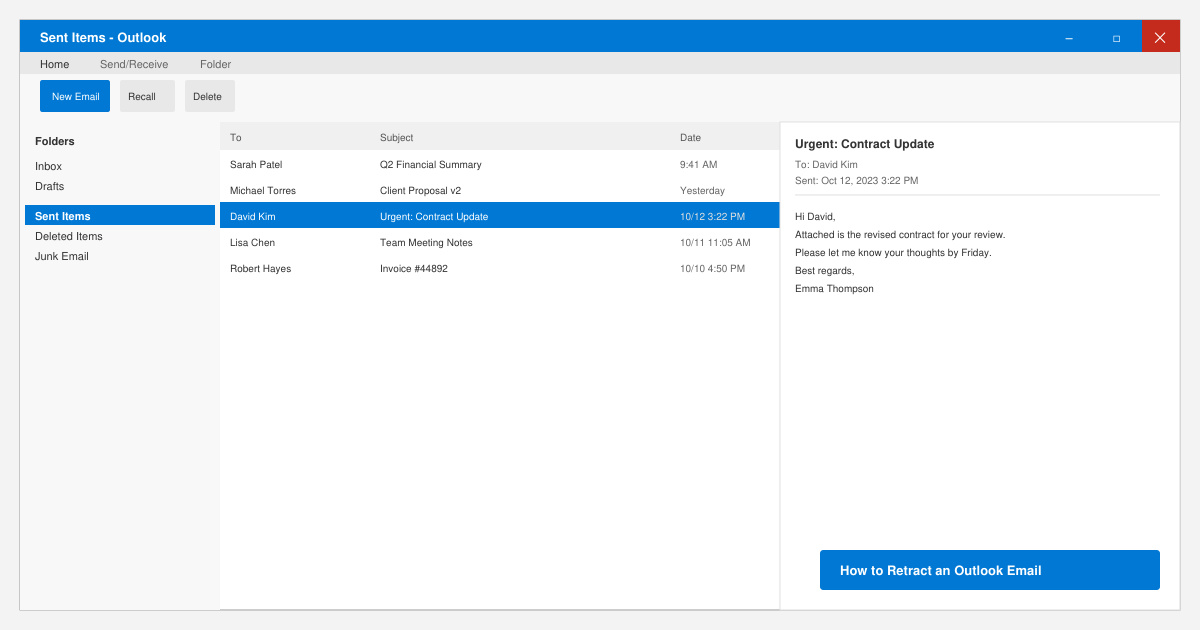
Open the Sent Items folder and locate the message
Launch Outlook and select Sent Items from the left navigation pane. Scroll or use the search bar to find the exact email you want to retract. Double-click the message to open it in a separate window rather than using the reading pane.
-
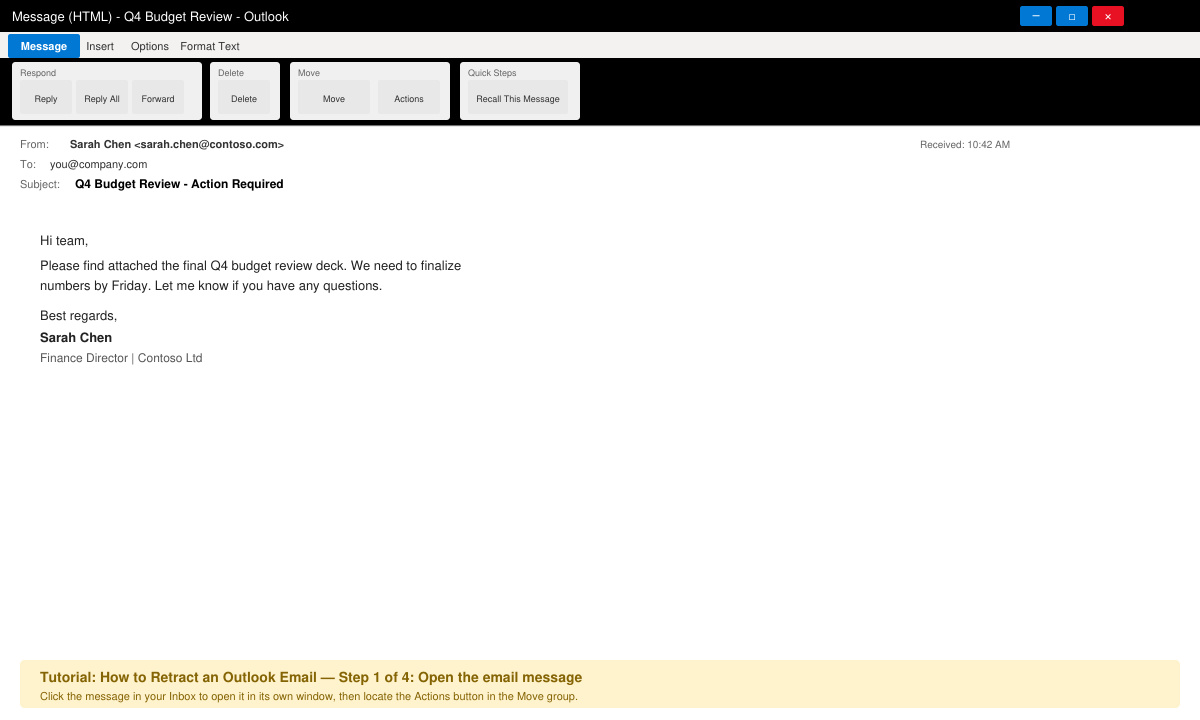
Access the Recall command from the Message tab
With the message window active, click the Message tab in the ribbon. In the Move group, select the Actions dropdown arrow and choose Recall This Message. If you do not see Actions, click the three dots at the far right of the ribbon and search for Recall This Message.
-
Choose delete or replace options
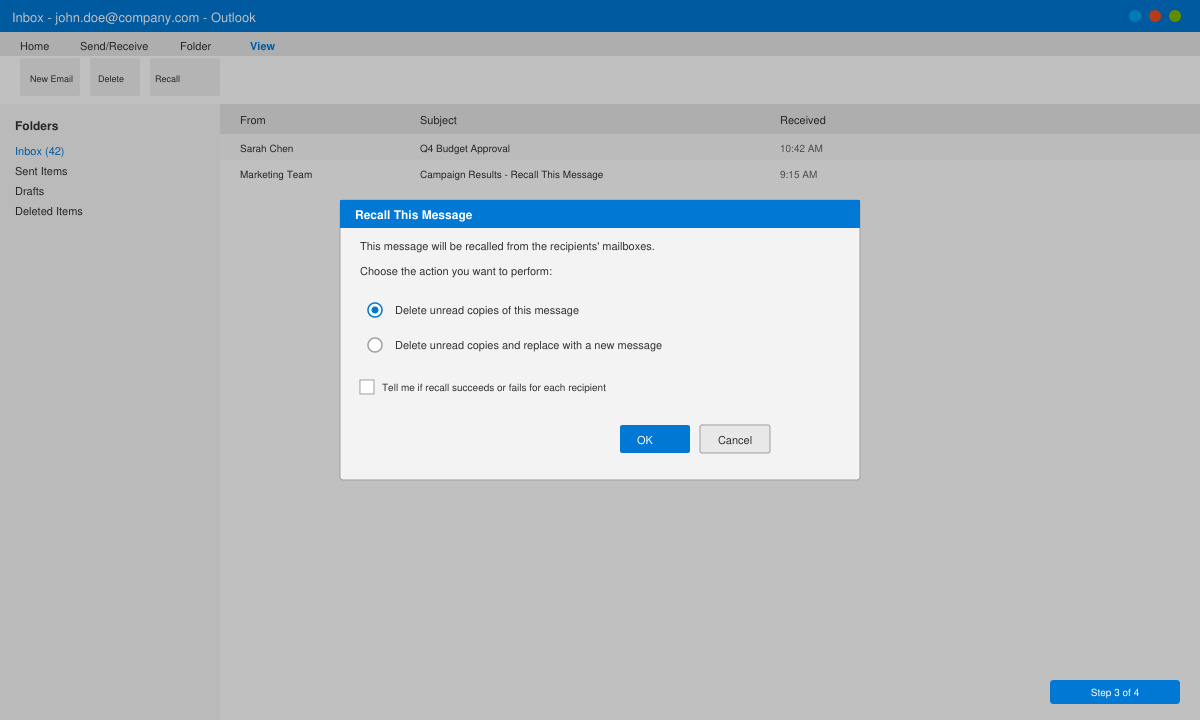
In the Recall This Message dialog box, select either Delete unread copies of this message or Delete unread copies and replace with a new message. If replacing, click OK and then compose the corrected version in the new window that appears.
-
Confirm the action and check results
Click OK to execute the recall. Outlook sends a recall notification to the recipient. A confirmation dialog appears showing whether the recall succeeded or failed for each recipient. Review this report and close the original message window.
Common Issues When Retracting an Outlook Email
If the recall option is grayed out, the message has already been read or the recipient uses a different mail system such as Gmail or an IMAP account. In these cases the recall fails silently. Another frequent problem occurs when the recipient has the message open in the preview pane; close the preview and try again. For permanent records, always save a copy of the original message to your Drafts folder before attempting the retract.
- Enable the Undo Send feature in File > Options > Mail for a short safety window on future messages.
- Check the recall report in your Inbox for any delivery failures.
- Test the process with a colleague on the same Exchange server before relying on it for important messages.
Frequently Asked Questions About How to Retract an Outlook Email
Does how to retract an Outlook email work on Mac?
No. The recall feature is available only in the Windows desktop version of Outlook connected to Exchange. Outlook for Mac uses different server protocols that do not support message retraction.
Can I retract an email after the recipient has read it?
Once the recipient opens the message, the retract command no longer functions. The only remaining option is to send a follow-up apology or corrected information in a new email.
What happens if the recall fails?
Outlook displays a failure notice in the recall report. The original message stays in the recipient's mailbox, so prepare an explanatory follow-up email in advance.
Conclusion
Mastering how to retract an Outlook email saves time when you catch an error immediately after sending. Follow the steps above exactly while both parties remain on Exchange to achieve the best results.