LibreOffice Document Locked by Unknown User: A Safe Fix
Find the cause of a LibreOffice document lock, safely clear a stale lock file, and confirm that you can edit and save without losing changes.
If LibreOffice reports that a document is “locked for editing by an unknown user,” first check whether it is still open in another LibreOffice session or on another computer. If nobody is using it and a previous session ended unexpectedly, close LibreOffice completely, remove only the matching hidden lock file, and reopen the document.
Do not delete a lock simply because the user is listed as unknown. On shared drives or synced folders, it may be protecting unsaved changes made elsewhere.
LibreOffice uses lock files to warn about competing edits. The name “unknown user” means the warning does not provide a reliable owner identity; it does not establish that the document is free to edit. A stale lock can remain after a crash, forced shutdown, disconnected network session, or failed cleanup, while an active lock can come from another computer.
The LibreOffice documentation distinguishes its own lock files from optional Microsoft Office lock files. See the LibreOffice 7.6 Getting Started Guide, “Lock files” section. That guide describes the lock-file function, not a universal procedure for deleting them. The following checks help determine whether removal is appropriate.
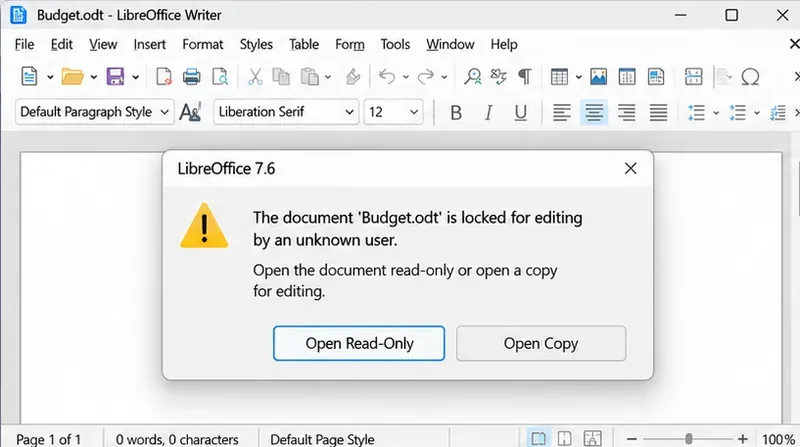
Check this before touching the lock file. The safest fix is often to let the existing editor save and close normally.
If the file is urgently needed for reference, use Open Read-Only if the warning offers it. To make independent edits, open a copy and save it under a different filename; do not overwrite the original until concurrent changes have been reconciled. LibreOffice’s Standard Bar documentation confirms that Save As saves under another name or location.
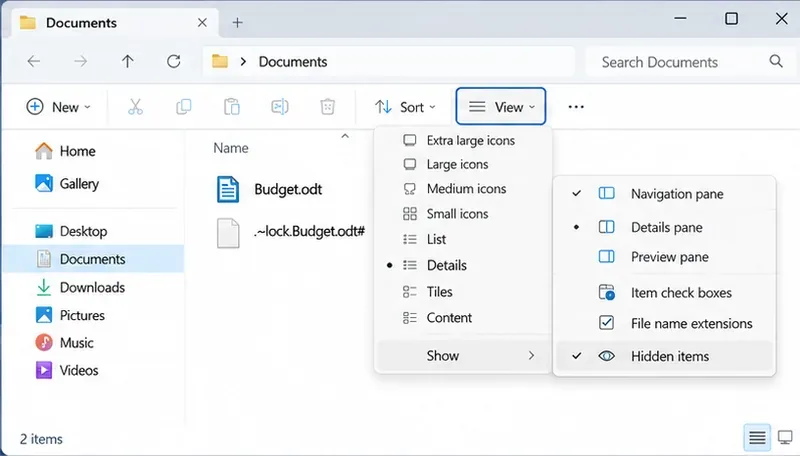
It normally sits in the same folder as the document and is hidden. For a file called Budget.odt, the corresponding LibreOffice lock file commonly has a name like .~lock.Budget.odt#. Match the entire document name, including its extension; a different document has a different lock file.
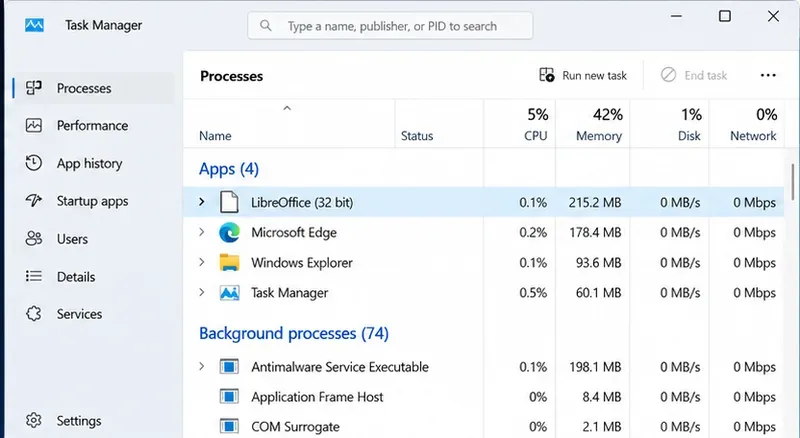
.~lock. prefix and trailing #. Do not confuse it with the original .odt, .ods, or .docx document, or with another application’s temporary or backup files.The LibreOffice community support discussion about documents that will not save identifies an orphaned lock file and a stuck LibreOffice process as possible causes. Neither is proof that every lock is stale.
Remove it only after confirming that no user or process is editing the same document and that pending cloud or network changes have settled. If ownership remains uncertain, keep the lock and work in a separate copy.
.~lock.Budget.odt# file (substitute your document name). Leave Budget.odt untouched. If the lock is recreated immediately, stop: an application or sync process may still have the document open.Deleting the lock removes a coordination signal; it does not merge simultaneous edits, restore unsaved work, or change file ownership and permissions. Never bulk-delete all lock files from a shared directory.
First, confirm that the document really is no longer open elsewhere. If no matching lock file is visible or LibreOffice cannot create a new one, check whether you can create and delete a harmless test file in that folder. Failure suggests a folder-permission, network, or storage problem rather than an abandoned lock. Check available disk space and the current state of the share or sync client.
If a newly copied document opens normally from a writable local folder, but the original cannot be edited on a network share or synchronized directory, focus on that storage location and coordinate with its administrator or collaborators. Keep the local copy separate until you have confirmed which version is authoritative. Do not disable file locking globally as a shortcut.
If a file can be viewed but remains read-only, check operating-system permissions separately. LibreOffice’s Edit Mode command can enable editing of some read-only documents, but it cannot safely override another editor’s active lock; see the official Standard Bar reference.
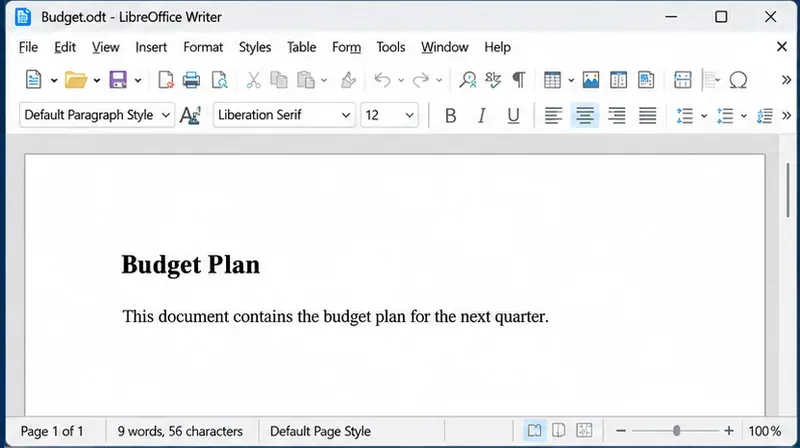
Open the original file, make a small reversible edit, save it, and close LibreOffice normally. Reopen it once more to confirm the warning does not return and your saved change remains present. Then undo the test change if it was only for verification.
While the document is open, a matching lock file may appear; after a clean close it should normally disappear. On shared or synced storage, give the system time to finish its updates before trying again from another computer. If the warning recurs, return to the process and storage checks instead of repeatedly deleting locks.
Find the cause of a LibreOffice document lock, safely clear a stale lock file, and confirm that you can edit and save without losing changes.
Make image-heavy Writer files easier to edit: test a reversible display setting, compress oversized pictures in a copy, and verify the saved layout.
Find out whether a slow launch comes from extensions, profile settings, or the system, then test the safest fix without losing LibreOffice data.
Connect LibreOffice to Nextcloud over WebDAV, save the server copy with Ctrl+S, and understand how AutoRecovery differs from cloud syncing.
Find out whether Pardus 23 is blocking Bluetooth, missing BlueZ, or failing to detect adapter firmware, then confirm the controller works.
Learn how Gooroom separates trusted and untrusted browsing, what users can change, and how an administrator can safely update site policies.
Diagnose rotated, offset, or inconsistent touch input on a Harmonica OS tablet and choose a Linux calibration method that fits its session and driver.
Switch Gooroom’s desktop session to English, verify the locale, and identify when untranslated Korean labels need an app update instead.
Arrange Pardus XFCE as a familiar bottom taskbar with an app menu, pinned launchers, open-window buttons, and a system tray.
Check your Gooroom release and administrator rules, then follow the official Debian-based setup path for Flatpak or Snap without bypassing system controls.