Speed Up LibreOffice Startup on Windows 11 and Linux
Find out whether a slow launch comes from extensions, profile settings, or the system, then test the safest fix without losing LibreOffice data.
If LibreOffice takes unusually long to open on Windows 11 or Linux, first compare a fully exited launch with a launch after the program is already running. Then use LibreOffice Troubleshoot Mode to test a clean temporary profile. If that opens faster, investigate extensions and profile settings one at a time; avoid reinstalling or resetting settings before backing up your profile.
“Slow startup” can mean two different things: a long wait before the Start Center or a blank document appears, or a long wait after opening a particular file. This article addresses the first. If only one document is slow, test with a blank document and then investigate that file’s size, embedded content, linked locations, or fonts separately.
Save open work, close every LibreOffice window, and wait for the process to exit before timing a new launch. A second click while an earlier process is still starting can look like a slow launch or create multiple windows. On Windows, check Task Manager for a remaining LibreOffice process; on Linux, use your desktop’s process monitor. Do not end a process while documents may still be saving. Record whether the next launch is the first after boot or a repeat launch, and compare the same action several times. A warm launch can be faster because the operating system has cached files; that alone does not prove a LibreOffice setting fixed anything.
LibreOffice’s current Help describes Troubleshoot Mode as starting temporarily with a new user profile and disabling hardware acceleration. Because it changes both conditions together, a faster result points toward the profile or graphics configuration but does not identify which one is responsible. It is a test, not a permanent speed mode.
--safe-mode where supported; on Windows, the Start menu may also provide a Troubleshoot Mode entry. Linux distributions package launchers differently, so the command may be libreoffice --safe-mode or the full path to the LibreOffice start script.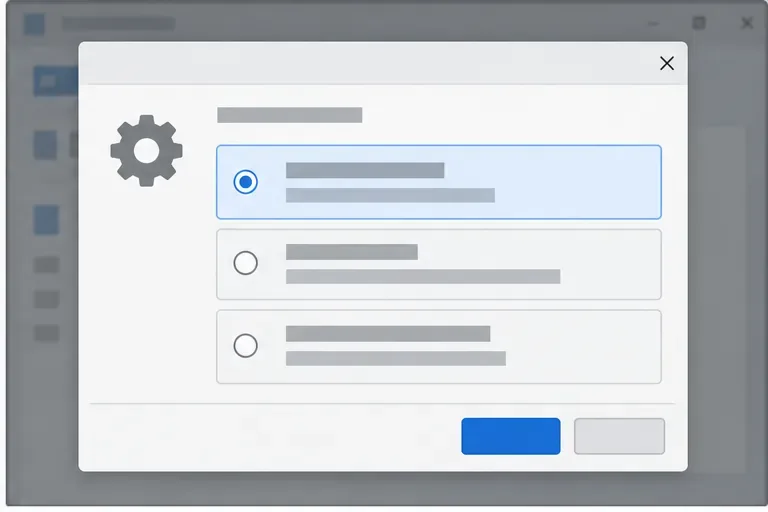
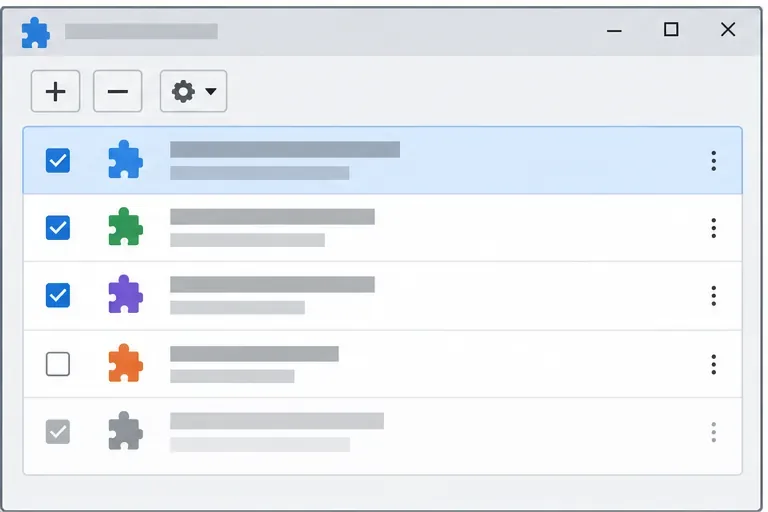
Extensions can add functions, and an extension problem is one possible explanation for startup trouble. The official Extension Manager lets users disable extensions; the effect on launch time depends on which extensions are installed and what they do. Open Tools > Extensions (the menu wording can vary slightly by release), disable user-installed extensions, restart normally, and repeat the same timing test. If launch improves, re-enable extensions in small groups or one at a time until you find the change associated with the delay. Check for a compatible extension update before removing it.
If disabling extensions changes nothing, do not assume every extension is harmless or that the profile is corrupt. Try the next profile-focused step only after preserving anything you need, such as templates, custom dictionaries, macros, or personal settings.
The LibreOffice user profile stores user-specific data such as extensions, dictionaries, and templates. The Document Foundation notes that uninstalling LibreOffice does not remove this profile by default, so reinstalling alone may leave the same slow-start configuration in place. First use the Troubleshoot Mode dialog’s profile archive or backup option if available. Otherwise, close LibreOffice completely and copy the profile folder to a safe location before changing it.
Typical profile locations for current LibreOffice releases are %APPDATA%\LibreOffice\4\user on Windows and ~/.config/libreoffice/4/user on many Linux installations. Flatpak and other sandboxed packages can use different paths; confirm the active profile from Help > About or your package documentation rather than renaming a guessed folder. In Troubleshoot Mode, try the narrower reset that restores settings and customizations while keeping personal dictionaries and templates before considering a full profile reset. The exact choices depend on the installed version.
If a clean temporary profile is still slow, check whether other applications also launch slowly and whether the system is under heavy disk or memory load. On Windows, test after startup activity has settled and compare the same LibreOffice installation after a normal restart. On Linux, note whether LibreOffice came from the distribution repository, Flatpak, or another package source; packaging, sandbox startup, and filesystem access can affect the result, but no single cause can be inferred without comparing that machine’s behavior. Use the distribution’s supported package update path and avoid mixing packages from unrelated sources during diagnosis.
Older LibreOffice documentation describes a Quickstarter that preloads components and may reduce the wait for later launches, with memory use as the trade-off. Its availability depends on the version and package, so do not spend time searching for a setting that your build does not provide. A Quickstarter can also make an initial launch after login seem faster without fixing a slow cold start.
After each change, restart normally and repeat the same launch test at least twice. Keep the fix only if LibreOffice consistently reaches the same ready screen faster without losing expected extensions, templates, or settings. If Troubleshoot Mode is faster but the extension test is not, restore from the profile backup or use the least disruptive profile reset; if both modes remain slow, collect your LibreOffice version, package source, operating system version, and a description of the delay before seeking platform-specific support.
Find out whether a slow launch comes from extensions, profile settings, or the system, then test the safest fix without losing LibreOffice data.
Connect LibreOffice to Nextcloud over WebDAV, save the server copy with Ctrl+S, and understand how AutoRecovery differs from cloud syncing.
Find out whether Pardus 23 is blocking Bluetooth, missing BlueZ, or failing to detect adapter firmware, then confirm the controller works.
Learn how Gooroom separates trusted and untrusted browsing, what users can change, and how an administrator can safely update site policies.
Diagnose rotated, offset, or inconsistent touch input on a Harmonica OS tablet and choose a Linux calibration method that fits its session and driver.
Switch Gooroom’s desktop session to English, verify the locale, and identify when untranslated Korean labels need an app update instead.
Arrange Pardus XFCE as a familiar bottom taskbar with an app menu, pinned launchers, open-window buttons, and a system tray.
Check your Gooroom release and administrator rules, then follow the official Debian-based setup path for Flatpak or Snap without bypassing system controls.
Learn what Pardus Image Writer can do, how to prepare installation USB safely, and which tools fit custom live images or repeatable fleet deployments.
Install Pardus alongside Windows 11 by shrinking the Windows volume, using unallocated space, and preserving the existing EFI System Partition.