Set Up a Windows-Style XFCE Panel on Pardus Linux

Arrange Pardus XFCE as a familiar bottom taskbar with an app menu, pinned launchers, open-window buttons, and a system tray.
If you are looking for a “Pardus Image Creator” to build a customized operating-system ISO, the first decision is to use the right kind of tool. Pardus’s official utility is called Pardus Image Writer. It writes an existing ISO or IMG file to a USB flash drive; it does not create or customize an operating-system image. For a custom live image, use an image-building workflow designed for that distribution. For rolling the same installed system out to several computers, use disk-imaging or configuration-management tools.
This distinction determines what the tool can do and which deployment workflow fits.
Pardus describes Image Writer as a utility for writing Linux or Windows image files to USB. Its project repository calls it a work in progress and documents a source-based setup. Pardus’s applications page also says its applications can be installed from the Pardus Software Center. The available documentation does not describe an Image Creator feature for editing an ISO or producing a custom Pardus release. Pardus’s official application list and the Image Writer repository are the current reference points.
live-build can assemble Debian live images from a configuration, but its manual does not certify that a resulting image is a supported Pardus build.Use a ready ISO for ordinary installation media, a maintained image build for a customized live system, and cloning for similar machines when you can reset machine-specific settings.
First check the Pardus Software Center for Pardus Image Writer. Installing the packaged application is usually easier to maintain than running a source checkout, because the package manager handles its files and updates. If it is missing from your edition or repository, the upstream repository provides a source-run path. The project lists Python 3, GTK 3 bindings, requests, pyudev, and parted among its dependencies, and gives these Debian-style commands:
sudo apt update
sudo apt install gir1.2-glib-2.0 gir1.2-gtk-3.0 python3-gi python3-requests python3-pyudev parted git
git clone https://github.com/pardus/pardus-image-writer.git ~/pardus-image-writer
python3 ~/pardus-image-writer/src/Main.py
Use this source procedure only on a compatible Debian-based environment where those package names resolve. It is not a universal install command for every Linux distribution. The repository also documents building a Debian package, but that route adds packaging tools and build dependencies; use it when you need a repeatable installable package, not for a one-off USB.
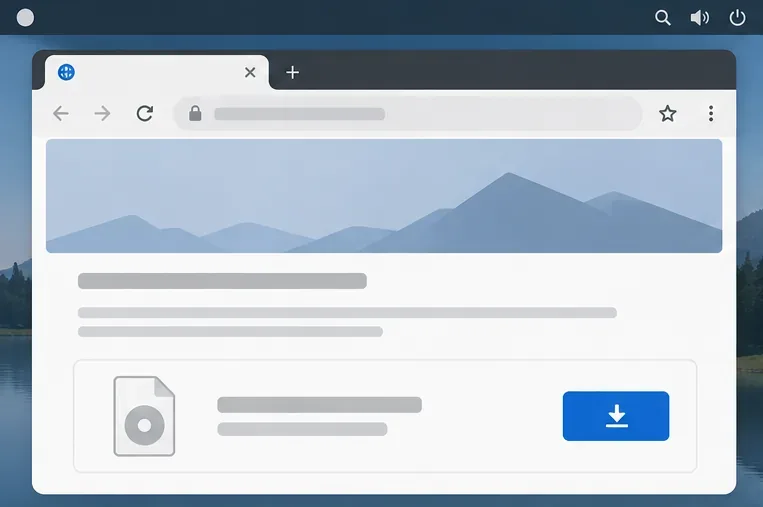
md5sum -c MD5SUMS from the directory containing the checksum file and ISO, if its entries use matching filenames. A matching checksum detects common download corruption; MD5 is not a modern cryptographic authenticity guarantee. Do not proceed if the result reports a mismatch./dev/sdb; device names can differ between computers and sessions.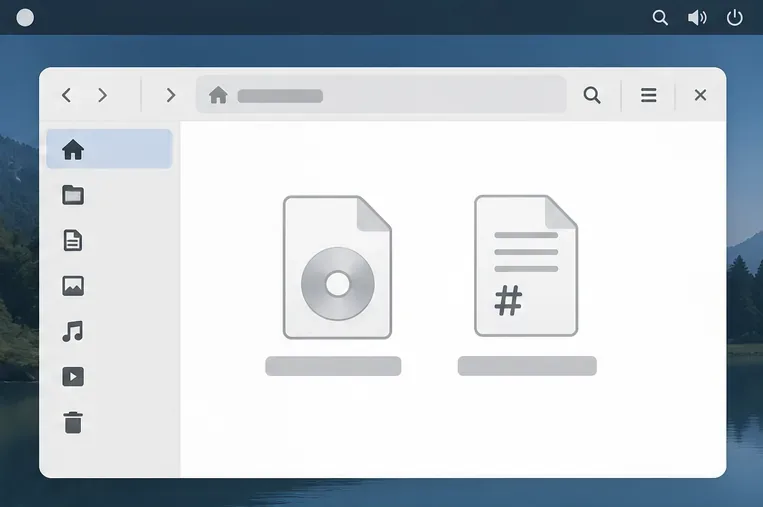
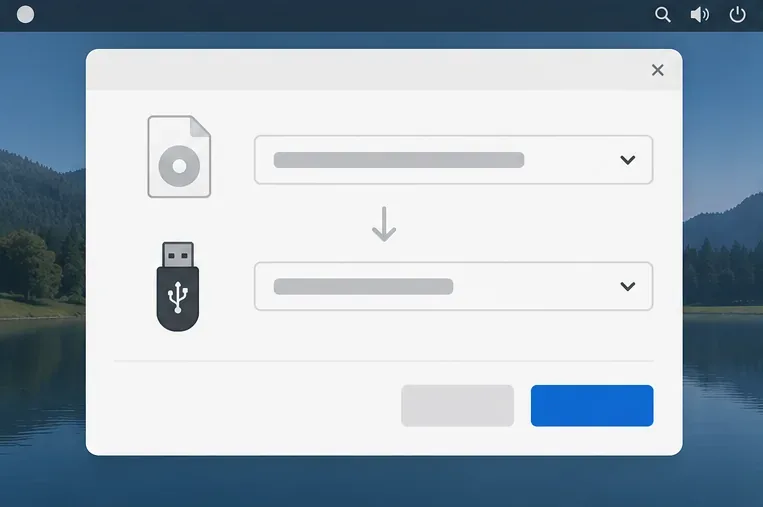
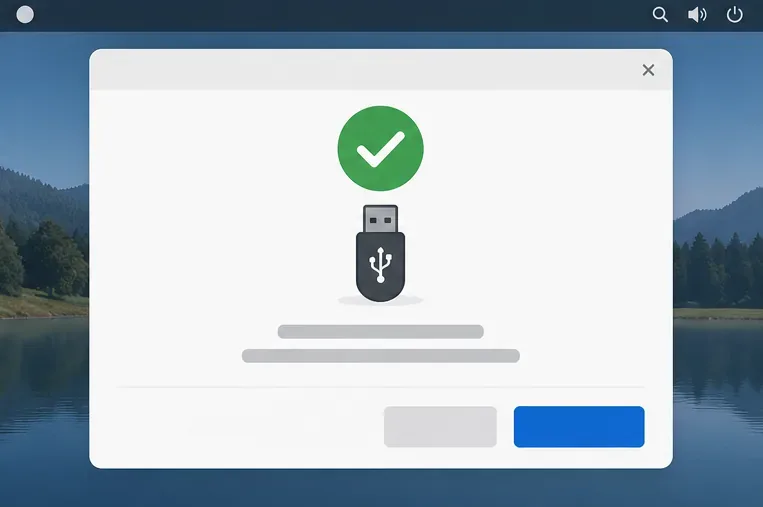
If the goal is to include packages, files, or default settings in a bootable live system, Image Writer is the wrong stage of the process: it can only copy the finished image to media. Debian’s Live Manual describes live-build as a system for building live images from specifications, with customization options for packages and filesystem content. That documentation applies to Debian live systems. It does not establish a supported recipe for rebuilding Pardus, whose release configuration and repositories may require distribution-specific steps.
For Pardus itself, do not treat a successful Debian live-build as proof of a supported Pardus image. Before maintaining a derivative, confirm the permitted package sources, installer behavior, bootloader configuration, licensing, update process, and hardware support with Pardus’s current release documentation. If those requirements are not documented, ask the Pardus project through its official support channels instead of distributing an improvised ISO.
If your “custom deployment” means many identical endpoints rather than a custom live installer, a reference-machine workflow may fit better. Clonezilla supports disk imaging and cloning, including deployment modes for multiple systems. Cloning is efficient, but it can copy machine-specific identifiers and configuration. Plan how to regenerate or customize hostnames, network settings, accounts, and any enrollment tokens before deploying the image broadly.
After writing the ISO, boot a spare or test computer from the USB using its one-time boot menu. Confirm that the boot menu appears and that the intended live environment or installer starts. If it does not boot, recheck the checksum, rewrite the USB, and confirm the firmware boot mode and image architecture fit the hardware.
For custom images or clones, test first boot on representative hardware and verify updates and machine-specific settings. A USB writer cannot validate an image’s installer, security policy, or fleet suitability.
Arrange Pardus XFCE as a familiar bottom taskbar with an app menu, pinned launchers, open-window buttons, and a system tray.
Check your Gooroom release and administrator rules, then follow the official Debian-based setup path for Flatpak or Snap without bypassing system controls.
Learn what Pardus Image Writer can do, how to prepare installation USB safely, and which tools fit custom live images or repeatable fleet deployments.
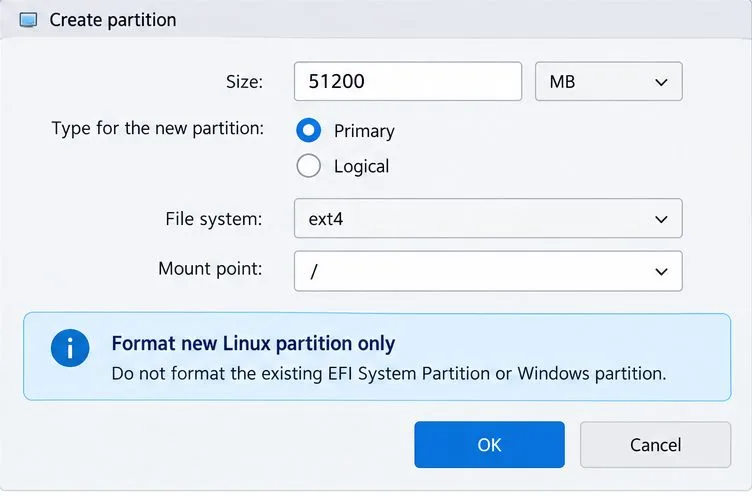
Install Pardus alongside Windows 11 by shrinking the Windows volume, using unallocated space, and preserving the existing EFI System Partition.
Identify the RTL8821CE, install Pardus-supported Realtek firmware, and verify the driver, Wi-Fi scan, and next troubleshooting step.
Use Pardus’s hardware-aware installer to enable the right NVIDIA driver, reboot safely, and verify the active kernel module.
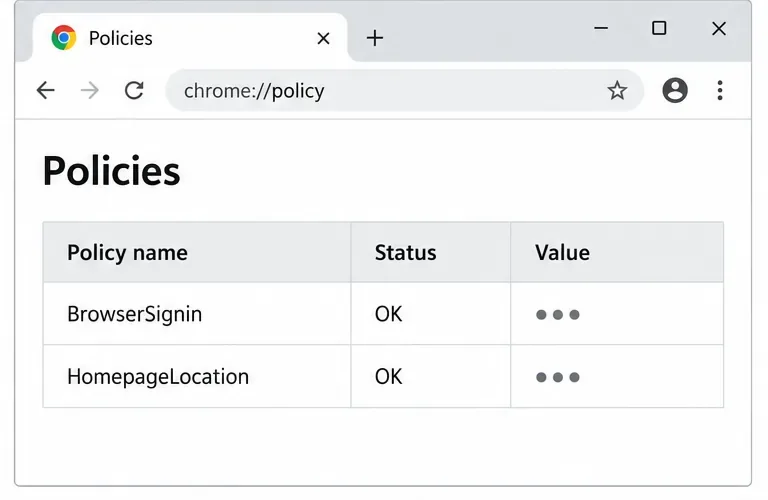
Install the official Chrome package safely on Gooroom OS, check compatibility, preserve device controls, and verify browser policies before use.
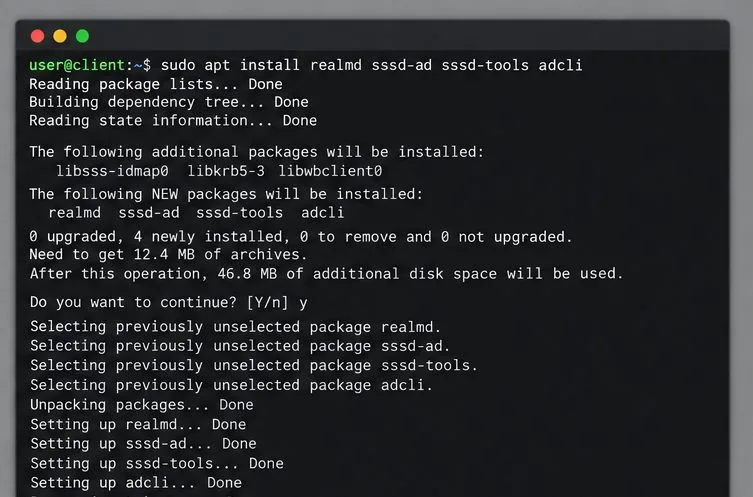
Prepare DNS and time, enroll Pardus with realmd and SSSD, and verify domain membership and user lookup before relying on AD sign-in.
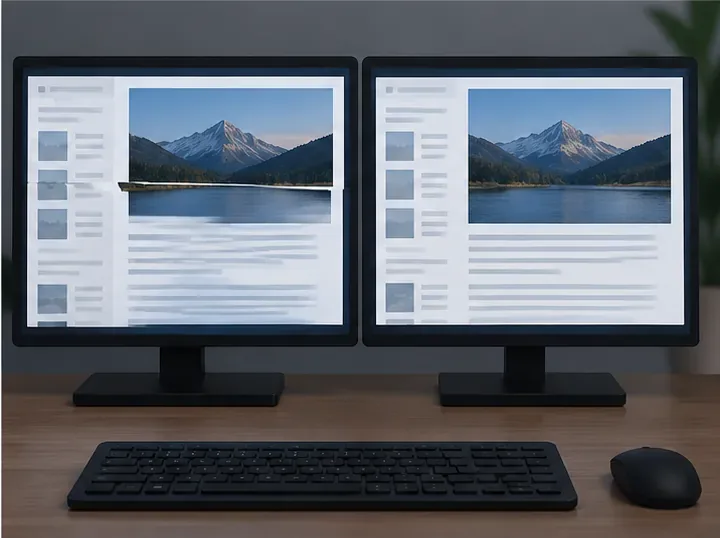
Reduce horizontal tearing in Pardus XFCE by checking your display session, enabling compositor synchronization, and applying Intel’s Xorg TearFree option only when the active driver supports it.
Add an OpenVPN profile to NetworkManager on Pardus, install the right plugin, protect credentials, and verify the VPN is active.