Join a Pardus Client to Active Directory with realmd
Prepare DNS and time, enroll Pardus with realmd and SSSD, and verify domain membership and user lookup before relying on AD sign-in.
For Pardus 25, start with the Pardus Domain Joiner application if your organization has deployed it and documents its settings; Pardus lists the tool as its graphical option for joining or removing a computer from a domain. If you need a reproducible procedure, use the terminal workflow below: configure DNS and time, install the realmd/SSSD packages available for your Pardus release, discover the domain, then join with an authorized account. This example uses the fictional DNS domain ad.example.com and an account named joinadmin. Replace both with your organization’s values. The procedure is appropriate for a Pardus client that can reach an existing Windows Active Directory domain controller; it does not create a domain or automatically apply every Windows Group Policy.
Before changing the computer’s identity configuration, confirm with your administrator that you have permission to join computers and that the device name and target organizational unit (OU) follow your organization’s policy. A domain join creates or uses a computer account in Active Directory. Use a test machine first if this is a managed production workstation.
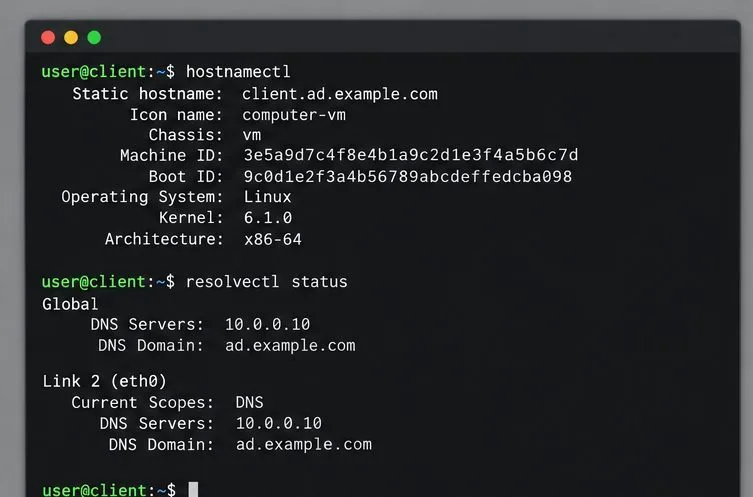
Connect the client to the organization’s network or VPN that can reach its domain controllers. Configure the client to use the organization’s Active Directory DNS servers. Public DNS may resolve ordinary websites while failing to locate internal LDAP and Kerberos services, so internet access alone is not enough. Check the system name, resolver, and clock:
hostnamectl
resolvectl status
timedatectl status
For example, a client named client might use 10.0.0.10 as its DNS server and receive ad.example.com as its search domain. Ask IT for the correct values rather than copying these examples. Keep the clock synchronized with your organization’s time source; Kerberos authentication can fail when client and domain controller clocks differ. Avoid manually editing generated resolver files when NetworkManager or the Pardus network settings manage them.
Pardus 25’s release notes list Pardus Domain Joiner as an application for integrating with Windows Active Directory, and the Pardus applications catalog describes a graphical join/remove tool. If you use the GUI, open the Pardus Software Center, search for Pardus Domain Joiner, and follow your organization’s instructions. The public references confirm the tool’s purpose, but do not document its exact field names or every release’s interface; do not assume options are identical across versions.
The CLI route uses realmd to discover and enroll the machine, adcli for domain operations, and SSSD (System Security Services Daemon) to provide identity lookup and authentication. These package names are documented for Debian-family systems, but package availability can vary by Pardus release and repository. On Pardus, first update the package index and check whether the packages are offered by your configured repositories:
sudo apt update
apt policy realmd sssd-ad sssd-tools adcli
If the packages are available, install them:
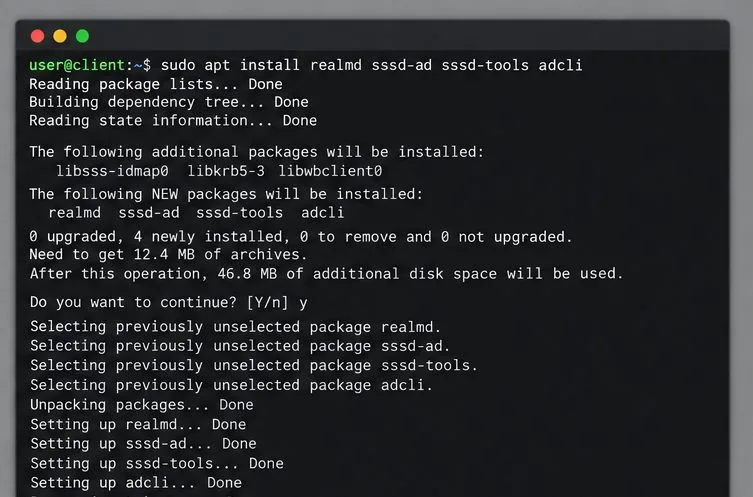
sudo apt install realmd sssd-ad sssd-tools adcliReview the package manager’s proposed changes before confirming. If a package is unavailable, stop and check Pardus repositories and release documentation or ask your system administrator. Do not add an unrelated distribution’s repository to force an installation.
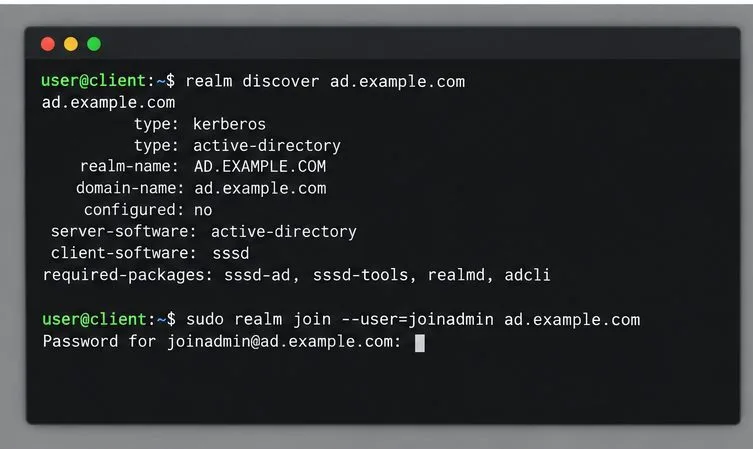
Run domain discovery before attempting enrollment:
sudo realm -v discover ad.example.comA successful result identifies the domain as Active Directory, shows the Kerberos realm (usually uppercase, such as AD.EXAMPLE.COM), and may identify SSSD as the client software. If discovery fails, stop here. Check DNS records and connectivity with your administrator rather than trying random domain spellings or hard-coding a domain controller IP.
When discovery succeeds, join using an account that has delegated permission to add this computer. The command prompts for the password without placing it in shell history:
sudo realm join --user=joinadmin ad.example.comEnter the account password only at the prompt. Do not add a password after --password or paste it into a command, ticket, or screenshot. A successful join commonly returns to the shell without a success message. If your administrator requires a particular OU or computer name, ask for the approved realm join options before joining; the default placement may not match company policy.
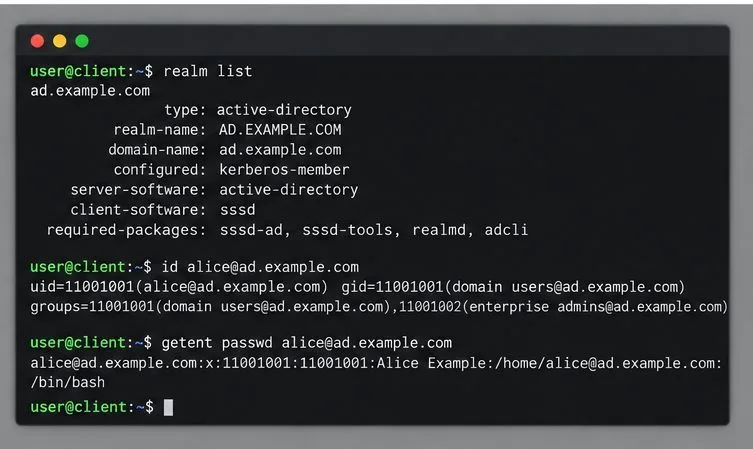
Check membership first:
realm listThe domain should appear as configured, with Active Directory as the server software. Then ask SSSD to look up a known test user by fully qualified name:
id alice@ad.example.com
getent passwd alice@ad.example.com
Replace alice with a real account permitted to sign in. A returned UID, group list, and passwd record show that the system can resolve the account; they do not alone prove that the desktop login or access policy works. Test an interactive sign-in using the account format your administrator specifies, usually username@ad.example.com. Keep a local administrator account available until you have confirmed domain login and recovery access.
Home-directory creation and desktop login behavior depend on Pardus version, display manager, and PAM/SSSD configuration. Do not assume an AD user’s home directory is created automatically: verify this with a controlled test account or have the administrator configure and test the required session module. Likewise, domain membership does not automatically grant local administrator or sudo rights.
timedatectl status with the organization’s time source and correct time synchronization before retrying.realm list and SSSD status with systemctl status sssd; use journalctl -u sssd for diagnostic messages. Follow local IT policy before changing SSSD access rules, PAM, or cached credentials.For source-specific details, see the Pardus 25 release notes, the Pardus applications catalog, Ubuntu’s SSSD and Active Directory procedure for the documented realmd command sequence, and Debian’s realmd package description. Confirm package names and GUI behavior against the Pardus release installed on your client.
Prepare DNS and time, enroll Pardus with realmd and SSSD, and verify domain membership and user lookup before relying on AD sign-in.
Reduce horizontal tearing in Pardus XFCE by checking your display session, enabling compositor synchronization, and applying Intel’s Xorg TearFree option only when the active driver supports it.
Add an OpenVPN profile to NetworkManager on Pardus, install the right plugin, protect credentials, and verify the VPN is active.
Prepare a bootable USB, check 64-bit hardware compatibility, and install Pardus 23 XFCE while protecting existing files and avoiding common legacy BIOS pitfalls.
Distribute a custom wallpaper to Pardus clients, configure Xfce or GNOME desktops, and apply Lider Ahenk user policies with safe pilot checks.
Fix a 1024 × 768 ceiling by checking SPICE, virtual video, the guest channel, and spice-vdagent—with safe checks when Pardus lacks a package candidate.
Set up the Lider server, configure its installer safely, register Ahenk endpoints, and verify a pilot before expanding central management.
Download the official Pardus 23 desktop ISO, write it safely with Rufus, and boot a Windows PC into a temporary Live session.
Find out why Pardus 23 cannot detect your sound card, then use targeted ALSA, firmware, and PipeWire or PulseAudio checks to restore playback.
Save HamoniKR preferences to external storage, include hidden home folders, and choose a safe restore mode when moving to a fresh installation.