Back Up and Restore HamoniKR Settings Without Missing Hidden Files
Save HamoniKR preferences to external storage, include hidden home folders, and choose a safe restore mode when moving to a fresh installation.
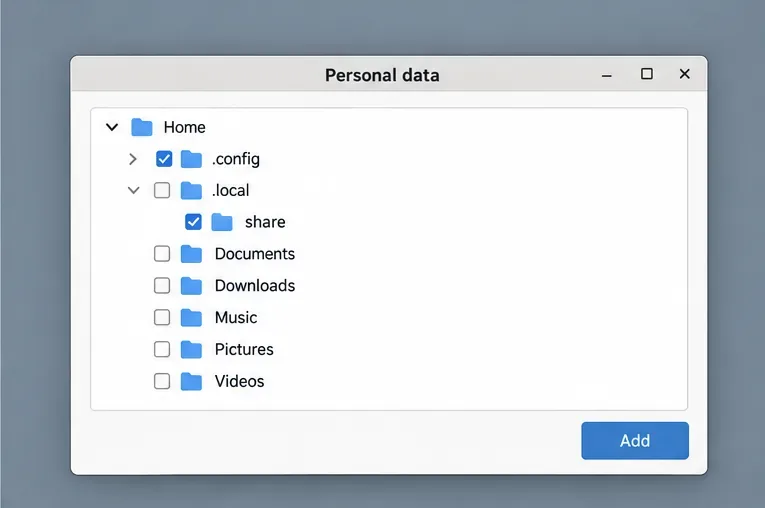
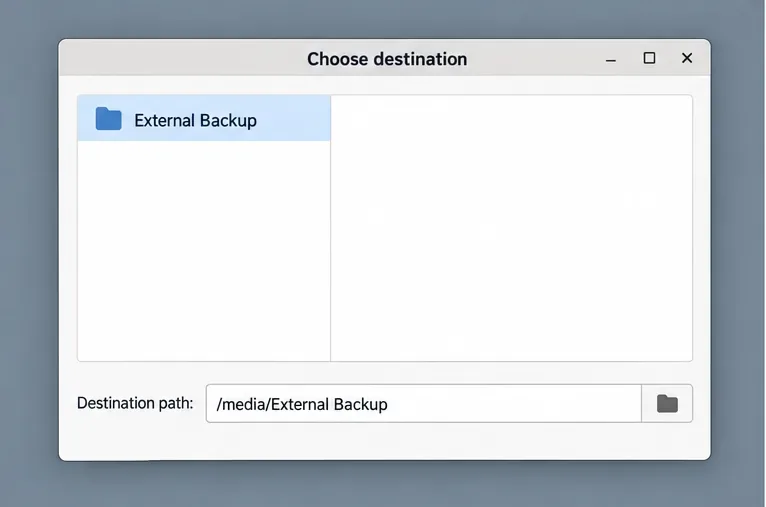
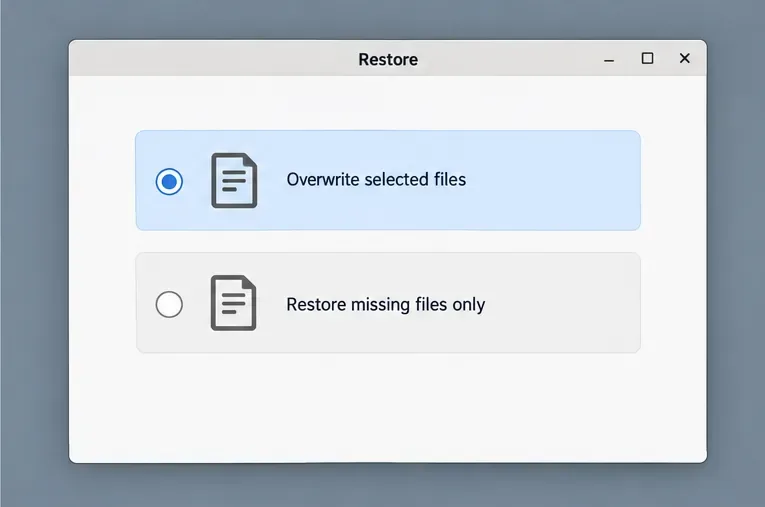
On HamoniKR, use Menu > Management > Backup Tool, choose personal data, save it to an external drive, and add the hidden home-folder items you need. The tool excludes hidden files and folders at the top level of your home directory by default, so a backup can appear complete while missing desktop and application preferences. Before restoring, choose between overwriting selected files and recovering only missing files. These steps follow the current HamoniKR 8.0 guide; older editions may use different menu labels.
Illustrative example: Lina is preparing a clean HamoniKR installation on a replacement drive and wants to bring back her panel preferences, keyboard settings, and a few application preferences. This is a hypothetical example, not a report of a real test. She will back up her personal settings to an external drive, include the relevant hidden folders, then restore only those settings she has checked.
Connect an external drive or USB storage device and confirm that it appears in HamoniKR’s file manager. Do not save the only copy on the same internal drive you plan to reinstall or replace. Make sure the destination has enough free space for the items you select, and create a clearly named folder such as HamoniKR-settings-backup.
HamoniKR’s documented Backup Tool can save personal files and settings to a local folder, and its upgrade instructions recommend external storage for important data before reinstalling. The tool also has a separate software-list option. That list is distinct from personal settings: include it if you want a record of selected installed applications, but plan to verify and reinstall applications separately after the system is ready. See the HamoniKR Backup Tool documentation.
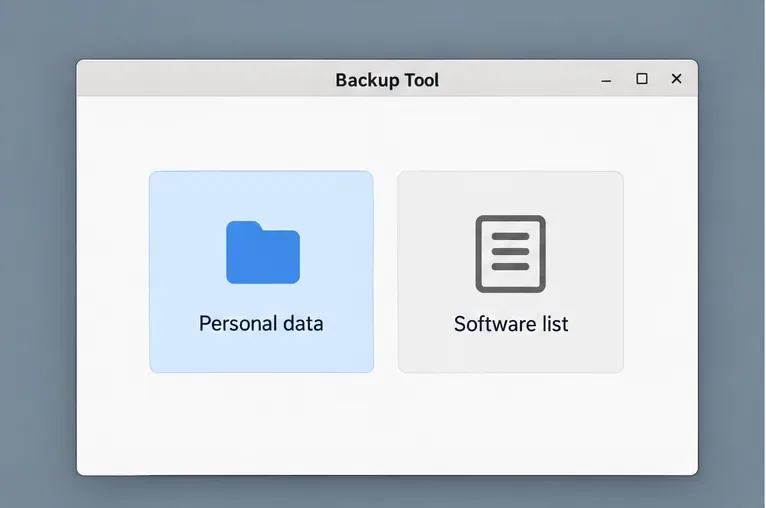
~/.config as the default location for user configuration, while ~/.local/share is generally for user application data and ~/.local/state for application state. Individual applications may use other paths, so include only the files or folders you recognize and need.In Lina’s example, she adds ~/.config for desktop and application preferences, then selects specific folders under ~/.local/share only when an application stores settings or user data there. She leaves ~/.cache out because it is cache data that applications can usually rebuild. Do not select every hidden folder automatically: locations such as ~/.ssh, ~/.gnupg, browser profiles, and password-manager data can contain credentials or private information. Include them only if you need them and can protect the backup.
Wait for the Backup Tool’s completion message, then open the external destination in the file manager and confirm that the backup files are present and have a nonzero size. Keep the drive connected until you have checked the destination; a folder name alone does not prove that the backup completed. If your settings are especially important, keep a second copy on another device.
For Lina, this check happens before she installs onto the replacement drive. She confirms that the backup is on the external device and that the intended home settings were included. If the files are still only on the old system drive, she postpones the reinstall and corrects the destination first.
After HamoniKR is installed and you are signed in to the destination user account, open the Backup Tool’s restore option and select the backup on the external drive. The documented restore choices are to overwrite the destination or restore only files that are missing. Use overwrite when you deliberately want the saved version of a selected settings file to replace the current one; use missing-files-only when you are recovering files without replacing files that already exist.
Before an overwrite, back up any settings created on the new installation that you may want to keep. Select the relevant hidden configuration folders rather than restoring the entire home directory by default. This is especially important if you are moving between major HamoniKR releases: the documentation describes the backup and restore options but does not promise that every application setting will remain compatible across versions. Restore a small set first, open the applications, and expand the selection only when the preferences work as expected.
Lina restores her chosen desktop and application settings, then checks her panel, keyboard behavior, and the applications she selected. If a preference is missing, she checks whether its hidden folder was included in the backup before repeating the restore. If an application behaves incorrectly, she can restore its current configuration from the copy she made before overwriting.
Confirm that the expected desktop preferences and application settings appear in the destination account, then restart once and check them again. Keep the external backup until the new setup works as expected. HamoniKR’s built-in tool covers selected personal data and settings; it is not the same as a full-system image or a guarantee that every program, credential, or system-wide setting has been migrated.
For the documented backup scope and restore choices, consult the HamoniKR Backup Tool guide and the HamoniKR upgrade instructions.
Save HamoniKR preferences to external storage, include hidden home folders, and choose a safe restore mode when moving to a fresh installation.
Install and configure xrdp on Pardus, choose the right Xfce session, restrict network access, and verify that remote login works.
Diagnose Pardus 23 APT connection failures, confirm the official yirmiuc sources, and restore apt update without bypassing package signature checks.
Configure printers on Harmonica OS using CUPS, compare driverless IPP with legacy drivers, and verify USB or network printing with a test page.
Use a recovery shell to set a new Harmonica OS root password, with checks for encrypted disks, read-only filesystems, and accounts that use sudo.
Trace whether clipping, ALSA format conversion, or HDA power saving is causing Ubuntu 24.04 audio distortion, then apply the matching reversible fix.
Switch Debian audio between named PipeWire outputs with a pactl script that updates the default sink and reroutes streams already playing.
Get your Bluetooth headset mic working by selecting the right input, using a hands-free audio profile, and checking Ubuntu’s PipeWire route.
Learn why Flatpak apps may ignore Ubuntu 24.04 GTK themes and follow safe steps to check theme extensions, refresh Flatpak apps, and diagnose portal issues.
Install Ubuntu 24.04 alongside Windows 11 with BitLocker safely. Compare separate-drive and shared-drive paths, recovery keys, partitioning, and boot checks.