Home
» PC Tips
»
Reset a Forgotten Root Password on Harmonica OS with GRUB Recovery
Reset a Forgotten Root Password on Harmonica OS with GRUB Recovery
Example scenario: Minh is the owner of a Harmonica OS desktop and has forgotten the password for the root account. He can reach the machine, and its encrypted disk has already been unlocked at boot. If his installation uses the Ubuntu-style GRUB recovery menu, he can set a new root password from its recovery shell. Harmonica-specific documentation for this procedure could not be verified, so menu names may differ by release.
First confirm which password is actually lost. The root password is separate from the password of a normal account that has administrator rights through sudo. If Minh only needs to regain his desktop or sudo account, he should reset that named account with passwd username instead. The instructions below change the root account with passwd root.
Before changing the password
This method requires physical access or an authorized console and access to the boot menu. It does not decrypt an encrypted disk, recover files from a damaged filesystem, or bypass a firmware/GRUB password. If the root filesystem is protected by full-disk encryption, enter its valid unlock key first. A running encrypted installation usually presents that prompt before the operating system starts.
Have the device owner’s approval, keep the computer in a private place, and choose a strong, unique password. Anyone who can edit boot parameters or open a recovery shell may be able to gain administrator access on an unencrypted machine. If the computer is managed by an organization, use its approved recovery process.
Reset root from the GRUB recovery menu
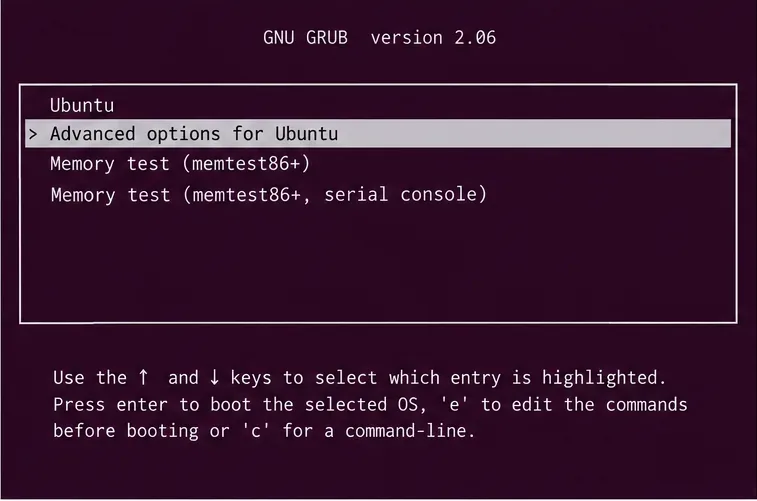
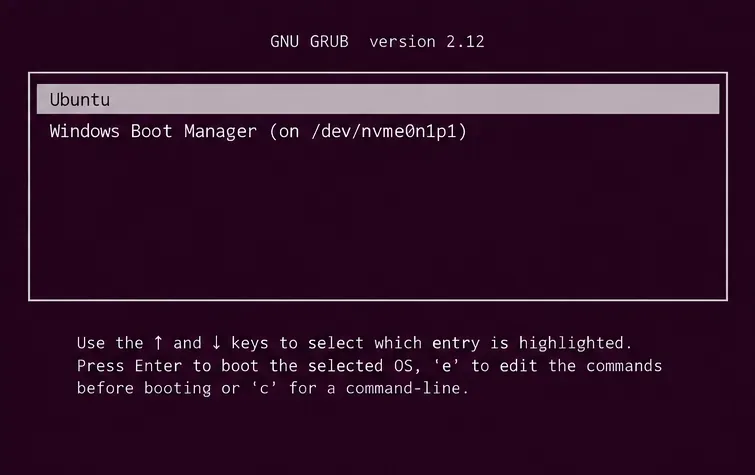
Open GRUB during startup. Restart the computer. On many UEFI systems, press Esc repeatedly as it starts; on some legacy BIOS systems, hold Shift. Timing varies. If the menu never appears, consult the device or Harmonica release documentation rather than changing bootloader settings blindly.
Select the recovery entry. Choose Advanced options for Ubuntu (or the equivalent Harmonica entry), then select a kernel entry marked recovery mode. The exact wording can differ. The Ubuntu recovery documentation describes this GRUB path, but it does not establish that every Harmonica release uses the same menu.
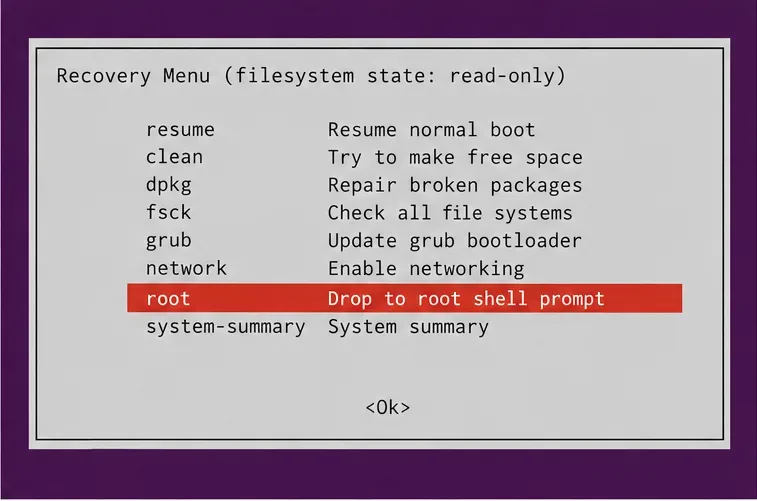
Open the root shell. In the recovery menu, select root – Drop to root shell prompt and confirm if prompted. This shell has full system privileges. Treat every command as an administrator action.
A GRUB-style menu with Advanced options highlighted; Harmonica OS may label its recovery entry differently.The recovery menu’s root shell option opens a privileged maintenance prompt.
Make the system writable and set a new password
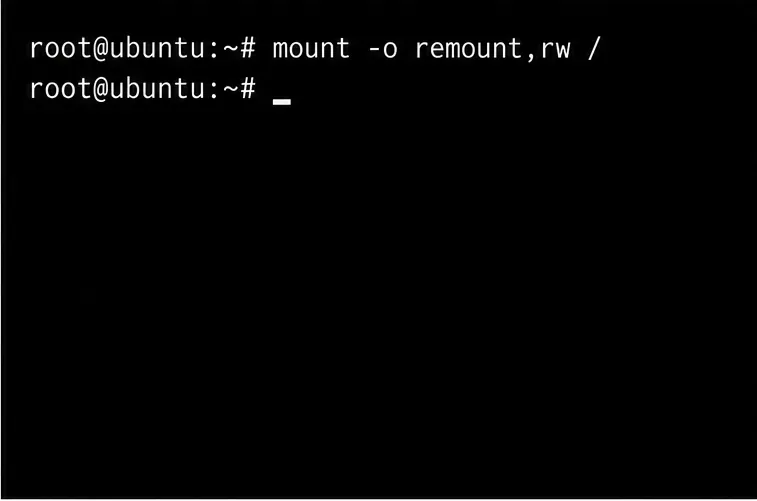
Recovery environments commonly mount the installed root filesystem as read-only to protect it. At the shell, remount it with write access:
mount -o remount,rw /
The command normally returns to the prompt without a message when it succeeds. If it reports an error, stop and read it; do not try random mount devices. The root filesystem may use a different layout, be encrypted but not unlocked, or have filesystem errors that need separate repair.
The recovery shell remounts the root filesystem read-write before the password change.
Now set the password for the root account:
passwd root
Type the new password twice when prompted. The terminal typically shows no characters while you type; that is normal. Use a long, unique passphrase and avoid putting it directly in a command, where it could be exposed in shell history or process listings. A success message indicates the password database was updated.
The passwd utility requests the new root password twice and reports when the update succeeds.
Restart and verify access
After the success message, restart from the recovery shell with:
reboot
If reboot is unavailable in that minimal shell, use the recovery menu’s resume or reboot option. Let the machine start normally. At a local text console, test the new root password only if root login is enabled. A desktop login screen may reject root by design, and SSH may prohibit direct root login even when the password is correct; those policies are separate from the password itself.
If the forgotten credential belonged to Minh’s normal administrator account instead, he should repeat the recovery-shell process and run passwd minh (using the actual account name). The home-directory listing can help identify local users, but it may also contain service or shared directories, so confirm the correct account before changing anything.
Check what changed—and what did not
When the system boots normally, an administrator can confirm the account status with sudo passwd -S root after signing in to an authorized administrator account. The status output is distribution-dependent; it helps distinguish a password present in the account database from a locked account, but it does not prove that graphical or SSH root login is permitted.
The reset is complete when the system boots without errors and the intended account accepts its new credential through an allowed login method. If it still fails, check whether you changed root or a normal user, whether the keyboard layout changed between boot and login, and whether the account is locked or login-restricted. For a Harmonica build without an Ubuntu-style GRUB recovery entry, consult its release notes or maintainer before trying boot-parameter edits. Canonical’s recovery-mode instructions document the general GRUB recovery route, and its user-management documentation explains that root-account configuration is distinct from ordinary administrator access.