Build a PipeWire Output Toggle Script That Moves Active Audio

Switch Debian audio between named PipeWire outputs with a pactl script that updates the default sink and reroutes streams already playing.
For a small Debian audio toggle, use pactl through PipeWire’s PulseAudio-compatible server. The script below switches between two named outputs, sets the new default, and moves playback streams that are already open. Replace the sample sink names with the exact names shown on your machine.
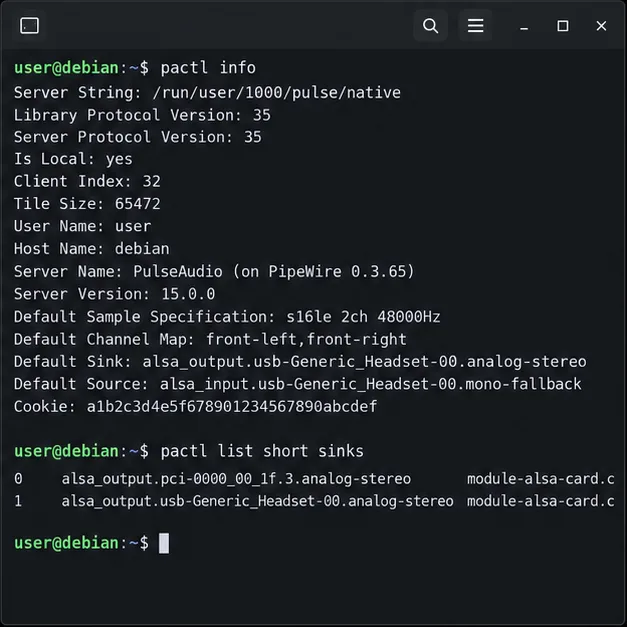
PipeWire’s pipewire-pulse component provides a PulseAudio-compatible server, so standard tools such as pactl can control its sinks (audio outputs). Check which server your client reaches and list the available sinks:
pactl info | grep -E 'Server Name|Server Version'
pactl list short sinks
For this procedure, the server name should mention PipeWire. The sink list contains symbolic names such as alsa_output.pci-0000_00_1f.3.analog-stereo. Copy two names exactly: one for each output you want to toggle between. These names are specific to the connected hardware and audio profile; do not copy names from the example or use a numeric sink index, which can change during a session.
If pactl is missing, Debian provides it in pulseaudio-utils. Install that client package only if needed. If pactl info cannot connect or reports a different sound server, first confirm that PipeWire’s PulseAudio replacement is running in your user session; do not install or switch audio servers blindly.
Create a per-user scripts directory and open a new file:
mkdir -p ~/.local/bin
nano ~/.local/bin/toggle-audio-output
Paste this script, replacing both values in SINK_A and SINK_B with the names you copied:
#!/usr/bin/env bash
set -euo pipefail

SINK_A='alsa_output.pci-0000_00_1f.3.analog-stereo'
SINK_B='alsa_output.usb-Generic_Headset-00.analog-stereo'

command -v pactl >/dev/null || { echo "pactl is missing" >&2; exit 1; }
server_name=$(pactl info | sed -n 's/^Server Name: //p')
case "$server_name" in
  *PipeWire*) ;;
  *) echo "pactl is not connected to PipeWire's Pulse server" >&2; exit 1 ;;
esac

sinks=$(pactl list short sinks | awk '{print $2}')
for sink in "$SINK_A" "$SINK_B"; do
  if ! grep -Fqx -- "$sink" <<< "$sinks"; then
    printf 'Sink not found: %s\n' "$sink" >&2
    exit 1
  fi
done

current=$(pactl get-default-sink)
if [[ "$current" == "$SINK_A" ]]; then
  target=$SINK_B
else
  target=$SINK_A
fi

pactl set-default-sink "$target"
while IFS= read -r input_id; do
  [[ -n "$input_id" ]] || continue
  pactl move-sink-input "$input_id" "$target"
done < <(pactl list short sink-inputs | awk '{print $1}')
printf 'Default output: %s\n' "$target"
The script checks that both outputs are present before changing anything. It chooses the other configured output when the current default is SINK_A; if the current default is another sink, it starts with SINK_A. The set-default-sink command affects new streams, while the loop uses move-sink-input to route existing playback streams too. If you only want future apps to use the new default, remove the while loop; already-playing streams will stay where they are. Run this script as the same logged-in desktop user that owns the PipeWire session. Do not use sudo, which can connect through a different user runtime and fail to control your desktop audio. These operations are documented in Debian’s pactl manual.
Save in Nano with Ctrl+O, press Enter, then exit with Ctrl+X. Mark the script executable and run it:
chmod +x ~/.local/bin/toggle-audio-output
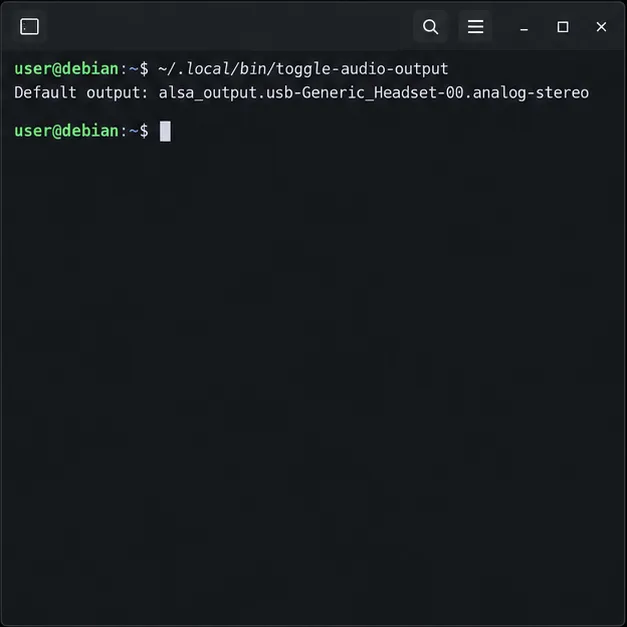
~/.local/bin/toggle-audio-output
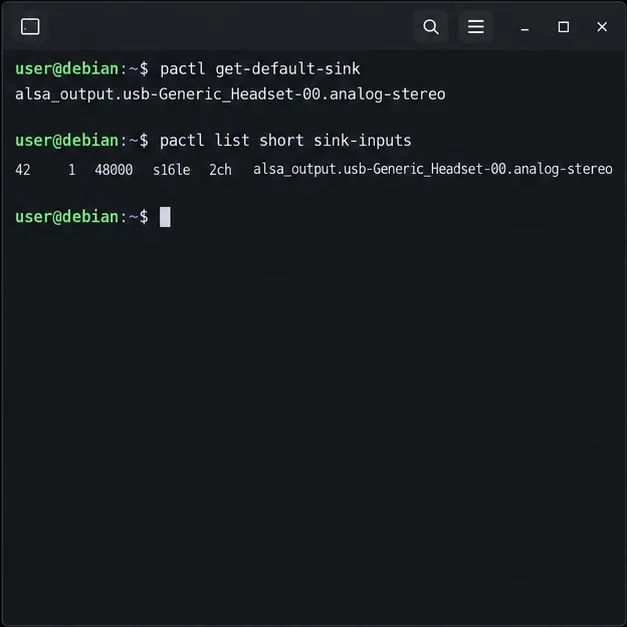
It should print the new default sink. Check the server’s current default and any active playback streams:
pactl get-default-sink
pactl list short sink-inputs
Run the script a second time to switch back. For a practical listening check, play a short audio sample while switching and confirm that it comes from the selected device. The exact device names and display behavior vary with hardware, Bluetooth connection state, and active audio profiles.
pactl list short sinks again. A disconnected headset or changed profile may have changed the sink name; update the matching variable.pactl info identifies the PipeWire Pulse server. Debian’s pipewire-pulse package provides that replacement server, while pulseaudio-utils includes the pactl client.pactl list short sink-inputs. Some applications reopen streams or keep their own device selection, so choose “Default” in that application if it remains pinned to an output.PipeWire’s Protocol Pulse documentation explains why PulseAudio command-line clients can control PipeWire when pipewire-pulse is the active server. This script uses that compatibility layer; it does not configure hardware profiles or guarantee that a disconnected device will be available.
Switch Debian audio between named PipeWire outputs with a pactl script that updates the default sink and reroutes streams already playing.
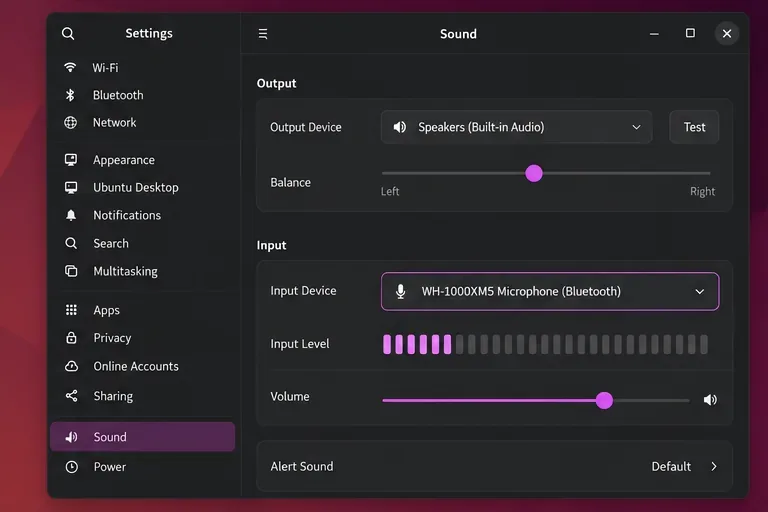
Get your Bluetooth headset mic working by selecting the right input, using a hands-free audio profile, and checking Ubuntu’s PipeWire route.
Learn why Flatpak apps may ignore Ubuntu 24.04 GTK themes and follow safe steps to check theme extensions, refresh Flatpak apps, and diagnose portal issues.
Install Ubuntu 24.04 alongside Windows 11 with BitLocker safely. Compare separate-drive and shared-drive paths, recovery keys, partitioning, and boot checks.
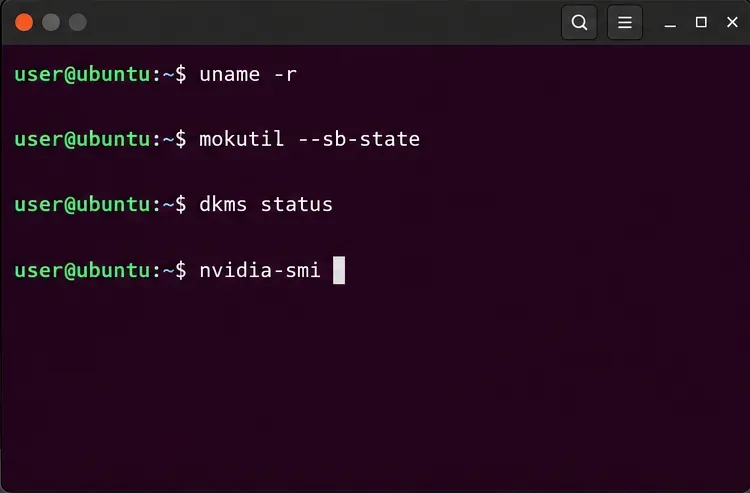
Diagnose NVIDIA driver failures after an Ubuntu kernel update. Check DKMS and Secure Boot, rebuild the matching module, enroll a MOK, and verify the fix.
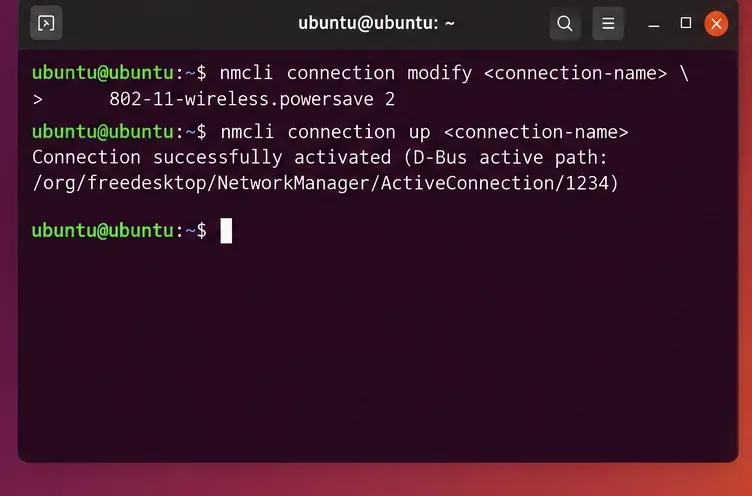
Fix Ubuntu 24.04 Wi-Fi drops after suspend with checks for NetworkManager, radio blocks, updates, power saving, and drivers—then verify each resume.
Learn why tracker-miner-fs-3 uses high CPU in Ubuntu GNOME and how to check indexing, exclude folders, update Ubuntu, or safely rebuild the search index.
Fix Debian’s UEFI boot error by checking boot mode, the EFI System Partition, GRUB files, and firmware boot order—without reinstalling Debian first.
The Outlook Inbox Repair Tool fixes corrupted PST files quickly so you can recover emails and restore normal Outlook function. Follow these exact steps to run scanpst.exe without data loss.
Get the Adobe PDF Installer Offline to install Acrobat Reader on any PC without needing internet during setup. Follow these exact steps for the full standalone package.