Home
» PC Tips
»
How to Fix Nvidia Drivers Not Loading After a Kernel Update on Ubuntu
How to Fix Nvidia Drivers Not Loading After a Kernel Update on Ubuntu
A kernel update can leave Ubuntu at a login screen with low-resolution graphics, a black display, or a desktop that works without NVIDIA acceleration. That does not automatically mean the graphics card failed. A kernel update changes the kernel against which an out-of-tree NVIDIA module must be built, and Secure Boot may refuse to load a module whose signing key is not trusted.
Start by identifying which failure you have. If the previous kernel boots with NVIDIA working, the new kernel or its module build is the likely boundary. If the module appears installed but the kernel reports a key or signature rejection, check Secure Boot and Machine Owner Key (MOK) enrollment. This guide uses Ubuntu’s packaged driver workflow; menu wording and driver branches can vary by Ubuntu release and hardware.
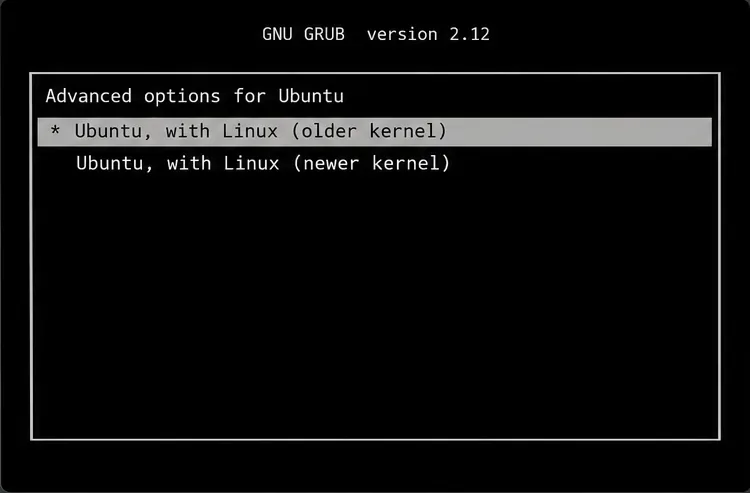
Illustrative GRUB view: selecting an earlier installed kernel can help restore a working desktop while you diagnose the updated kernel.
Can you safely boot the previous kernel first?
Yes, if it is still installed. Restart and open the GRUB menu; on many systems, holding Shift on legacy BIOS or tapping Esc on UEFI during startup reveals it. Choose Advanced options for Ubuntu, then select the older kernel without “recovery mode.” The exact key timing and menu labels depend on firmware and GRUB configuration. If the menu is hidden, consult the computer’s startup behavior rather than changing firmware settings at random.
Once the system starts, confirm the running kernel with uname -r. A working older kernel gives you a recovery route and time to inspect packages. It is not a permanent fix: security updates still matter, so return to the new kernel after repairing its driver. If neither kernel starts normally, use Ubuntu’s recovery entry or a live USB to back up important data before making package changes.
What should you check before reinstalling anything?
Open a terminal (or a text console with Ctrl+Alt+F3 if the graphical login is unavailable) and collect a short baseline:
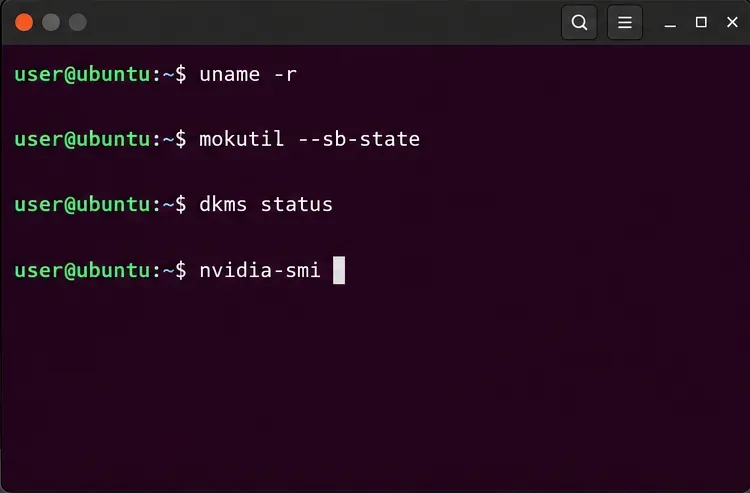
uname -r identifies the active kernel. mokutil --sb-state reports whether Secure Boot is enabled. dkms status shows whether a Dynamic Kernel Module Support build is registered for that kernel. nvidia-smi tests communication with the loaded NVIDIA driver; it is a diagnostic, not a repair command. The kernel log may reveal a missing module, failed build, or signature rejection. No matching log line does not prove the driver is healthy.
Use the active kernel, DKMS status, and NVIDIA utility together to distinguish a missing build from a loaded-driver problem; example output can differ by release.
Did the NVIDIA module fail to build for the new kernel?
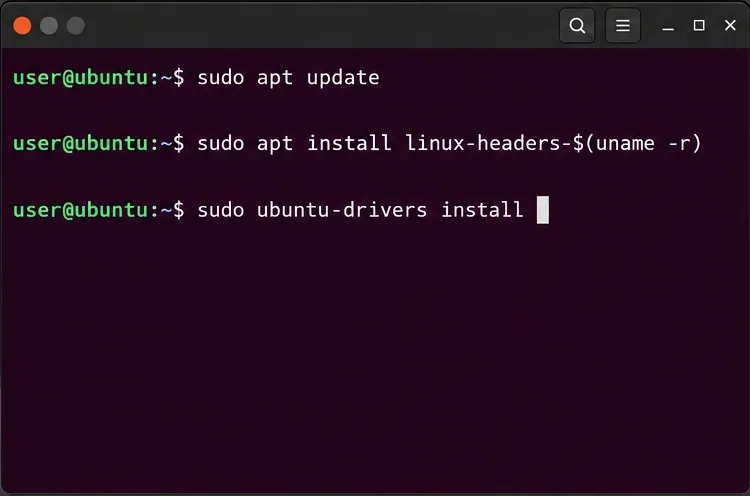
If DKMS lists NVIDIA only for an older kernel, or no NVIDIA module is available for uname -r, install the matching kernel headers and let Ubuntu repair its packaged driver. Headers provide the files needed to build an external module for the running kernel. First ensure you have network access and enough disk space, then run:
Ubuntu’s recommended ubuntu-drivers tool selects an available driver appropriate to the machine. Review the packages APT proposes before accepting. If the driver is already installed and the DKMS build appears incomplete, identify the installed package rather than guessing a branch:
dpkg -l 'nvidia-dkms-*' 'nvidia-driver-*'
ubuntu-drivers list
Then reinstall the matching DKMS package shown on your system (substitute its exact package name): sudo apt install --reinstall nvidia-dkms-<branch>. Avoid copying a driver number from another Ubuntu release or mixing Ubuntu packages with NVIDIA’s standalone installer; competing installation methods can overwrite files or complicate Secure Boot. If APT reports unmet dependencies, held packages, or a failed DKMS build, read the complete error before running more commands. The relevant build log is commonly under /var/lib/dkms/; use the path named in the error rather than deleting DKMS directories.
Install headers for the running kernel, then repair the exact Ubuntu DKMS package already selected for the system. The package name and APT output vary.
Is Secure Boot blocking a built module?
It may be. With Secure Boot enabled, Ubuntu’s kernel checks signatures on third-party kernel modules. Ubuntu’s packaging can create a MOK signing key and ask you to enroll it. If the installation displayed a prompt to set a one-time password, but the next restart went straight to Ubuntu, the key may not have been enrolled. Check mokutil --sb-state and the kernel log for verification or key rejection messages.
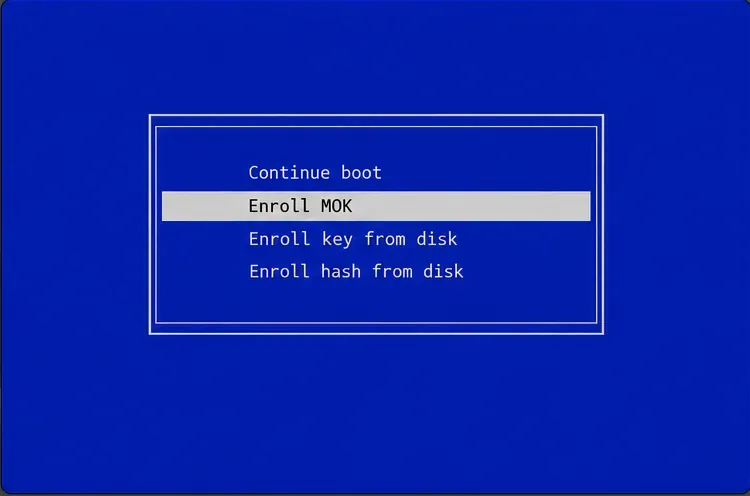
When the Ubuntu package setup has queued a MOK enrollment, restart and follow the blue MOK Manager screen: choose Enroll MOK, continue, confirm the key, enter the one-time password you created during package installation, and reboot. This password is not necessarily your Ubuntu login password. Read the screen carefully; menu wording can vary. If no enrollment was queued, reinstalling a supported Ubuntu driver package may prompt for key setup. Do not enroll an unfamiliar key file or share the one-time password.
The MOK Manager enrollment screen is reached during reboot when a key enrollment is pending; select Enroll MOK only for the key you intended to trust.
What if the build fails even with headers installed?
Check whether the new kernel is fully installed and whether its headers match exactly: uname -r should correspond to the header package installed. Then inspect APT’s DKMS error and the build log. A new kernel can expose incompatibility with an older NVIDIA driver branch; rebuilding cannot fix source code that does not support that kernel interface. Use Ubuntu’s driver selector to install a supported branch for your release, then reboot. If you installed the driver with NVIDIA’s .run installer, follow NVIDIA’s removal instructions before switching back to Ubuntu packages; do not layer package managers over one another.
For temporary access, boot the earlier kernel from GRUB and keep it installed until the new kernel’s driver loads correctly. If you use a custom kernel, a nonstandard flavor, or a graphics compute/server setup, Ubuntu’s automatic desktop recommendation may not match your intended configuration. Consult the documentation for that kernel or workload rather than forcing a generic package.
How do you verify that the fix worked?
After repairing packages or enrolling the key, restart and boot the new kernel. Run uname -r, dkms status, and nvidia-smi again. A successful result is a DKMS entry for the running kernel, no module signature rejection in the current boot’s kernel log, and nvidia-smi displaying the GPU and driver information. Also confirm that the normal desktop session starts and that an application needing GPU acceleration can use the NVIDIA GPU. Hybrid laptops may intentionally use integrated graphics for the desktop, so a quiet GPU alone is not proof of failure.
If the same error remains, save the full DKMS build output, the active kernel version, Ubuntu release (cat /etc/os-release), Secure Boot state, and relevant kernel log lines. Those details identify whether the next step is a supported driver branch, a signing issue, or a kernel compatibility problem. Ubuntu’s official guidance recommends its ubuntu-drivers path for most systems, particularly where Secure Boot is enabled; see Ubuntu Desktop: Install NVIDIA drivers, Ubuntu Server: NVIDIA driver installation, and Ubuntu Security: UEFI Secure Boot. For low-level driver compatibility details, consult NVIDIA’s Linux driver installation documentation. The available driver versions and exact instructions change by Ubuntu release and GPU support status.