Windows 11 includes several built-in options for getting assistance directly from Microsoft or through community resources. Knowing how to get help in Windows 11 lets you troubleshoot problems quickly without installing extra software. This article walks through the most reliable methods step by step.
Overview of Built-in Help Tools
Windows 11 ships with the Get Help app, Quick Assist, and integrated search features that connect you to official documentation and remote support. These tools require an internet connection and a Microsoft account for full functionality. Before starting, make sure your device is updated via Settings > Windows Update.
Users often need help with driver issues, app crashes, or activation errors. The methods below cover both self-service and live assistance routes.
How to Get Help in Windows 11 with the Get Help App
-
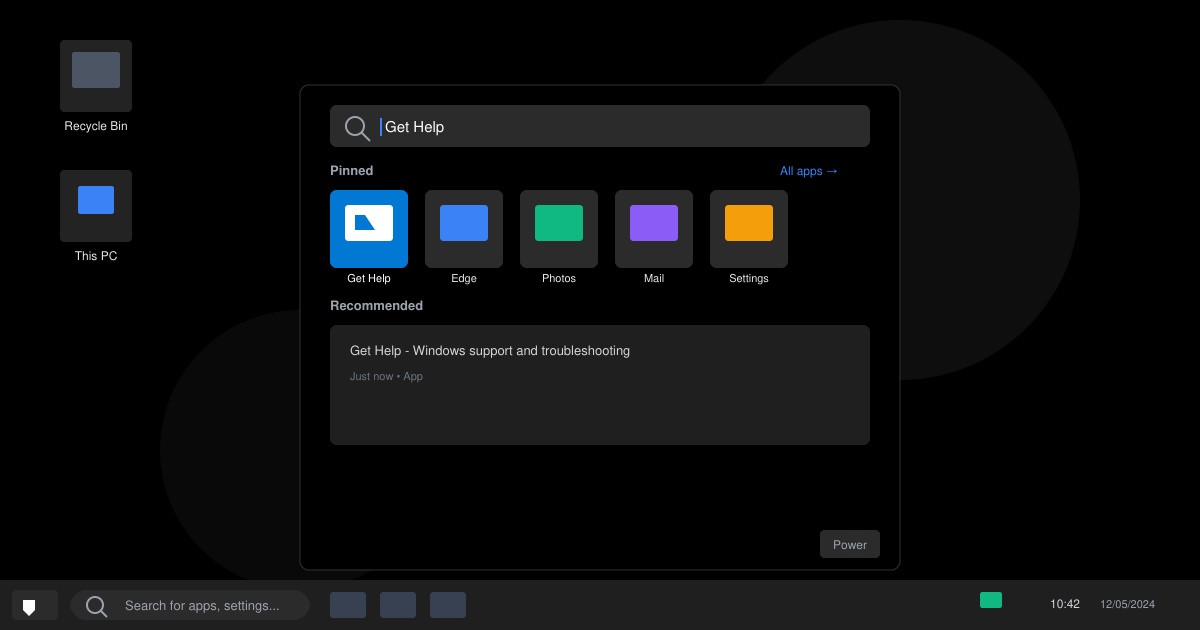
Launch the Get Help app
Click the Start button and type "Get Help". Select the official Microsoft Store app from the results. If it is not installed, the search will prompt you to download it from the Microsoft Store.
-
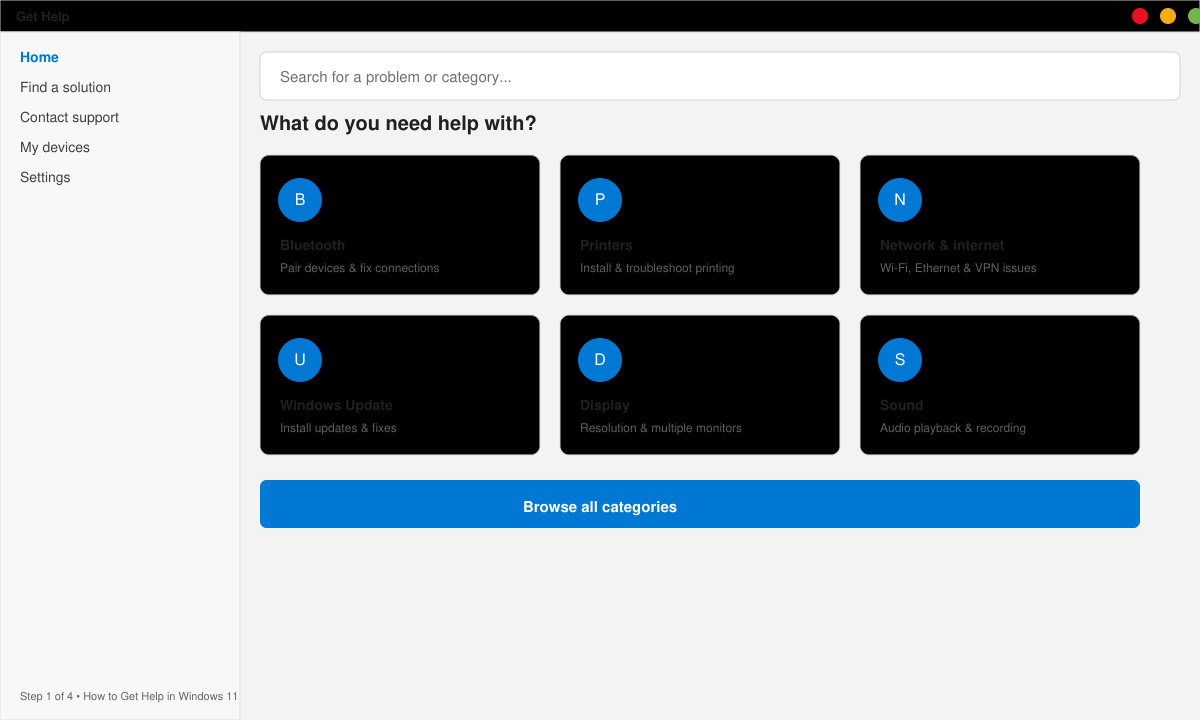
Search for your issue
Type a description of the problem in the search bar inside the app, such as "blue screen error" or "printer not working". The app returns relevant Microsoft articles and guided fixes.
-
Follow the guided troubleshooter
Select a suggested article or troubleshooter. The app walks through checks like running the built-in Windows troubleshooter or resetting app permissions with one-click buttons.
-
Request live chat support
If the automated steps do not resolve the issue, scroll to the bottom of the app and choose "Contact support". Sign in with your Microsoft account, select the product category, and request chat or callback assistance during business hours.
Additional Ways to Access Support
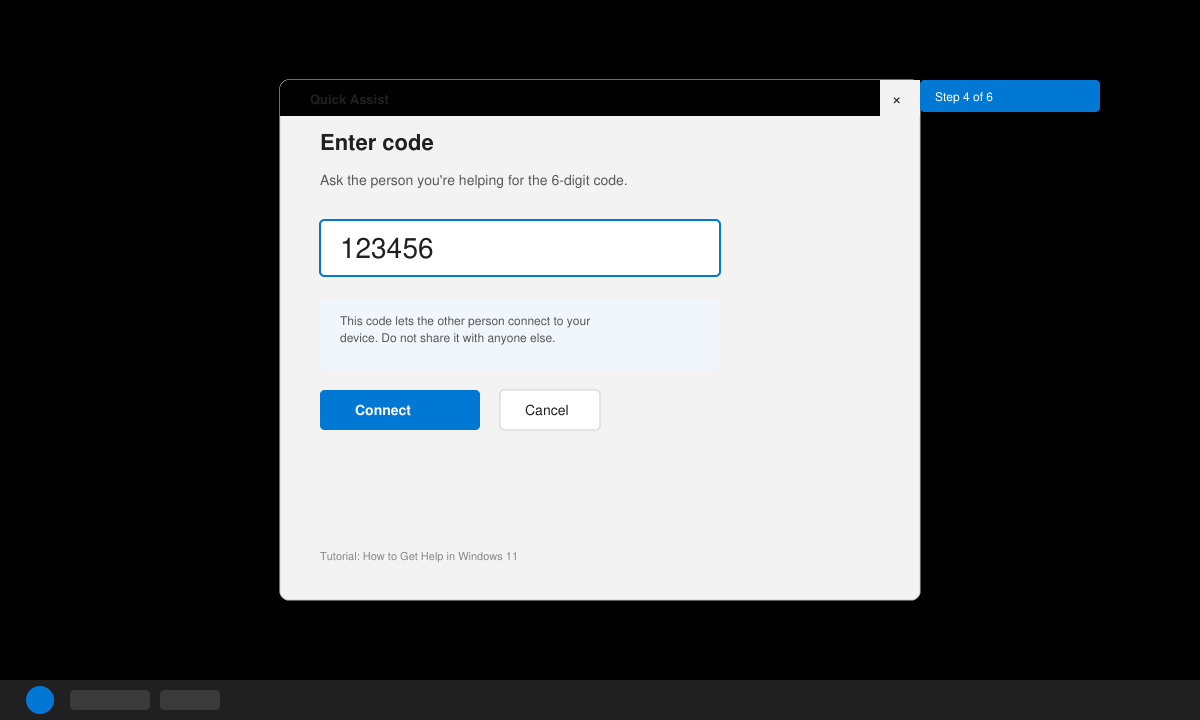
Press Windows key + F1 to open the browser directly to the Microsoft support site filtered for Windows 11. For remote help from a friend or IT person, open Quick Assist by searching for it in the Start menu, then follow the on-screen code-sharing instructions. Both methods appear in search results when you type "help" in the taskbar.
Tips and Common Mistakes
- Always run the Get Help app as administrator when fixing system-level issues such as driver failures.
- Disable any third-party antivirus temporarily if the troubleshooter reports conflicts.
- Keep your Microsoft account signed in to enable remote assistance features without repeated logins.
- If the Get Help app fails to open, repair it through Settings > Apps > Installed apps > Get Help > Advanced options > Repair.
FAQ
Does Windows 11 still have the classic Help and Support center?
No. The legacy Help viewer has been removed. All assistance now routes through the Get Help app and online Microsoft documentation.
Can I get phone support directly from the Get Help app?
Yes. After selecting Contact support, choose the phone option during available hours. Microsoft calls you back at the number you provide.
Is Quick Assist available in Windows 11 Home edition?
Yes. Quick Assist works on all editions of Windows 11 and does not require a Pro license.
Conclusion
Using the official Get Help app and Quick Assist gives you direct access to Microsoft resources for resolving Windows 11 issues efficiently.