Speed Up Calc Macros by Reading and Writing Data in Batches

Replace repeated cell access with bulk range reads and writes, then benchmark the result and protect formulas in large Calc workbooks.
The most reliable first speedup for a slow Calc macro is to replace repeated cell-by-cell reads and writes with one range read, an in-memory loop, and one range write. This cuts calls between Basic and Calc; it does not guarantee a fixed speed gain, because formulas, formatting, file size, and macro logic can also dominate runtime. The example below changes a status column and shows how to measure both speed and correctness. API details were checked against LibreOffice 26.8 documentation on October 9, 2026.
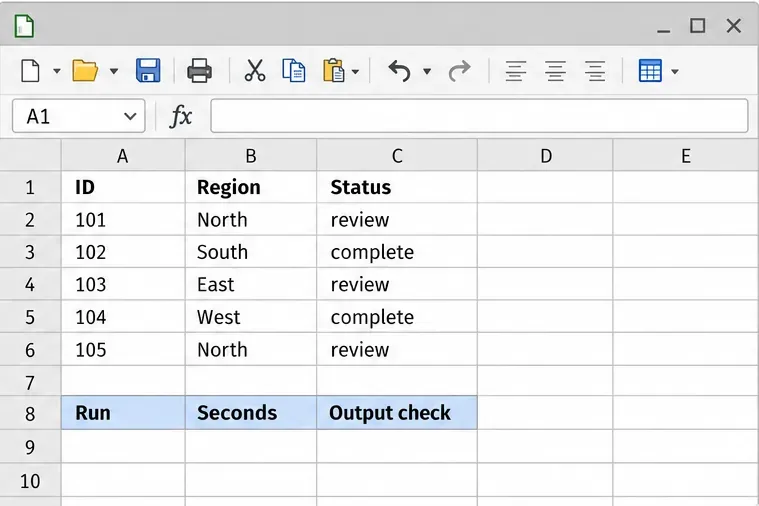
Run the current macro on a copy of the workbook and record its elapsed time. Use a fresh copy with the same starting data for the old and revised macros, or restore the input between runs; otherwise the second run may do less work. Keep row count, calculation settings, and output conditions the same. Repeat each run and compare the typical time rather than relying on one unusually fast run. Check that the result matches your expected rule. A macro that finishes sooner but changes the wrong rows is not an improvement.
LibreOffice Basic’s Timer function reports seconds since midnight; assign it to Long variables to get numeric seconds. For a short run, record a start and end value and subtract them. If the end value is lower, the run crossed midnight, so add 86,400 seconds to the difference. Timer reports whole seconds; use the ScriptForge Timer service for millisecond precision. See the LibreOffice Basic Timer documentation and ScriptForge Timer service documentation. Keep workbook opening, saving, and manual inspection outside the measured interval unless those are part of the real task.
A loop that calls getCellByPosition() or reads and writes individual cell properties repeatedly asks Calc to cross the Basic-to-Calc interface for each operation. With many rows and columns, those calls can add up even when the transformation itself is simple. A loop over an in-memory array still visits each row, but it avoids a separate cell API call for every value.
First remove operations that do not affect the result: avoid selecting or activating cells inside the loop, do not recalculate or format a cell repeatedly when one final range operation will do, and do not process entire columns if only a bounded data block is needed. These changes help isolate the actual bottleneck before you add more controls.
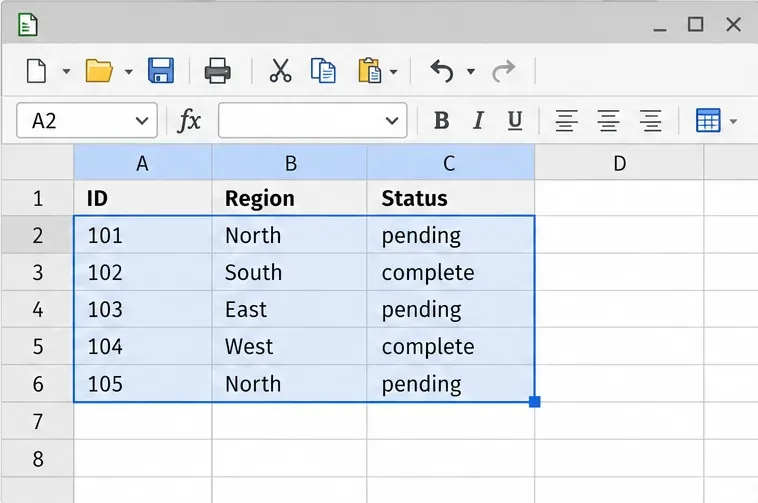
Use a rectangular range that contains only the values your macro intends to change. The sample assumes a sheet named Data, a header row in row 1, and status values in column C. Change the sheet name and range to match your workbook. The API’s getDataArray() returns the range as rows containing values; setDataArray() writes a same-sized array back to that range.
Sub UpdateStatuses
    Dim oSheet As Object
    Dim oRange As Object
    Dim aData As Variant
    Dim i As Long

    oSheet = ThisComponent.Sheets.getByName("Data")
    oRange = oSheet.getCellRangeByName("A2:C10001")
    aData = oRange.getDataArray()

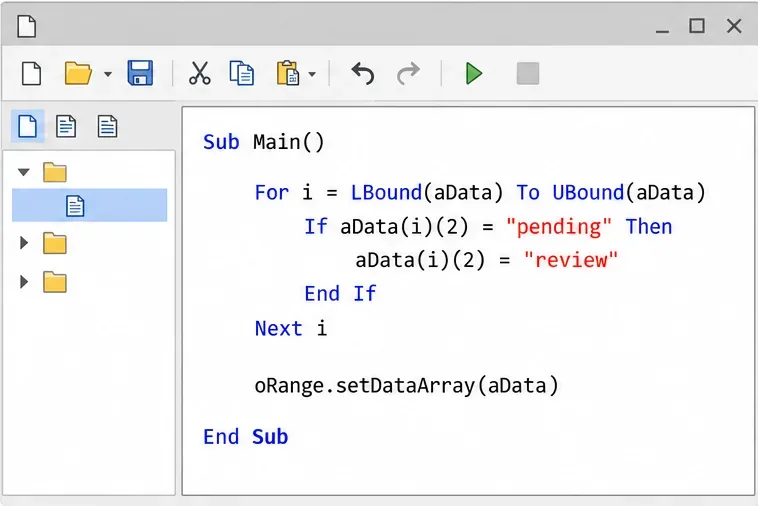
    For i = LBound(aData) To UBound(aData)
        If aData(i)(2) = "pending" Then
            aData(i)(2) = "review"
        End If
    Next i

    oRange.setDataArray(aData)
End Sub
The row array is zero-based: aData(i)(2) addresses the third column in each row. Here that is column C because the selected range starts at A. The array’s outer sequence represents rows and each inner sequence represents columns. The range passed to setDataArray() must have the same dimensions as the array; a mismatch raises an error. See the LibreOffice XCellRangeData API reference and LibreOffice ScriptForge array documentation.
getDataArray() returns cell values as numbers or strings, not the original formula text. If you read a range containing formulas and write that array back with setDataArray(), those formulas can be replaced by their current results. Limit the value-array method to input/output cells that should contain values. When a macro must preserve or modify formulas, use the formula-array methods getFormulaArray() and setFormulaArray(), or work only on the non-formula range. The XCellRangeFormula API reference documents that separate interface.
Only test these options after measuring the array version. If formula recalculation accounts for much of the run, you can query isAutomaticCalculationEnabled(), temporarily disable automatic calculation with enableAutomaticCalculation(False), then restore the original setting and recalculate dirty cells when needed. Put restoration in a cleanup path so an error does not leave the workbook in manual calculation mode. Do not disable calculation if the macro needs fresh formula results between steps. LibreOffice documents calculate() as recalculating dirty cells; calculateAll() forces a full recalculation and may itself be expensive. See XCalculatable API reference.
lockControllers() can suspend some notifications used for display updates while a macro changes many cells. Pair every lock with unlockControllers(), including when the macro exits through an error handler. This reduces display-update work; it does not turn off formula calculation or make per-cell logic into a bulk operation. Use it for a measured screen-refresh bottleneck, not as a substitute for range arrays. See XModel API reference.
Run the revised macro on a workbook copy and record its time under the same conditions as the baseline. Compare the affected rows, unaffected rows, formulas, and key totals. Save, close, and reopen the copy if the production workflow includes saving; this can reveal issues that a quick visual check misses. A stable improvement should appear across repeated runs while the output checks continue to pass.
If the macro still spends most of its time on complex formulas, formatting, file I/O, or sorting, profile that stage separately; range arrays only reduce repeated cell access. For very large sheets, a full in-memory array can also use substantial memory. Process a few columns at a time or divide the rows into measured blocks if memory pressure rises, while checking that each block begins and ends on the intended rows. If the data already lives in a database and the task is filtering, grouping, or updating records, moving that work into a database query may be a better fit than loading every record into Calc.
Replace repeated cell access with bulk range reads and writes, then benchmark the result and protect formulas in large Calc workbooks.
Split a long manuscript into chapters, assemble them in Writer, and keep styles, contents, and export checks consistent.
Use Base’s direct PostgreSQL option to enter your server details, sign in, save an ODB connection file, and troubleshoot common access errors.
Install a font in your Linux user font folder, restart LibreOffice Flatpak, and confirm it appears in Writer without weakening the app sandbox.
Protect your work and isolate network-drive save crashes in LibreOffice on macOS Sonoma with a local-first workflow, permission checks, and targeted tests.
Preserve leading zeros in Calc by setting ID columns to Text during CSV import, checking the preview, and verifying the saved data.
Find the cause of a LibreOffice document lock, safely clear a stale lock file, and confirm that you can edit and save without losing changes.
Make image-heavy Writer files easier to edit: test a reversible display setting, compress oversized pictures in a copy, and verify the saved layout.
Find out whether a slow launch comes from extensions, profile settings, or the system, then test the safest fix without losing LibreOffice data.
Connect LibreOffice to Nextcloud over WebDAV, save the server copy with Ctrl+S, and understand how AutoRecovery differs from cloud syncing.