Home
» PC Tips
»
Keep CSV IDs Intact in Calc by Importing Them as Text
Keep CSV IDs Intact in Calc by Importing Them as Text
To keep IDs such as 00123 from becoming 123, import the CSV column as Text in Calc’s Text Import dialog. Open the CSV with filter settings enabled, select the identifier column in the preview, set its Column type to Text, and confirm that the zeros remain before you click OK. This tells Calc to preserve the field as a string instead of interpreting it as a number.
Why the zeros disappear
A CSV file stores rows as delimited text; it does not carry spreadsheet cell types or number formats. During import, Calc may interpret a digit-only field under the Standard type, which asks LibreOffice to determine the data type. A value written in the file as 00123 can therefore be read as the number 123, whose numeric value does not include the original padding. LibreOffice’s Text Import help specifically recommends applying Text to a column when leading zeros must be included.
This distinction matters for employee numbers, postal codes, product IDs, account references, and phone numbers: they may contain digits but are labels, not quantities. Set these fields to Text during import. If a field is a real quantity that you need to calculate with, keep it numeric and use a number format only when a fixed-width display is needed.
1. Open the CSV and show its import settings
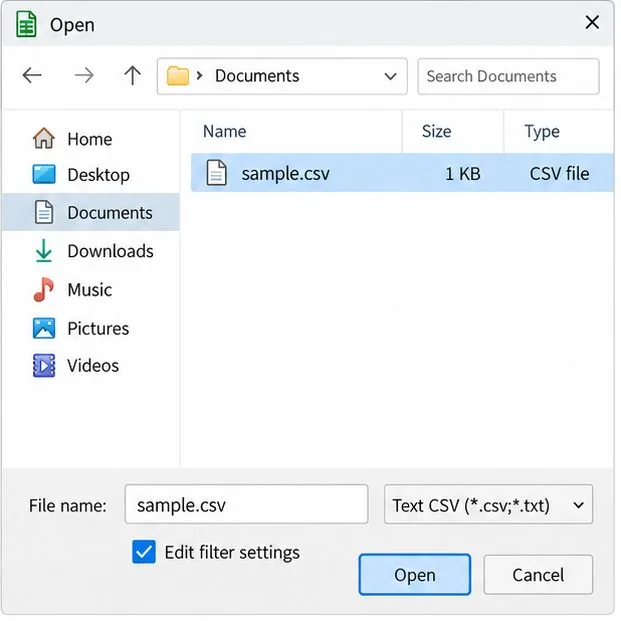
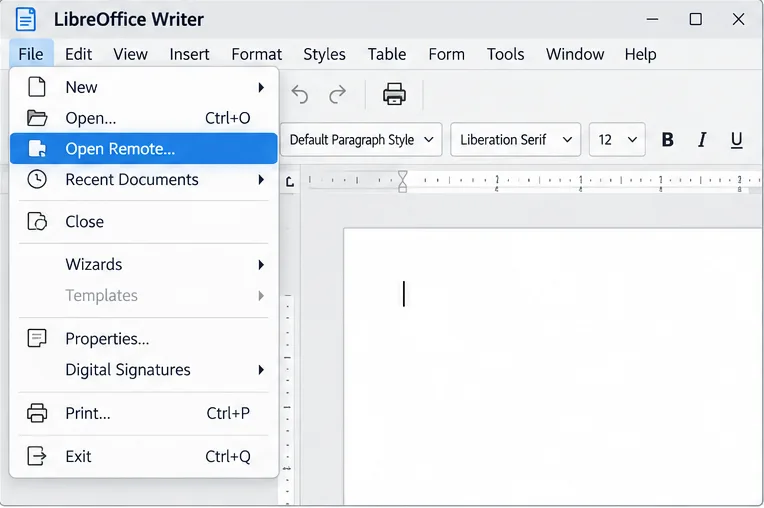
Choose File > Open, select the CSV, and make sure Edit filter settings is checked before opening it. This brings up the Text Import dialog. If Calc opens the file directly, it may be reusing settings from the previous CSV import; close it and open the file again with Edit filter settings enabled. LibreOffice’s current instructions say that without this checkbox, Calc uses the settings from the last text import operation.
Select the CSV and check Edit filter settings so you can choose a type for the identifier column.
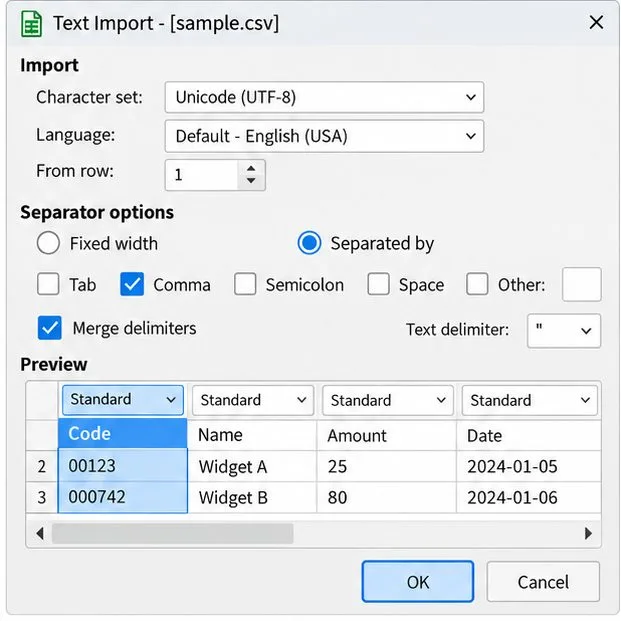
In Text Import, first choose the separator that matches the source file—comma, semicolon, tab, or another character—and inspect the preview. If the fields do not line up under the right headings, correct the separator before changing column types. The preview shows how Calc will split the row; it is easier to identify the code column here than after a bad import.
Check the preview columns, then select the identifier column whose type currently reads Standard.
2. Set identifier columns to Text
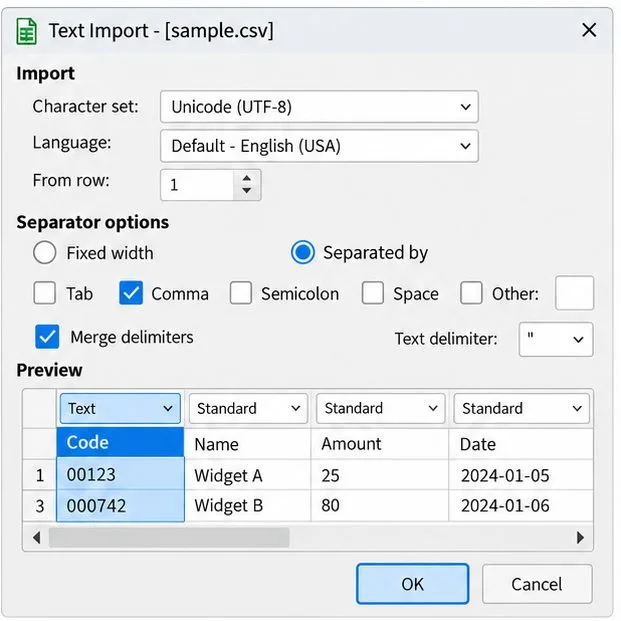
Click the preview header for the identifier column. Use the Column type control above the preview and change Standard to Text. You can also right-click a column in the preview to set its format. The type should appear above the selected column, and the preview should show the original values, including zeros at the left.
The preview identifies the Code column as Text and retains the sample values’ leading zeros.
Repeat this for every column that contains digit-based labels, such as ZIP codes or account IDs. Do not set every column to Text automatically: doing so can make dates and quantities harder to sort, compare, or calculate. For a mixed file, choose the type column by column—Text for identifiers, numeric or date types for fields that genuinely represent numbers or dates.
3. Treat quote detection as a special case
The import dialog also has a Format quoted field as text option. LibreOffice documents that this applies when the entire field is enclosed by the text delimiter, for example a value whose first and last characters are quotation marks. It is useful for consistently quoted CSV fields, but it does not guarantee that an unquoted identifier such as 00123 will remain text. For a known ID column, explicitly choosing Text is the dependable control.
Before confirming, check the preview again: the Code column should show Text, and example values such as 00123 and 000742 should still have their leading zeros. If zeros are absent in the preview, do not import yet; reselect the correct column and type. Then click OK to load the rows.
4. Verify the imported cells and choose the right storage format
After import, inspect several codes near the top, middle, and bottom of the sheet. Confirm both the visible value and the formula input line for a selected cell; each should show the expected digits. The values should also behave as text, so do not expect spreadsheet arithmetic to treat a code like 00123 as the number 123. Save a working copy in Calc’s native spreadsheet format if you need to retain cell types and formatting for later edits.
After import, check the worksheet cells and formula input line to confirm the identifier text still contains its zeros.
A common misconception is that applying a display format can restore any zeros that have already disappeared. A custom number format can display a fixed-width numeric value with padding, but it cannot infer an unknown original length. Use it only when the required width is known and the field is truly numeric. LibreOffice also notes that exporting to CSV loses spreadsheet formatting, so a display-only number format does not become a durable CSV cell type. When CSV is the deliverable, verify the output by reopening a copy and setting the identifier column to Text again.
If the zeros are already missing
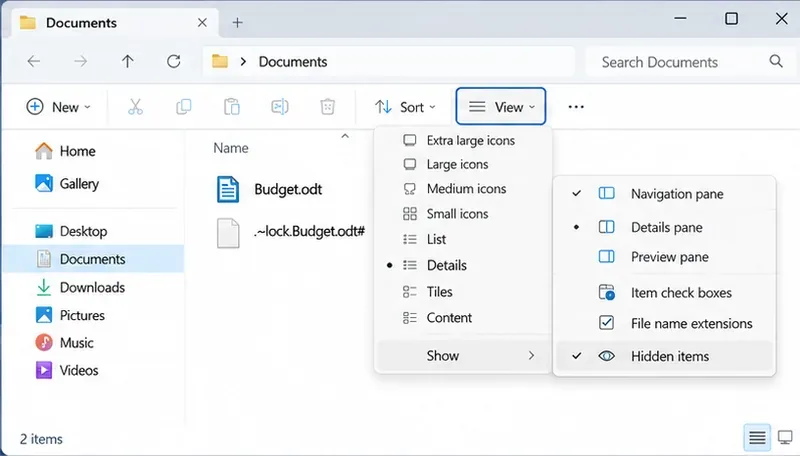
Check the original CSV in a plain-text editor, not by opening it in Calc. If the raw field still contains 00123, the data is present and reimporting the column as Text should preserve it. If the raw file contains only 123, the original padding is no longer recorded there. Retrieve a clean source export or use a verified fixed-width rule from the data owner; adding zeros without knowing the intended width can create incorrect identifiers.
Before using the sheet, confirm that the Text Import preview labels each identifier column as Text, representative codes keep their full original digit strings after import, and a saved/reopened Calc copy retains them. If zeros appear in the raw source but not the imported preview, correct the column type; if the raw source itself lacks them, recover or validate the original width before rebuilding the codes.