Bluetooth Adapter Missing on Pardus 23? Start with These Checks

Find out whether Pardus 23 is blocking Bluetooth, missing BlueZ, or failing to detect adapter firmware, then confirm the controller works.
If Pardus 23 reports “Bluetooth adapter not found,” first check whether the radio is blocked with rfkill list, then confirm the Bluetooth service is running. If BlueZ still reports no controller, investigate hardware detection and firmware rather than repeatedly trying to pair a headset or mouse.
These instructions target Pardus 23 XFCE and generally apply to its GNOME edition. Pardus 23.0 shipped with XFCE 4.18 and a Linux 6.1 kernel, according to Pardus’s original release notes; installed updates and device-specific drivers can change the exact behavior.
Open a terminal and check the wireless radio state:
rfkill listLook for an entry labeled Bluetooth. A Soft blocked: yes result means software disabled the radio. Clear that block with:
sudo rfkill unblock bluetoothRun rfkill list again. A successful soft unblock changes that entry to Soft blocked: no. It will not fix a Hard blocked: yes condition, which usually requires a laptop’s physical wireless switch, a keyboard radio shortcut, or a BIOS/UEFI setting. If the computer has airplane mode enabled, switch it off before retrying.
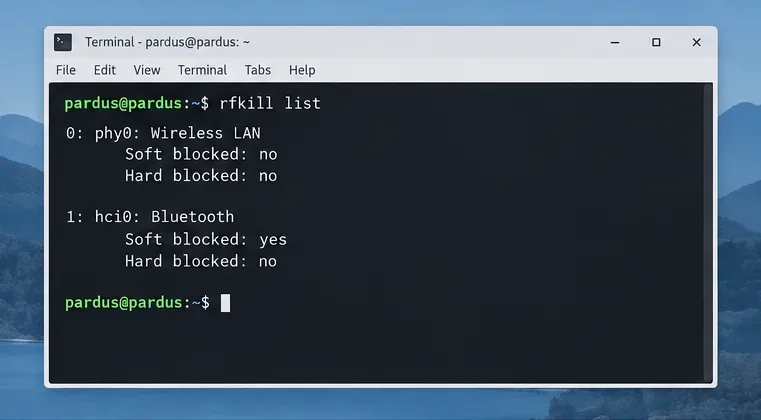
If no Bluetooth entry appears at all, do not assume it is merely switched off. Continue to the controller and hardware checks below. The Debian rfkill manual distinguishes wireless blocking from hardware discovery.
BlueZ is the Bluetooth software stack used by Linux. Its background service, bluetoothd, manages adapters and devices. Check its state:
systemctl status bluetoothIf the unit exists but is stopped or failed, restart it and enable it for subsequent boots:
sudo systemctl restart bluetooth
sudo systemctl enable bluetooth
Recheck systemctl status bluetooth. The desired state is active (running); press q to leave the status display if it opens in a pager. If the command says Unit bluetooth.service could not be found, install the standard packages from the configured Pardus repositories:
sudo apt update
sudo apt install bluez bluetooth blueman rfkill
blueman provides a graphical Bluetooth manager on XFCE systems; it cannot replace a missing kernel controller or firmware. If Bluetooth was already installed, do not reinstall every package as your first response to an undetected adapter. See the Debian Bluetooth documentation for the service-and-firmware distinction.
After clearing radio blocks and starting the service, run:
bluetoothctl list
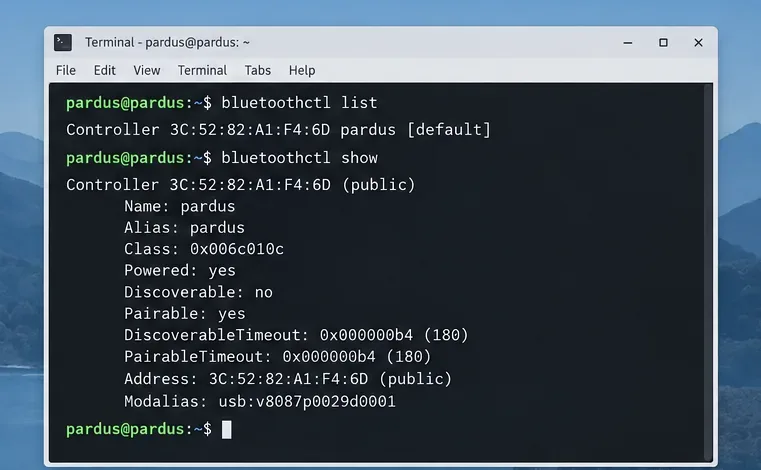
bluetoothctl show
bluetoothctl list should identify at least one controller, usually with an address and a name. bluetoothctl show displays properties such as Powered: yes or Powered: no. If a controller is listed but powered off, open the interactive tool and turn it on:
bluetoothctl
power on
show
quit
Type the last three lines inside the bluetoothctl prompt, not as separate shell commands. On a working controller, show should now indicate that it is powered on. The BlueZ command reference for Debian 12 describes the controller commands; command availability can vary with the installed BlueZ version.
If a controller is present, launch blueman-manager as your normal desktop user and look for nearby devices. A working controller with an empty device list is a discovery or pairing problem, not necessarily an “adapter not found” problem. Put the target device in pairing mode and verify that it is not already connected to another host.
If bluetoothctl list returns no controller, or bluetoothctl show says No default controller available, move to hardware detection. Changing pairing settings will not make an absent controller appear.
First confirm that the Bluetooth hardware exists. A desktop PC may have Wi-Fi but no Bluetooth; some motherboard Wi-Fi/Bluetooth modules also need an internal USB connection for the Bluetooth function. For a USB dongle, unplug and reconnect it, preferably directly to another port.
lsusb
lspci -nnk
lsusb displays devices on USB buses; search the list for the wireless adapter’s vendor or product ID. A combined PCIe wireless card may show its Wi-Fi side in lspci while Bluetooth appears separately on USB. Do not treat a missing “Bluetooth” word in lsusb as proof the chipset is absent: some devices appear under vendor names instead. Debian’s lsusb reference documents the available identifiers.
Check the current boot’s logs for an adapter initialization failure or a missing firmware file:
journalctl -b -u bluetooth --no-pager
sudo journalctl -k -b --no-pager | grep -iE 'bluetooth|btusb|hci|firmware'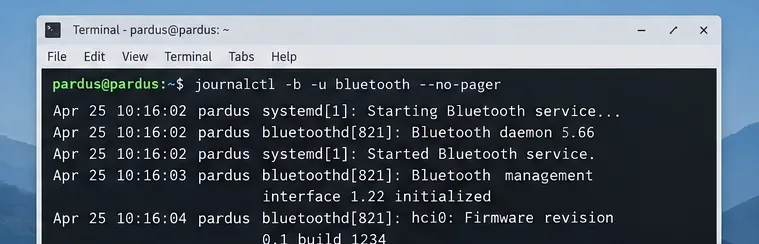
A log message naming a missing .bin, .sfi, or other firmware file is more useful than a generic Bluetooth icon error. Match the file and chipset to a firmware package, rather than installing unrelated drivers. For example, Debian packages firmware-realtek and firmware-iwlwifi contain firmware for supported Realtek and Intel hardware respectively. The narrower bluez-firmware package covers particular Broadcom BCM203x and Raspberry Pi devices, not every Bluetooth adapter.
Only after identifying the chipset and confirming the package is available in your Pardus repositories should you install the relevant firmware. For example, on a matching Intel device:
sudo apt update
sudo apt install firmware-iwlwifi
Restart afterward and test again. Pardus maintains its own repositories; its official version-management page lists the Pardus 23 repository components, including non-free-firmware. Do not replace Pardus repository entries with generic Debian sources or download random third-party driver scripts.
If USB hardware is visible but no controller loads, inspect whether the standard USB Bluetooth kernel module is present using lsmod | grep btusb. For a confirmed USB Bluetooth controller, sudo modprobe btusb can attempt to load that module; a module-load failure or repeated firmware errors need chipset-specific support. Conversely, if the dongle disappears from lsusb across ports and cold boots, investigate the dongle, internal USB wiring, or firmware/BIOS settings before changing more software.
After the applicable fix, run rfkill list, systemctl status bluetooth, and bluetoothctl show once more. The useful result is an unblocked radio, a running BlueZ service, and a visible controller with Powered: yes. Then open Blueman or your desktop’s Bluetooth settings and try discovering one nearby device in pairing mode. If all three checks pass but discovery fails, troubleshoot pairing or radio interference separately; if the controller remains absent, retain the USB IDs and journal errors when asking the device manufacturer or Pardus support for a driver match.
Find out whether Pardus 23 is blocking Bluetooth, missing BlueZ, or failing to detect adapter firmware, then confirm the controller works.
Learn how Gooroom separates trusted and untrusted browsing, what users can change, and how an administrator can safely update site policies.
Diagnose rotated, offset, or inconsistent touch input on a Harmonica OS tablet and choose a Linux calibration method that fits its session and driver.
Switch Gooroom’s desktop session to English, verify the locale, and identify when untranslated Korean labels need an app update instead.
Arrange Pardus XFCE as a familiar bottom taskbar with an app menu, pinned launchers, open-window buttons, and a system tray.
Check your Gooroom release and administrator rules, then follow the official Debian-based setup path for Flatpak or Snap without bypassing system controls.
Learn what Pardus Image Writer can do, how to prepare installation USB safely, and which tools fit custom live images or repeatable fleet deployments.
Install Pardus alongside Windows 11 by shrinking the Windows volume, using unallocated space, and preserving the existing EFI System Partition.
Identify the RTL8821CE, install Pardus-supported Realtek firmware, and verify the driver, Wi-Fi scan, and next troubleshooting step.
Use Pardus’s hardware-aware installer to enable the right NVIDIA driver, reboot safely, and verify the active kernel module.