Set Up a Windows-Style XFCE Panel on Pardus Linux

Arrange Pardus XFCE as a familiar bottom taskbar with an app menu, pinned launchers, open-window buttons, and a system tray.
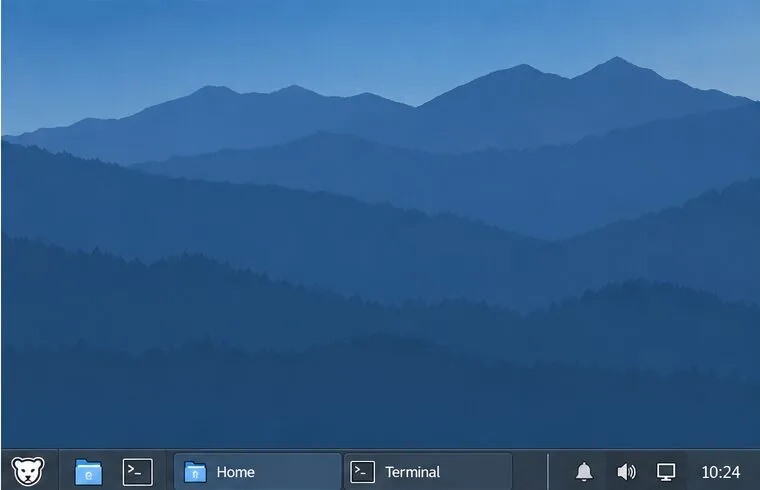
To make Pardus XFCE feel familiar to a Windows user, place one horizontal panel along the bottom of the screen and arrange its items as an app menu, launchers, open-window buttons, a notification area, and a clock. Right-click the panel and open Panel Preferences; the same controls are available in Settings Manager > Panel. The result can resemble a Windows taskbar, although XFCE uses separate panel items rather than one combined taskbar control.
In XFCE, these items are called panel plugins. The Xfce panel can host application launchers, menus, window buttons, a workspace switcher, and more. Pardus may also include Pardus XFCE Tweaks, which offers panel and appearance preferences plus an option to revert changes; its availability and labels can vary by Pardus release.
| Windows taskbar use | XFCE panel item | What it does |
|---|---|---|
| Start menu | Applications Menu or Whisker Menu | Opens installed apps; Whisker Menu can provide favorites and search when installed. |
| Pinned apps | Launcher | Places shortcuts to apps you open often. |
| Switch between open apps | Window Buttons | Shows buttons for open windows so you can bring one forward. |
| Notification and status icons | Notification Area | Displays supported background-app icons, such as some network or audio indicators. |
| Clock and date | Clock | Shows the time and can open a calendar when clicked. |
Plugin names are not always identical across Pardus versions or translations. The standard Applications Menu is a useful fallback if Whisker Menu is not listed. The Xfce documentation describes the panel plugins and their functions.
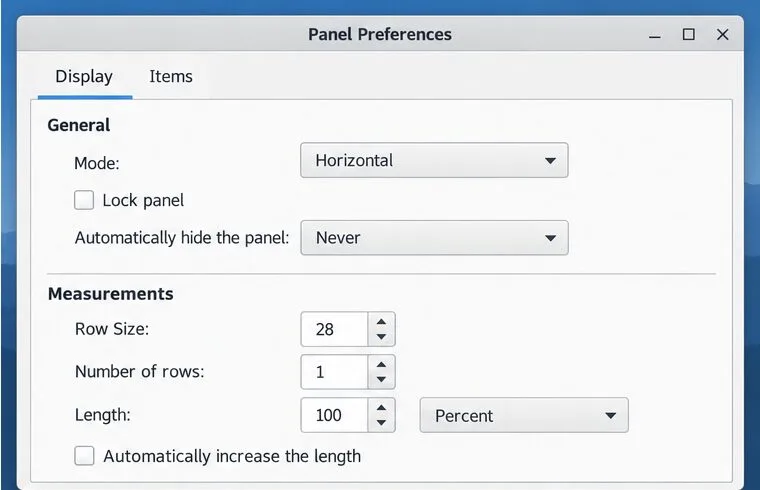
.desktop shortcut from Application Finder onto the panel; hold Ctrl while dropping it between existing launchers to avoid opening the shortcut with another app. See the official Xfce Launcher documentation for this behavior.On a compact display, use a slightly shorter row size, remove items you do not check often, and consider Intelligently hide if maximized windows need more vertical space. This hides the panel when a focused window overlaps it; Always hides it until you reach the screen edge. If you prefer predictable access, keep Never.
For a cleaner appearance, open Appearance and start with the system style so the panel follows the selected desktop theme. Xfce also supports a solid-color or image background. Transparency is available only when display compositing is enabled, so a missing or inactive opacity control does not necessarily indicate a panel fault. Avoid installing a third-party dock just to pin apps; the built-in Launcher and Window Buttons cover the basic taskbar workflow.
If your Pardus build includes Pardus XFCE Tweaks, you can use it to adjust panel-related appearance settings or revert its changes. Use the normal Xfce Panel Preferences window when you need to add, remove, or reorder individual plugins. The official Pardus Applications page describes XFCE Tweaks and its panel preferences.
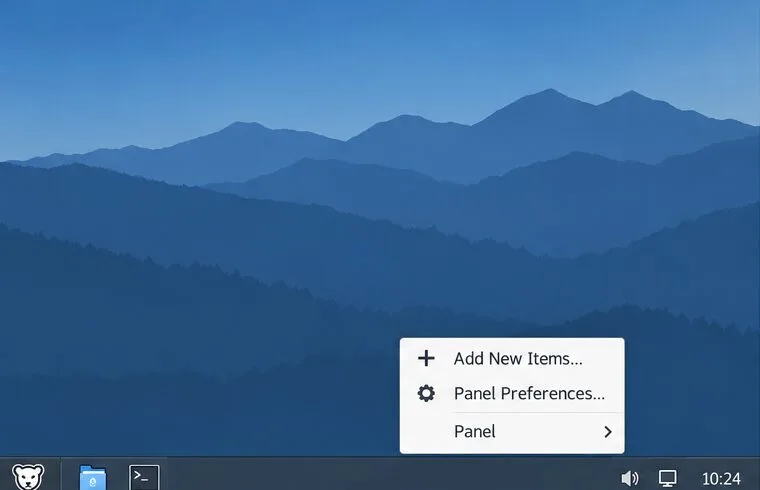
If a status icon is missing, verify that its application provides a compatible tray indicator; not every background program adds one. If the panel looks wrong after a theme change, return to Appearance and select the system style. For control definitions and version-specific details, use the Xfce Panel Preferences reference. Pardus releases may ship a different Xfce version or translated labels, so the precise wording can differ slightly.
Arrange Pardus XFCE as a familiar bottom taskbar with an app menu, pinned launchers, open-window buttons, and a system tray.
Check your Gooroom release and administrator rules, then follow the official Debian-based setup path for Flatpak or Snap without bypassing system controls.
Learn what Pardus Image Writer can do, how to prepare installation USB safely, and which tools fit custom live images or repeatable fleet deployments.
Install Pardus alongside Windows 11 by shrinking the Windows volume, using unallocated space, and preserving the existing EFI System Partition.
Identify the RTL8821CE, install Pardus-supported Realtek firmware, and verify the driver, Wi-Fi scan, and next troubleshooting step.
Use Pardus’s hardware-aware installer to enable the right NVIDIA driver, reboot safely, and verify the active kernel module.
Install the official Chrome package safely on Gooroom OS, check compatibility, preserve device controls, and verify browser policies before use.
Prepare DNS and time, enroll Pardus with realmd and SSSD, and verify domain membership and user lookup before relying on AD sign-in.
Reduce horizontal tearing in Pardus XFCE by checking your display session, enabling compositor synchronization, and applying Intel’s Xorg TearFree option only when the active driver supports it.
Add an OpenVPN profile to NetworkManager on Pardus, install the right plugin, protect credentials, and verify the VPN is active.