Set Up a Pardus VPN with a Provider-Supplied Profile
Add an OpenVPN profile to NetworkManager on Pardus, install the right plugin, protect credentials, and verify the VPN is active.
To configure a VPN on Pardus, get the exact protocol and connection profile from your VPN provider or network administrator, then add it through NetworkManager. For an OpenVPN service, the most reliable starting point is the provider’s .ovpn profile and the NetworkManager OpenVPN plugin; the desktop can then connect or disconnect that saved profile. Pardus offers XFCE and GNOME editions, so menu names differ, and the exact credentials and routes must come from the VPN service.
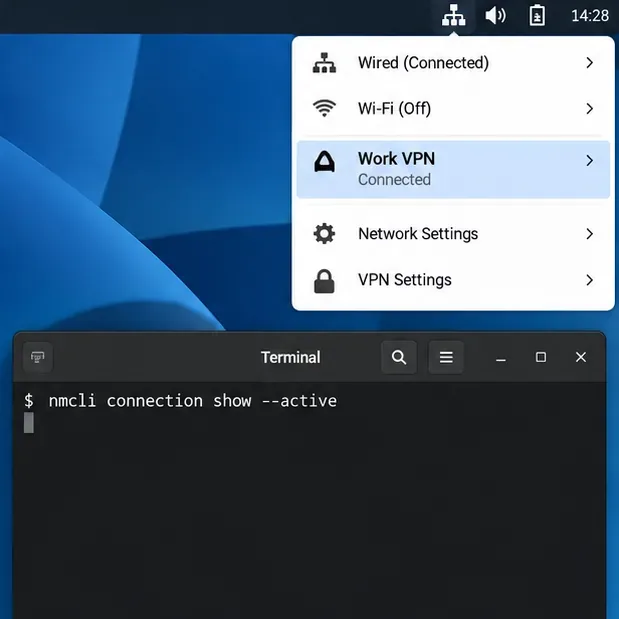
The interface images below are generic NetworkManager-style mockups, not screenshots from a Pardus computer. Use the steps as a map and follow the labels available in your desktop session.
Confirm the VPN protocol first. A VPN is not configured with only an account password: it may also require a server address, a certificate, a private key, a one-time code, or a provider-specific application. Ask the administrator or provider for the supported Linux client method and the complete profile. Do not guess a gateway or reuse a profile from an unrelated service.
For OpenVPN, keep the provider’s .ovpn file and any separate certificate or key files together until you have imported and tested the connection. Some profiles include credentials and certificates in the file; others refer to separate files. Treat private keys and exported profiles as secrets, and do not send them to other people or paste them into a public terminal log.
NetworkManager needs a protocol plugin before it can import and activate many VPN profiles. The OpenVPN plugin is separate from the VPN profile itself. First check which packages your enabled Pardus repositories offer:
sudo apt update
apt-cache policy network-manager-openvpn network-manager-openvpn-gnome
If APT shows an install candidate for the OpenVPN plugin, install the core plugin and, if needed for your desktop’s graphical editor, its matching interface package:
sudo apt install network-manager-openvpn network-manager-openvpn-gnomePackage names and availability can depend on the Pardus release and enabled repositories. If either package has no candidate, check the Pardus software source configuration or software center instead of adding a Debian repository from another release. On a GNOME edition, the GNOME-specific package supplies graphical OpenVPN integration; other desktops may use a different front end.
Pardus’s package tracker documents its NetworkManager desktop applet, while NetworkManager’s own documentation explains that VPN protocols use plugins. Those facts do not guarantee that every protocol plugin is installed by default, so check the local package candidate before installing.
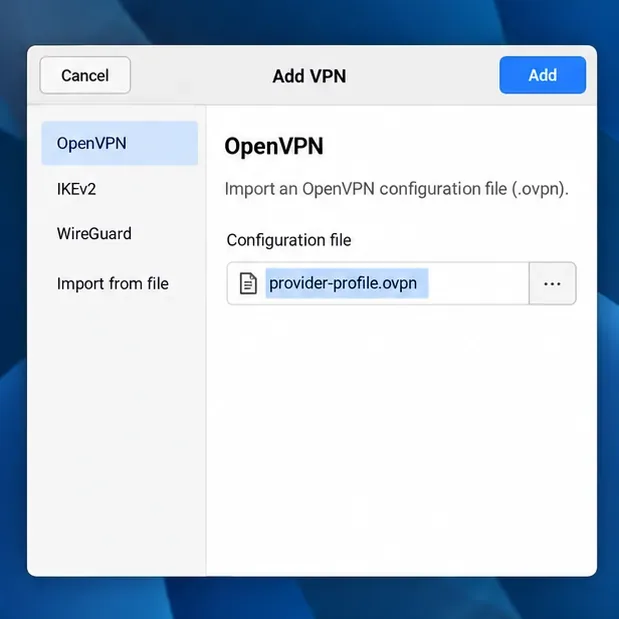
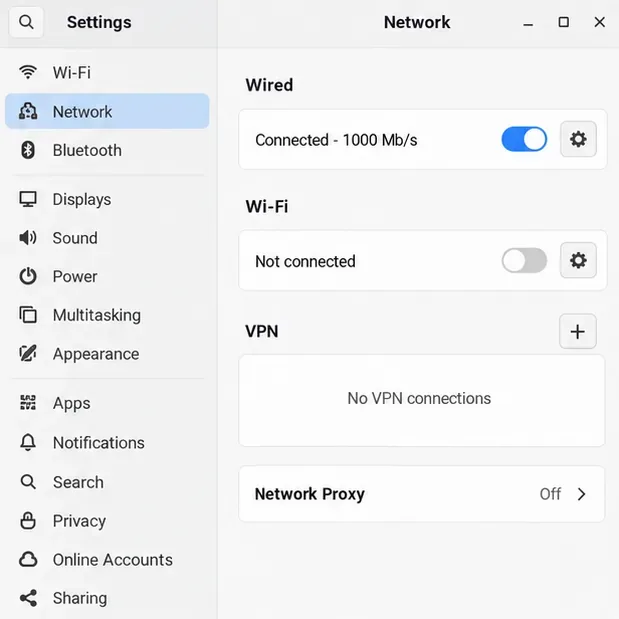
Use the import option in your network editor when it is available. In GNOME, open Settings, choose Network, and select the plus button by VPN; select OpenVPN or the option to import a saved configuration. In XFCE, open the NetworkManager panel menu and choose its connection editor, then add or import a VPN profile. Wording and available import controls vary with the installed front end and plugin version.
If the editor has no import control, NetworkManager’s command-line tool can import an OpenVPN profile. Substitute the real file path:
nmcli connection import type openvpn file "$HOME/Downloads/provider-profile.ovpn"This creates a saved NetworkManager connection. If the command reports that the VPN plugin is missing, install the matching plugin from Pardus repositories and try again. If it reports an invalid profile, ask the provider for a NetworkManager-compatible OpenVPN configuration; do not rewrite encryption or certificate directives by guesswork.
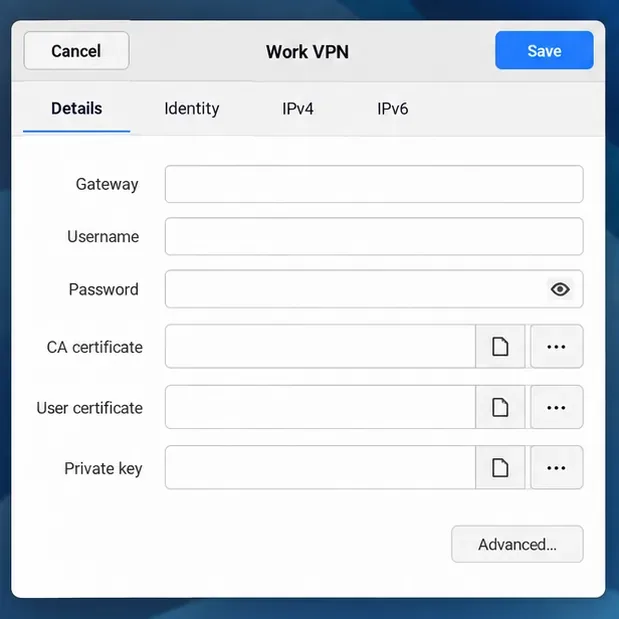
After import, review the profile’s authentication settings. If it references a separate CA certificate, client certificate, or private key, confirm the file paths still work. Enter the username, password, or key passphrase provided for this VPN; the authentication method is server-specific, so some profiles will not use every field shown in the mockup. Save the profile, then select it under VPN in the network menu or settings panel.
You can also start the saved connection from a terminal. Replace the quoted name with the connection name shown by NetworkManager:
nmcli --ask connection up id "Work VPN"
nmcli connection show --active
The --ask option lets NetworkManager prompt for credentials when the profile requires them rather than putting a password in shell history. The active-connections command should list the VPN profile after it connects. Also test a service or internal address that the VPN is meant to reach. A connected tunnel does not necessarily send all internet traffic through the VPN: split-tunnel profiles may route only selected networks.
For WireGuard, NetworkManager 1.16 and later includes native support, but the profile workflow can differ from OpenVPN. Corporate services may require OpenConnect or the organization’s own client. Follow the server owner’s current instructions for those types rather than trying to import every configuration as OpenVPN. Confirm success by checking the active profile and reaching a destination the VPN is supposed to provide.
References: Pardus release and desktop information, Pardus 23 NetworkManager applet package record, NetworkManager VPN plugin documentation, NetworkManager nmcli import reference, GNOME VPN setup instructions, and OpenVPN connection profile details.
Add an OpenVPN profile to NetworkManager on Pardus, install the right plugin, protect credentials, and verify the VPN is active.
Prepare a bootable USB, check 64-bit hardware compatibility, and install Pardus 23 XFCE while protecting existing files and avoiding common legacy BIOS pitfalls.
Distribute a custom wallpaper to Pardus clients, configure Xfce or GNOME desktops, and apply Lider Ahenk user policies with safe pilot checks.
Fix a 1024 × 768 ceiling by checking SPICE, virtual video, the guest channel, and spice-vdagent—with safe checks when Pardus lacks a package candidate.
Set up the Lider server, configure its installer safely, register Ahenk endpoints, and verify a pilot before expanding central management.
Download the official Pardus 23 desktop ISO, write it safely with Rufus, and boot a Windows PC into a temporary Live session.
Find out why Pardus 23 cannot detect your sound card, then use targeted ALSA, firmware, and PipeWire or PulseAudio checks to restore playback.
Save HamoniKR preferences to external storage, include hidden home folders, and choose a safe restore mode when moving to a fresh installation.
Install and configure xrdp on Pardus, choose the right Xfce session, restrict network access, and verify that remote login works.
Diagnose Pardus 23 APT connection failures, confirm the official yirmiuc sources, and restore apt update without bypassing package signature checks.