Deploy Shared Pardus Wallpapers and Policies with Lider Ahenk

Distribute a custom wallpaper to Pardus clients, configure Xfce or GNOME desktops, and apply Lider Ahenk user policies with safe pilot checks.
On older hardware, install Pardus 23 XFCE from its official 64-bit ISO, test that the live session can see the display, keyboard, network, and target disk, then install only after backing up anything you need. Pardus 23 is not a 32-bit release: an old computer with a 32-bit-only processor cannot run this installation media, and firmware boot support varies by model.
Pardus 23 desktop images are for 64-bit x86 computers; an old BIOS can still boot a 64-bit operating system if its processor supports x86-64, but the official material does not promise compatibility with every BIOS, graphics adapter, or storage controller.
For Pardus 23 XFCE, the Pardus 23.0 release notes list a 1 GHz 64-bit CPU, 1 GB RAM, 8 GB of disk space, and graphics capable of at least 1024×768 as minimums. They recommend 1.6 GHz or faster, 2 GB or more RAM, and 10 GB or more disk space. The Pardus releases page lists somewhat different requirements for Pardus 23.2 XFCE, including 16 MB of video memory. Treat these as version-specific published minimums, not a guarantee of good performance; more memory and free disk space provide practical headroom. See the Pardus 23.0 release notes and Pardus release requirements.
Choose the Pardus 23 XFCE desktop ISO from the official Pardus releases page or its official download mirror. XFCE is the lighter desktop in Pardus 23, making it the more sensible first choice for an older PC. Confirm that the file name identifies the Pardus 23 XFCE amd64 image; do not choose the ARM image, server image, or a 32-bit image from an unrelated old release.
Compare the ISO with the checksum published beside that exact download. On Linux, sha256sum filename.iso calculates a SHA-256 value; on Windows, use PowerShell’s Get-FileHash. The result must match the official checksum.
Use a USB imaging utility that writes an ISO in raw or image mode. Select the ISO and carefully verify the target USB by its name and capacity before confirming the write. The Pardus USB guidance explains creating boot media from another operating system; follow the tool’s current prompts and safely eject the drive when it finishes. Do not copy the ISO file onto the USB as an ordinary document.
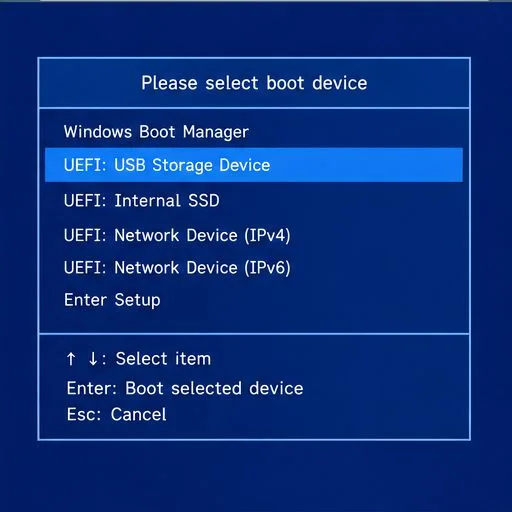
Shut down the PC, insert the installer, and power it on. Open its one-time boot menu using the key shown by the manufacturer, commonly a function key or Escape; the exact key varies. Choose the USB device. If two entries appear, try the USB entry matching the firmware mode already used by the installed operating system. A machine with old BIOS firmware may show no UEFI entry at all.
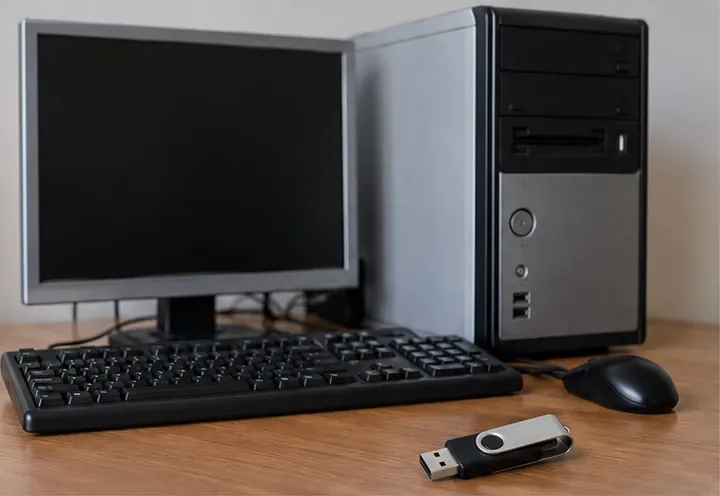
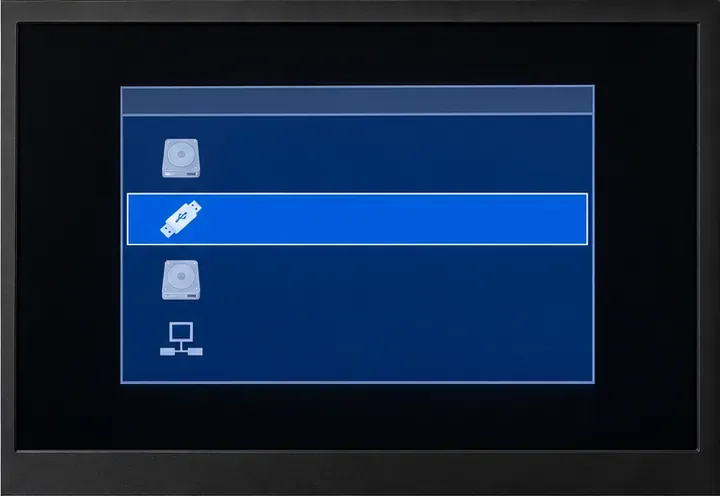
If the USB does not appear, try another port or flash drive and check the manual for USB boot settings. Avoid changing unrelated firmware settings such as SATA mode.
At the Pardus boot screen, select the live or graphical installation option shown by the image. The installer’s exact wording can differ between ISO revisions. If a live desktop is available, use it first to check that the screen displays correctly, the keyboard and mouse work, the network is usable if needed, and internal storage appears. A live session runs from USB without installing Pardus.
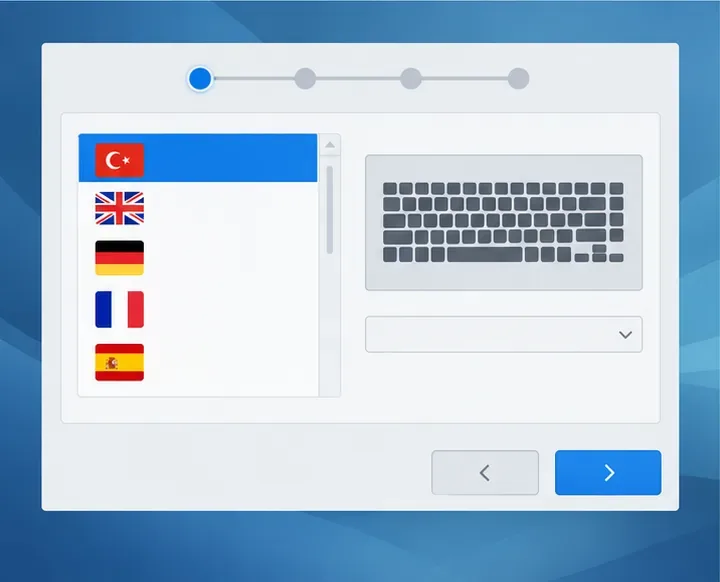
Start the installer from the live environment if it does not launch automatically. Select language, location, keyboard, and account settings as prompted. The official Pardus installation guide describes the graphical flow; use the labels on your actual installer rather than assuming every release presents identical screens.
When the disk screen appears, pause and identify the target by its capacity and model if shown. Use the entire disk only if you intend to replace everything on it and have verified your backup; this erases existing systems and files. For dual boot, choose a free-space or manual partitioning option only if you understand the existing partition map and have already made a backup. Never select a disk based only on its position in a list.
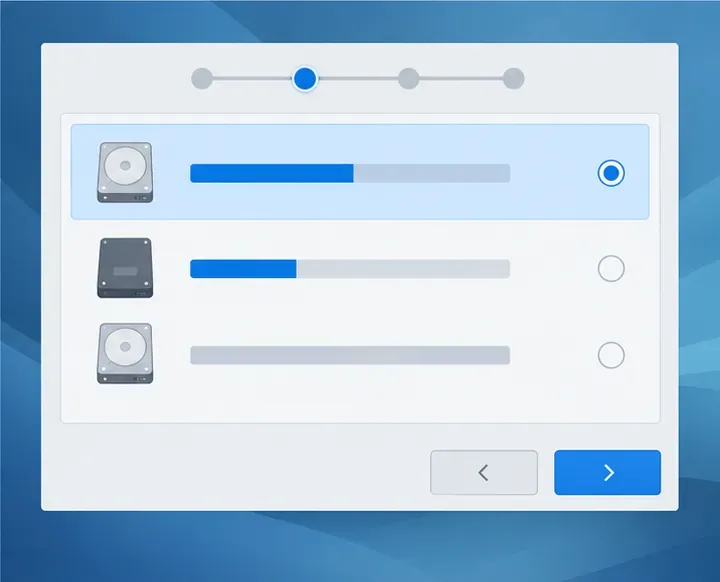
Review the final summary carefully. If it lists partitions or disks you did not intend to change, cancel and return to the disk screen. Confirm installation only when the target and erase/format actions match your plan. Leave the USB connected while files are copied; when the installer requests a restart, remove it at the prompt so the computer boots from its internal drive.
After restart, sign in and verify the basics before installing extra software: the display uses a readable resolution, the keyboard layout is correct, storage is available, and wired or wireless networking works. Open the system updater and apply offered updates after connecting to a reliable network. Keep the installer USB until you have confirmed the new system boots independently and your backup is intact.
If the computer returns to the installer, remove the USB and reboot. If the internal disk does not boot, check the boot order and firmware mode before attempting repairs. A black screen or missing network device may point to hardware support; consult Pardus documentation for that device.
Final check: Pardus starts from the internal drive with the USB removed, the expected desktop appears, and the devices you need work. If an old PC is below the published minimums or cannot boot the official 64-bit media, stop before repartitioning it and consider a supported system that matches its processor and firmware.
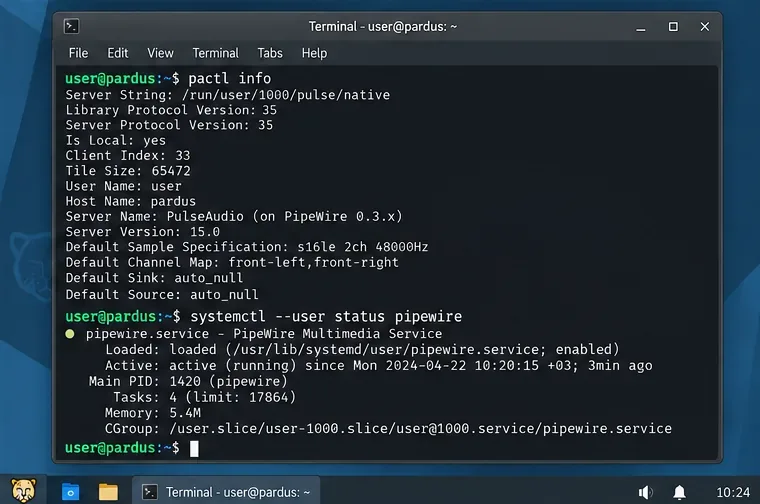
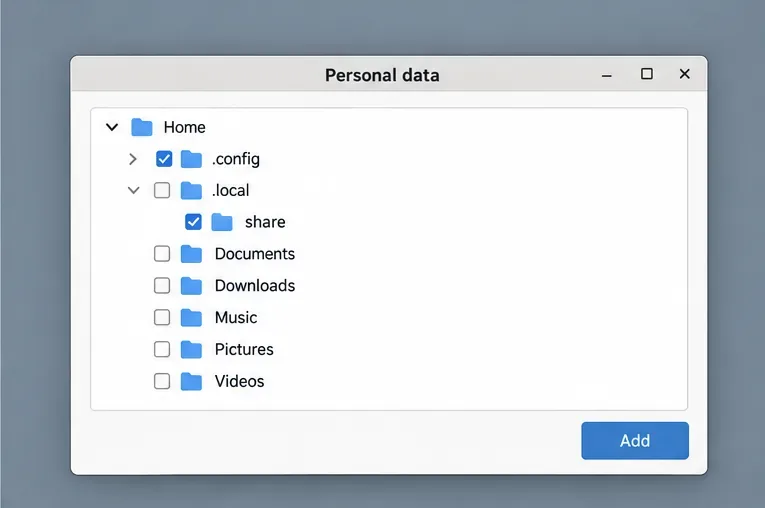
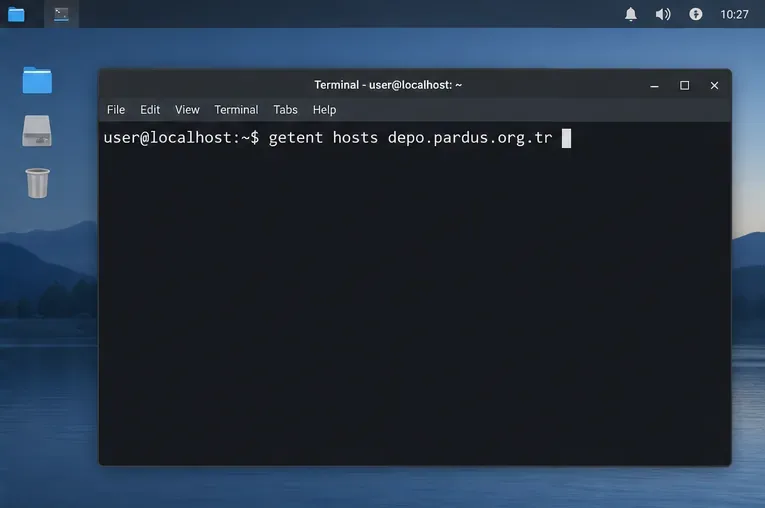
Image note: The interface panels above are generic orientation illustrations; their controls are not verified Pardus screenshots. Use your downloaded ISO’s actual screens and official guide for the decisions that write to disk.
Distribute a custom wallpaper to Pardus clients, configure Xfce or GNOME desktops, and apply Lider Ahenk user policies with safe pilot checks.
Fix a 1024 × 768 ceiling by checking SPICE, virtual video, the guest channel, and spice-vdagent—with safe checks when Pardus lacks a package candidate.
Set up the Lider server, configure its installer safely, register Ahenk endpoints, and verify a pilot before expanding central management.
Download the official Pardus 23 desktop ISO, write it safely with Rufus, and boot a Windows PC into a temporary Live session.
Find out why Pardus 23 cannot detect your sound card, then use targeted ALSA, firmware, and PipeWire or PulseAudio checks to restore playback.
Save HamoniKR preferences to external storage, include hidden home folders, and choose a safe restore mode when moving to a fresh installation.
Install and configure xrdp on Pardus, choose the right Xfce session, restrict network access, and verify that remote login works.
Diagnose Pardus 23 APT connection failures, confirm the official yirmiuc sources, and restore apt update without bypassing package signature checks.
Configure printers on Harmonica OS using CUPS, compare driverless IPP with legacy drivers, and verify USB or network printing with a test page.
Use a recovery shell to set a new Harmonica OS root password, with checks for encrypted disks, read-only filesystems, and accounts that use sudo.