Pardus 23 Sound Card Missing? Check ALSA and Restore Audio
Find out why Pardus 23 cannot detect your sound card, then use targeted ALSA, firmware, and PipeWire or PulseAudio checks to restore playback.
If Pardus Linux 23 cannot find your sound card, first compare the devices shown by ALSA with those in the desktop sound settings. If aplay -l lists the card, check output routing and the audio server; if ALSA reports no cards, inspect the kernel driver and firmware before installing anything.
This sequence avoids a common mistake: replacing PipeWire or PulseAudio when the problem is an unavailable kernel device. The steps apply to Pardus 23 installations, including the XFCE and GNOME editions, although menu labels differ. Pardus 23.0 launched with Linux kernel 6.1 and XFCE 4.18, according to the official release notes. Later Pardus 23 updates can have different packages, so trust the versions shown on your machine rather than a screenshot.
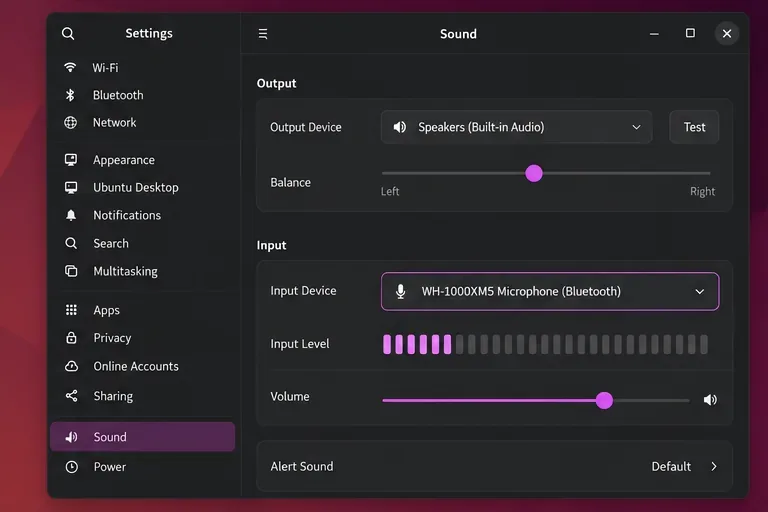
Open your desktop's sound or volume settings. Disconnect a Bluetooth headset or HDMI monitor temporarily if you intended to use laptop speakers. Select the internal speakers or an appropriate analog output profile, confirm the volume is above zero, and check that the device is not muted. When the only listed choice is “Dummy Output,” move to the ALSA checks below.
If your desktop controls do not expose the desired route, pavucontrol can display output devices, ports, and profiles for a running PulseAudio-compatible server. Install it with sudo apt install pavucontrol only if it is absent. It cannot create a sound card that the kernel has not detected.
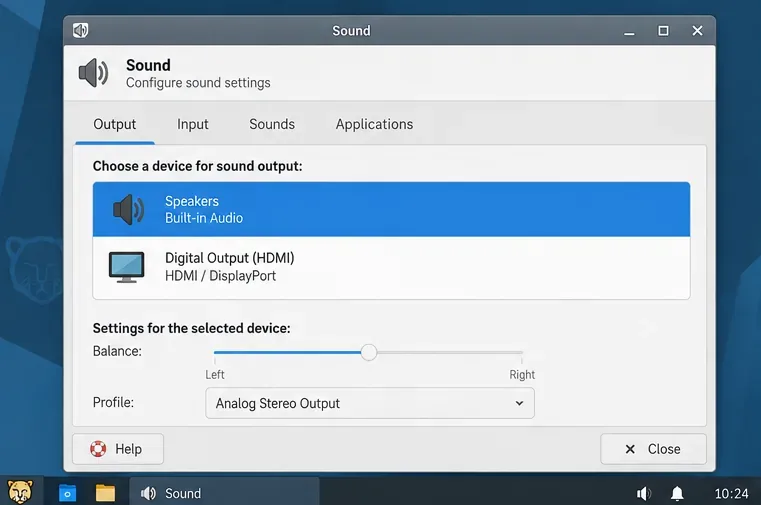
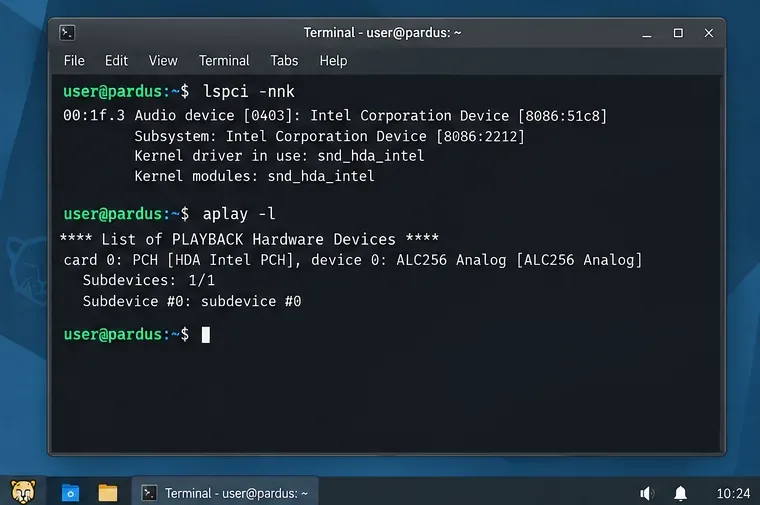
Open a terminal and run the following commands. If lspci or aplay is unavailable, install pciutils or alsa-utils respectively from the configured Pardus repositories.
lspci -nnk | grep -A4 -Ei "audio|multimedia"
aplay -l
cat /proc/asound/cards
lspci checks PCI devices and may show the “Kernel driver in use.” aplay -l lists ALSA playback hardware, while /proc/asound/cards identifies registered ALSA cards. USB audio adapters may not appear in the PCI listing; check them with lsusb after installing usbutils if needed. An ALSA card can exist even if the desktop shows no usable output.
Use the results to choose your path: if ALSA lists the intended card, skip to the audio-server checks in section 5 after verifying mute and profile selection. If a PCI controller is visible but ALSA shows no usable card, focus on driver and firmware messages. If neither finds the device, check the BIOS/UEFI onboard-audio setting, detachable USB connections, and whether a current live Linux system detects it before assuming a driver package will solve the issue. The device listing behavior is documented in the ALSA aplay manual.
Check the loaded sound modules and review recent kernel messages. These commands do not modify system configuration:
lsmod | grep -E "^(snd|soundwire)"
sudo dmesg | grep -iE "sof|snd|hda|audio|firmware" | tail -n 60
Look for failed firmware loads, audio DSP initialization failures, or a driver that could not probe the controller. Sound Open Firmware (SOF) is used by some Intel systems; a reference to sof is a useful clue, not proof that every Intel machine needs the same package. Modules compiled directly into a kernel might not appear in lsmod, so do not treat an empty result alone as proof of a missing driver.
If the log contains no decisive message, record the full controller ID from lspci -nnk and the kernel from uname -r. Those details are more useful in a manufacturer support request or Pardus forum post than a generic “no sound” description. Avoid copying random snd_hda_intel model overrides or force-loading modules without matching your chipset and codec.
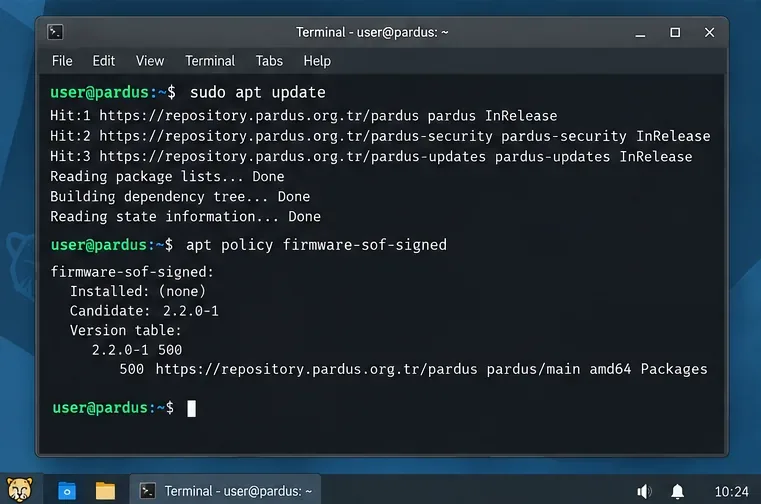
Refresh package metadata and inspect which firmware is available from your existing Pardus software sources:
sudo apt update
apt policy firmware-sof-signed firmware-intel-sound alsa-ucm-conf
If the kernel log points to missing Intel SOF firmware, install firmware-sof-signed when it has a valid package candidate:
sudo apt install firmware-sof-signedThe Debian 12 package description specifies that this package supplies firmware and topology files for some Intel devices. Older Intel SST devices may instead need firmware-intel-sound, documented separately by the Debian package index. Do not install both indiscriminately or claim they cover all sound controllers. For an ALSA card with incomplete profiles, inspect alsa-ucm-conf, which provides use-case configuration rather than a new kernel driver.
Review APT's proposed package changes before accepting them, then reboot if firmware or the kernel was updated. Keep Pardus 23 repositories configured; do not paste Debian testing, Pardus 25, or third-party repository lines into a working system just to obtain newer audio files. Newer kernels may support hardware that the original Pardus 23 kernel did not, but a kernel change introduces compatibility and recovery risks that should be weighed against testing a supported newer live system first.
If aplay -l identifies the card but your desktop still lacks a usable output, query the audio server. Run these as your normal logged-in user, not with sudo:
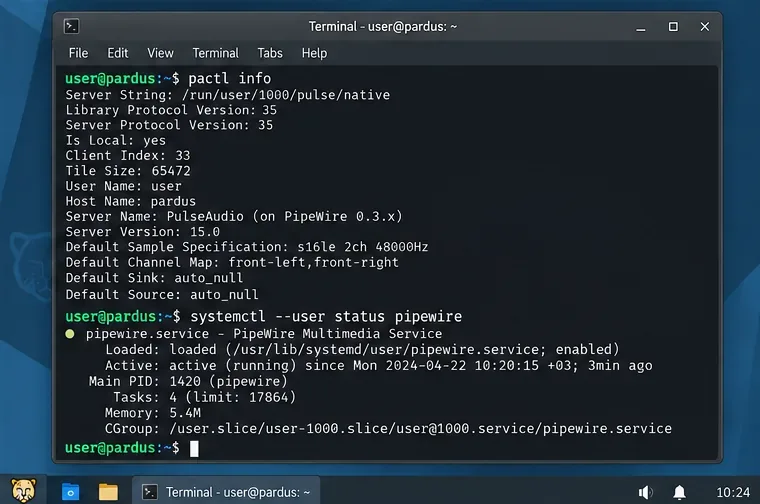
pactl info
pactl list short sinks
A server name containing “PulseAudio (on PipeWire)” indicates the PipeWire compatibility service. Plain “pulseaudio” identifies the traditional PulseAudio server. If pactl cannot connect, the user session or selected audio server may not be running. The pactl command reference documents the server query and sink listing.
For an existing PipeWire setup: inspect the service units and restart only those actually installed and active:
systemctl --user status pipewire pipewire-pulse wireplumber --no-pager
systemctl --user restart pipewire pipewire-pulse wireplumber
Do not run the restart command if the status inspection shows these units are absent; a system may use PulseAudio instead. For an existing PulseAudio setup: use pulseaudio -k to stop the user daemon, then reconnect or log out and back in so it can start again. If the relevant packages are actually damaged, reinstall that same stack after reviewing the APT transaction. Switching stacks is a separate change, not the first repair.
| What you can verify | Reasonable next action | Trade-off |
|---|---|---|
| ALSA card exists; wrong speaker or HDMI route | Change the output port or sound profile | Quick and reversible; does not fix firmware failures |
| PCI audio controller exists; ALSA has no card; log names missing SOF firmware | Install the matching firmware from Pardus repositories | Targeted repair; requires a matching device and sometimes a reboot |
ALSA lists a card; pactl fails or shows no usable sinks | Inspect and restore the existing audio service | Preserves desktop integration; cannot repair an unsupported kernel device |
| Hardware absent or still unsupported after a firmware check | Review firmware settings, reconnect peripherals, and test a supported live system | Provides stronger diagnosis, but testing takes time and a distribution change may affect other hardware |
Prefer configuration changes when ALSA sees the card; prefer firmware investigation when kernel messages point to a missing file. PipeWire is a valid choice on Debian 12-era systems, but replacing a working PulseAudio setup simply because PipeWire is newer can cause package removals and changed routing behavior. Check the proposed transaction first; the PipeWire audio metapackage information explains the related components.
After applying your chosen fix, run aplay -l again and confirm that it lists the intended playback card. Then run pactl list short sinks and select the correct output in sound settings. Finally, play a familiar audio clip at a moderate volume or use speaker-test -c 2 -t wav -l 1 to perform a brief two-channel check.
If ALSA still shows no card, capture lspci -nnk, uname -r, and the relevant dmesg errors before requesting hardware-specific support. If ALSA sees the card but playback remains silent, use alsamixer to select the correct card with F6 and check for muted playback controls; the official ALSA mixer instructions describe these controls. Success means both the device is listed and sound is audible through the intended output—not merely that a package installed without errors.
Find out why Pardus 23 cannot detect your sound card, then use targeted ALSA, firmware, and PipeWire or PulseAudio checks to restore playback.
Save HamoniKR preferences to external storage, include hidden home folders, and choose a safe restore mode when moving to a fresh installation.
Install and configure xrdp on Pardus, choose the right Xfce session, restrict network access, and verify that remote login works.
Diagnose Pardus 23 APT connection failures, confirm the official yirmiuc sources, and restore apt update without bypassing package signature checks.
Configure printers on Harmonica OS using CUPS, compare driverless IPP with legacy drivers, and verify USB or network printing with a test page.
Use a recovery shell to set a new Harmonica OS root password, with checks for encrypted disks, read-only filesystems, and accounts that use sudo.
Trace whether clipping, ALSA format conversion, or HDA power saving is causing Ubuntu 24.04 audio distortion, then apply the matching reversible fix.
Switch Debian audio between named PipeWire outputs with a pactl script that updates the default sink and reroutes streams already playing.
Get your Bluetooth headset mic working by selecting the right input, using a hands-free audio profile, and checking Ubuntu’s PipeWire route.
Learn why Flatpak apps may ignore Ubuntu 24.04 GTK themes and follow safe steps to check theme extensions, refresh Flatpak apps, and diagnose portal issues.