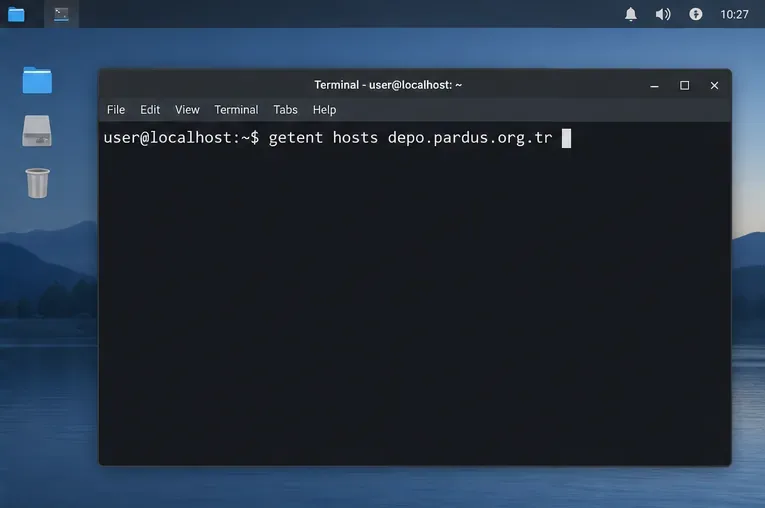
Set Up Secure RDP Access to a Pardus Xfce Desktop

Install and configure xrdp on Pardus, choose the right Xfce session, restrict network access, and verify that remote login works.
If you need to use a Pardus computer from another room or another network, the right setup depends on whether you want to see the desktop already open or start a separate graphical login. For the Pardus 25 Xfce edition, a practical RDP route is xrdp with the Xorg backend; install it only if the Pardus repositories configured on your machine offer the packages, and keep access behind a trusted LAN or VPN. RDP (Remote Desktop Protocol) lets an RDP client display and control a remote graphical session.
This guide uses Pardus 25 as its reference point. Pardus 25 is available with Xfce 4.20.2 as its default desktop and with GNOME 48.4 as a separate edition, according to the Pardus 25 release notes. Earlier Pardus releases may have different package versions or desktop behavior, so check your release before following package-specific steps.
Remote desktop access can mean two different things. Desktop sharing shows and controls the graphical session that is already open at the Pardus computer. Remote login creates a graphical login session for the connecting user. These modes are not interchangeable: sharing is useful when helping someone at the console, while remote login is usually a better fit for unattended workstation access.
The steps below configure a separate Xfce session through xrdp. That avoids assuming the person at the physical computer is already logged in. If your Pardus installation uses GNOME and you specifically want to share or remotely log in to GNOME, check Settings > System > Remote Desktop instead. Current GNOME documentation describes separate Desktop Sharing and Remote Login controls, but the exact options depend on the GNOME components and version installed; do not assume they are present on Xfce.
For a concrete example, imagine a fictional student who wants to open their Pardus 25 Xfce workstation from a Windows laptop while both devices are on the same home network. They need their own graphical session, so the Xfce plus xrdp method fits. This example is illustrative only; it is not a report of a tested setup.
Before installing anything, update Pardus through its normal repositories and make sure you have an administrator account, a working network connection, and a way to reach the computer locally if remote access does not start. On the Pardus machine, check the release and desktop:
cat /etc/os-release
echo "$XDG_CURRENT_DESKTOP"
Then check whether the repositories configured on this installation offer both the RDP server and Xorg driver packages:
sudo apt update
apt-cache policy xrdp xorgxrdp
Install only if both show a repository candidate. The xrdp project describes xrdp as an RDP graphical login server and recommends the xorgxrdp module for an Xorg desktop; its normal listening port is TCP 3389. Package availability can vary by Pardus release and repository configuration. If either package has no candidate, do not add an unrelated third-party repository just to follow this guide; consult the Pardus package sources for your release.
sudo apt install xrdp xorgxrdpThe session is the desktop environment the remote user sees after logging in. If the machine already runs Pardus Xfce, tell the X session launcher to start Xfce for your account:
printf '%s\n' xfce4-session > ~/.xsessionThis writes one session command to the current user’s ~/.xsession file. Run it as the account that will connect, not as root. If you use another desktop or already maintain a custom .xsession, do not overwrite it blindly; first save a copy and use the correct session command for that desktop.
Enable the xrdp service at startup and start it now:
sudo systemctl enable --now xrdp
systemctl is-active xrdp
The second command should print active if systemd reports the service running. If the service is missing or fails to start, inspect its status before opening any network port:
sudo systemctl status xrdp --no-pagerDo not expose TCP 3389 directly to the public internet. RDP is an interactive login service, so a reachable port attracts password-guessing attempts. For home or office use, connect from the same trusted network or first connect to your organization’s VPN. If a host firewall is enabled, create a rule that allows TCP 3389 only from the trusted LAN or VPN address range. Firewall commands differ depending on whether the computer uses UFW, nftables, or another manager; inspect the active firewall and its existing rules before changing them.
Find the Pardus machine’s local address with:
hostname -IUse the address reachable from the client’s network, not a loopback address or an unrelated VPN interface. Keep the Pardus user account protected by a strong, unique password, and avoid sharing administrator credentials for routine desktop access. Upstream xrdp documents TLS encryption for RDP transport by default; still verify certificate behavior in your deployment and keep the server and client updated.
On Windows, open Remote Desktop Connection by running mstsc. Enter the Pardus computer’s reachable IP address, choose Connect, and sign in with the Pardus account that owns the .xsession file. From another Linux computer, Remmina can act as an RDP client; the Pardus community’s software overview identifies Remmina as a client supporting RDP and several other remote access protocols.
A successful connection should reach an Xfce desktop session. Confirm that you can open a harmless application, interact with the desktop, and disconnect normally. Then reconnect once to make sure access works after the first login. If the login succeeds but the window is blank or closes immediately, verify that the user’s session command is valid and that Xfce is installed. If the client cannot reach the host at all, check the address, VPN/LAN path, service state, and scoped firewall rule before changing xrdp’s security settings.
For logs from the current boot, use:
sudo journalctl -u xrdp -b --no-pagerLook for the connection or session error around the time of the failed attempt. A running service alone does not prove remote access works: the final check is a client login that creates the intended Xfce session while the network rule remains limited to trusted sources.
References: the Pardus 25 release notes, the upstream xrdp project documentation, Debian’s xrdp package information, and the GNOME Remote Login documentation.
Install and configure xrdp on Pardus, choose the right Xfce session, restrict network access, and verify that remote login works.
Diagnose Pardus 23 APT connection failures, confirm the official yirmiuc sources, and restore apt update without bypassing package signature checks.
Configure printers on Harmonica OS using CUPS, compare driverless IPP with legacy drivers, and verify USB or network printing with a test page.
Use a recovery shell to set a new Harmonica OS root password, with checks for encrypted disks, read-only filesystems, and accounts that use sudo.
Trace whether clipping, ALSA format conversion, or HDA power saving is causing Ubuntu 24.04 audio distortion, then apply the matching reversible fix.
Switch Debian audio between named PipeWire outputs with a pactl script that updates the default sink and reroutes streams already playing.
Get your Bluetooth headset mic working by selecting the right input, using a hands-free audio profile, and checking Ubuntu’s PipeWire route.
Learn why Flatpak apps may ignore Ubuntu 24.04 GTK themes and follow safe steps to check theme extensions, refresh Flatpak apps, and diagnose portal issues.
Install Ubuntu 24.04 alongside Windows 11 with BitLocker safely. Compare separate-drive and shared-drive paths, recovery keys, partitioning, and boot checks.
Diagnose NVIDIA driver failures after an Ubuntu kernel update. Check DKMS and Secure Boot, rebuild the matching module, enroll a MOK, and verify the fix.