Configure USB and Network Printers with CUPS on Harmonica OS

Configure printers on Harmonica OS using CUPS, compare driverless IPP with legacy drivers, and verify USB or network printing with a test page.
On Harmonica OS (HamoniKR), start with the Printers application: add a USB printer or select a discovered network printer and prefer driverless IPP when the device supports it. Use the CUPS web interface at http://localhost:631 when you need to inspect a print queue, adjust defaults, or add a device manually. A vendor driver is a fallback for older hardware or missing printer-specific features, not the default first step.
CUPS (Common UNIX Printing System) manages printer queues and print jobs. The connection protocol determines whether a queue can be created without a driver, how devices are discovered, and which settings you can control. HamoniKR 8.0 documents both automatic network discovery and the system-config-printer utility; exact menu labels can vary by release.
| Connection | Good fit | Trade-off |
|---|---|---|
| USB through Printers | A printer physically connected to one computer | Depends on local device detection and compatible print support |
| Driverless IPP / IPP Everywhere | Modern printers on a trusted LAN | Some finishing, accounting, or vendor-specific controls may be unavailable |
| AppSocket / HP JetDirect | Legacy network printer with a known IP address | Usually uses raw TCP port 9100 without transport encryption; needs a suitable driver |
| Manufacturer PPD or package | Older models or essential proprietary capabilities | Maintenance and compatibility depend on the vendor; PPD drivers are being phased out upstream |
Before installing anything, connect the printer, check its display for an IP address if it uses Wi-Fi or Ethernet, and verify the computer is on the correct network. Then confirm CUPS is available:
systemctl is-active cups
lpstat -r
If the service is inactive, start it with sudo systemctl enable --now cups. If CUPS is not installed, run sudo apt update followed by sudo apt install cups; package availability depends on your configured HamoniKR repositories. Avoid replacing working print components merely because the device was not discovered.
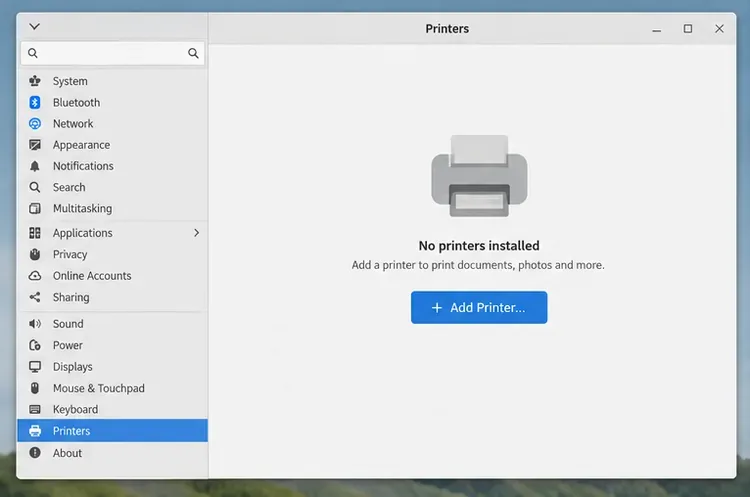
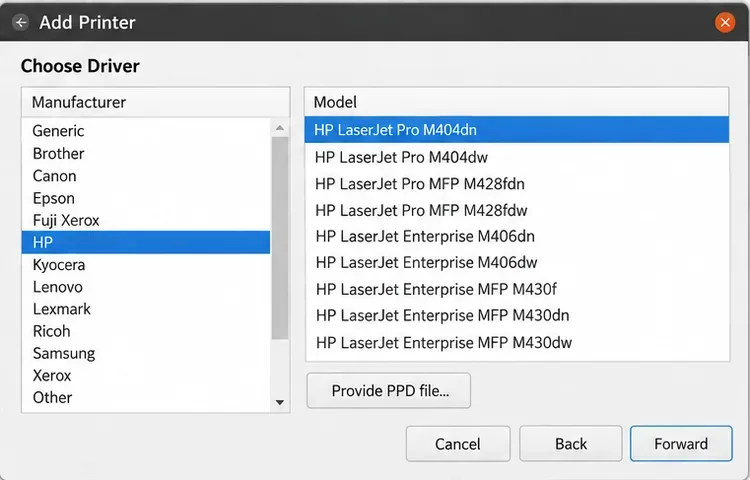
Open the application menu, then Administration > Printers or the printer settings panel, as described in the HamoniKR guide. You can also open a terminal and run system-config-printer. Click Add and inspect the local-device list. For USB, select the exact detected model, not an unrelated model with a similar name. Continue through any driver choice, name the queue, and apply the configuration.
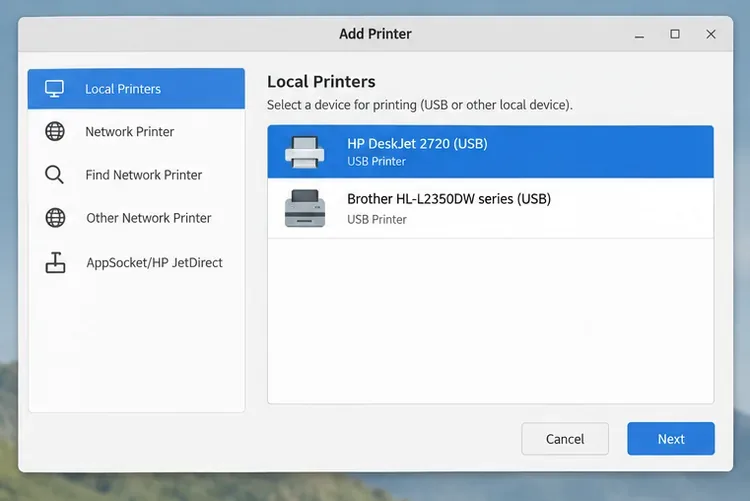
If the USB device never appears, try a direct cable connection instead of a USB hub and check that the printer is powered on. CUPS cannot solve a failed USB connection by selecting a different network protocol. Only investigate a manufacturer-specific package after confirming device detection.
In the Add Printer dialog, open Network Printer or Find Network Printer. Where a device is discovered with a driverless IPP option, select that connection and continue. The printer supplies its supported document formats and options, reducing dependence on a model-specific PPD. This is normally the easiest option for a compatible modern network printer.
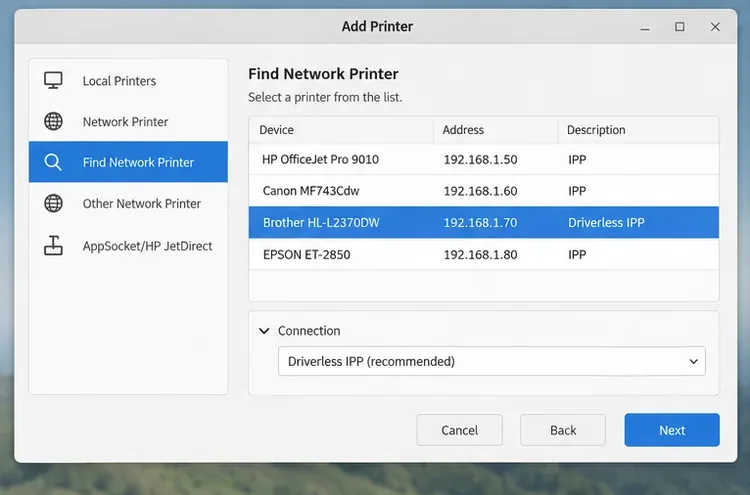
Discovery is not proof that printing will work: wireless client isolation, a guest network, multicast DNS filtering, or an incorrect subnet can hide a printer. If the printer is visible but has limited duplex, stapling, or color controls, compare the available options with its manufacturer documentation before changing drivers. The HamoniKR 8.0 printer documentation specifically cautions that driverless printing can omit some manufacturer features.
For more control, open http://localhost:631 on the HamoniKR computer, select Administration, and click Add Printer. CUPS may ask for the credentials of an account authorized to administer printing. Choose the discovered local or network device, enter a short queue name, and select an appropriate driverless or model-specific option. Review defaults such as paper size before saving.
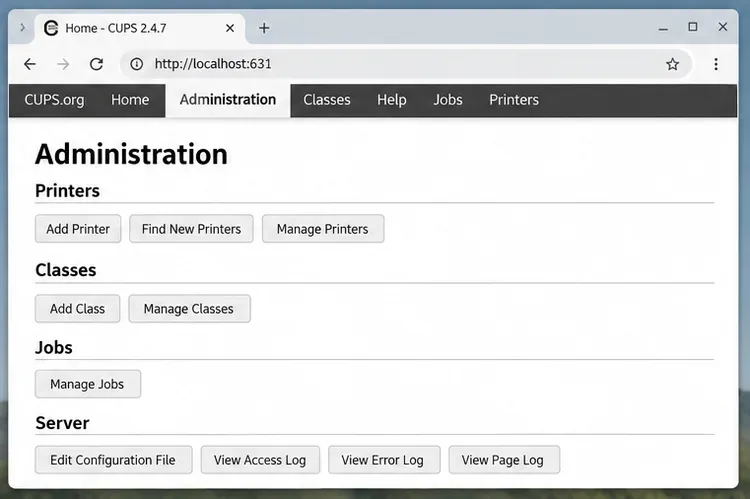
The web page and the desktop utility modify the same underlying printing system; they are alternatives, not two independent drivers you need to install. Use the desktop tool for routine setup and the web interface for queue status, test pages, and printer options. CUPS documents these actions in its OpenPrinting CUPS administration documentation. Keep administration bound to the local computer unless you have a deliberate, secured remote-management design; do not open port 631 to the public Internet just to add a printer.
When discovery fails but the printer answers at a known address, check the manufacturer’s documentation for its actual print-service URI. Prefer an ipps:// endpoint when the printer supports secure IPP and its certificate can be validated. An ipp:// endpoint is another possibility on a controlled local network. Do not assume that every printer uses /ipp/print.
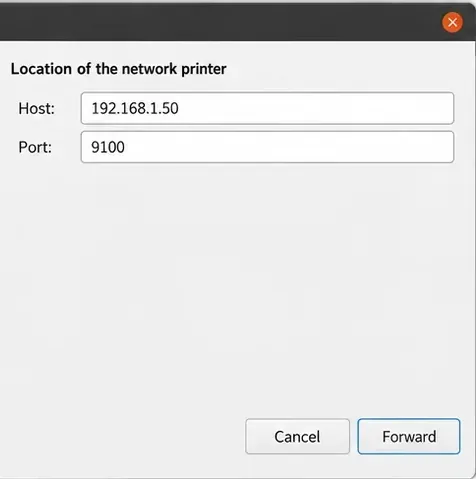
For an older model that supports raw socket printing but not IPP, HamoniKR documents AppSocket/HP JetDirect: enter the host address and confirm the printer uses the expected port, commonly 9100. This avoids service discovery but lacks IPP’s capability negotiation and typically offers no encryption.
If you have verified an IPP Everywhere URI, an administrator can also create a queue from the command line. The address below is illustrative; replace it with the real printer URI:
sudo lpadmin -p OfficePrinter -E -v ipp://192.168.1.50/ipp/print -m everywhereThe -p argument names the queue, -v specifies the destination, and -m everywhere requests the driverless model. This only works when the printer advertises the required IPP capabilities. The OpenPrinting lpadmin reference documents this form and warns that classic PPD-based drivers are deprecated.
If the model still cannot print or loses a required function, first check the distribution-supported package documented by HamoniKR:
sudo apt update
sudo apt install hamonikr-printer-drivers
If you need a manufacturer-supplied Linux driver or PPD, obtain it from the original manufacturer, verify support for your model and architecture, and install it only when trusted. Do not pick a random PPD because its brand matches. Some vendor queues provide better device-specific options but may be harder to maintain through future updates.
In the printer properties or CUPS Set Default Options page, set the correct media size and inspect the options exposed by your selected driver. A4 versus Letter is a frequent source of unexpected scaling. Duplex, quality, and color settings vary by device; do not assume every control shown in an example applies to your printer.
In CUPS, open Printers, select your queue, and choose Print Test Page from Maintenance. You can check the same queue without a browser:
lpstat -p -d
lpstat -o
lp -d OfficePrinter /path/to/test.pdf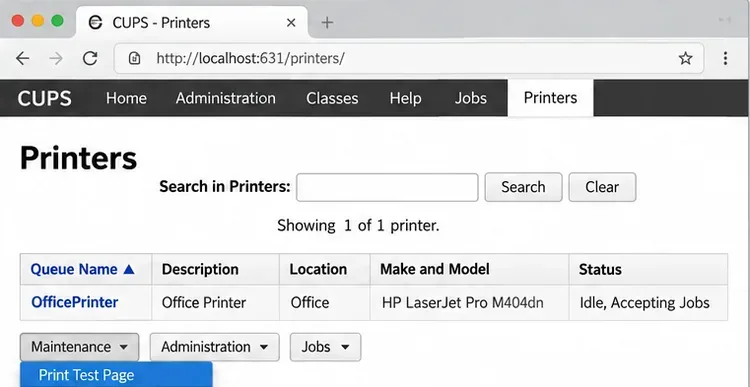
A successful configuration means a test page physically prints with the expected page size and layout, the job clears from the queue, and a normal application can print to the same destination. “Idle, accepting jobs” only means CUPS can queue work; it does not prove the paper reached the output tray. If printing stalls, check lpstat -o, inspect the selected device URI, confirm reachability, and compare the printer’s IPP or socket settings with its documentation. For network setups, the CUPS firewall and network port guidance identifies TCP 631 for IPP and UDP 5353 for mDNS discovery; apply any firewall changes narrowly on the trusted LAN.
For more details on per-user defaults and command-line jobs, consult the CUPS command-line printing reference. If your current driverless queue prints the test page correctly, leave it in place rather than adding an overlapping legacy queue.
Configure printers on Harmonica OS using CUPS, compare driverless IPP with legacy drivers, and verify USB or network printing with a test page.
Use a recovery shell to set a new Harmonica OS root password, with checks for encrypted disks, read-only filesystems, and accounts that use sudo.
Trace whether clipping, ALSA format conversion, or HDA power saving is causing Ubuntu 24.04 audio distortion, then apply the matching reversible fix.
Switch Debian audio between named PipeWire outputs with a pactl script that updates the default sink and reroutes streams already playing.
Get your Bluetooth headset mic working by selecting the right input, using a hands-free audio profile, and checking Ubuntu’s PipeWire route.
Learn why Flatpak apps may ignore Ubuntu 24.04 GTK themes and follow safe steps to check theme extensions, refresh Flatpak apps, and diagnose portal issues.
Install Ubuntu 24.04 alongside Windows 11 with BitLocker safely. Compare separate-drive and shared-drive paths, recovery keys, partitioning, and boot checks.
Diagnose NVIDIA driver failures after an Ubuntu kernel update. Check DKMS and Secure Boot, rebuild the matching module, enroll a MOK, and verify the fix.
Fix Ubuntu 24.04 Wi-Fi drops after suspend with checks for NetworkManager, radio blocks, updates, power saving, and drivers—then verify each resume.
Learn why tracker-miner-fs-3 uses high CPU in Ubuntu GNOME and how to check indexing, exclude folders, update Ubuntu, or safely rebuild the search index.