How to Fix Ubuntu 24.04 Wi-Fi Disconnecting After Suspend
Fix Ubuntu 24.04 Wi-Fi drops after suspend with checks for NetworkManager, radio blocks, updates, power saving, and drivers—then verify each resume.
What should count as a fix? After waking an Ubuntu 24.04 laptop, Wi-Fi should reconnect without repeatedly toggling controls, the computer should receive an IP address, and both local network access and DNS-based internet access should work. Confirm that behavior across several suspend-and-resume cycles. A single successful reconnect is useful evidence, but it does not prove the issue is resolved.
Ubuntu notes that some wireless devices do not resume properly after suspend. The cause can be a temporary radio block, a NetworkManager connection profile, a kernel or firmware issue, or an access point interaction. Work through low-risk checks first, change one variable at a time, and stop when the result is stable. The steps below apply to Ubuntu 24.04 LTS using its standard NetworkManager desktop setup; hardware and driver details can change the right fix.
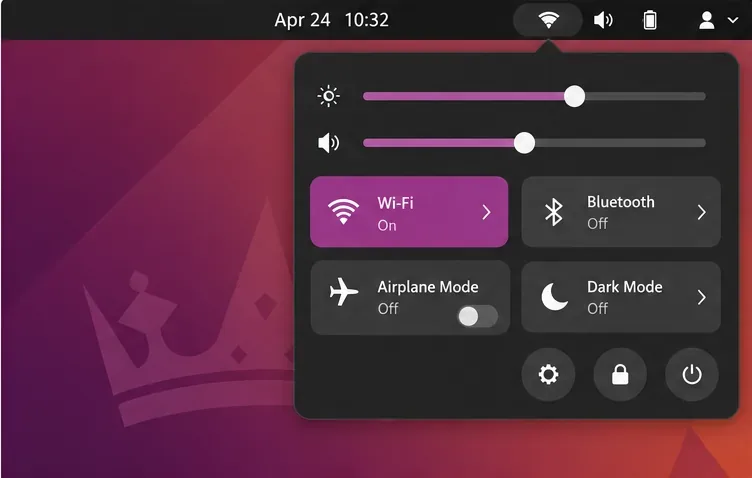
Start with the reversible step in Ubuntu's desktop help. Open Quick Settings from the top-right system menu, switch Wi-Fi off, wait a few seconds, and switch it back on. If that does not help, turn Airplane Mode on briefly and then off, or open Settings > Wi-Fi and toggle the Wi-Fi switch. These actions prompt the wireless device to reconnect without changing its saved profile.
Check the result rather than relying only on the icon. Does the saved network show as connected? Can you open a site or reach another known service? If the network reconnects but websites do not load, the issue may be DNS, the router, or the upstream connection instead of the wireless association. Ubuntu's official “no wireless network after waking” help recommends toggling Wi-Fi and, if needed, Airplane Mode.
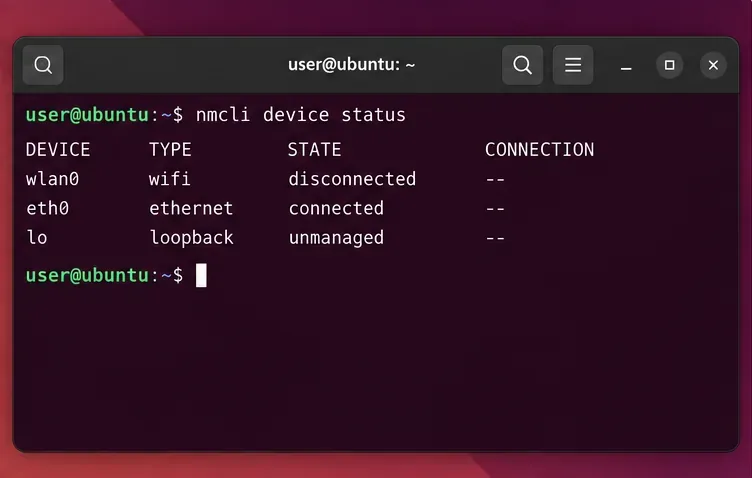
If the quick toggle fails, inspect the device state. Open Terminal and run:
nmcli device status
nmcli radio all
rfkill list
Look for a Wi-Fi device and note whether its state is connected, disconnected, unavailable, or missing. In rfkill output, a soft block can usually be cleared in software; a hard block may require a physical wireless switch, a keyboard function key, or a firmware setting. You can try nmcli radio wifi on if Wi-Fi is disabled. Use nmcli device wifi list to see whether nearby networks are visible.
Interface names vary. Do not assume that your adapter is called wlan0 or wlp2s0; use the name shown by your own commands. If the Wi-Fi device is absent entirely, repeatedly editing saved networks is unlikely to help. Move to the driver and firmware checks below.
Test another trusted network, such as a phone hotspot, if available. Also try another device on the original router. These comparisons help separate a laptop-side resume problem from an access point problem:
Do not forget captive portals or enterprise Wi-Fi authentication. A device can associate with an access point yet still lack internet access until a portal sign-in or a valid enterprise credential exchange completes.
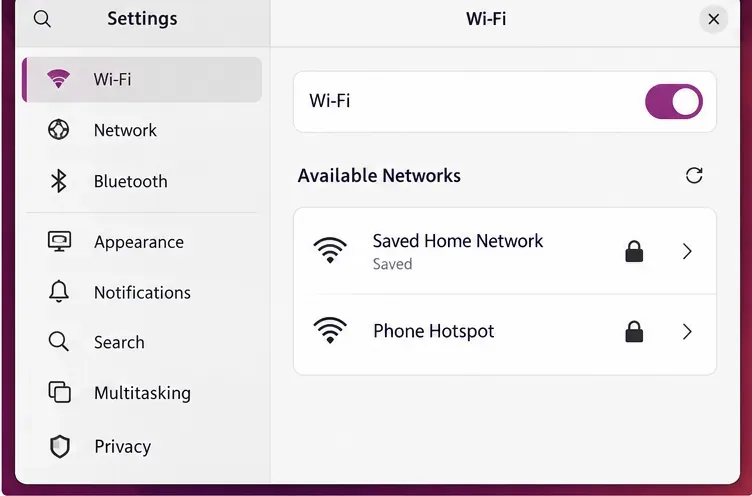
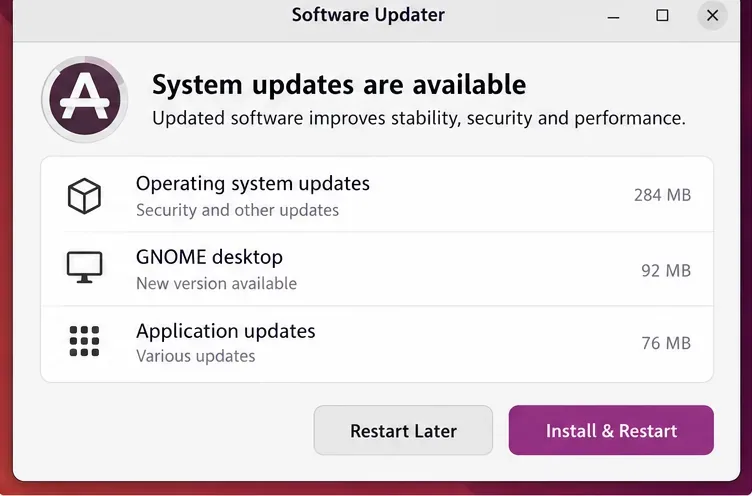
Install available Ubuntu updates before trying unofficial fixes. Open Software Updater or use the supported package tools, then restart if updates replace the kernel or wireless components:
sudo apt update
sudo apt full-upgrade
Review the package changes before confirming them, especially on a work-managed computer. Ubuntu 24.04 LTS receives updates during its support period; however, exact behavior still depends on the enabled repositories, hardware, and installed kernel track. If the issue began after a kernel update, note the kernel version and test the previous installed kernel once from GRUB's advanced options when available. Do not remove kernels until you have confirmed a working recovery option.
For hardware that needs a proprietary driver, check the desktop's “Additional Drivers” utility and Ubuntu's official device or vendor documentation. Avoid random driver downloads, copied DKMS instructions, and broad module blacklists: they can make Wi-Fi disappear entirely or complicate kernel updates. Restart and test before making another change.
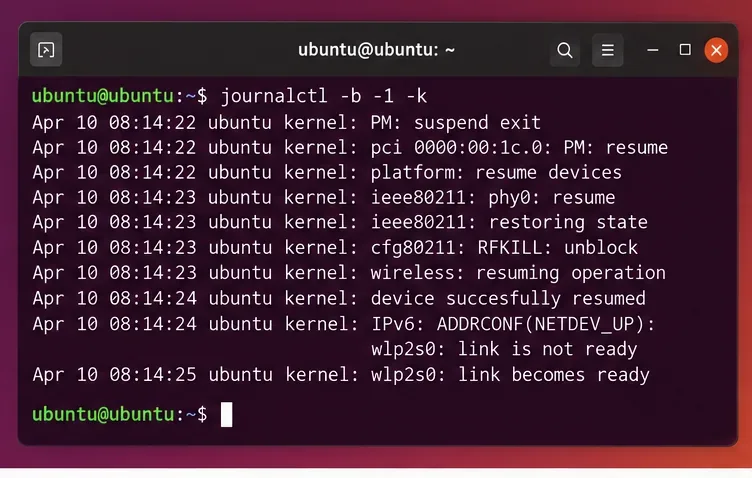
When the failure returns, collect the relevant journal entries before rebooting if practical. The system journal can show whether the kernel detected the adapter and whether NetworkManager attempted to reconnect:
journalctl -b -k --since "10 minutes ago"
journalctl -b -u NetworkManager --since "10 minutes ago"
Run these soon after reproducing the problem; adjust the time window if needed. Search for terms such as the adapter's driver name, firmware, timeout, rfkill, deauth, and resume. A firmware-load failure or device reset loop is a stronger reason to investigate driver support than a generic message that the connection dropped.
A suspend and resume normally happen within the same boot, so the current boot journal is relevant while diagnosing. If you have already restarted, use journalctl -b -1 -k to inspect kernel messages from the previous boot, where the failed resume may have occurred. Logs can include device identifiers and network details; remove sensitive information before sharing them publicly.
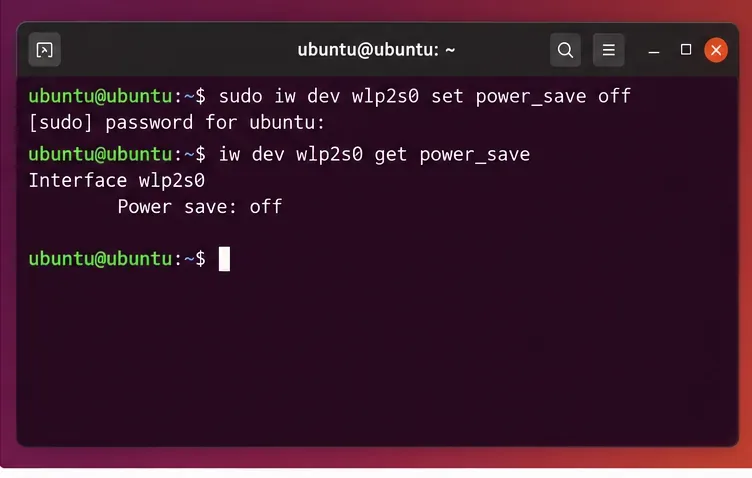
NetworkManager exposes a Wi-Fi power-saving option, but changing it is a diagnostic test, not a universal cure. If iw is not installed, install it with sudo apt install iw while you have a working connection. Find the wireless interface with iw dev, then substitute its real name below:
sudo iw dev INTERFACE set power_save off
iw dev INTERFACE get power_save
For example, if your own interface is named wlp2s0, use that name in both commands. After the command reports power saving is off, suspend and resume once or twice. If reconnect behavior improves consistently, power management may be relevant. If there is no change, restore your previous setting or reboot and continue with logs and driver checks. Disabling Wi-Fi power saving may increase battery use, and a driver may override or reset this runtime setting.
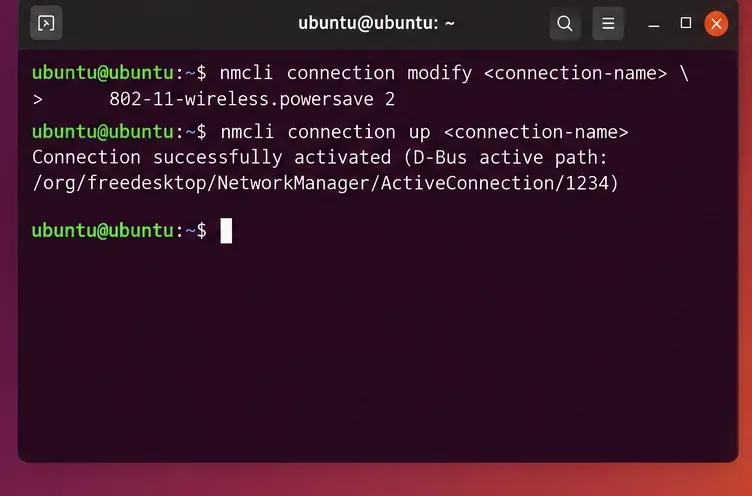
Only consider a persistent change if the temporary test improves the repeated suspend/resume result. Find the exact connection profile name with nmcli connection show. Then set NetworkManager's per-profile 802-11-wireless.powersave property to 2, the documented value for disabling Wi-Fi power saving:
nmcli connection modify "YOUR_PROFILE_NAME" 802-11-wireless.powersave 2
nmcli connection up "YOUR_PROFILE_NAME"
Replace YOUR_PROFILE_NAME with the profile name exactly as listed; do not type the placeholder literally. The setting applies to that saved connection. To return it to the default behavior, set the value to 0 and reactivate the profile:
nmcli connection modify "YOUR_PROFILE_NAME" 802-11-wireless.powersave 0The Ubuntu 24.04 NetworkManager settings manual documents the values: 0 default, 1 ignore, 2 disable, and 3 enable. If the connection profile is not a Wi-Fi profile or the property is unavailable, do not force it; inspect your NetworkManager version and connection type first. If persistent disablement uses noticeably more battery or fails to improve recovery, revert it.
If the adapter disappears, logs show repeated firmware or driver errors, or the issue persists across multiple networks and current updates, identify the exact hardware and driver. These commands can help:
lspci -nnk | grep -A3 -i network
lsusb
uname -r
Some Wi-Fi adapters are connected over USB and will not appear in lspci; some internal adapters may show there. Look for “Kernel driver in use” and any firmware-related messages. Use the exact adapter model to consult Ubuntu's official hardware resources and, where appropriate, the computer or adapter manufacturer's support information. A vendor-specific suspend quirk can require a model-specific fix; there is no safe universal module option to recommend without those details.
Escalate with the Ubuntu release, kernel version, adapter model, driver name, whether another network works, and the relevant redacted log excerpt. If the same hardware issue appears under multiple kernels or operating systems, firmware or hardware service may be needed. Keep a wired or USB network adapter available if connectivity is essential while diagnosing.
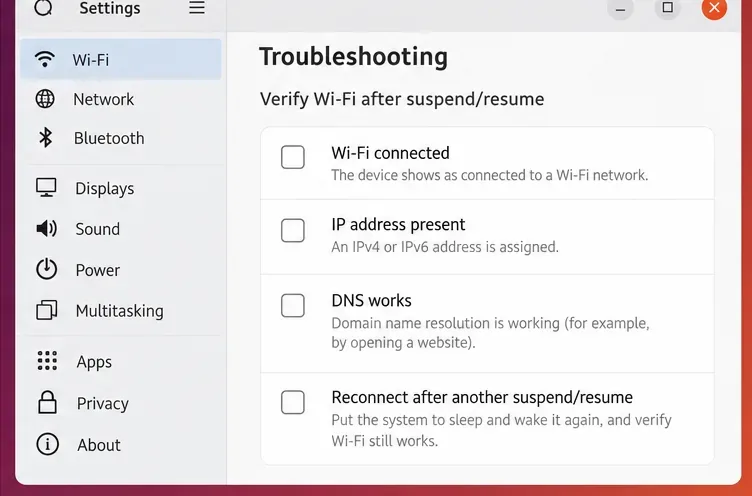
After the final change, test more than one resume. Before and after each suspend, verify the Wi-Fi state, assigned IP address, ability to reach the router, and DNS resolution. A successful connection to an IP address but failed domain lookup points toward DNS; a connected Wi-Fi icon with no router access suggests a different layer than a missing adapter. If possible, repeat on a second network and after a normal reboot.
Use the checklist as a record of observed results rather than a promise that every machine will behave identically. If the problem returns, revert the last change and compare fresh logs. The goal is a repeatable reconnect with no unnecessary loss of battery life or connectivity—not a particular command applied regardless of hardware.
Fix Ubuntu 24.04 Wi-Fi drops after suspend with checks for NetworkManager, radio blocks, updates, power saving, and drivers—then verify each resume.
Learn why tracker-miner-fs-3 uses high CPU in Ubuntu GNOME and how to check indexing, exclude folders, update Ubuntu, or safely rebuild the search index.
Fix Debian’s UEFI boot error by checking boot mode, the EFI System Partition, GRUB files, and firmware boot order—without reinstalling Debian first.
The Outlook Inbox Repair Tool fixes corrupted PST files quickly so you can recover emails and restore normal Outlook function. Follow these exact steps to run scanpst.exe without data loss.
Get the Adobe PDF Installer Offline to install Acrobat Reader on any PC without needing internet during setup. Follow these exact steps for the full standalone package.
Learn how to Chromecast from laptop to TV with this step-by-step guide. Stream browser tabs, videos, or your full screen from Windows or Mac to your TV in minutes.
Learn how to edit an Adobe PDF file in Adobe Acrobat with precise steps for text, images, and layout changes. Make professional edits quickly and save time.
Get your Free Foxit Reader Free Download from the official source with this step-by-step guide that ensures a safe and quick installation for viewing PDFs.
Learn how to get help in Windows 11 with built-in tools like the Get Help app and Quick Assist for fast, official support without third-party downloads.
Learn how to retract an Outlook email in Microsoft Outlook when you need to correct a mistake before the recipient opens it. Follow these precise steps for Exchange accounts.