Get LibreOffice to Recognize Your Java Runtime

Install a compatible Java runtime, enable it in LibreOffice, and troubleshoot an empty JRE list without changing unrelated settings.
If you want to watch laptop content on a bigger screen, learning how to Chromecast from laptop to TV is straightforward once you have the right setup. Google Chromecast turns any HDMI TV into a wireless display for browser tabs, videos, or your entire screen from a Windows or Mac laptop. This guide walks through the exact process using the Chrome browser.
Your laptop and Chromecast device must connect to the same Wi-Fi network. You also need the latest version of Google Chrome installed on your laptop. Chromecast support works on most recent Windows 10/11 and macOS versions without extra software. Make sure your Chromecast is already plugged into your TV and set up through the Google Home app on a phone or tablet.
Open your laptop’s Wi-Fi settings and confirm it is on the same network as your Chromecast. If the networks differ, Chromecast will not appear as an available device. Restart your router if needed to resolve connection issues.
Launch Chrome and navigate to the website, video, or tab you want to cast. For full-screen mirroring, keep any window open that you want to display on the TV.

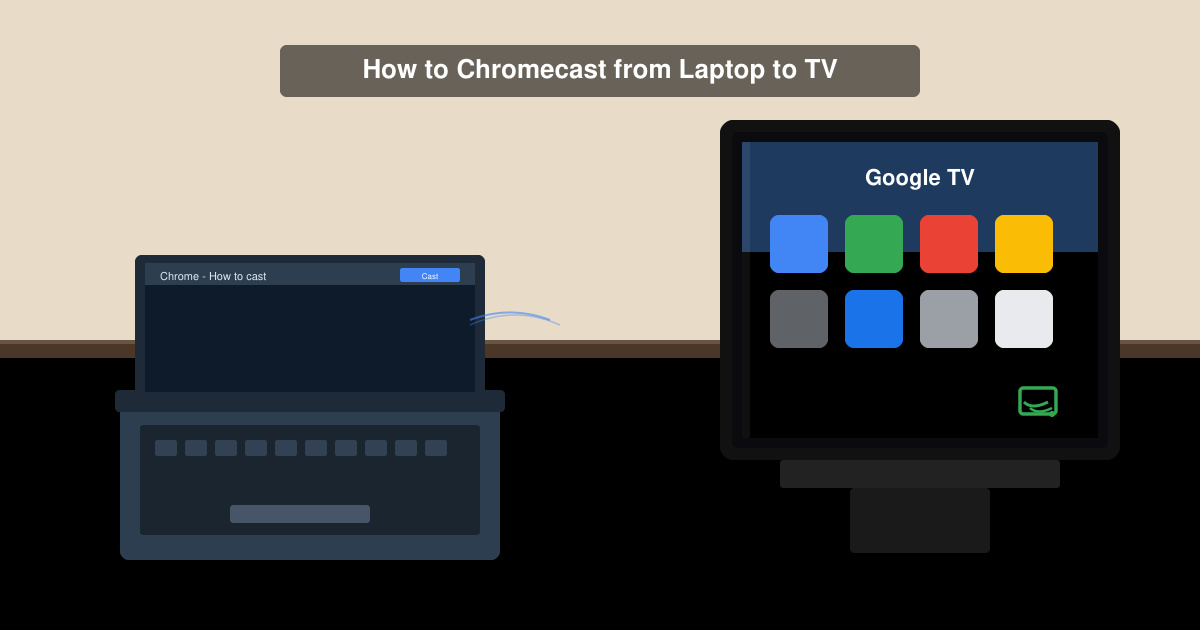
Click the three-dot menu in the top right of Chrome, then select Cast. Chrome scans for nearby devices. Click your Chromecast name when it appears in the list. Choose whether to cast the current tab, desktop, or a specific file.
Select your preferred source (tab or desktop) and click the Cast button again. The TV screen will switch to your laptop content within a few seconds. Use the volume slider in Chrome or your laptop to control audio output through the TV speakers.

Return to the Chrome Cast menu and click the Stop casting button. The TV reverts to its previous input source automatically.
Microsoft Edge supports casting to Chromecast on Windows, but Chrome remains the most reliable option across both Windows and macOS.
Both devices need the same Wi-Fi network to discover each other, but once connected you can cast local files without an active internet connection.
Windows 11 users can use the built-in Cast feature in Quick Settings, while macOS users need third-party apps such as AirBeamTV for native mirroring.
Following these steps lets you reliably Chromecast from laptop to TV using only the Chrome browser and your existing Wi-Fi network.
Install a compatible Java runtime, enable it in LibreOffice, and troubleshoot an empty JRE list without changing unrelated settings.
Build a small LibreOffice container, convert office documents without a GUI, and verify PDF output while limiting host-file access.
Reduce oversized LibreOffice presentation files by compressing embedded photos, choosing sensible image settings, and checking slide quality before sharing.
Match LibreOffice’s page dimensions to your printer, check printable margins, and correct scaling before printing a custom-size document.
Replace repeated cell access with bulk range reads and writes, then benchmark the result and protect formulas in large Calc workbooks.
Split a long manuscript into chapters, assemble them in Writer, and keep styles, contents, and export checks consistent.
Use Base’s direct PostgreSQL option to enter your server details, sign in, save an ODB connection file, and troubleshoot common access errors.
Install a font in your Linux user font folder, restart LibreOffice Flatpak, and confirm it appears in Writer without weakening the app sandbox.
Protect your work and isolate network-drive save crashes in LibreOffice on macOS Sonoma with a local-first workflow, permission checks, and targeted tests.
Preserve leading zeros in Calc by setting ID columns to Text during CSV import, checking the preview, and verifying the saved data.








