Run LibreOffice Headless in Docker for PDF Conversion

Build a small LibreOffice container, convert office documents without a GUI, and verify PDF output while limiting host-file access.
Yes. For one-off document conversions, build a small Docker image with LibreOffice installed and run soffice --headless with --convert-to. Mount the input directory read-only and a separate output directory with write access so the PDF appears on your host. This example uses a Debian-based image and converts one DOCX file to PDF; it does not expose LibreOffice as a network service.
Headless mode starts LibreOffice without its graphical interface. LibreOffice documents this mode for command-line and API-controlled use, and its command-line options support file conversion with an output directory. Docker packages the application and its dependencies so a script or workstation can run the same container image without installing the desktop suite on the host.
This pattern works well for local batch jobs, CI tasks, or a backend worker that receives a file and saves a converted result. A plain headless container is not, by itself, an HTTP conversion API: it listens on no port and accepts no web uploads. If you need a persistent service, put an API and job queue around the conversion process and add request validation, timeouts, file-size limits, and isolation.
On a Linux or macOS host using Bash or a similar shell, create a project folder with separate directories. Put the source document in input and leave output empty for the first run:
mkdir -p lo-work/input lo-work/output
cp report.docx lo-work/input/
cd lo-work
The Docker commands below use Unix-style paths and shell syntax. On Windows, adjust the host path syntax for PowerShell or Command Prompt and make sure Docker Desktop is allowed to share the drive containing these folders.
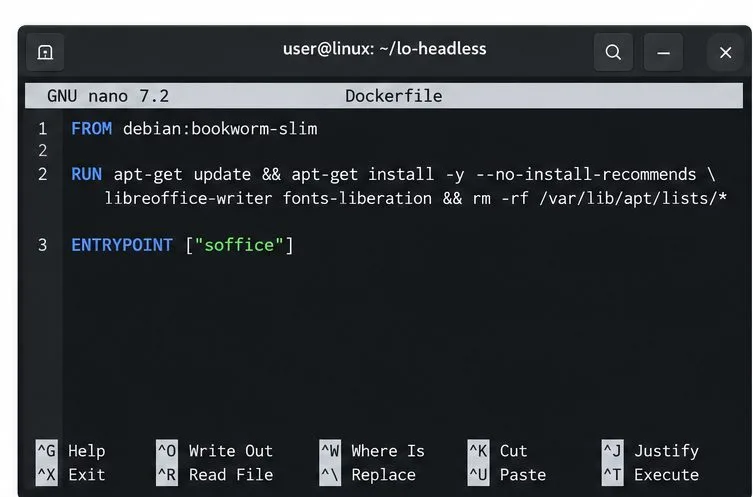
Create a file named Dockerfile inside lo-work with this content:
FROM debian:bookworm-slim

RUN apt-get update && apt-get install -y --no-install-recommends \
    libreoffice-writer fonts-liberation \
    && rm -rf /var/lib/apt/lists/*

ENTRYPOINT ["soffice"]
libreoffice-writer supplies Writer and the conversion filters needed for common word-processing formats. Add libreoffice-calc or libreoffice-impress if the container must convert spreadsheets or presentations. The font package is only a baseline; install the fonts your documents require and have rights to use, because missing fonts can change line wrapping and page breaks.
Build the image from the directory that contains the Dockerfile:
docker build -t lo-headless .The example uses Debian Bookworm package names. Base-image tags and repository packages change over time; for a production build, choose a maintained base, rebuild it regularly for security updates, and pin the base image by digest if you need reproducible builds. Avoid installing packages from an unrelated repository just to match a tutorial.
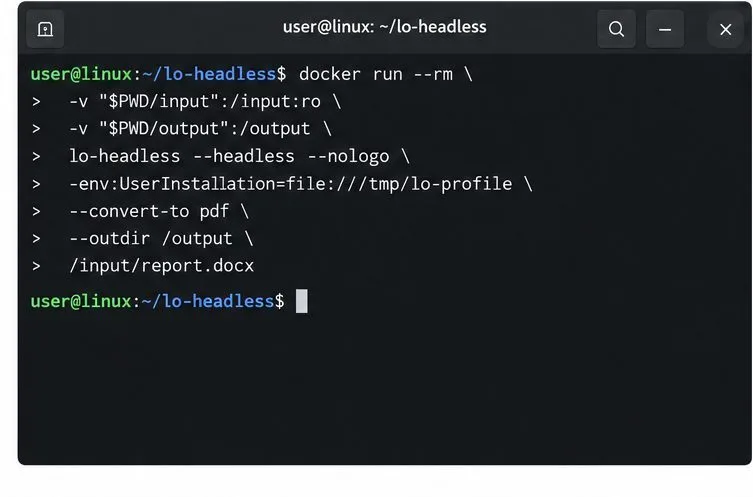
Start a disposable container and pass the conversion options after the image name. The input mount is read-only; only the output directory is writable. The --user option runs the process with your host user and group IDs on Linux, while HOME=/tmp gives LibreOffice a writable home. Adjust folder permissions if the host user cannot write to output.
docker run --rm \
  --user "$(id -u):$(id -g)" \
  --env HOME=/tmp \
  -v "$PWD/input:/input:ro" \
  -v "$PWD/output:/output" \
  lo-headless \
  --headless --nologo \
  -env:UserInstallation=file:///tmp/lo-profile \
  --convert-to pdf:writer_pdf_Export \
  --outdir /output \
  /input/report.docx
--headless suppresses the GUI, --convert-to pdf:writer_pdf_Export selects the PDF export filter, and --outdir directs the result to the mounted output folder. The unique user-profile path gives this process a writable LibreOffice configuration directory; if you run several conversions concurrently in one long-lived container, use a different profile path for each process.
Use --mount instead of -v if you prefer Docker’s more explicit mount syntax. Bind mounts are tied to paths on the Docker daemon’s host, and read-write mounts let container processes change host files. Keep mounts narrow, avoid mounting your home directory or Docker socket, and do not run a document-conversion worker with unnecessary privileges.
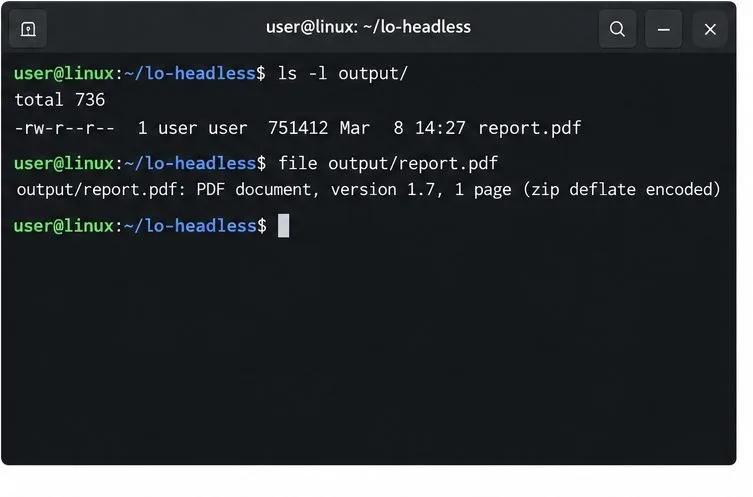
Check the host output directory after Docker exits:
ls -l output/
file output/report.pdf
test -s output/report.pdf
The PDF should exist and be nonempty. Open it in a PDF reader and check page count, tables, images, page breaks, and fonts before relying on it. A successful process exit does not prove that every element rendered as intended, especially when a document uses fonts or features unavailable in the container. Use a clean output directory or a new output filename for each run so an older PDF cannot be mistaken for the latest conversion.
input was mounted at /input, and that the host output directory is writable by the selected user.-env:UserInstallation path is writable. Use a separate profile directory for each simultaneous LibreOffice process.-v or --mount, and verify that the daemon can access them.For exact option behavior, see LibreOffice’s command-line parameter reference. Package names can be checked in the Debian Bookworm package listing for LibreOffice Writer. Docker’s official documentation explains bind mounts and the Dockerfile instructions.
Build a small LibreOffice container, convert office documents without a GUI, and verify PDF output while limiting host-file access.
Reduce oversized LibreOffice presentation files by compressing embedded photos, choosing sensible image settings, and checking slide quality before sharing.
Match LibreOffice’s page dimensions to your printer, check printable margins, and correct scaling before printing a custom-size document.
Replace repeated cell access with bulk range reads and writes, then benchmark the result and protect formulas in large Calc workbooks.
Split a long manuscript into chapters, assemble them in Writer, and keep styles, contents, and export checks consistent.
Use Base’s direct PostgreSQL option to enter your server details, sign in, save an ODB connection file, and troubleshoot common access errors.
Install a font in your Linux user font folder, restart LibreOffice Flatpak, and confirm it appears in Writer without weakening the app sandbox.
Protect your work and isolate network-drive save crashes in LibreOffice on macOS Sonoma with a local-first workflow, permission checks, and targeted tests.
Preserve leading zeros in Calc by setting ID columns to Text during CSV import, checking the preview, and verifying the saved data.
Find the cause of a LibreOffice document lock, safely clear a stale lock file, and confirm that you can edit and save without losing changes.