Home
» PC Tips
»
Make LibreOffice Impress Files Smaller Without Blurring Images
Make LibreOffice Impress Files Smaller Without Blurring Images
The most reliable way to make an image-heavy LibreOffice Impress presentation smaller is to compress its embedded photographs, not merely drag them smaller on the slides. Save a working copy, select a large image, choose Format > Image > Compress, and reduce its stored resolution or JPEG quality only as far as the intended screen display allows. Then save and reopen the copy to check both its file size and appearance.
Why is an Impress presentation so large?
A photo can look small on a slide yet retain the pixel dimensions of the original camera image. Reducing the displayed width changes its layout, but does not necessarily reduce the underlying image data. LibreOffice documents this distinction in its image-formatting guidance: Impress Guide 26.2, Chapter 4.
Compression is most effective when the deck contains oversized raster photographs. Graphics such as logos and screenshots also require more care because fine text and hard edges are easier to damage than photographic detail.
How do you compress images while preserving slide quality?
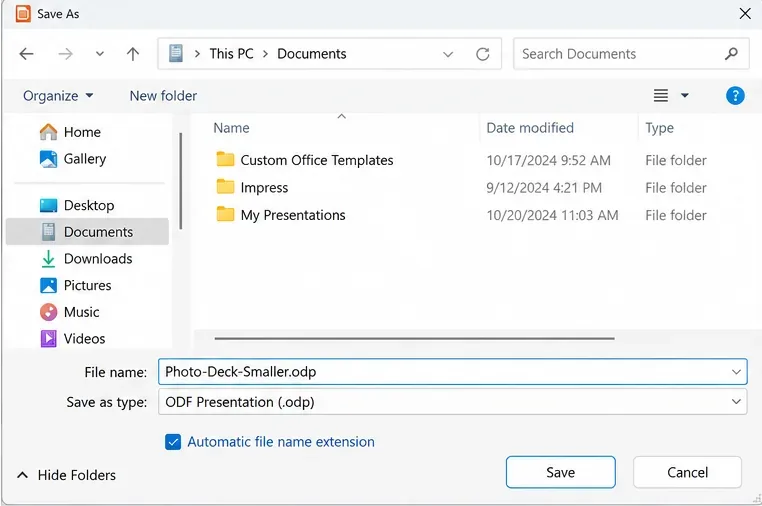
Save a copy of the presentation. Open the deck and choose File > Save As. Give the copy a distinct name such as Photo-Deck-Smaller.odp. Keep the original for revisions or print-quality output. Note both files' sizes in your file manager so you can compare them later.
Save a separate ODP copy before changing image data, so the original high-resolution deck remains available.
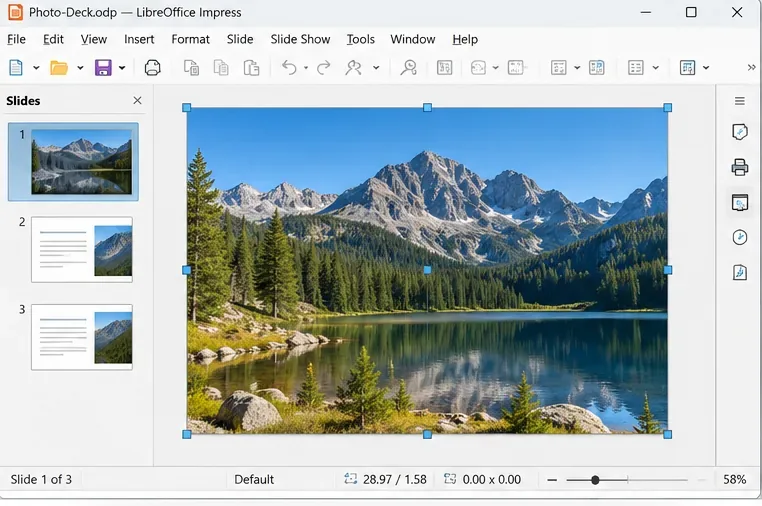
Select a likely oversized photo. Start with full-slide backgrounds, photos imported directly from a phone or camera, and images that cover a large portion of a slide. Click the photograph itself so that selection handles appear. Do not treat a reduced on-slide frame as proof that the embedded picture is smaller.
Select the large photograph itself; shrinking its frame on the slide does not necessarily discard stored image pixels.
Open the image compression dialog. Choose Format > Image > Compress, or right-click the selected picture and select Compress. This is an image-level command. The menu path and dialog functions are described in LibreOffice Help: Compress Image.
Use the selected image’s Compress command, also available through Format > Image > Compress.
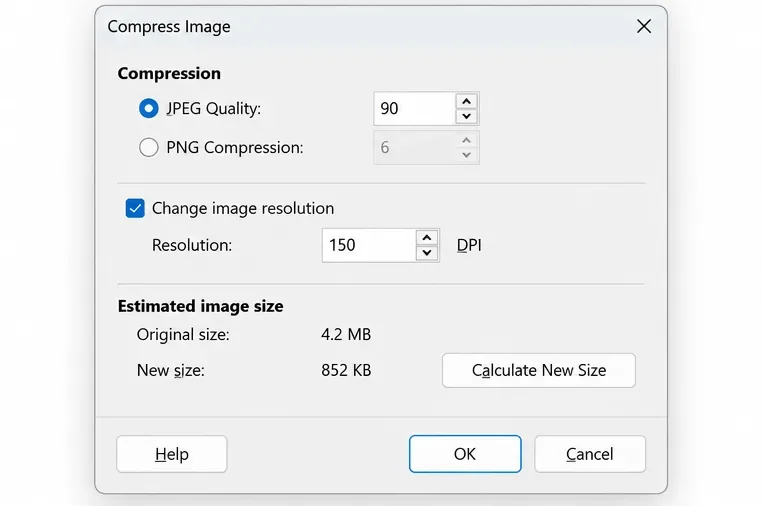
Choose an appropriate compression setting. For ordinary photographs intended for a screen, try JPEG Quality 90 as an initial setting; this is the default described by LibreOffice, not a promise that every picture will look identical. Select Change image resolution if the original contains more pixels than your display needs. For example, 150 DPI can be a trial value, but check the resulting pixel dimensions against the slide's displayed size rather than assuming one DPI fits every presentation. Click Calculate New Size to inspect the dialog's estimate, apply the setting, and examine the photo closely. Undo and use higher quality or resolution if important detail becomes soft.
Check JPEG quality and resolution, calculate the prospective size, and judge visual quality before applying the settings.
Repeat selectively, then save. Work through the largest photographs instead of recompressing everything indiscriminately. Save the updated ODP and compare its actual disk size with the original. The dialog's estimate describes an image, not a guaranteed reduction for the complete presentation.
Which image settings should you choose?
Match the treatment to what the image contains. The following starting points are practical choices to test rather than universal presets.
Image type
What to try
What to inspect
Camera photographs and scenic backgrounds
JPEG around quality 85–90; reduce excessive resolution
Faces, fine texture, gradients, and projected full-screen sharpness
Screenshots with small labels or code
Keep a crisp PNG where possible; reduce dimensions cautiously
Letters, icons, thin rules, and high-contrast edges at 100% zoom
Logos and diagrams with transparency
Prefer a suitable lossless image or original vector graphic
Transparent borders, straight lines, and exact brand colors
LibreOffice's JPEG slider controls a lossy format: lower settings generally save more space at the cost of detail. PNG compression is lossless, so increasing its compression level is not the same as lowering JPEG quality. Reducing dimensions is often the more meaningful change when a PNG is unnecessarily large. See the definitions and controls in LibreOffice Help: Compress Image.
What if the file barely gets smaller?
Check whether the biggest assets were actually reduced
Make one change at a time and resave. If the size barely moves, check the largest backgrounds. Look for repeated high-resolution pictures, photos inherited through a slide layout, and additional media. Image compression does not shrink an embedded video or audio track.
Simple cropping may hide parts of a picture without removing its source pixels. LibreOffice notes that the Image bar's Crop function changes the visible portion of the image rather than the image data itself; see LibreOffice Help: Image Bar. If a heavily cropped photograph remains oversized, prepare a genuinely cropped and resized replacement in an image editor, then insert that replacement into the copy. Keep the original outside the optimized file if future recropping matters.
Would linking images produce a smaller file?
Yes, linking rather than embedding a photo can reduce the presentation file's size, but it makes the deck depend on external image files. LibreOffice's Impress Guide 26.2, Chapter 4 explicitly recommends embedding images when a presentation will be copied to other computers. For a deck sent to colleagues, uploaded to a learning platform, or opened offline, retaining embedded images is usually the safer trade-off. Use links only if you control the image location and can deliver or maintain every required file.
Should you switch file format?
Keep the optimized editable copy in ODP when you primarily use Impress. Export a PPTX separately only if the recipient requires it, and reopen that version to inspect layout and images. Changing the extension or exporting to PDF is not a substitute for reducing oversized pictures in the editable deck. The Impress Guide 26.2, Chapter 10, published in August 2026 for LibreOffice 26.2 Community, documents saving ODP files and saving in other presentation formats; menu labels can vary in other versions.
How do you verify that the presentation is ready to share?
Close and reopen the optimized file rather than judging only the still-open editing session. Compare the size on disk against the original, and inspect image-heavy slides in slide show view. Look specifically for JPEG blocking, smeared text in screenshots, blurred logos, missing linked images, and changes to cropped areas. If the deck will be projected, test it at the display resolution you expect to use.
The fix has worked when the saved presentation is meaningfully smaller and the important pictures remain clear in actual viewing conditions. If quality suffers, restore the image and try gentler settings. Exact file-size savings depend on the source files and cannot be predicted from JPEG quality or DPI alone.