Home
» PC Tips
»
Stop Custom-Size Prints from Cropping in LibreOffice
Stop Custom-Size Prints from Cropping in LibreOffice
If a custom-size page prints with its edge or content cut off, first make the paper size match in both LibreOffice and the printer driver. Then check the printer’s printable margins and the print preview. Reducing the scale can help when content extends beyond the printable area, but scaling cannot make a printer support a paper size it does not accept.
What you need to check
A custom page size is a width and height you enter yourself, rather than a standard option such as Letter or A4. LibreOffice stores those dimensions in the document’s page style. The printer driver separately selects the physical sheet or custom form to feed. If those two definitions disagree, a print job may be clipped, rotated, reduced unexpectedly, or rejected.
The printable area is the portion of a sheet the printer can mark. Many printers cannot print to the very edge, so a document that fills its custom page may lose content inside the unprintable border. Also check whether the printer model, driver, and paper tray support the intended dimensions. Menu labels can vary by LibreOffice version, operating system, and driver; the examples below follow current LibreOffice Help, which identifies the Page Style command and custom Width and Height fields.
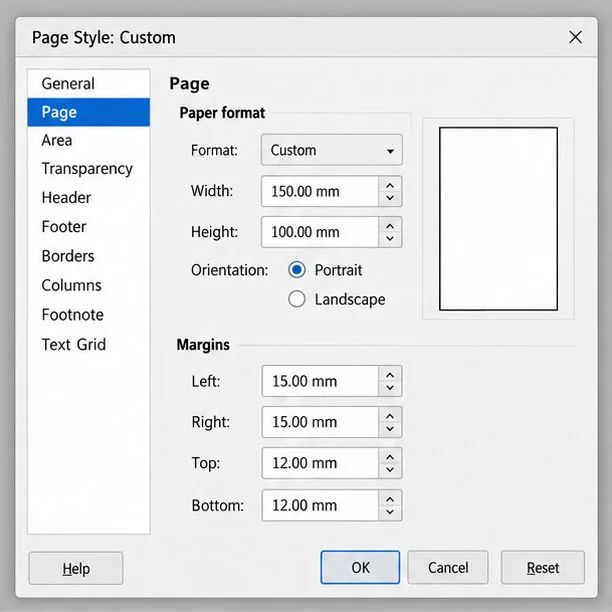
The Page tab holds the document’s custom width and height as well as its margins and orientation.
Set the custom dimensions in the document
Open the document and choose Format > Page Style. In tabbed-interface layouts, use the Layout tab’s page options and open the additional Page Style settings. Select the Page tab.
Under Paper format, choose Custom if available, then enter the intended Width and Height. Confirm the unit (millimeters, centimeters, or inches) before typing. For example, 150 mm × 100 mm is not the same as 150 in × 100 in.
Set the orientation deliberately. Landscape swaps the direction in which the dimensions are presented; avoid changing orientation in both the document and driver unless the intended output requires it.
Review the left, right, top, and bottom margins. They must be large enough for the printer’s nonprintable edges. If the printer cannot print borderless, keep essential text and graphics inside the printable region.
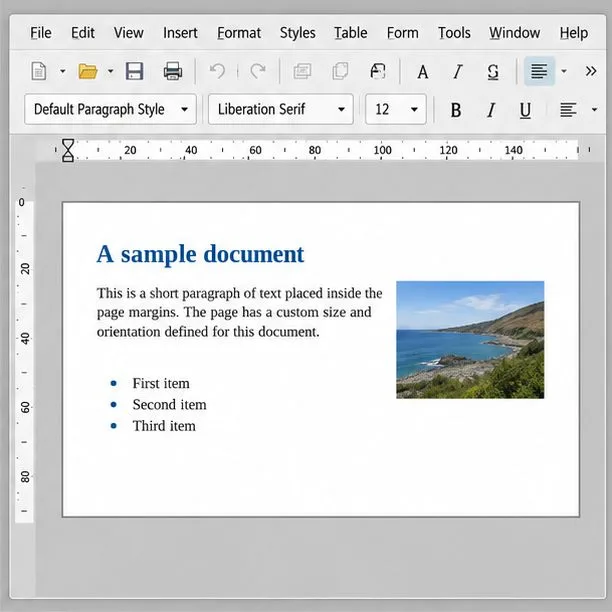
Apply the change and inspect the page on screen. Confirm that the document content still fits within the page and that headers, footers, tables, and images have not moved beyond the margins.
LibreOffice’s official Page help describes custom formats as dimensions entered in the Height and Width boxes. The Page Style command and access paths are listed in LibreOffice’s Page Style help; exact interface wording can differ between releases and modules.
Check the page layout before printing: text, lists, and graphics should remain inside the document’s margins.
Match the printer’s paper setting
Choose File > Print, select the actual target printer, and open Properties or Printer Settings. The names depend on the operating system and driver.
Find the paper-size control. Select the same named custom form or enter the same width and height used in Page Style. Check the units, orientation, and paper source or tray. Some drivers require a custom form to be created in the operating system’s printer settings before an application can select it.
Apply the driver settings and return to LibreOffice’s print dialog. Verify that the selected printer is still the intended device. A change to printer or driver can reset paper selection.
If the custom size is missing, consult the printer manufacturer’s manual or support page for supported sizes and how to define a custom form for your operating system. A size absent from the driver may be outside that model’s feed limits, or the driver may not expose it. Do not assume that entering custom dimensions in LibreOffice makes the printer capable of feeding that sheet. For a printer that cannot handle the stock, export or print to PDF and use a printer or print service that supports it.
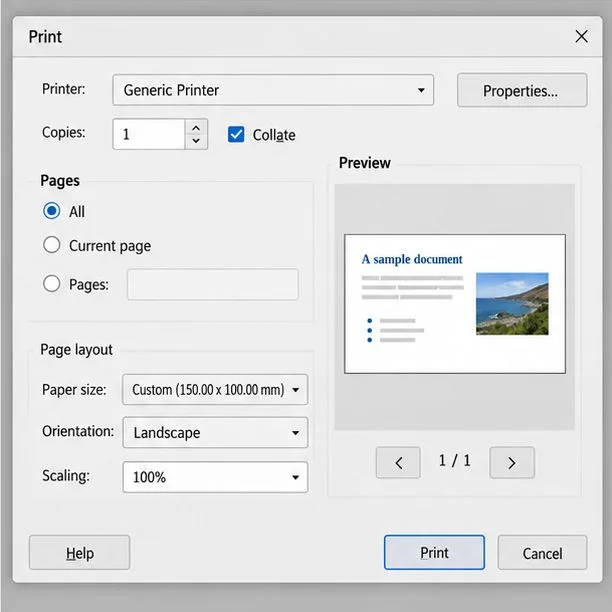
In printer properties, select or define a paper form that matches the dimensions in the document.
Use preview to locate the remaining cause
Open File > Print and inspect the preview before sending a full job. Confirm that the whole page appears, the orientation is correct, and the expected number of pages is shown. LibreOffice’s Print help explains that preview shows how each sheet will look and that available options can vary by printer and operating system.
Preview itself is clipped: recheck the document page size, orientation, and margins. For a sheet that is too wide, the content or print area may exceed the defined page.
Preview looks correct but paper output is clipped: check the driver’s paper size, tray, scaling option, and printer’s nonprintable margins. Print a single-page test on ordinary stock before using expensive or specialty paper.
The job is reduced or shifted: look for a second scaling or “fit” option in printer properties. Avoid applying fit-to-page in both LibreOffice and the driver, since two separate scaling steps can make output unexpectedly small.
Only one edge is missing: compare the content’s distance from that edge with the printer’s printable area. Increase that page margin or move the content inward; scaling the entire page may be unnecessary.
To separate layout from printer behavior, export the document to PDF and inspect the resulting page dimensions and edges. If the PDF page and content are correct but the physical print is not, focus on the selected printer, driver, paper form, and printable margins. A PDF is a useful diagnostic, but its viewer’s print dialog can also scale or clip the page if configured differently.
Before printing, verify the selected printer, page size, orientation, scale, and complete preview.
When the document is a spreadsheet
Calc adds page scaling controls to the sheet’s page style. Choose Format > Page Style, open the Sheet tab, and review the scaling mode. Use a fixed percentage only when you know the desired reduction. To keep a wide sheet on one page across, set the width to one page and leave height unrestricted; forcing both width and height to one page can make text too small. The official Calc Sheet page help describes percentage scaling and shrinking print ranges to a chosen page width or height. First ensure that the page style and printer paper size match; scaling is a layout adjustment, not a substitute for correcting a paper-size mismatch.
Verify the fix
Print one test page and check all four edges, the orientation, and the size of small text. The fix is working when the intended page is fed, the preview and paper agree, and no essential content is cut off. If the driver refuses the size or the test still clips despite matching dimensions, check the printer’s documented media limits and minimum margins, then use a supported stock or a device that accepts the custom format. The LibreOffice steps here reflect its Help pages available in October 2026; printer-specific limits must be verified with the device manufacturer.