Speed Up Calc Macros by Reading and Writing Data in Batches

Replace repeated cell access with bulk range reads and writes, then benchmark the result and protect formulas in large Calc workbooks.
Use one LibreOffice Writer file for each chapter and one master document to assemble them into a book. Save chapters as .odt files and the book container as an .odm file. Add the chapter files through the Navigator in reading order, use consistent heading and page styles, then insert a table of contents in a text section and update it before export. The master document stores links to the chapter files, so keep the whole project together and back up every file.

A master document is a container that combines linked Writer documents for printing and export. It is useful when a book is long enough that chapters are easier to edit as separate files, or when multiple people work on different chapters. It does not merge the chapter text into a single ordinary document: the master document links to subdocuments, and those files remain independent.
| Book part | Suggested location |
|---|---|
| Cover, copyright page, contents | Text section in the master document |
| Preface and chapters | Separate Writer subdocuments |
| Bibliography or index | Text section near the end of the master document |
This is a flexible arrangement, not a rule. For example, you can keep a preface as a subdocument if you expect it to be edited like a chapter. A practical folder might look like this:
BookProject/
  Book.odm
  01_FrontMatter.odt
  02_Preface.odt
  03_Chapter1.odt
  04_Chapter2.odt
  99_BackMatter.odt
Use simple file names and keep them in one project folder while you build the book. Because the master document links to its subdocuments, moving or renaming files later can break those links. Save a backup copy before large reorganizations or format conversions.
Book.odm. The .odm extension identifies an OpenDocument Master Document; chapter files use .odt.If you already drafted a large document and divided it using consistent heading styles, the Writer Guide also documents a route through File > Send > Create Master Document. That workflow splits a document at a selected outline level and creates subdocuments. Review the generated files and links carefully before relying on it for an existing manuscript.
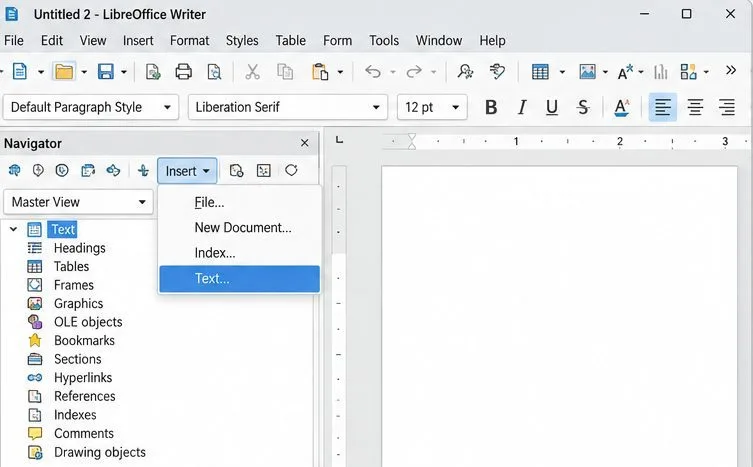
.odt file..odm file after adding or rearranging chapters. Double-click a subdocument in the Navigator when you need to edit its text; edits made in the separate chapter file are reflected through the link.For a large project, give chapters numbered file names such as 03_Chapter1.odt and keep a separate outline or chapter list. File names help you stay organized, but the Navigator order controls the assembled book. Do not assume alphabetic sorting will determine the final sequence.
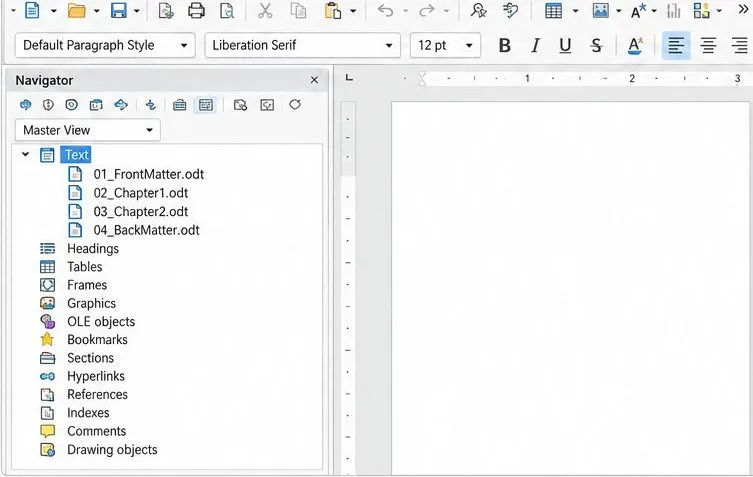
Create chapter files from the same Writer template when possible. Use paragraph styles such as Heading 1 for chapter titles and lower heading levels for sections instead of formatting headings only with larger or bold text. These styles make the document structure easier to maintain and provide outline levels that a table of contents can use.
Style names matter across a master document. When different subdocuments define the same style name differently, the master document’s formatting can take precedence in the assembled view, and the individual chapter file keeps its own formatting when opened separately. A shared template reduces those conflicts. If the combined book looks different from a standalone chapter, inspect matching style names in the master and chapter files before applying manual fixes.
To add a table of contents, create or select a Text section where it should appear, place the cursor there, and choose Insert > Table of Contents and Index > Table of Contents, Index or Bibliography. Set the type to Table of Contents and confirm the options. Writer builds entries from paragraph styles and outline levels, so apply heading styles consistently in each chapter first.
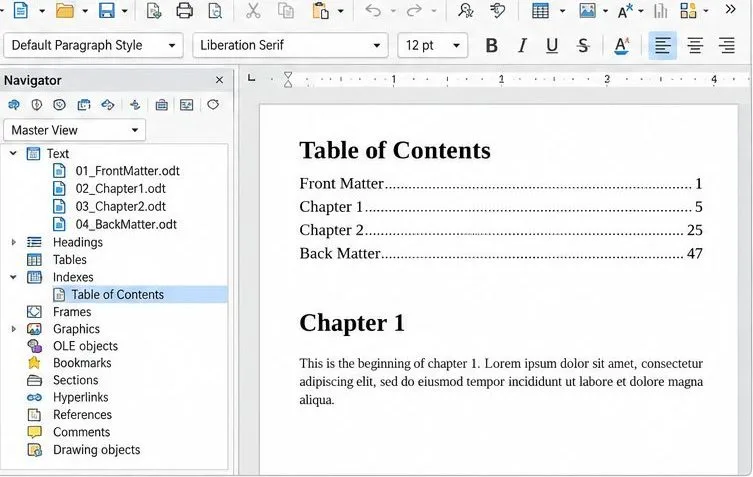
When you edit a chapter, save that chapter file, return to the master document, and use the Navigator’s update controls if linked content or indexes have not refreshed. To update the table of contents, right-click it and choose Update Index or Table of Contents, or use Tools > Update > All Indexes and Tables. Then check chapter order, page breaks, headers, footers, page numbering, and the contents page in the combined view. Master-document printing includes the subdocuments and indexes; export to PDF from the master document when you are ready to review the complete book.
.odm file and confirm every chapter appears in the Navigator..odt source.Master documents work best when the chapter files remain available at their linked locations. If you need one portable file for another editor or a publishing workflow, export or create a conventional text document and inspect the result; subdocuments can be represented as sections, so do not assume conversion removes all structural links. For detailed current menu steps, see the LibreOffice Help for master documents, the Help page on subdocuments and style behavior, and Chapter 16 of the Writer Guide 26.2.
Replace repeated cell access with bulk range reads and writes, then benchmark the result and protect formulas in large Calc workbooks.
Split a long manuscript into chapters, assemble them in Writer, and keep styles, contents, and export checks consistent.
Use Base’s direct PostgreSQL option to enter your server details, sign in, save an ODB connection file, and troubleshoot common access errors.
Install a font in your Linux user font folder, restart LibreOffice Flatpak, and confirm it appears in Writer without weakening the app sandbox.
Protect your work and isolate network-drive save crashes in LibreOffice on macOS Sonoma with a local-first workflow, permission checks, and targeted tests.
Preserve leading zeros in Calc by setting ID columns to Text during CSV import, checking the preview, and verifying the saved data.
Find the cause of a LibreOffice document lock, safely clear a stale lock file, and confirm that you can edit and save without losing changes.
Make image-heavy Writer files easier to edit: test a reversible display setting, compress oversized pictures in a copy, and verify the saved layout.
Find out whether a slow launch comes from extensions, profile settings, or the system, then test the safest fix without losing LibreOffice data.
Connect LibreOffice to Nextcloud over WebDAV, save the server copy with Ctrl+S, and understand how AutoRecovery differs from cloud syncing.