Speed Up Writer by Hiding and Compressing Document Images
Make image-heavy Writer files easier to edit: test a reversible display setting, compress oversized pictures in a copy, and verify the saved layout.
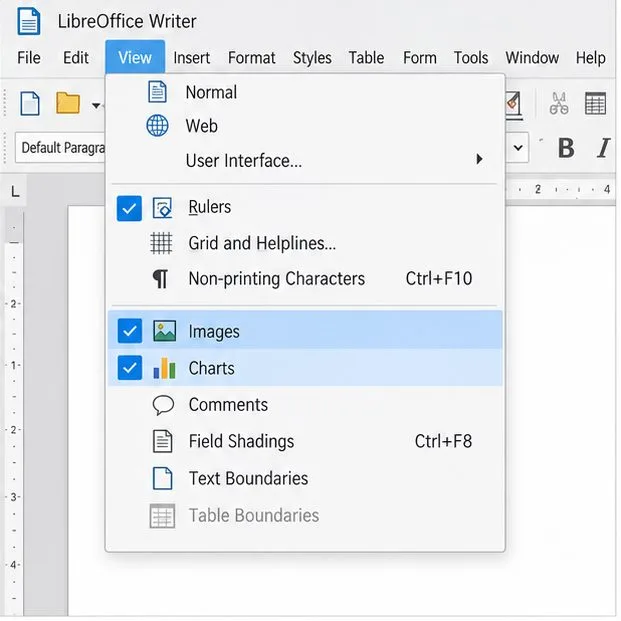
If LibreOffice Writer stutters while you type or scroll through a document full of pictures, first hide the on-screen images with View > Images and Charts. If editing becomes smoother, keep that display setting off while you work, then compress oversized pictures in a copy of the file. Hiding images is reversible and does not shrink or remove them; compression changes image data, so make a backup before using it.
Save your document, then choose View > Images and Charts. The command toggles the display of graphical objects in the document. With graphics hidden, Writer shows text without rendering the pictures; the images remain part of the document. The current LibreOffice Help describes the command as a way to show or hide images and charts.
Try the same short task that felt slow: type a few words, move between two pages, and scroll through the image-heavy section. If the document responds better, image rendering is a useful contributor to the delay. It is a diagnostic, not proof that every image is oversized or that the document itself is damaged. Turn the command back on whenever you need to inspect image placement or print layout.
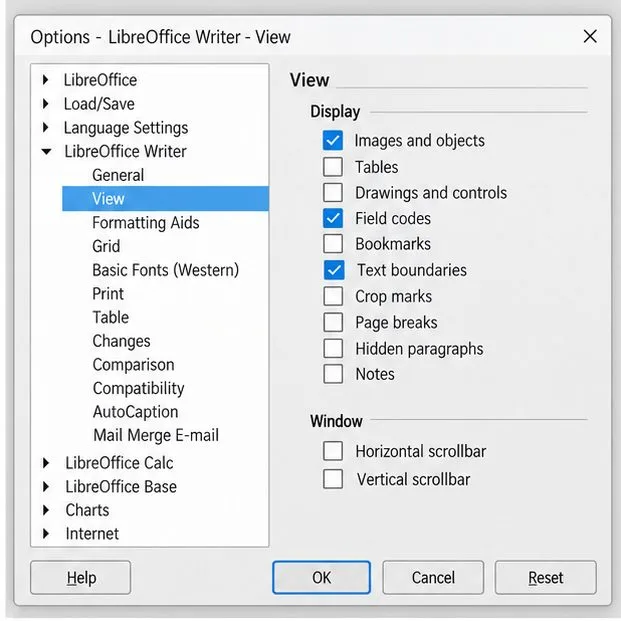
If you prefer a setting in the Options dialog, open Tools > Options > LibreOffice Writer > View and clear Images and objects. On macOS, the Options dialog is under LibreOffice > Preferences. Hidden objects appear as empty frames. The setting affects display, not image quality or file size, so use the menu toggle for a quick test and choose the dialog only if you want a persistent display preference. The exact menu labels can vary slightly by operating system and interface mode.
When hiding images helps, test compression on a duplicate rather than immediately changing your only copy. Use File > Save As to create a working copy with a clear name, then confirm that you are editing the copy. This matters because compression can change the embedded image data, and JPEG compression can reduce visual quality.
A common misconception is that making a picture look smaller on the page necessarily makes its stored image smaller. Changing the displayed dimensions and reducing the image’s underlying pixel dimensions are different operations. LibreOffice’s Compress dialog can reduce image data and, when selected, change the compressed image’s dimensions. Use that command when you want to reduce the image itself; simple resizing in the document may leave the original image data intact.
In the duplicate, click a picture that looks much larger or sharper than its printed or on-screen use requires. Choose Format > Image > Compress, or right-click the selected image and choose Compress. Depending on the interface, the command may also appear on the Image tab.
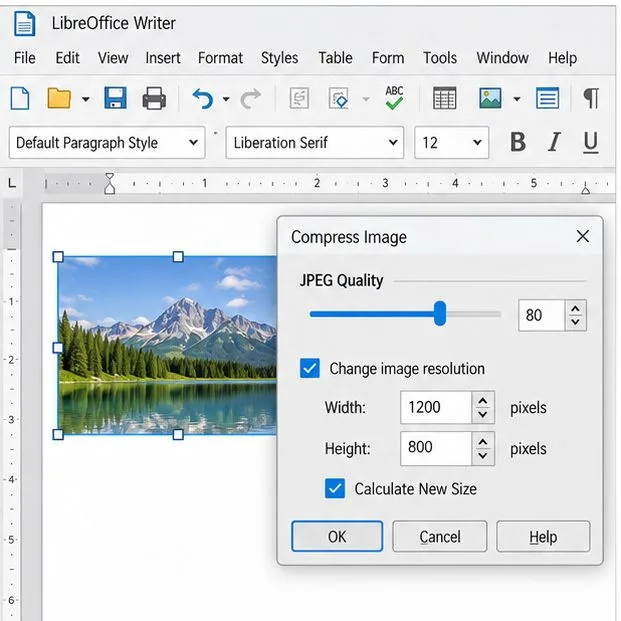
For a JPEG photograph, keep the quality high enough that text, fine lines, and visual details remain clear. The Help page says the dialog’s default JPEG quality is 90; it also notes that quality levels are not standardized across image software. There is no single quality value that fits every document. For screenshots, diagrams, charts, or scanned text, inspect the result carefully and avoid lossy compression if it makes small lettering hard to read.
To reduce pixel dimensions, select Change image resolution, enter dimensions appropriate for the image’s actual use, and select Calculate New Size to preview the estimated image data size. The correct dimensions depend on how large the picture will appear and whether the document will be printed. Do not downsample an image that must remain crisp at a larger print size. Confirm the dialog only after reviewing the preview; then repeat for the few largest pictures first instead of batch-changing every image.
For PNG graphics, compression is lossless, but reducing the pixel dimensions still discards detail. Preserve the original image separately if you may need to restore it later. The Compress dialog acts on the selected image, so work through the document selectively and save periodically.
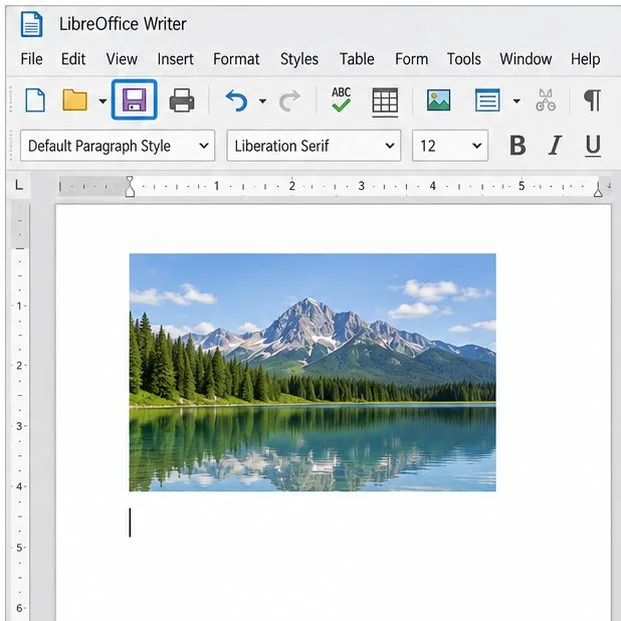
Save the working copy, turn View > Images and Charts back on, then revisit the same pages and repeat the typing and scrolling test. Check that photographs look acceptable, screenshot text remains readable, captions have not shifted, and page breaks still make sense. Close the file and reopen it once to confirm the saved layout is stable.
If performance does not improve when graphics are hidden, image drawing alone is unlikely to explain the whole problem. That does not rule out every image-related cost: the document may also be recalculating complex wrapping or page layout. Test a copy with the slow section isolated, and note whether the delay happens during typing, scrolling, opening, or saving. If it persists with images hidden across the file, investigate other causes such as complex tables, tracked changes, extensions, or limited available memory one at a time; the best next check depends on when the slowdown occurs and on your computer.
LibreOffice documents the display toggle, the Writer View option, and the image-compression controls in its Writer Images and Charts help, Writer View options help, and Compress Image help. These pages were checked on October 9, 2026; the Help site identified its current documentation as LibreOffice 26.8. Names and menu placement may differ slightly across operating systems or interface layouts.
The fix is useful if the same editing and scrolling tasks feel smoother in the working copy, graphics remain legible when shown, and the document reopens with its layout intact. Keep the display toggle off for text-heavy editing if that helps; restore it for visual review. If compression produces no noticeable improvement, keep the higher-quality images and continue troubleshooting the cause indicated by when Writer slows down.
Make image-heavy Writer files easier to edit: test a reversible display setting, compress oversized pictures in a copy, and verify the saved layout.
Find out whether a slow launch comes from extensions, profile settings, or the system, then test the safest fix without losing LibreOffice data.
Connect LibreOffice to Nextcloud over WebDAV, save the server copy with Ctrl+S, and understand how AutoRecovery differs from cloud syncing.
Find out whether Pardus 23 is blocking Bluetooth, missing BlueZ, or failing to detect adapter firmware, then confirm the controller works.
Learn how Gooroom separates trusted and untrusted browsing, what users can change, and how an administrator can safely update site policies.
Diagnose rotated, offset, or inconsistent touch input on a Harmonica OS tablet and choose a Linux calibration method that fits its session and driver.
Switch Gooroom’s desktop session to English, verify the locale, and identify when untranslated Korean labels need an app update instead.
Arrange Pardus XFCE as a familiar bottom taskbar with an app menu, pinned launchers, open-window buttons, and a system tray.
Check your Gooroom release and administrator rules, then follow the official Debian-based setup path for Flatpak or Snap without bypassing system controls.
Learn what Pardus Image Writer can do, how to prepare installation USB safely, and which tools fit custom live images or repeatable fleet deployments.