Save LibreOffice Documents Directly to Nextcloud with WebDAV
Connect LibreOffice to Nextcloud over WebDAV, save the server copy with Ctrl+S, and understand how AutoRecovery differs from cloud syncing.
LibreOffice can save a document directly to Nextcloud through a WebDAV connection, but it does not continuously upload every keystroke. Open the file from LibreOffice’s remote-file service and press Ctrl+S (or choose File > Save) to send the saved version to Nextcloud. LibreOffice’s timed AutoRecovery setting is for crash recovery; it is not a cloud autosave timer.
If you need every saved local change to reach Nextcloud in the background, use the official Nextcloud desktop sync client with a local synchronized folder instead. The right choice depends on whether you want to edit the server copy directly or work offline and synchronize local files.
For the direct method below, use LibreOffice’s File > Open Remote service and configure Nextcloud as WebDAV. These menu names may vary slightly by LibreOffice version or interface layout. LibreOffice’s current Help describes remote services including WebDAV; Nextcloud documents its WebDAV address in the account’s Files settings. See LibreOffice’s remote-file guide and Nextcloud’s WebDAV documentation.
Sign in to Nextcloud in a browser and open your account’s Files settings. Find the WebDAV address shown there and use it as the source of truth, especially if your server is installed in a subdirectory or uses a custom domain. A typical address has this form:
https://cloud.example.com/remote.php/dav/files/USERNAME/
Replace the example hostname and USERNAME with your server’s values. If Nextcloud is installed beneath a path such as /nextcloud, preserve that path in the URL. The address shown by Nextcloud is safer than guessing a path.
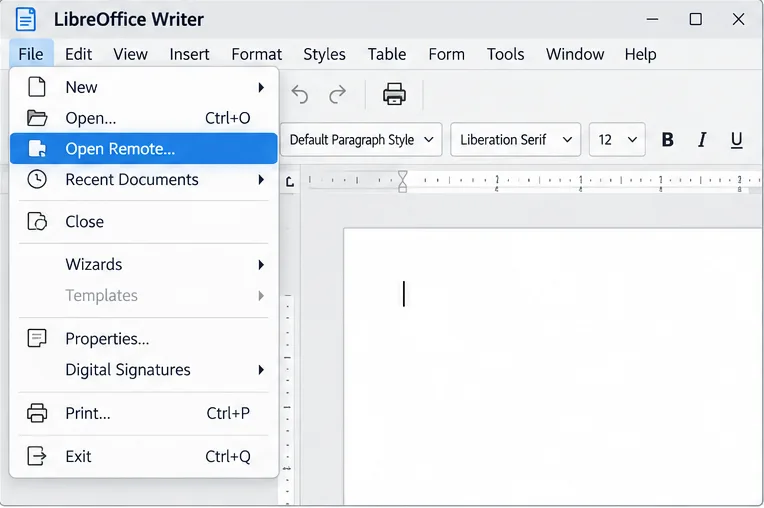
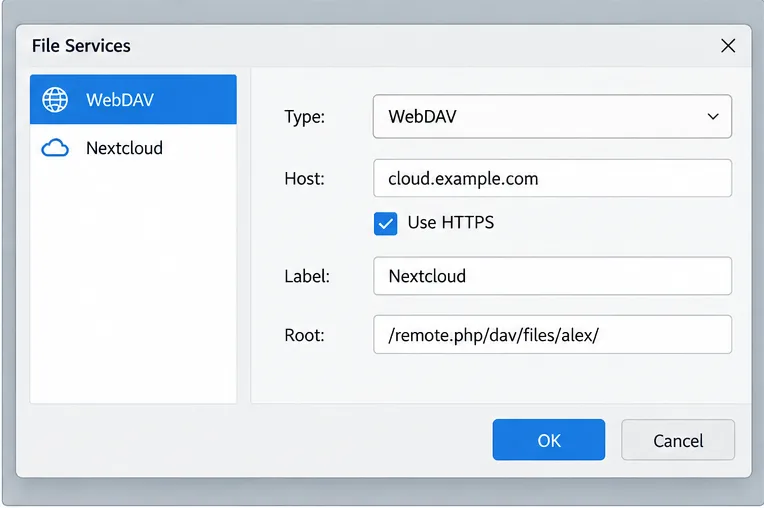
In Writer, Calc, or another LibreOffice module, choose File > Open Remote. In the Remote Files dialog, select Manage Services to open the File Services settings. Add a service with these values:
cloud.example.comNextcloud/remote.php/dav/files/USERNAME/; include an installation subdirectory if the URL has oneLibreOffice’s setup help specifies WebDAV as the type, a host, secure connection for HTTPS, a label, and a root path. Depending on the dialog and LibreOffice version, the server name, port, and root are entered in separate fields. Don’t paste the entire URL into a field that asks only for a hostname. Save the service and connect.
When prompted, enter your Nextcloud username and an app password. Nextcloud recommends an app password for third-party WebDAV clients; it can also be revoked separately from your main account password. In Nextcloud, open your avatar menu, choose Personal settings > Security, and create an app password. Store it in a password manager rather than in a note or document.
If your account uses two-factor authentication, use the app password rather than trying to enter a one-time code in a basic WebDAV password prompt. Never turn off HTTPS to work around a certificate or login problem. Fix the server certificate or URL with your Nextcloud administrator instead.
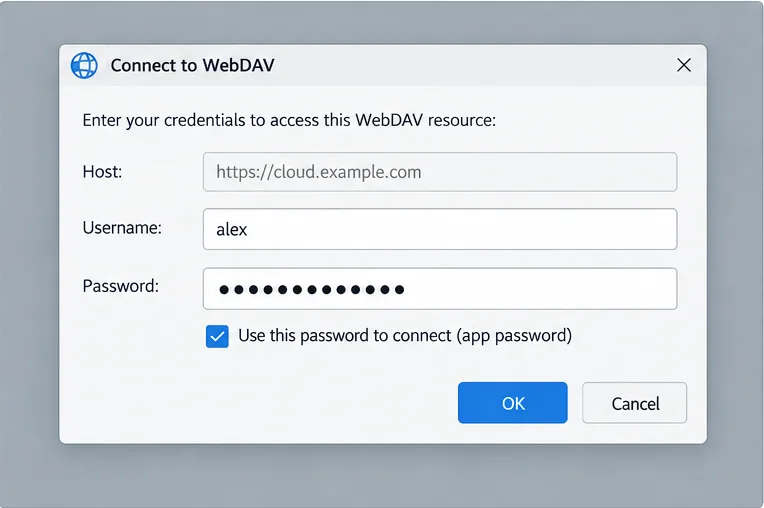
After the connection succeeds, choose the Nextcloud service from the Remote Files list, browse to the folder, select the document, and click Open. You can also use File > Save Remote for a new document that has not yet been stored remotely. Choose the Nextcloud service, select the file format, enter a filename, and save it. LibreOffice documents the remote open and save flow in its remote-file user guide.
Once the remote document is open, use Ctrl+S whenever you want to commit the current edits. Wait for the save operation to finish before closing LibreOffice or disconnecting. This is a direct remote save; it does not mean that each keystroke is written to Nextcloud while you type. Also, WebDAV connections do not provide LibreOffice’s CMIS check-in/check-out controls, so coordinate edits if another person may be editing the same file at the same time.
LibreOffice’s Save AutoRecovery information every option is under Tools > Options > Load/Save > General (on macOS, use LibreOffice > Preferences). It periodically stores information intended to restore open documents after a crash. It is not a setting that pushes the open document to Nextcloud on that interval. The separate Always create backup copy option keeps a previous version when a save occurs; it is not cloud synchronization. The LibreOffice AutoRecovery help page describes these options.
To check a direct save, press Ctrl+S and wait for the dialog or progress indicator to close. Then open Nextcloud in a browser, confirm the document appears in the expected folder, and check that its modified time updates. For stronger verification, close the document, reopen it from File > Open Remote, and confirm the last change is present. Avoid testing by editing the same file in the browser or on another computer while LibreOffice still has it open; the later save could overwrite newer edits.
Use Nextcloud’s desktop sync client when you need offline access, a familiar local file path, or automatic background upload after ordinary local saves. Choose a folder that the client is configured to synchronize, save the document there, and check the client’s status or activity log to confirm the upload completed. The client syncs saved file changes; it does not make LibreOffice save unsaved typing.
If a WebDAV connection fails, first compare the hostname and root path with the URL shown in Nextcloud, verify that the server is reachable over HTTPS, and try a newly generated app password. If the remote dialog lists the server but saving fails, check network availability, account write permissions, and whether another user is editing the file. For frequent simultaneous editing, use a collaboration workflow designed for concurrent editing rather than relying on WebDAV saves, which do not provide check-out locking. The reliable success signal is a completed save followed by the same updated document visible in Nextcloud.
Connect LibreOffice to Nextcloud over WebDAV, save the server copy with Ctrl+S, and understand how AutoRecovery differs from cloud syncing.
Find out whether Pardus 23 is blocking Bluetooth, missing BlueZ, or failing to detect adapter firmware, then confirm the controller works.
Learn how Gooroom separates trusted and untrusted browsing, what users can change, and how an administrator can safely update site policies.
Diagnose rotated, offset, or inconsistent touch input on a Harmonica OS tablet and choose a Linux calibration method that fits its session and driver.
Switch Gooroom’s desktop session to English, verify the locale, and identify when untranslated Korean labels need an app update instead.
Arrange Pardus XFCE as a familiar bottom taskbar with an app menu, pinned launchers, open-window buttons, and a system tray.
Check your Gooroom release and administrator rules, then follow the official Debian-based setup path for Flatpak or Snap without bypassing system controls.
Learn what Pardus Image Writer can do, how to prepare installation USB safely, and which tools fit custom live images or repeatable fleet deployments.
Install Pardus alongside Windows 11 by shrinking the Windows volume, using unallocated space, and preserving the existing EFI System Partition.
Identify the RTL8821CE, install Pardus-supported Realtek firmware, and verify the driver, Wi-Fi scan, and next troubleshooting step.