Enable NVIDIA on Pardus 23 with Its Driver Installer

Use Pardus’s hardware-aware installer to enable the right NVIDIA driver, reboot safely, and verify the active kernel module.
To restore Wi-Fi on a Pardus computer with a Realtek RTL8821CE card, first confirm Linux detects the PCI device, then install the distribution’s firmware-realtek package and reboot. This keeps the driver and firmware aligned with Pardus; it is safer than downloading an unofficial driver or running a third-party DKMS installer.
As checked on October 9, 2026, Pardus lists version 25.2 among its current desktop downloads. The exact desktop and kernel on your computer may differ, so note your release before changing packages. See the Pardus download page and Pardus 25.2 release notes for current release information.
If Wi-Fi is your only internet connection, arrange temporary access first: connect Ethernet, use USB tethering from a phone, or download packages from another computer only through Pardus-supported channels. Keep the laptop connected to power during updates. These steps assume Pardus is installed and you can open a terminal; you do not need to compile a driver.
Check the installed release and kernel, then ask the PCI tools which driver is associated with the network device:
cat /etc/os-release | grep PRETTY_NAME
uname -r
lspci -nnk | grep -A3 -i network
The output should identify a Realtek RTL8821CE device. A line such as Kernel driver in use: rtw_8821ce indicates a driver is bound to it; the exact wording can vary by kernel. lspci comes from the pciutils package. If the command is missing, install pciutils through Pardus Software Center or the configured Pardus package source, then run it again.

The driver and firmware are separate pieces. Linux’s in-kernel rtw88 driver family includes support for RTL8821CE, while the firmware package supplies device-specific files the driver may need to start the radio. The Linux Wireless driver documentation describes the rtw88 family, and Debian’s official package file list includes rtw8821c_fw.bin in firmware-realtek. Pardus packages can differ by release, so use Pardus’s own configured repositories rather than adding Debian repositories.
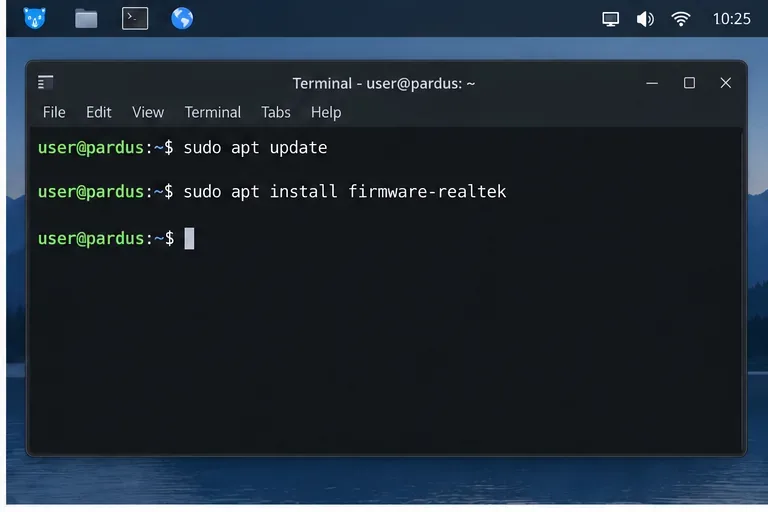
With temporary internet access, refresh the package index and install the firmware package:
sudo apt update
sudo apt install firmware-realtek
Review the package manager’s proposed changes and enter your password when prompted. Alternatively, open Pardus Software Center, search for firmware-realtek, and install the package from a Pardus repository. If apt says the package cannot be found, do not download an arbitrary firmware file or add another distribution’s repository. Check the enabled Pardus software sources and whether the system is fully updated.
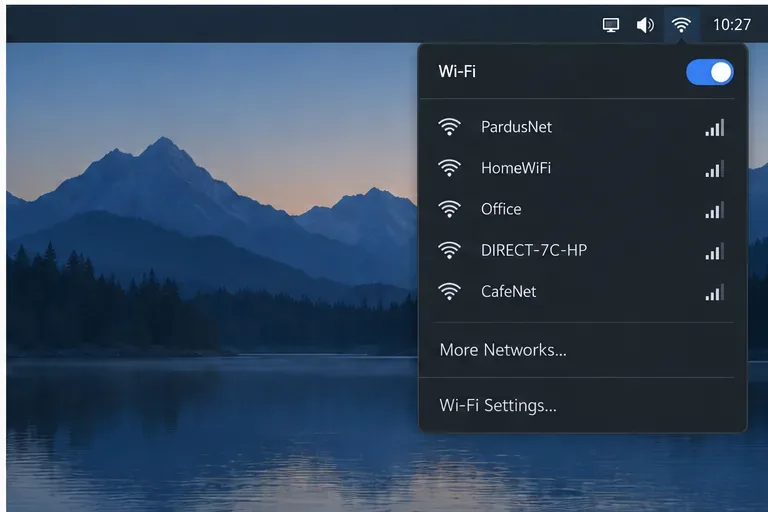
Restart after installation so the kernel driver can initialize with the available firmware. Open the desktop network menu and confirm Wi-Fi is enabled and nearby networks appear. A visible network list is a useful sign that scanning works, but it does not prove that the connection is stable or that credentials are correct.
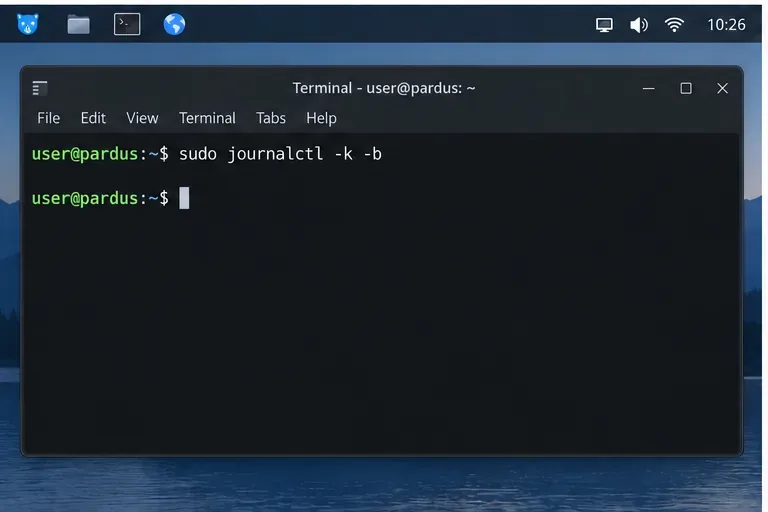
For a command-line check, rerun lspci and inspect the kernel’s current-boot messages:
lspci -nnk | grep -A3 -i network
sudo journalctl -k -b | grep -i 8821
Look for the RTL8821CE in the PCI output and a bound driver. In the kernel log, investigate messages that mention missing firmware, failed loading, or repeated initialization errors. No matching log line by itself is not proof of failure; wording and driver names differ between kernel versions. The Linux Wireless driver documentation gives upstream context for the in-kernel driver family.
| What you see | What to try next |
|---|---|
lspci shows the card, but no driver is in use | Install firmware, apply available Pardus updates, reboot, and check the kernel log again. If the issue remains on a supported, updated Pardus release, collect the release, kernel, PCI, and log output for Pardus support. |
| The card has a driver, but Wi-Fi is switched off or blocked | Check the desktop Wi-Fi toggle and inspect software or hardware radio blocks with rfkill list. If the Wi-Fi soft block is set, run sudo rfkill unblock wifi. A physical switch or airplane-mode key can still keep the radio off. |
No RTL8821CE appears in lspci | A firmware reinstall cannot fix a device the PCI bus does not see. Check BIOS/UEFI wireless settings and any hardware switch; on a serviceable computer, hardware seating may require qualified repair. |
| Networks appear, but the connection drops or is weak | Test near the access point and compare after a full reboot. If the problem persists, record the exact kernel and relevant log messages; signal, router compatibility, power management, and kernel-specific bugs need separate diagnosis. |
When Pardus Software Center or apt reports a repository error, resolve that first. A package-not-found message can indicate stale package indexes, disabled components, or a release/repository mismatch; it does not establish that a third-party driver is required. Avoid copying DKMS commands from an unrelated distribution because they can fail after kernel updates and bypass Pardus packaging.
Consider the fix successful when all three checks pass: lspci lists the RTL8821CE, a kernel driver is bound, and the desktop can scan for and connect to a network. After connecting, load a few pages, disconnect and reconnect once, then reboot and confirm Wi-Fi returns. These checks test device detection and ordinary use; they do not certify throughput, roaming, or every router combination.
If the card remains absent from the PCI listing, the driver stays unbound after the official firmware and system updates, or kernel logs report repeated firmware failures, stop repeating the same installation. Share /etc/os-release, uname -r, the relevant lspci -nnk section, and filtered kernel messages with Pardus support. The right next step may depend on the exact hardware revision and kernel, and a newer kernel should only be installed through a Pardus-supported update path.
Reference: the Debian firmware-realtek file list documents the firmware filename; consult Pardus repositories for the package version intended for your release.
Use Pardus’s hardware-aware installer to enable the right NVIDIA driver, reboot safely, and verify the active kernel module.
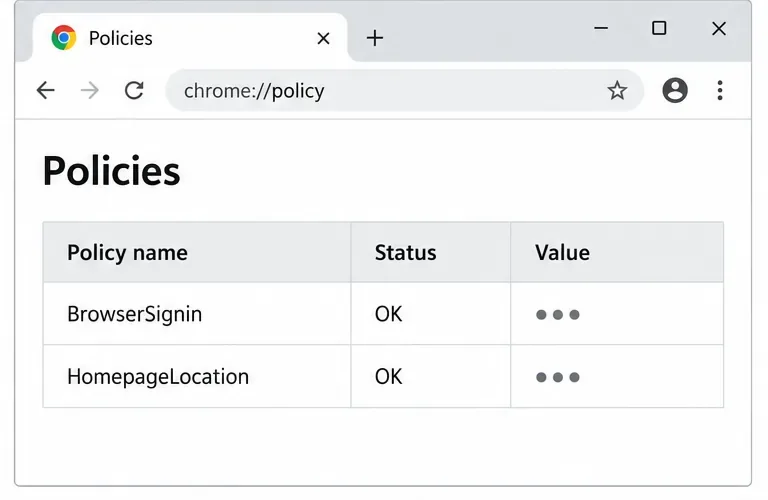
Install the official Chrome package safely on Gooroom OS, check compatibility, preserve device controls, and verify browser policies before use.
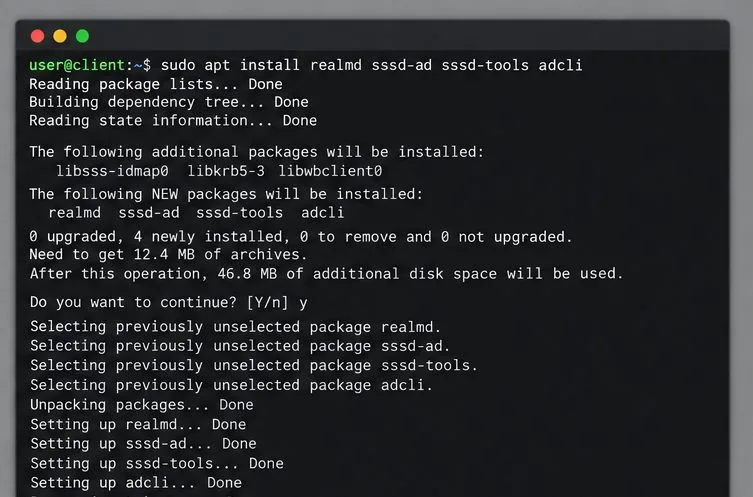
Prepare DNS and time, enroll Pardus with realmd and SSSD, and verify domain membership and user lookup before relying on AD sign-in.
Reduce horizontal tearing in Pardus XFCE by checking your display session, enabling compositor synchronization, and applying Intel’s Xorg TearFree option only when the active driver supports it.
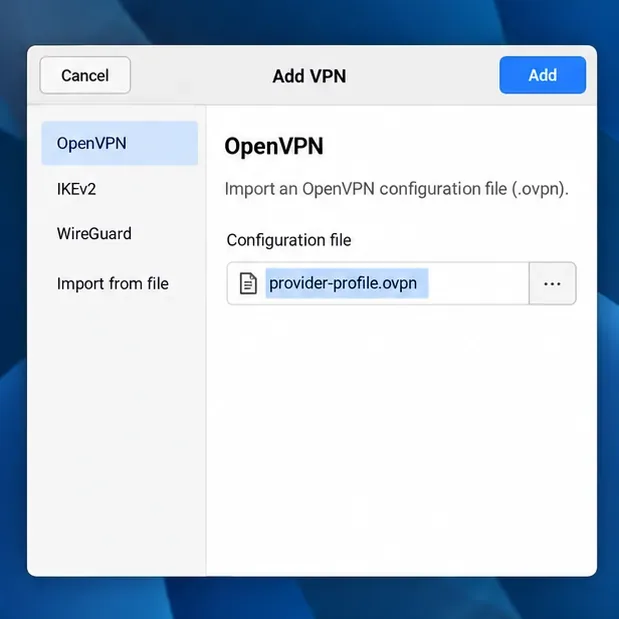
Add an OpenVPN profile to NetworkManager on Pardus, install the right plugin, protect credentials, and verify the VPN is active.
Prepare a bootable USB, check 64-bit hardware compatibility, and install Pardus 23 XFCE while protecting existing files and avoiding common legacy BIOS pitfalls.
Distribute a custom wallpaper to Pardus clients, configure Xfce or GNOME desktops, and apply Lider Ahenk user policies with safe pilot checks.
Fix a 1024 × 768 ceiling by checking SPICE, virtual video, the guest channel, and spice-vdagent—with safe checks when Pardus lacks a package candidate.
Set up the Lider server, configure its installer safely, register Ahenk endpoints, and verify a pilot before expanding central management.
Download the official Pardus 23 desktop ISO, write it safely with Rufus, and boot a Windows PC into a temporary Live session.