Deploy Shared Pardus Wallpapers and Policies with Lider Ahenk

Distribute a custom wallpaper to Pardus clients, configure Xfce or GNOME desktops, and apply Lider Ahenk user policies with safe pilot checks.
To deploy a shared wallpaper across Pardus computers, first distribute the image with Lider Ahenk, then configure the wallpaper in the correct desktop environment. Manage other restrictions separately through Lider Ahenk user-group policies, and test both actions on a small client group before expanding the rollout.
The distinction matters: a transferred JPEG is only a file, not an enforced desktop setting, and a policy assigned to users is not the same as a one-time task sent to computers.
Lider is the central management server and web interface; Ahenk is the client agent installed on managed Linux computers. A task performs an operation such as transferring a file or running a script. A profile contains a collection of settings; one or more profiles form a policy assigned to a user group and applied at login. These definitions follow the official Lider Ahenk documentation.
This guide applies to managed Pardus desktops, including Pardus 23 and 25 editions. Pardus lists Xfce and GNOME as supported desktop choices in its version management schedule. The documentation for Lider Ahenk 3.0 describes computer-group tasks and user-group policies, but it does not establish a universal, built-in wallpaper policy for every desktop version. Verify the controls shown in your own console before using a script or extension.
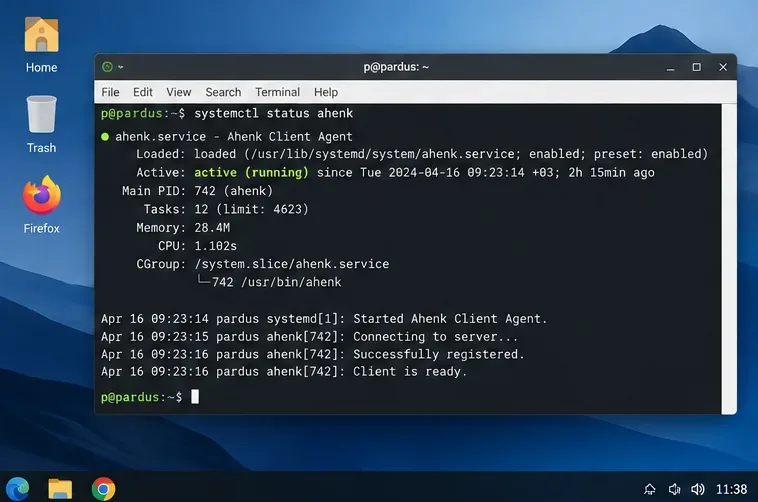
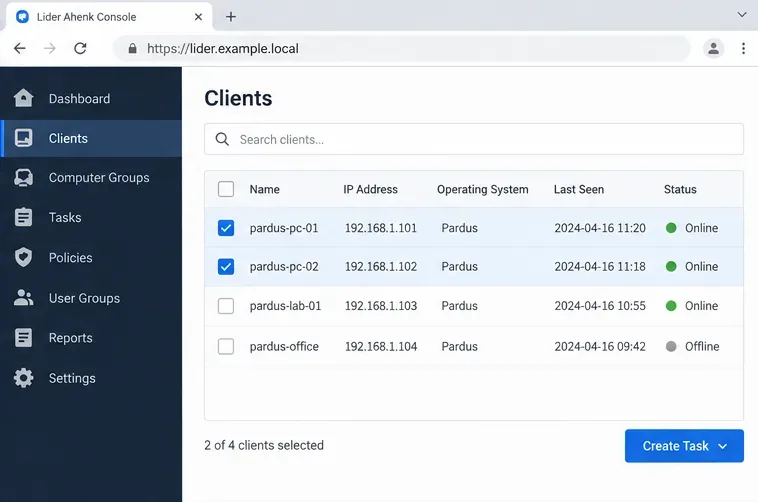
Sign in to the Lider Ahenk console with an account authorized to run tasks and manage policies. Confirm that the intended computers have the Ahenk agent registered and are reachable. On a test client, inspect the agent with:
systemctl status ahenkA running service is useful evidence, but it does not guarantee successful communications with the server. Check the registered computer in Lider and review the latest task history. Select a small computer group that includes at least one Xfce and one GNOME machine if your fleet uses both. Keep offline computers out of the initial test, and record the existing wallpaper so you can restore it.
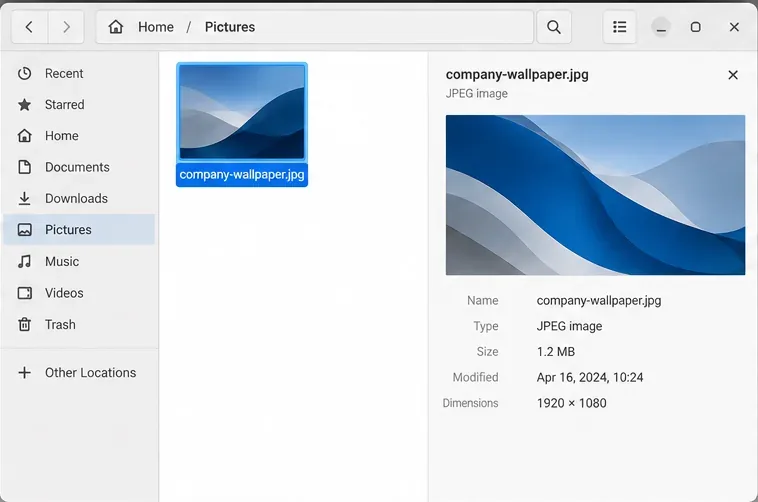
Choose an image you are authorized to distribute. A JPEG or PNG with a wide layout—for example, 1920 × 1080 pixels—usually suits typical displays, but check monitors with different aspect ratios. Avoid placing small text or a logo close to the edges because desktops can crop images.
Name the asset company-wallpaper.jpg for this example, and choose the same destination on every machine: /usr/local/share/backgrounds/company-wallpaper.jpg. The file must remain locally available after network disconnection and be readable by ordinary users. Treat this as a shared destination convention, not a path automatically created by Pardus.
In Lider Ahenk 3.0, locate the computer-group file-sharing or file-management task described in the official documentation. Select your pilot group, choose the wallpaper file, and specify the intended destination if the installed version exposes a destination-path control. Review any overwrite and directory-creation options before sending. Console labels and available task fields vary by release, so do not assume an option exists merely because it appears in an example view.
If your file-sharing task does not support a controlled absolute path, stage the image in an accessible location and use a separately reviewed administrator script to copy it into /usr/local/share/backgrounds/. Set permissions such as 0644 for the image and ensure the parent directory is traversable. Avoid downloading arbitrary wallpaper URLs from clients: distribute a reviewed file whose contents you control.
Wait for the task result, then check one test client:
ls -l /usr/local/share/backgrounds/company-wallpaper.jpg
file /usr/local/share/backgrounds/company-wallpaper.jpg
The first command checks the file and permissions; the second identifies its format if the file utility is installed. A successful transfer still does not mean the desktop has adopted the image.
dconf is GNOME's configuration database. On a GNOME test machine, use the GNOME administrator instructions for custom backgrounds rather than running per-user graphical settings as root. Make sure /etc/dconf/profile/user contains the following database entries while preserving any existing organization-specific configuration:
user-db:user
system-db:local
Create /etc/dconf/db/local.d/00-background with:
[org/gnome/desktop/background]
picture-uri='file:///usr/local/share/backgrounds/company-wallpaper.jpg'
picture-options='scaled'
If you must prevent users from replacing the wallpaper, create /etc/dconf/db/local.d/locks/00-background containing the following keys. This is an administrative restriction, so confirm it is appropriate for your organization before enabling it:
/org/gnome/desktop/background/picture-uri
/org/gnome/desktop/background/picture-options
Execute sudo dconf update after installing those files, then sign out and sign back in. On versions or themes using a separate dark-style background, check whether picture-uri-dark is supported and configure and lock it as needed. Copy the verified configuration files and execute the update via controlled computer-group tasks on other GNOME clients; back up and merge any existing dconf files instead of replacing unrelated settings.
xfconf stores Xfce settings. From an ordinary signed-in Xfce desktop session, inspect the actual wallpaper keys rather than assuming every monitor has the same property name:
xfconf-query -c xfce4-desktop -lvLocate the relevant last-image setting for each monitor and workspace. For one existing property, replace EXACT_PROPERTY_FROM_LIST with its complete path and execute the command as the logged-in desktop user:
xfconf-query -c xfce4-desktop -p 'EXACT_PROPERTY_FROM_LIST' -s '/usr/local/share/backgrounds/company-wallpaper.jpg'The xfconf-query manual documents the channel, property, list, and set arguments. Do not run this command as a root-owned Ahenk task and assume it changes another person's live desktop session. For broad deployment, arrange a tested user-session script or managed per-user configuration. Xfce configuration enforcement is not equivalent to GNOME dconf locking; do not promise that users cannot change the image without verifying a suitable lockdown mechanism on your Xfce version.
To deploy supported user restrictions, create the relevant profile under Policies Management (such as a browser, USB, session, or script profile), combine it into a policy, and assign it to a small user group. The official Lider Ahenk script-profile page identifies script profiles, while the main documentation explains that user-group policies are checked during login. Keep an inventory of affected users and preserve a rollback policy before expanding the group.
Sign out and back in as a member of the targeted user group on each pilot desktop. Confirm that the wallpaper loads from the local path, survives a reboot, appears on the intended monitors, and follows your change restrictions only where those restrictions were deliberately configured. In Lider, check executed-task reports for transfer and script failures; for login-applied policies, also test a genuine new user session rather than judging from task status alone.
Common mistakes include sending the file without applying desktop settings, assigning computer tasks to the wrong group, confusing GNOME keys with Xfce properties, and testing only an already-open session. If one workstation fails, compare its desktop environment, image path, file permissions, Ahenk connection, and login timing with a successful pilot. Revert the wallpaper setting or remove the applicable dconf lock if the rollout causes an unintended restriction.
The rollout is ready for a larger computer group only when each pilot client has the image locally, displays it after a fresh login, and applies the intended user policy without unrelated changes. Roll out in batches and repeat these checks on newly enrolled and previously offline computers.
Distribute a custom wallpaper to Pardus clients, configure Xfce or GNOME desktops, and apply Lider Ahenk user policies with safe pilot checks.
Fix a 1024 × 768 ceiling by checking SPICE, virtual video, the guest channel, and spice-vdagent—with safe checks when Pardus lacks a package candidate.
Set up the Lider server, configure its installer safely, register Ahenk endpoints, and verify a pilot before expanding central management.
Download the official Pardus 23 desktop ISO, write it safely with Rufus, and boot a Windows PC into a temporary Live session.
Find out why Pardus 23 cannot detect your sound card, then use targeted ALSA, firmware, and PipeWire or PulseAudio checks to restore playback.
Save HamoniKR preferences to external storage, include hidden home folders, and choose a safe restore mode when moving to a fresh installation.
Install and configure xrdp on Pardus, choose the right Xfce session, restrict network access, and verify that remote login works.
Diagnose Pardus 23 APT connection failures, confirm the official yirmiuc sources, and restore apt update without bypassing package signature checks.
Configure printers on Harmonica OS using CUPS, compare driverless IPP with legacy drivers, and verify USB or network printing with a test page.
Use a recovery shell to set a new Harmonica OS root password, with checks for encrypted disks, read-only filesystems, and accounts that use sudo.