Get Higher Resolutions in a Pardus 23 KVM Guest

Fix a 1024 × 768 ceiling by checking SPICE, virtual video, the guest channel, and spice-vdagent—with safe checks when Pardus lacks a package candidate.
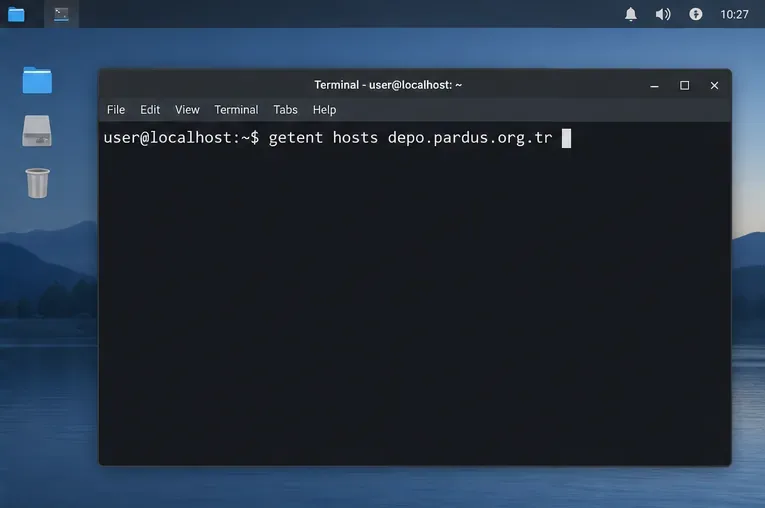
If a Pardus 23 virtual machine in KVM offers only 1024 × 768, first check the virtual display path: the guest needs a compatible video device, and automatic resizing over SPICE also depends on the SPICE guest agent and its host-to-guest channel. A practical baseline is SPICE graphics with QXL video, the SPICE channel, and spice-vdagent installed in Pardus; then resize the SPICE viewer and select a higher mode in the guest. The interface images below are explanatory mockups, not screenshots from a tested Pardus installation.
Find out before changing the guest. SPICE can communicate display-size changes to a Linux guest through its agent; a VNC console does not use that SPICE agent path. The SPICE project documents dynamic resolution changes when a client window is resized or put in full-screen mode. If the guest is connected through VNC, installing spice-vdagent alone will not make VNC send those resize requests.
In the host’s virtual-machine manager, open the VM’s hardware details and inspect Graphics/Display and Video. If Graphics says VNC, note that before proceeding. If it says SPICE, check the virtual video model and whether a SPICE channel is present. Labels vary by host application and version.
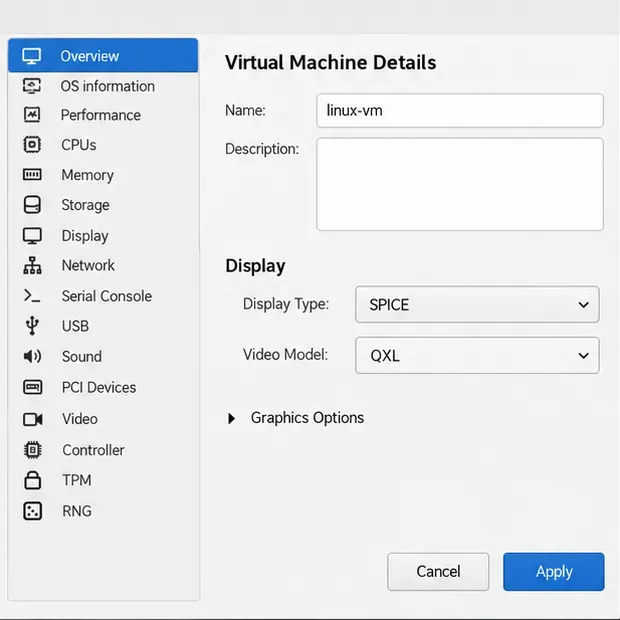
For an existing Pardus guest with no higher modes, use the SPICE/QXL combination as a compatibility baseline if your KVM host supports it. Libvirt recognizes QXL and Virtio video models, but the resizing path and driver support vary by guest configuration. Do not switch a VM with specialized graphics or passthrough hardware without checking its current setup.
com.redhat.spice.0. 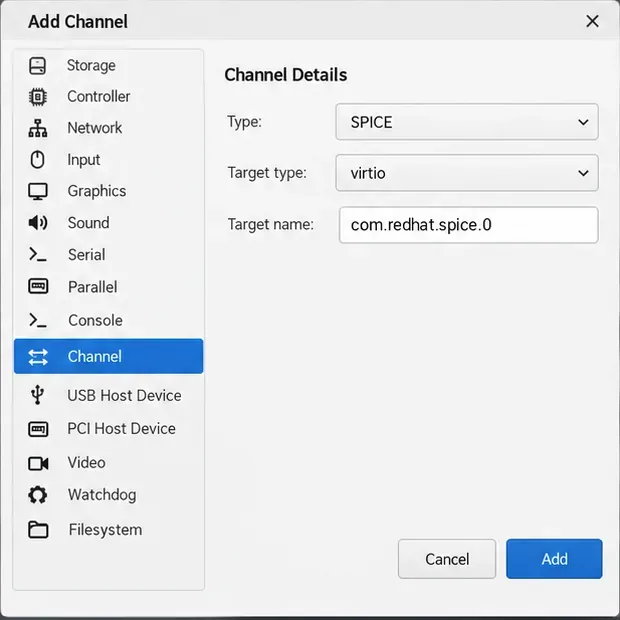
Check the enabled Pardus repositories rather than assuming every Debian package is available under the same version or repository configuration. Debian publishes a package named spice-vdagent, and its package description includes automatic adjustment of the X session resolution to match the client. That confirms the package’s purpose upstream, but it does not prove that a particular Pardus 23 mirror currently offers it.
In Pardus, refresh package metadata and check whether APT sees an install candidate:
sudo apt update
apt-cache policy spice-vdagent
If the policy output shows a candidate version, install it:
sudo apt install spice-vdagentIf APT reports no candidate, do not download a random package or add an unrelated Debian repository. Check the Pardus repository settings and network access, then consult Pardus’s package documentation or support channels for the release-specific source. The package name and availability may differ by Pardus release or configured mirror.
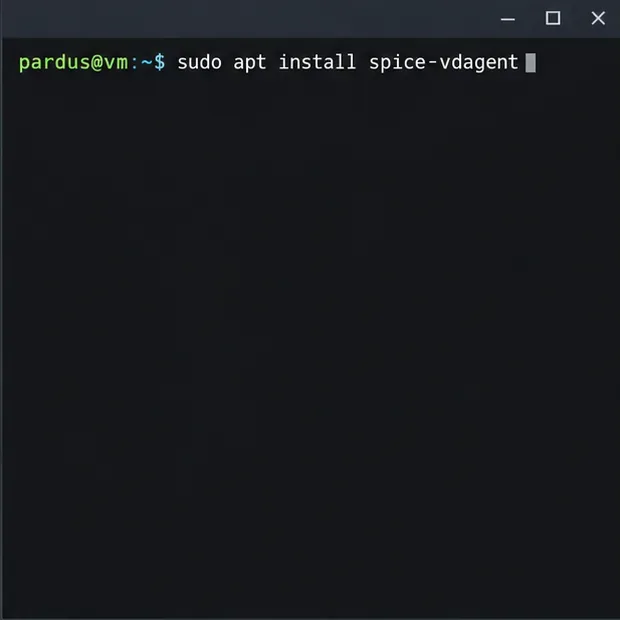
After installing the agent, log out and back in or reboot the guest so the desktop session starts it. The agent needs to run inside the guest, and the virtual machine needs its SPICE channel. The SPICE manual explains that the agent handles dynamic resolution and relies on a Virtio-serial device plus the SPICE channel; a missing host-side channel can leave the package installed but unable to receive resize messages.
First determine whether the guest session is receiving any new modes. On an X11 session, run xrandr --query in a terminal and inspect the connected output’s listed modes. If higher modes are absent, recheck the SPICE connection, QXL or other supported video device, the guest channel, and whether the agent started in the logged-in desktop session. The SPICE project notes that without the agent, displays may still be adjustable from inside the guest, but the client cannot reliably configure them; without suitable QXL support, the available modes can be limited.
If using VNC is required, use a resolution the guest and its virtual video device actually expose in Display settings. VNC’s lack of SPICE-agent resizing is not evidence that Pardus itself has a 1024 × 768 limit. Avoid copying an arbitrary xrandr --newmode modeline from another computer: a mode that is not supported by this virtual device can fail or leave the display unusable.
Desktop-session behavior can vary. If the agent and channel are present but resizing still fails, check the session type and guest logs with journalctl -t spice-vdagentd -t spice-vdagent. Log details depend on installed versions.
Reconnect through the SPICE viewer, resize its window, and verify that Pardus offers and applies a resolution above 1024 × 768. Repeat once after logging out and back in. If the higher mode remains available and follows viewer resizing, the guest display, agent, channel, and client are working together. If not, use the specific missing mode or agent/channel check above to identify the layer that still needs attention.
References: SPICE User Manual, SPICE guest and client display behavior, libvirt video device configuration, and Debian 12 spice-vdagent package details.
Fix a 1024 × 768 ceiling by checking SPICE, virtual video, the guest channel, and spice-vdagent—with safe checks when Pardus lacks a package candidate.
Set up the Lider server, configure its installer safely, register Ahenk endpoints, and verify a pilot before expanding central management.
Download the official Pardus 23 desktop ISO, write it safely with Rufus, and boot a Windows PC into a temporary Live session.
Find out why Pardus 23 cannot detect your sound card, then use targeted ALSA, firmware, and PipeWire or PulseAudio checks to restore playback.
Save HamoniKR preferences to external storage, include hidden home folders, and choose a safe restore mode when moving to a fresh installation.
Install and configure xrdp on Pardus, choose the right Xfce session, restrict network access, and verify that remote login works.
Diagnose Pardus 23 APT connection failures, confirm the official yirmiuc sources, and restore apt update without bypassing package signature checks.
Configure printers on Harmonica OS using CUPS, compare driverless IPP with legacy drivers, and verify USB or network printing with a test page.
Use a recovery shell to set a new Harmonica OS root password, with checks for encrypted disks, read-only filesystems, and accounts that use sudo.
Trace whether clipping, ALSA format conversion, or HDA power saving is causing Ubuntu 24.04 audio distortion, then apply the matching reversible fix.