Enable NVIDIA on Pardus 23 with Its Driver Installer

Use Pardus’s hardware-aware installer to enable the right NVIDIA driver, reboot safely, and verify the active kernel module.
On an updated Pardus 23 workstation, use the Pardus NVIDIA Installer from Software Center: it detects the GPU, offers compatible driver choices, applies the selected package, and prompts for a reboot when needed. This installer was added in Pardus 23.2, so update older 23.0 or 23.1 installations first. The steps below follow a clearly hypothetical example: Alex has a Pardus 23 workstation with an NVIDIA card and wants the proprietary driver for desktop graphics; this scenario is illustrative, not a reported test or guarantee for every GPU.
Pardus 23.2 added the Pardus NVIDIA Driver Installer to the official repository and Pardus Software Center. The current Pardus version-management page lists Pardus 23.5 and schedules support for the Pardus 23 release family through Q3 2027. Alex should therefore install all pending Pardus 23 updates before changing graphics drivers, rather than follow instructions written for an older point release.
The installer is the safest starting point because Pardus documents that it detects NVIDIA hardware and suggests drivers that match the detected card. It also supports choosing Nouveau, the open-source driver, and prompts for a reboot after changes that need one. See the Pardus 23.2 changelog, the Pardus version-management schedule, and the official Pardus NVIDIA Installer project.
Open Pardus Updater or Software Center and install the available Pardus 23 updates. Restart if the updater requests it. Then open the system’s application menu and check whether an NVIDIA card is present in the machine’s hardware information. In Alex’s example, this confirms that the workstation has a discrete NVIDIA GPU before driver selection. If the device is missing from hardware information, check that the card is seated and enabled in firmware; a software driver cannot enable hardware the system does not detect.
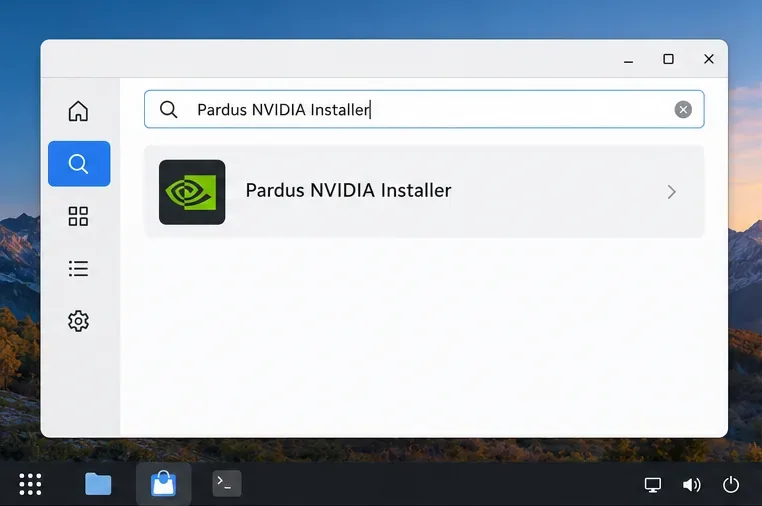
Open Pardus Software Center, search for Pardus NVIDIA Installer, and install that package from the Pardus repository. Launch the installer from the applications menu and allow its hardware scan to finish. On an updated Pardus 23.2-or-later system, the package is part of the release’s documented repository changes. If the entry is missing after a full update, refresh the package list; the package maintainer’s installation command is sudo apt install pardus-nvidia-installer. Use the Pardus package, and do not add a Debian or third-party repository just to make the search succeed.
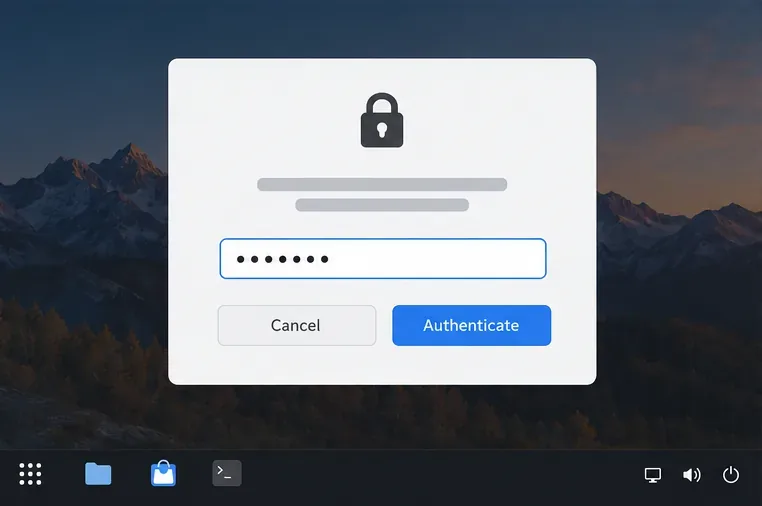
Review the driver choices shown for the detected GPU and select the compatible option the installer recommends. Click Apply Changes, enter the administrator password when prompted, and wait for the operation to finish. Restart only when the installer asks or when its completed changes require it. Alex should not guess a driver branch from a different computer: supported NVIDIA families differ, and the installer’s detected-device recommendation is more useful than a generic “latest driver” command.
Do not run NVIDIA’s standalone .run installer over the distribution-managed driver. Mixing package sources or installing multiple driver branches can leave files outside APT’s control and make removal or kernel updates harder to manage.
After reboot, open a terminal and run lspci -k. Find the NVIDIA display-controller entry and check for Kernel driver in use: nvidia. If it says nouveau, the open-source driver is still active; if no kernel driver is listed, the module did not load. When available, nvidia-smi is an additional check that reports the detected GPU and NVIDIA driver version. It is not a substitute for checking the kernel’s active driver.
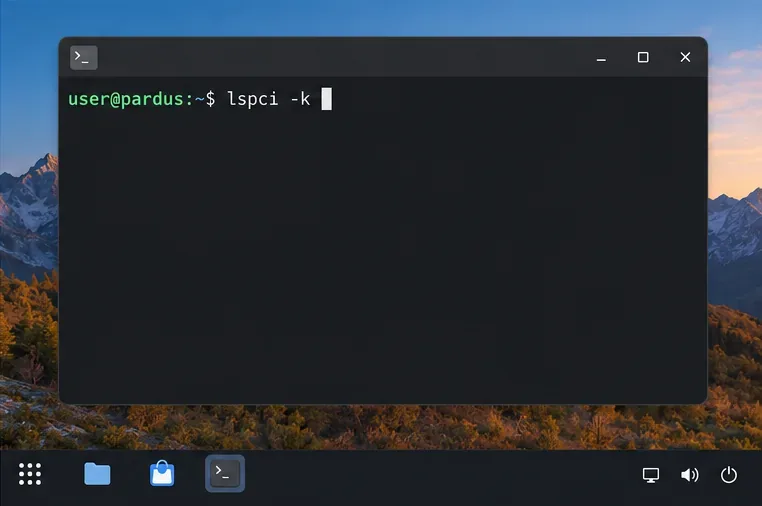
First confirm that the installer finished and reboot the workstation. If lspci -k still shows Nouveau or no NVIDIA kernel driver, check whether Secure Boot is enabled in the UEFI firmware. Debian’s NVIDIA guidance notes that DKMS-built NVIDIA modules need a trusted Machine Owner Key (MOK) enrolled when Secure Boot is active. If Pardus presents a key-enrollment prompt during installation, complete that enrollment at the next boot; otherwise consult the Debian Secure Boot instructions before changing firmware security settings. The exact prompts can depend on the system’s boot configuration.
If the installer reports that no compatible option is available, record the exact GPU model and check the Pardus package tracker or ask Pardus support before forcing an older driver. Legacy GPUs may need a legacy branch, and a package being present in a repository does not guarantee that it is the right or secure choice for every card. For Alex, the task is complete only when the rebooted system lists the NVIDIA driver as active and the workstation’s display works normally. If it does not, return to Nouveau from the installer or use the documented recovery path for that machine instead of repeating a different driver install blindly.
Use Pardus’s hardware-aware installer to enable the right NVIDIA driver, reboot safely, and verify the active kernel module.
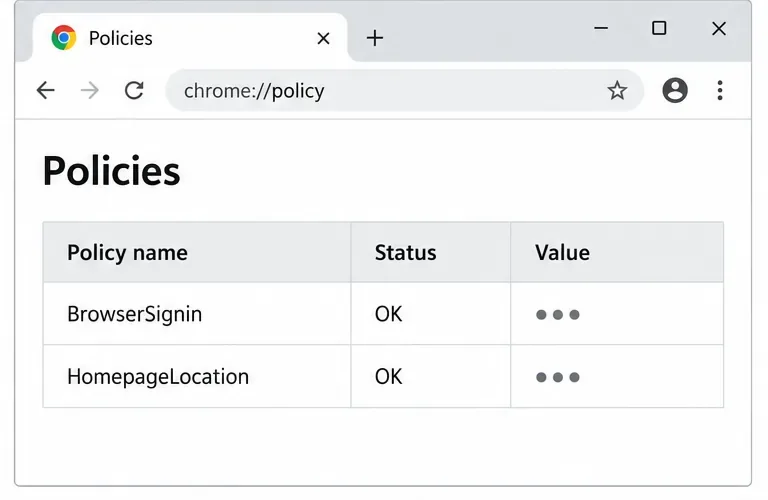
Install the official Chrome package safely on Gooroom OS, check compatibility, preserve device controls, and verify browser policies before use.
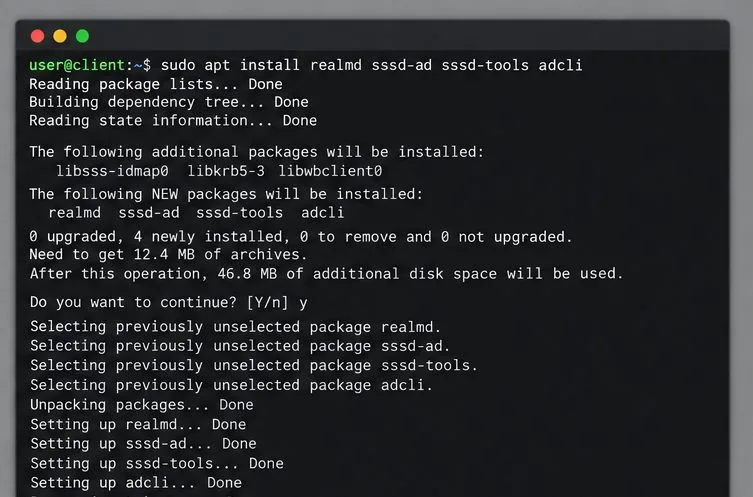
Prepare DNS and time, enroll Pardus with realmd and SSSD, and verify domain membership and user lookup before relying on AD sign-in.
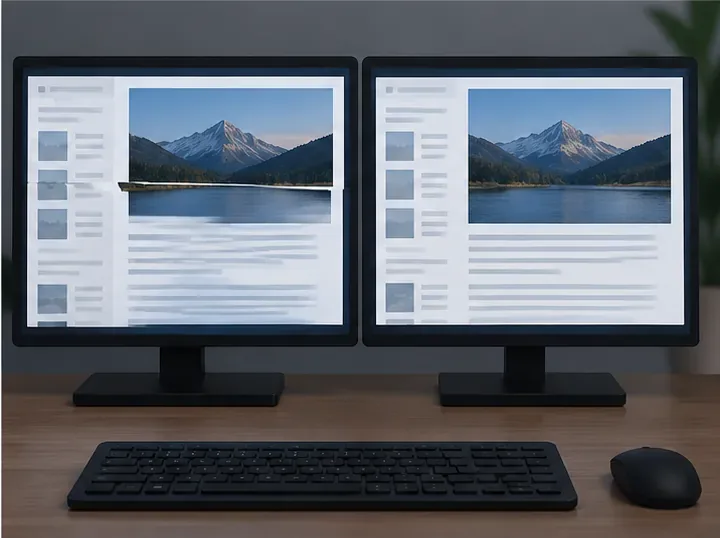
Reduce horizontal tearing in Pardus XFCE by checking your display session, enabling compositor synchronization, and applying Intel’s Xorg TearFree option only when the active driver supports it.
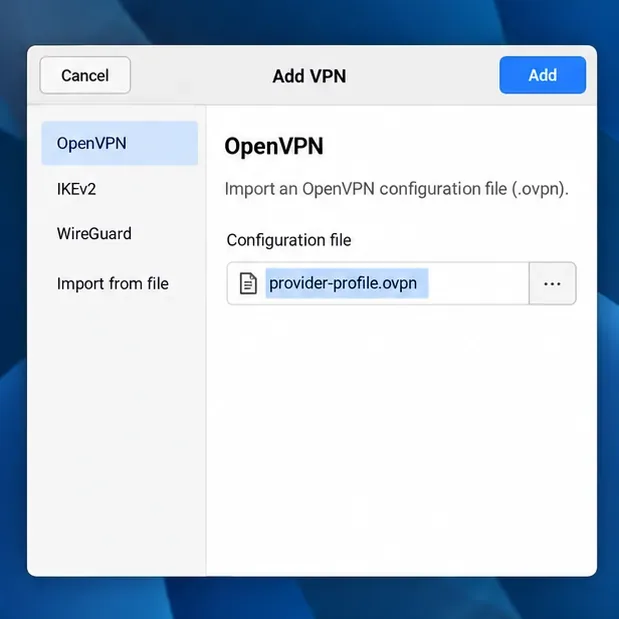
Add an OpenVPN profile to NetworkManager on Pardus, install the right plugin, protect credentials, and verify the VPN is active.
Prepare a bootable USB, check 64-bit hardware compatibility, and install Pardus 23 XFCE while protecting existing files and avoiding common legacy BIOS pitfalls.
Distribute a custom wallpaper to Pardus clients, configure Xfce or GNOME desktops, and apply Lider Ahenk user policies with safe pilot checks.
Fix a 1024 × 768 ceiling by checking SPICE, virtual video, the guest channel, and spice-vdagent—with safe checks when Pardus lacks a package candidate.
Set up the Lider server, configure its installer safely, register Ahenk endpoints, and verify a pilot before expanding central management.
Download the official Pardus 23 desktop ISO, write it safely with Rufus, and boot a Windows PC into a temporary Live session.