Correct Touchscreen Alignment on Harmonica OS Tablets

Diagnose rotated, offset, or inconsistent touch input on a Harmonica OS tablet and choose a Linux calibration method that fits its session and driver.
To install Google Chrome on Gooroom OS without breaking policy, first confirm the device is approved for third-party software. On a managed or locked-down device, ask the administrator to deploy the official Google package; do not disable Gooroom protection, alter policy files, or force a package install. On a device you administer, check the OS release and CPU architecture, then install the matching official Google .deb through the approved package manager.
The distinction matters: Google Chrome’s browser policies and Gooroom’s operating-system controls are separate layers. An install may be technically possible and still violate an organization’s software, repository, or endpoint rules.
If the computer belongs to an employer, school, or government office, check its software request process first. Do not use an administrator account that you are not authorized to use. Ask IT whether Google Chrome is approved, whether the device must stay enrolled in central management, and whether Chrome’s update repository must be managed internally.
Gooroom’s public source organization includes an OS-protection project, but that alone does not establish which protection features are enabled on your device or whether a package install will be blocked. The current behavior depends on the image and local policy. If the package manager refuses the install, requests an unfamiliar exception, or reports that the system is protected, stop and send the message to the administrator. Do not turn off protection or boot into a less-restricted mode to get around it.
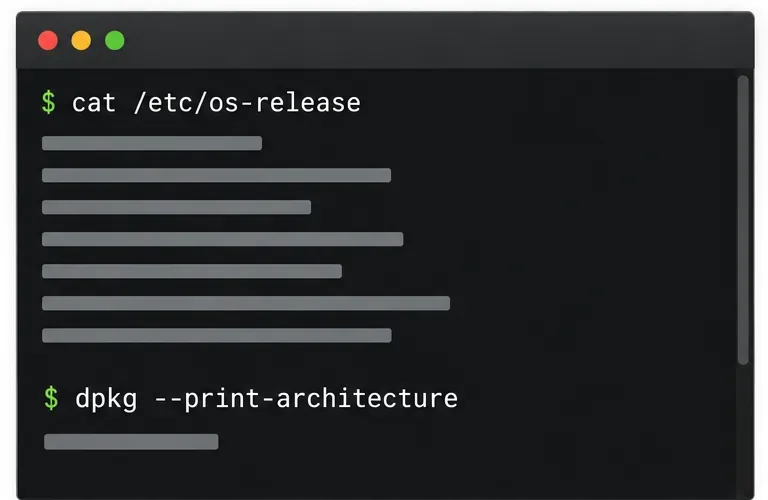
On an administrator-approved device, open Terminal and run these read-only commands:
cat /etc/os-release
dpkg --print-architecture
The first reports the installed distribution details; the second commonly returns amd64 for x86-64 systems or arm64 for 64-bit ARM systems. If dpkg is not present, the machine is not using the expected Debian package tooling for this procedure. Do not download a random package to test it. Ask the device administrator which format and repository are supported.
Compare the result with Google’s current system requirements. If the exact Gooroom version is not named by Google, compatibility is not guaranteed by the official requirements. Ask your IT team to test the package on a matching noncritical device first.
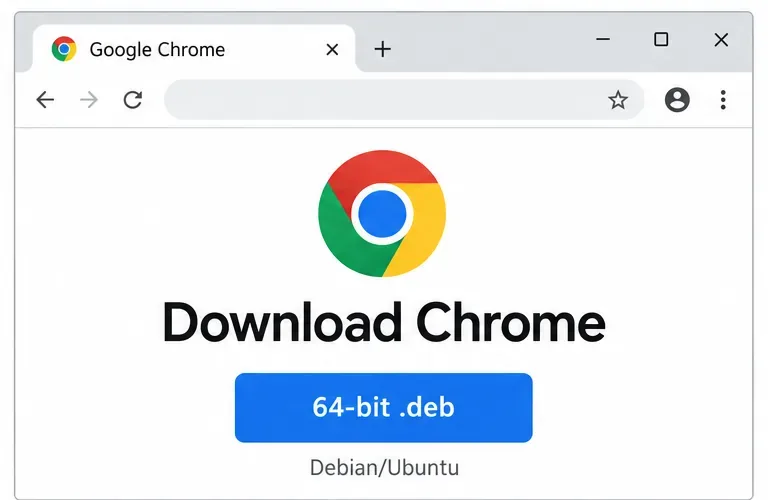
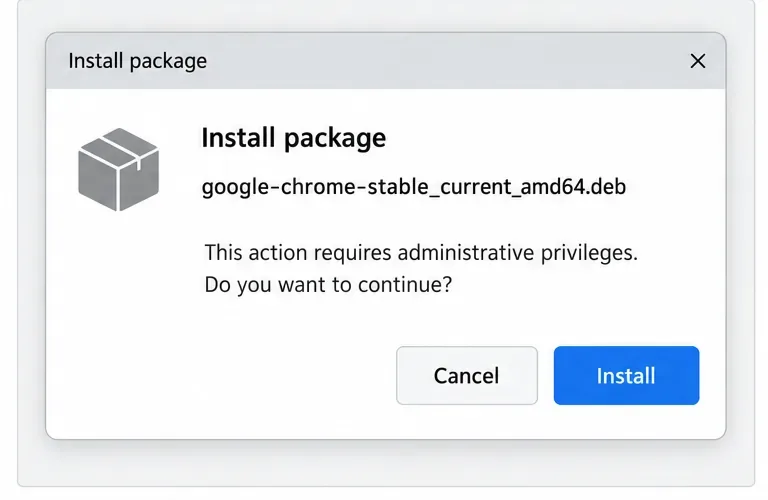
.deb package that matches the device: x86-64 for amd64, or ARM64 for arm64. Do not use third-party download sites or a package intended for another architecture..deb with the system’s package installer and review the package details. Continue only if it is the official Chrome package and you are authorized to approve the administrator prompt. If Gooroom uses a different installer or blocks the package, stop rather than changing system protections.Do not edit Gooroom policy settings, remove endpoint-management agents, add an unapproved repository, or run a force-install command. Those actions can change the security state or create an unmanaged update path. If your administrator wants a terminal-based deployment, have them use their documented package-management process for the exact Gooroom version.
After installation, launch Chrome and confirm it opens normally. In the address bar, enter chrome://policy, select Reload policies, and review the status and values shown. Google documents this page as the place to verify Chrome policies on Linux. A policy with an error or an unexpected value is a reason to contact IT, not to delete policy files.
Google distinguishes required policies stored under a managed policy folder from recommended user policies. On managed installations, required policy files should not be writable by non-administrators, and Google warns against defining the same policy in multiple files. Do not create or edit files under /etc/opt/chrome/policies/ unless you are the designated Chrome administrator. See Google’s Linux policy configuration guide and deployment and testing instructions.
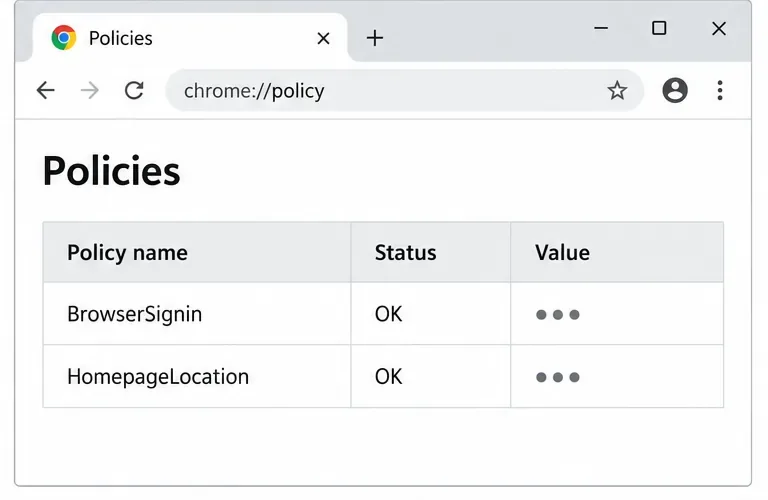
chrome://policy reports errors or policy values differ from the approved configuration.A safe installation ends with Chrome launching, the device still enrolled in its management system, and policies visible with expected values. If any of those checks fail, pause deployment and ask the administrator to resolve the package or policy issue before using Chrome for work.
Diagnose rotated, offset, or inconsistent touch input on a Harmonica OS tablet and choose a Linux calibration method that fits its session and driver.
Switch Gooroom’s desktop session to English, verify the locale, and identify when untranslated Korean labels need an app update instead.
Arrange Pardus XFCE as a familiar bottom taskbar with an app menu, pinned launchers, open-window buttons, and a system tray.
Check your Gooroom release and administrator rules, then follow the official Debian-based setup path for Flatpak or Snap without bypassing system controls.
Learn what Pardus Image Writer can do, how to prepare installation USB safely, and which tools fit custom live images or repeatable fleet deployments.
Install Pardus alongside Windows 11 by shrinking the Windows volume, using unallocated space, and preserving the existing EFI System Partition.
Identify the RTL8821CE, install Pardus-supported Realtek firmware, and verify the driver, Wi-Fi scan, and next troubleshooting step.
Use Pardus’s hardware-aware installer to enable the right NVIDIA driver, reboot safely, and verify the active kernel module.
Install the official Chrome package safely on Gooroom OS, check compatibility, preserve device controls, and verify browser policies before use.
Prepare DNS and time, enroll Pardus with realmd and SSSD, and verify domain membership and user lookup before relying on AD sign-in.