Correct Touchscreen Alignment on Harmonica OS Tablets

Diagnose rotated, offset, or inconsistent touch input on a Harmonica OS tablet and choose a Linux calibration method that fits its session and driver.
If taps land beside buttons on a Harmonica OS tablet, first set the display to its intended orientation and confirm that the touch device is detected. Only apply a calibration matrix when the error is consistent across the screen and your session’s input stack supports it. Harmonica OS-specific calibration menus and supported tablet models could not be confirmed in public documentation, so the steps below use upstream Linux tools and explain where behavior depends on the installed desktop.
Touch problems that look similar have different causes. A pointer that is rotated or mirrored usually indicates a display-orientation or device-mapping problem. A steady, small offset across the whole panel may need calibration. Missed touches, dead strips, random jumps, or a screen that fails only after waking are more likely to involve hardware, firmware, kernel support, or power management; a calibration matrix will not repair those faults.
Begin with the simplest checks: clean and dry the screen, remove a thick or damaged protector temporarily, restart the tablet, and select the correct display rotation in the desktop’s display settings. If touch follows the old orientation after rotation, log out and back in or reboot once. Calibration is a separate coordinate transformation, not a substitute for fixing rotation.
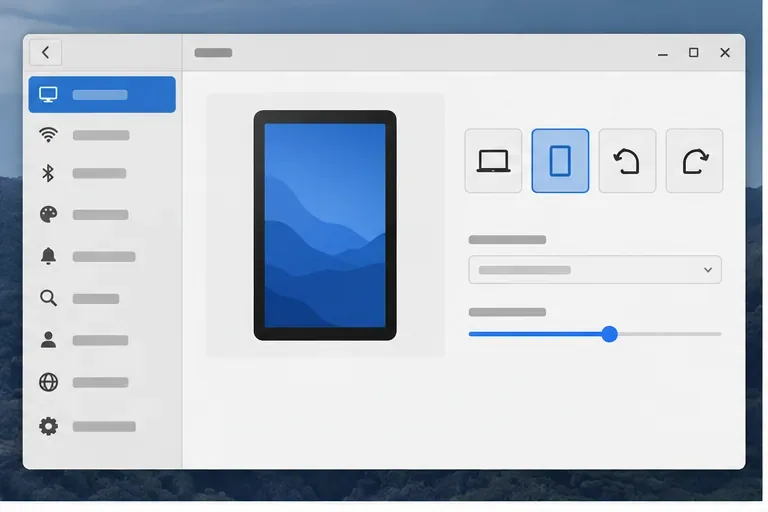
Open a terminal and check whether the desktop session is X11 or Wayland:
echo "$XDG_SESSION_TYPE"Then list detected input devices:
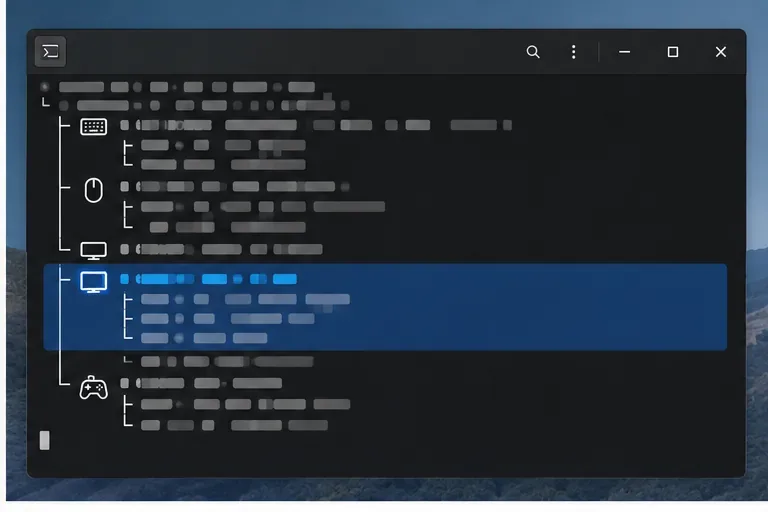
libinput list-devicesFind the touchscreen entry and note its exact name and event node, such as /dev/input/eventN. Names and event numbers vary, so do not copy another tablet’s values. If the command is unavailable, check Harmonica OS’s configured package manager or desktop device information; do not install a calibration utility from an unverified download. If no touchscreen appears, calibration is premature: check whether the device is enabled, reconnect attached hardware if applicable, and look for driver or firmware errors with your system administrator or the tablet vendor.
Wayland compositors and input stacks control how touch coordinates map to displays. The upstream libinput documentation describes calibration as a transformation matrix for absolute devices, and Canonical’s Mir documentation gives one concrete workflow using libinput.calibrate-touchscreen followed by a udev rule. That Mir workflow is not proof that the same calibration utility or compositor is installed on Harmonica OS. Check which compositor and tools your build actually provides before applying it. If the calibration utility is absent, do not assume xinput_calibrator is a drop-in replacement under Wayland.
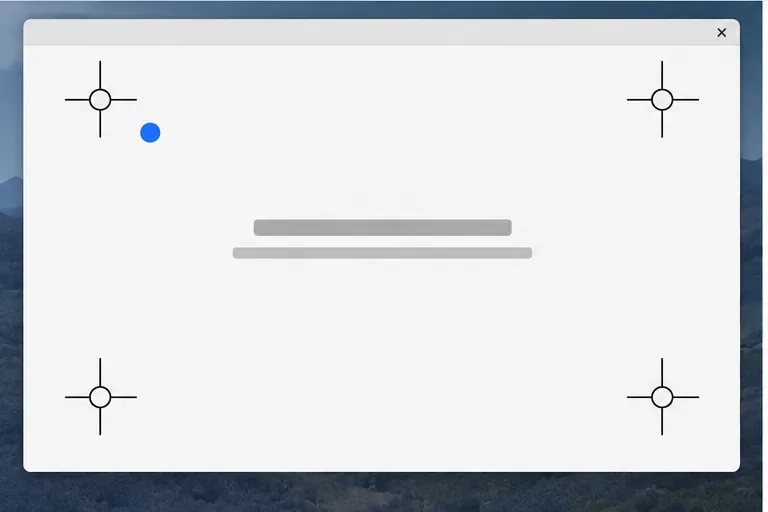
When a supported calibration tool is available, follow its on-screen targets, record the matrix it calculates, and apply it only to the identified touchscreen. Keep a keyboard or remote shell available in case the touch mapping becomes difficult to use. For persistent libinput calibration, the rule must match the actual device identity and use the measured matrix; generic example coefficients are not safe to copy. Reload the device or replug it as the platform documentation directs, then verify that the calibration is active.
xinput_calibrator is an X.Org touchscreen calibration utility. It applies only when the device and driver are supported by the X server. If it is available from Harmonica OS’s trusted repositories, run it as the logged-in desktop user, touch the displayed targets carefully, and save the output it provides for that device. Do not launch a graphical X11 calibration program with sudo unless its documentation explicitly requires it; root may not have access to the active display session. If the tool reports that the device is unsupported or no targets appear, stop and confirm the driver/session before trying a different method.
A one-session adjustment is useful for diagnosis, but it may disappear at logout. Persistent configuration depends on the driver: libinput commonly reads a per-device udev property named LIBINPUT_CALIBRATION_MATRIX, while older X.Org setups may use a device-specific configuration snippet. Do not create both configurations blindly. First confirm the active driver and use its documented format. Back up the file you change and keep the original values so you can revert if the corners become worse.
After applying one change, reload or reconnect the touchscreen as the relevant documentation specifies, or reboot if the desktop does not re-read input settings. Then test a slow tap near each corner, the center, and common controls such as the on-screen keyboard. The touched control should activate directly beneath your finger in both portrait and landscape modes. Test after a fresh login as well; this distinguishes a persistent fix from a temporary session change.
If the error changes with rotation, revisit display mapping rather than tuning a new matrix. If touches are inaccurate only at the edges, gather the touchscreen model, kernel version, session type, device name, and relevant system logs; the panel or driver may need a device-specific correction. If touches jump, stop registering, or remain wrong after restoring the original configuration, revert the change and seek a Harmonica OS or hardware-vendor driver update. Public sources reviewed for this article document generic Linux calibration behavior, not a verified Harmonica OS tablet-specific procedure.
Diagnose rotated, offset, or inconsistent touch input on a Harmonica OS tablet and choose a Linux calibration method that fits its session and driver.
Switch Gooroom’s desktop session to English, verify the locale, and identify when untranslated Korean labels need an app update instead.
Arrange Pardus XFCE as a familiar bottom taskbar with an app menu, pinned launchers, open-window buttons, and a system tray.
Check your Gooroom release and administrator rules, then follow the official Debian-based setup path for Flatpak or Snap without bypassing system controls.
Learn what Pardus Image Writer can do, how to prepare installation USB safely, and which tools fit custom live images or repeatable fleet deployments.
Install Pardus alongside Windows 11 by shrinking the Windows volume, using unallocated space, and preserving the existing EFI System Partition.
Identify the RTL8821CE, install Pardus-supported Realtek firmware, and verify the driver, Wi-Fi scan, and next troubleshooting step.
Use Pardus’s hardware-aware installer to enable the right NVIDIA driver, reboot safely, and verify the active kernel module.
Install the official Chrome package safely on Gooroom OS, check compatibility, preserve device controls, and verify browser policies before use.
Prepare DNS and time, enroll Pardus with realmd and SSSD, and verify domain membership and user lookup before relying on AD sign-in.