Correct Touchscreen Alignment on Harmonica OS Tablets

Diagnose rotated, offset, or inconsistent touch input on a Harmonica OS tablet and choose a Linux calibration method that fits its session and driver.
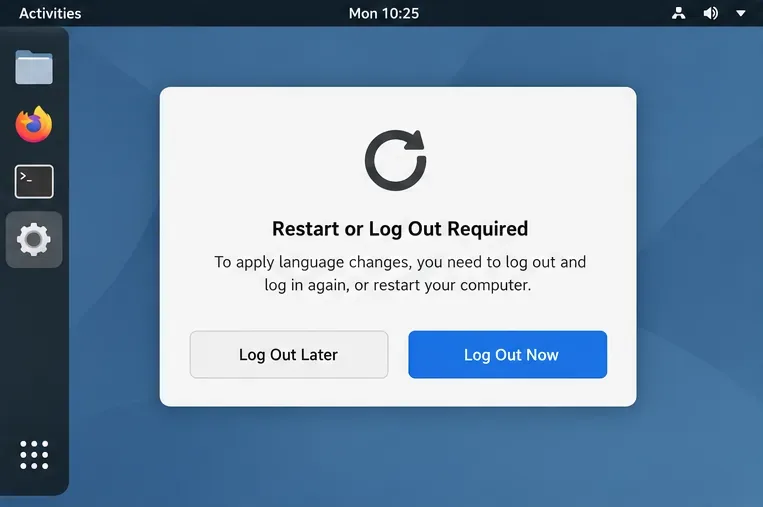
To put Gooroom OS menus in English, first change the desktop session language to English, then sign out and back in so the session reloads its translations. On a Gooroom release using GNOME, open Settings → System → Region & Language → Language and select English (United States). If only certain screens remain Korean, the system locale may already be correct; those screens may lack an English translation or belong to a separate app.
Gooroom releases can differ, and the available public Gooroom material does not document one universal language-settings path for every build. The steps below therefore use the documented GNOME interface where present and Debian locale tools only as a conditional fallback.
Before changing settings, open Terminal and run:
echo "$XDG_CURRENT_DESKTOP"
locale
The first command identifies the desktop session. If it reports GNOME, the GNOME settings path below should apply; if it reports something else, search that desktop’s Settings for “Language” or consult the documentation for your Gooroom release instead of assuming the GNOME menu exists.
In the locale output, look for LANG and LC_MESSAGES. Values such as ko_KR.UTF-8 usually mean the session is using Korean for language-sensitive messages. If LANG already shows en_US.UTF-8 but one application remains Korean, changing the system language again is unlikely to translate that application.
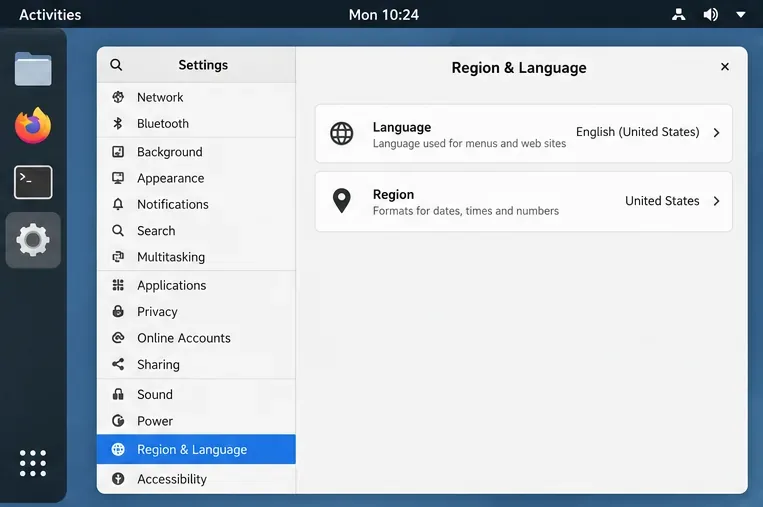
GNOME’s help describes this language selection as applying to the user’s desktop and applications when the necessary language packs are installed. It also notes that translations may be incomplete or unsupported in some applications. If the computer has multiple accounts, the login screen can have a separate language setting; changing your user account does not necessarily change the greeter for everyone.
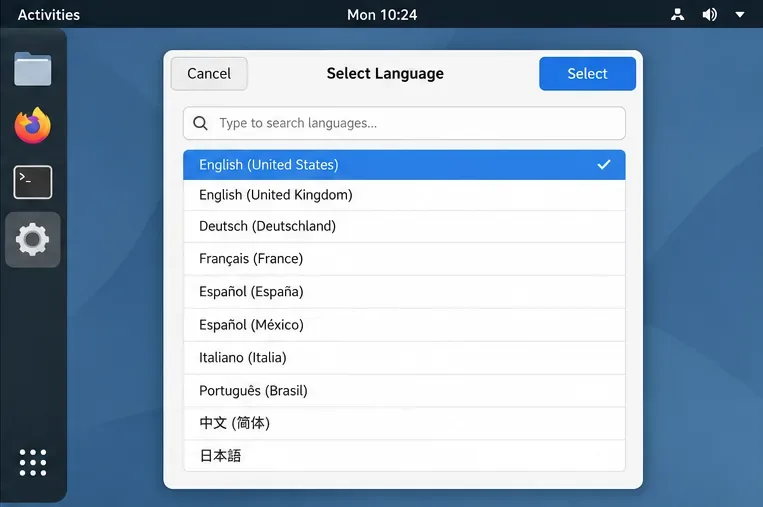
A locale is a system setting that provides language and regional conventions; it is separate from an application’s translated message catalog. On a Debian-based Gooroom installation, if English is absent from the chooser or the locale is not generated, an administrator can check whether the Debian locales configuration tool is available:
sudo dpkg-reconfigure localesIn the configuration screen, enable en_US.UTF-8 and, if asked for a system default, select it only if English should be the default for all users. Keep any other locales the computer needs. Debian documents this as a two-part process: select locale data to generate and then choose the system-wide default. A desktop account preference may override that system default for graphical applications.
Use this command only if the Gooroom build uses Debian’s locale management and the command is installed. If it is unavailable, use the release’s supported Software Center or language-support interface, or ask the system administrator. Avoid downloading random language packs or editing files under /usr/share/locale; package-owned translation files can be overwritten by updates, and hand edits do not create a complete, maintainable translation.
After signing back in, check several places: the desktop settings, file manager, system menus, and the application that first prompted the change. If the main desktop is English but one application is not, open that application’s own preferences and check for a language option. Some programs use a separate preference instead of following the desktop locale.
If there is no app-level language option, the installed application may not include English strings. Locale selection cannot translate text that has no English catalog. Gooroom maintains public source repositories through its official GitHub organization; report persistent Gooroom-specific untranslated labels with the exact application name, release, and screen. For third-party software, contact that application’s maintainers. Editing translation source files is a developer or package-maintainer task, not a reliable end-user setting.
Do not change the keyboard layout just to translate menus. Language controls interface text; keyboard layout controls which characters are produced by each key. Change the layout only if typing is also incorrect.

Run locale again after signing in. For an English (United States) session, LANG=en_US.UTF-8 is a useful sign that the session picked up the expected locale. Confirm that the desktop menus and common system dialogs are now English. If the terminal locale is English but a specific application still shows Korean, treat that as a translation-coverage or app-preference issue rather than repeatedly changing the system locale.
The practical goal is a consistent English desktop wherever Gooroom and installed applications provide English translations. Mixed-language screens can remain when a component has no English catalog; resolving those requires an updated translation from its maintainer, not a stronger locale setting.
References: GNOME Help: Change which language you use; Debian Reference: I18N and L10N.
Diagnose rotated, offset, or inconsistent touch input on a Harmonica OS tablet and choose a Linux calibration method that fits its session and driver.
Switch Gooroom’s desktop session to English, verify the locale, and identify when untranslated Korean labels need an app update instead.
Arrange Pardus XFCE as a familiar bottom taskbar with an app menu, pinned launchers, open-window buttons, and a system tray.
Check your Gooroom release and administrator rules, then follow the official Debian-based setup path for Flatpak or Snap without bypassing system controls.
Learn what Pardus Image Writer can do, how to prepare installation USB safely, and which tools fit custom live images or repeatable fleet deployments.
Install Pardus alongside Windows 11 by shrinking the Windows volume, using unallocated space, and preserving the existing EFI System Partition.
Identify the RTL8821CE, install Pardus-supported Realtek firmware, and verify the driver, Wi-Fi scan, and next troubleshooting step.
Use Pardus’s hardware-aware installer to enable the right NVIDIA driver, reboot safely, and verify the active kernel module.
Install the official Chrome package safely on Gooroom OS, check compatibility, preserve device controls, and verify browser policies before use.
Prepare DNS and time, enroll Pardus with realmd and SSSD, and verify domain membership and user lookup before relying on AD sign-in.