Connect LibreOffice Base to PostgreSQL with the Built-In Wizard

Use Base’s direct PostgreSQL option to enter your server details, sign in, save an ODB connection file, and troubleshoot common access errors.
Use LibreOffice Base’s direct PostgreSQL connection: start a new database file, select Connect to an existing database, choose PostgreSQL, and enter the database name, server, and port. Base then asks for a PostgreSQL login and saves a small .odb file containing the connection information; the PostgreSQL server continues to hold the actual data. The steps below follow LibreOffice Help 26.8, checked October 9, 2026; labels can differ slightly in older releases.
Get the exact database name, a server hostname or IP address reachable from the computer running LibreOffice, and the PostgreSQL port. LibreOffice’s connection form uses these three values, and its documented default port is 5432. You also need a PostgreSQL username and password, plus permission to connect to the database and access the tables or views you intend to use. Ask the database administrator for these values rather than guessing.
For a server on the same computer, the host may be localhost. For a separate server, use its DNS name or address, not the word “localhost”; that always refers to the machine where Base is running. The example values in this article (inventory, db.example.net, and 5432) are illustrative, not credentials for a real service.
Base includes a direct PostgreSQL option in its Database Wizard. You usually do not need to set up a JDBC or ODBC driver for this route. An organization may require one of those routes for its own environment, but follow that setup only if the direct option is unavailable or the database administrator specifies it.
inventory, db.example.net, and 5432 only if those are the values supplied for your server. The page also accepts a PostgreSQL connection string, such as dbname=inventory host=db.example.net port=5432; use the separate boxes unless your administrator gives you additional parameters. LibreOffice notes that user= and password= values in the connection string are ignored, and credentials are requested when connecting.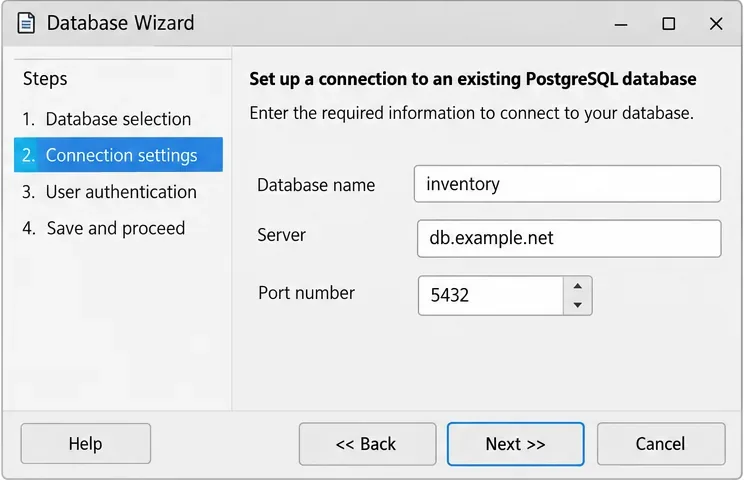
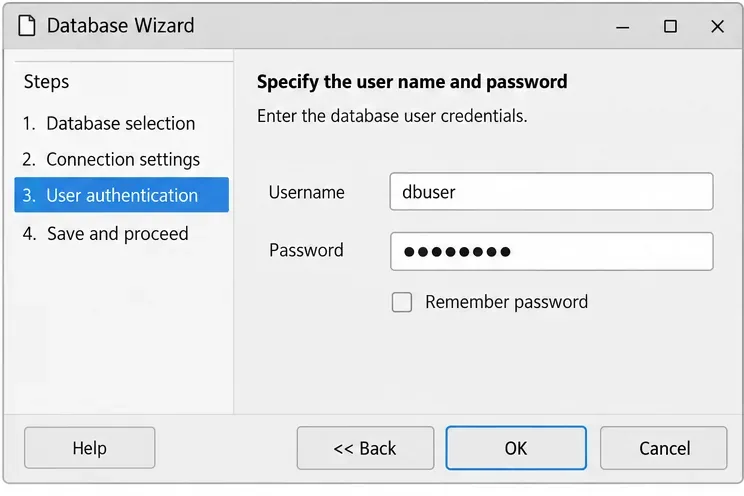
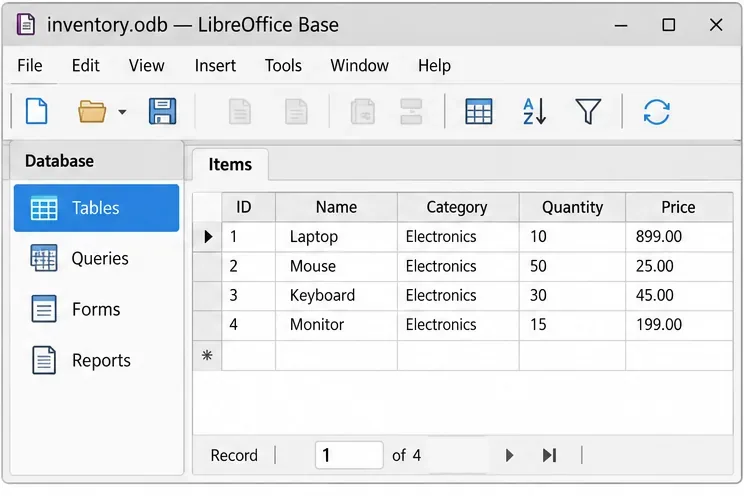
inventory.odb, in a location you can access. Reopen this file later to use the same connection settings.Base opens the database window. Select Tables to see tables available to the connected role; open one only if you have permission to read it. If the expected objects appear, the connection is established. A successful login does not automatically grant permission to every table, and Base does not copy PostgreSQL tables into the .odb file.
listen_addresses and network policy rather than exposing the database broadly. See the PostgreSQL connection settings.pg_hba.conf. PostgreSQL processes rules in order and denies the connection if none matches. Do not use trust as a quick fix for a network-accessible server; it bypasses password authentication. See the PostgreSQL client authentication documentation.CONNECT privilege and appropriate privileges on the required schema and objects. PostgreSQL documents that passing host authentication checks alone is not sufficient for database access.Close and reopen the saved .odb file, connect with the intended role, and confirm the expected tables appear under Tables. If you have authorization, open a known table and check a few expected column names or records. If Base prompts for a password again, that may simply reflect the credential-saving choice or policy; it does not by itself mean the connection details are wrong.
For field definitions, see the LibreOffice PostgreSQL connection settings and the LibreOffice Database Wizard help. Ask your PostgreSQL administrator to investigate server-side access when the connection works locally but fails from another computer.
Use Base’s direct PostgreSQL option to enter your server details, sign in, save an ODB connection file, and troubleshoot common access errors.
Install a font in your Linux user font folder, restart LibreOffice Flatpak, and confirm it appears in Writer without weakening the app sandbox.
Protect your work and isolate network-drive save crashes in LibreOffice on macOS Sonoma with a local-first workflow, permission checks, and targeted tests.
Preserve leading zeros in Calc by setting ID columns to Text during CSV import, checking the preview, and verifying the saved data.
Find the cause of a LibreOffice document lock, safely clear a stale lock file, and confirm that you can edit and save without losing changes.
Make image-heavy Writer files easier to edit: test a reversible display setting, compress oversized pictures in a copy, and verify the saved layout.
Find out whether a slow launch comes from extensions, profile settings, or the system, then test the safest fix without losing LibreOffice data.
Connect LibreOffice to Nextcloud over WebDAV, save the server copy with Ctrl+S, and understand how AutoRecovery differs from cloud syncing.
Find out whether Pardus 23 is blocking Bluetooth, missing BlueZ, or failing to detect adapter firmware, then confirm the controller works.
Learn how Gooroom separates trusted and untrusted browsing, what users can change, and how an administrator can safely update site policies.