If LibreOffice crashes when you save to a network drive on macOS Sonoma, first save a copy to a folder on your Mac, then copy that closed file to the mounted share in Finder. This protects the latest edits and helps determine whether the failure is tied to the network path. It is a practical workaround, not proof of a single Sonoma bug: the cause may involve app access permissions, an interrupted share, server-side locks, or LibreOffice itself.
Choose the save method that fits your work
LibreOffice supports saving documents to a network drive, but that does not guarantee every server, protocol, or connection will behave identically. The safest choice depends on how often the file changes, how many people edit it, and whether you need to work while offline.
- Work locally, then copy to the share: Best when saving directly causes crashes or the connection is unreliable. It gives you a stable working copy, but requires deliberate copying and coordination to avoid overwriting a newer shared version.
- Save directly to the mounted share: Convenient for a stable connection and a single editor. It keeps one shared location, but a disconnect or permission problem during a save can interrupt the operation.
- Use a managed sync folder: Useful when your organization provides a supported sync client and conflict handling. Sync can be delayed or create competing copies, so confirm the upload has finished before another person edits the file.
For important or frequently edited documents, use the local-first method until direct network saving passes the checks below. If several people edit the same file, follow your organization’s locking and collaboration rules; separate local copies can create conflicting revisions.
Set up a safe local-first test
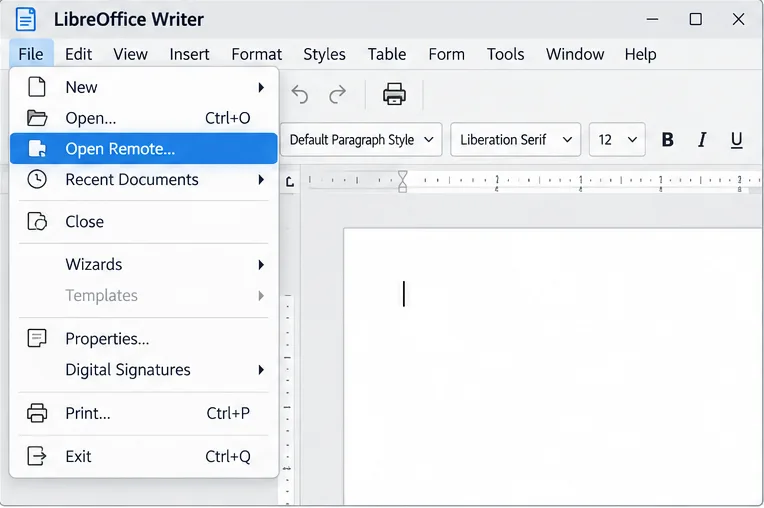
- Protect the current document. If LibreOffice still opens it, use File > Save As and save a new copy in a local folder such as Documents. Give it a distinct name so it cannot be confused with the network version. If the app has already crashed, reopen LibreOffice and review any recovery prompt before making another copy.
- Confirm the local copy works. Make a small, harmless change, press Command-S, close the document, and reopen the saved copy. If this local save also crashes, the network drive is not the only variable. Restart the Mac, install a current LibreOffice maintenance release compatible with your Mac, and test again before changing network settings.
- Reconnect to the share in Finder. Choose Go > Connect to Server, enter the address supplied by your administrator (for an SMB share, it commonly begins with
smb://), authenticate, and mount the intended volume. Check that you can create, rename, and delete a harmless test file in the destination folder. Do not test with the only copy of a real document.
- Check macOS network-volume access. If Sonoma asks whether LibreOffice may access a network volume, allow it only if that is expected for your work. If access was denied or the prompt was missed, open System Settings > Privacy & Security and review the relevant network-volume access control where available. Apple documents that apps may request permission to access network volumes and that these permissions can be reviewed in Network settings. Menu labels can vary slightly by Sonoma update.
- Copy the closed local file to the share. Quit or close the document in LibreOffice, then copy the local file in Finder. Wait for the copy to finish. Open the network copy and check its name, file size, and a recent edit before relying on it. This separates LibreOffice’s save operation from Finder’s file copy, making the result useful for diagnosis.
When is direct saving worth testing?
Test direct saving only after the local copy and Finder transfer both work. First make a duplicate test document on the share. Open that duplicate from LibreOffice, make a small change, save, close it, then reopen it from the share. Repeat once after disconnecting and reconnecting the volume. If the app crashes only when LibreOffice writes to the share, return to local editing and report the pattern to your IT administrator or LibreOffice support channels.
Direct saving is reasonable when the connection remains mounted, the account can write to the target folder, no other user is editing the same file, and repeated save-and-reopen checks succeed. Local-first is preferable when you travel, use Wi-Fi that drops, edit large files, or cannot risk losing the current session. For a team workflow, use a supported document-management or synchronization process with clear conflict rules rather than relying on multiple offline copies.
Use targeted checks before changing settings
Permission or mount problem
If Finder cannot create a test file, LibreOffice is unlikely to fix the underlying access problem. Disconnect and reconnect the volume, verify the account and folder permissions with the server owner, and confirm that the destination is still mounted before saving. Avoid changing server permissions or running terminal commands unless your administrator directs you.
LibreOffice profile or extension issue
If local saves fail too, use LibreOffice’s Safe Mode from the Help menu, if available in your installed release, and test a disposable local document. Safe Mode temporarily helps distinguish a user-profile or extension issue from the network path. Do not reset the profile immediately: that can remove preferences and customizations. If Safe Mode changes the behavior, back up the LibreOffice user profile before considering a reset, and re-enable extensions one at a time.
Backup and recovery options
In LibreOffice preferences, review the Load/Save settings for AutoRecovery and backup copies. AutoRecovery stores information intended to help restore modified documents after a crash; it is not a substitute for a verified saved file. A backup copy can preserve an earlier version, but it may be written beside the document or to the configured backup folder, so confirm that location is writable and local if the share is unstable.
Verify the fix and preserve evidence
Consider the issue controlled when a local document saves and reopens, Finder can copy it to the mounted share, and a test document saved directly to the share can be closed and reopened without another crash. If direct saving still fails, continue with the local-first workflow. Record the LibreOffice version, Sonoma version, file type, share protocol if known, whether Finder copying works, and whether Safe Mode changes the result. This information helps support staff narrow the fault without exposing document contents.
For current procedures, see LibreOffice’s document-saving help, Apple’s network-volume access guidance, Apple’s instructions for connecting to file servers, and the official LibreOffice download page. Interface wording and available options may differ by app and macOS version; this guidance does not establish that every Sonoma save crash has the same cause.