Connect LibreOffice Base to PostgreSQL with the Built-In Wizard

Use Base’s direct PostgreSQL option to enter your server details, sign in, save an ODB connection file, and troubleshoot common access errors.
To make a custom font available in LibreOffice Flatpak, install its font file in your Linux user fonts directory, then fully close and reopen LibreOffice. Flatpak exposes the standard per-user font directory to sandboxed apps, so you usually do not need to grant LibreOffice extra filesystem access or copy fonts into the Flatpak installation itself.
On most Linux desktops, the user font folder is ~/.local/share/fonts. If your system sets XDG_DATA_HOME to a different location, the corresponding folder is $XDG_DATA_HOME/fonts. Flatpak exposes that host directory inside the sandbox as /run/host/user-fonts. These paths are documented in the Flatpak desktop integration documentation.
Use a desktop font file such as .ttf or .otf that you are permitted to install. Web font files such as .woff and .woff2 are intended for web pages and are not the right format for this workflow. If a font download arrives as a ZIP archive, extract it first and locate the actual font file. Do not copy the ZIP itself into the fonts folder.
For a family with regular, bold, italic, and bold italic styles, install each supplied style file. A single regular font file will not necessarily provide the other weights or italic forms. Font names shown in LibreOffice can differ from the filename, so note the family name from the font’s publisher or preview before testing.
font_dir="${XDG_DATA_HOME:-$HOME/.local/share}/fonts"
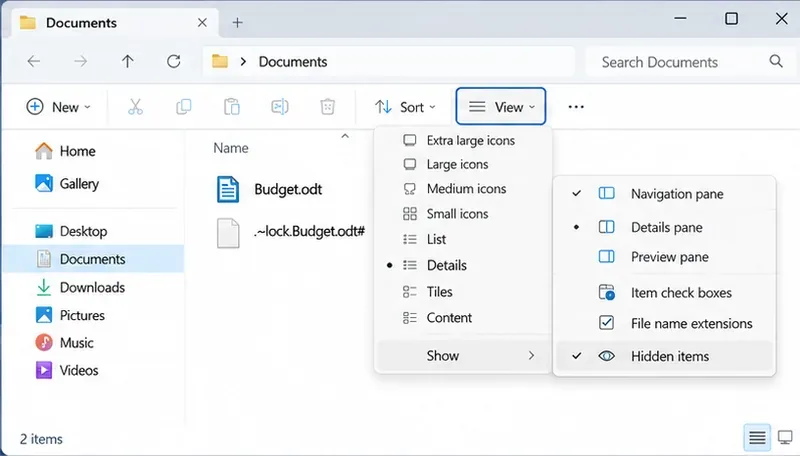
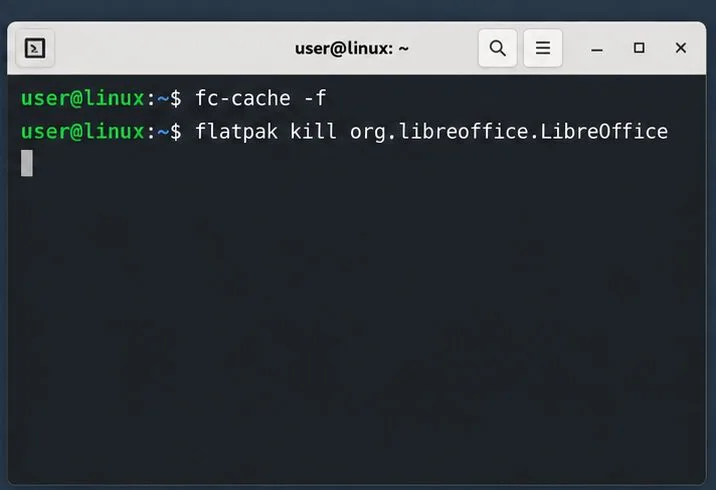
mkdir -p "$font_dir"cp "$HOME/Downloads/ExampleSans-Regular.ttf" "$font_dir/"Ctrl+H if hidden folders are not visible, then open .local/share/fonts and copy the font file there. For a custom XDG_DATA_HOME, use its fonts subfolder instead.flatpak kill org.libreoffice.LibreOffice after saving; this stops the Flatpak app so it can rebuild its font list when launched again.
Often, restarting LibreOffice is enough. If the font still does not appear, refresh the host fontconfig cache and launch LibreOffice again:
fc-cache -fRun this command in your normal Linux desktop session, not inside LibreOffice. It asks fontconfig to rebuild its font cache. If your system does not have the fc-cache command, use the font installation or refresh option provided by your Linux distribution, or log out and back in before testing again.
Flatpak exposes host font directories to apps, but it does not expose the host’s fontconfig configuration files. As a result, a host-specific fontconfig customization may not carry into LibreOffice’s runtime. The standard user font directory is the first place to test because it is explicitly included in Flatpak’s documented font paths.
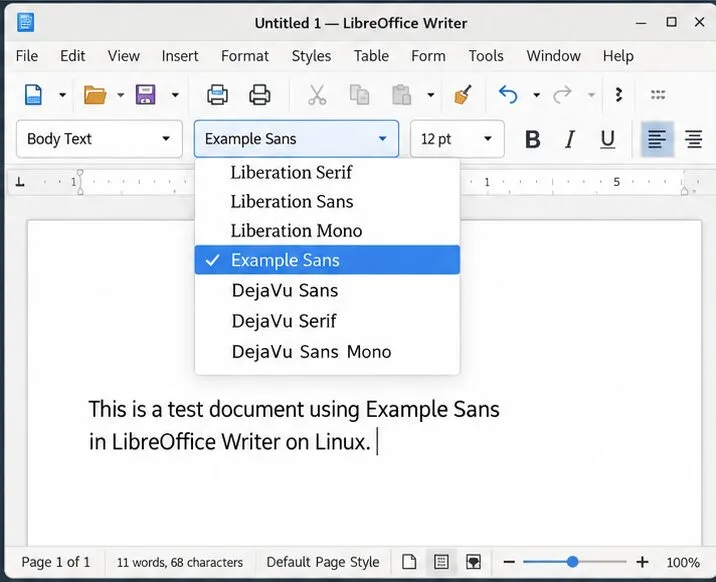
Start by checking the simple causes. Confirm the font file is actually inside the active user fonts folder and is not still compressed in an archive. Verify that you used the family name rather than assuming the filename is the name Writer will list. Make sure every LibreOffice window and background process was closed before reopening it.
If you have fontconfig tools installed, you can check whether the host recognizes the family by running fc-list : family | grep -i "Example Sans" and replacing the sample name. If no result appears, the issue is on the host side: verify the directory, file format, file permissions, and whether the downloaded font is valid. If the host lists it but Writer does not, refresh the cache, restart LibreOffice again, and confirm the app ID is the Flathub LibreOffice Flatpak. Flathub lists the application as org.libreoffice.LibreOffice.
A font can also be available while some characters remain unchanged. The chosen typeface may not contain every glyph needed for your sample text; LibreOffice or the runtime can display missing characters using fallback fonts. Test the exact scripts and symbols used in your document, and choose a family with the required glyph coverage if squares or visibly different characters remain.
Avoid broad sandbox overrides such as granting LibreOffice read access to your entire home directory just to install a font. The standard font location is designed for this use. If an unusual distribution or custom Flatpak setup does not expose it, review that system’s Flatpak configuration before adding a narrowly scoped, read-only permission.
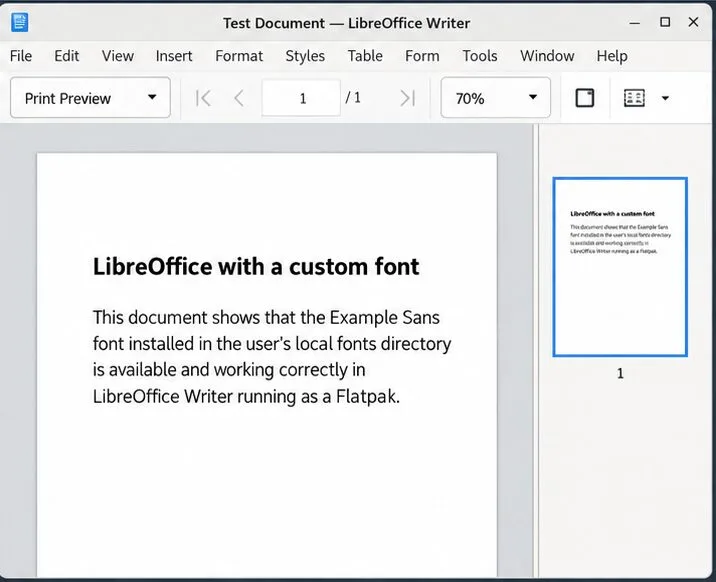
The fix is complete when the font family appears in Writer’s font list, applies to selected text, and renders the characters and page layout you need. Reopen the saved test document to ensure the selection persists. Keep in mind that installing a font locally does not guarantee that another computer has it; recipients who lack the typeface may see substituted fonts and different line breaks. Check the font’s license and the document format’s font-handling options before distributing files that rely on it.
For reference, the LibreOffice Font Name help describes font selection in the toolbar, while the Flathub LibreOffice listing identifies the Flatpak package.
Use Base’s direct PostgreSQL option to enter your server details, sign in, save an ODB connection file, and troubleshoot common access errors.
Install a font in your Linux user font folder, restart LibreOffice Flatpak, and confirm it appears in Writer without weakening the app sandbox.
Protect your work and isolate network-drive save crashes in LibreOffice on macOS Sonoma with a local-first workflow, permission checks, and targeted tests.
Preserve leading zeros in Calc by setting ID columns to Text during CSV import, checking the preview, and verifying the saved data.
Find the cause of a LibreOffice document lock, safely clear a stale lock file, and confirm that you can edit and save without losing changes.
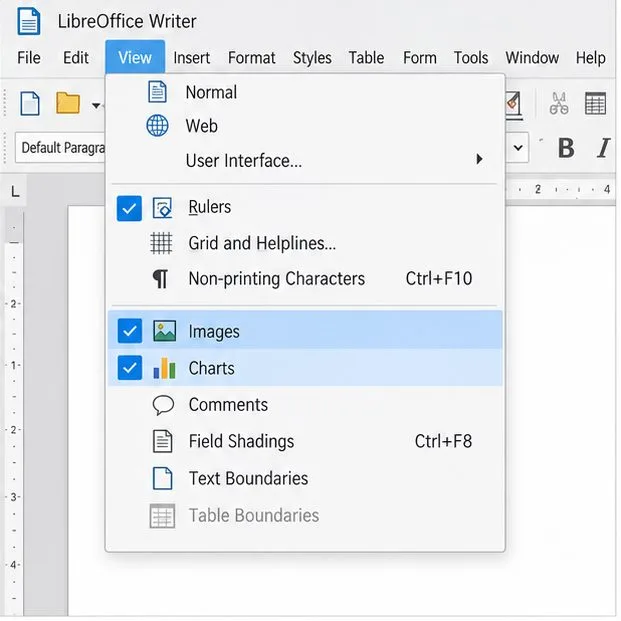
Make image-heavy Writer files easier to edit: test a reversible display setting, compress oversized pictures in a copy, and verify the saved layout.
Find out whether a slow launch comes from extensions, profile settings, or the system, then test the safest fix without losing LibreOffice data.
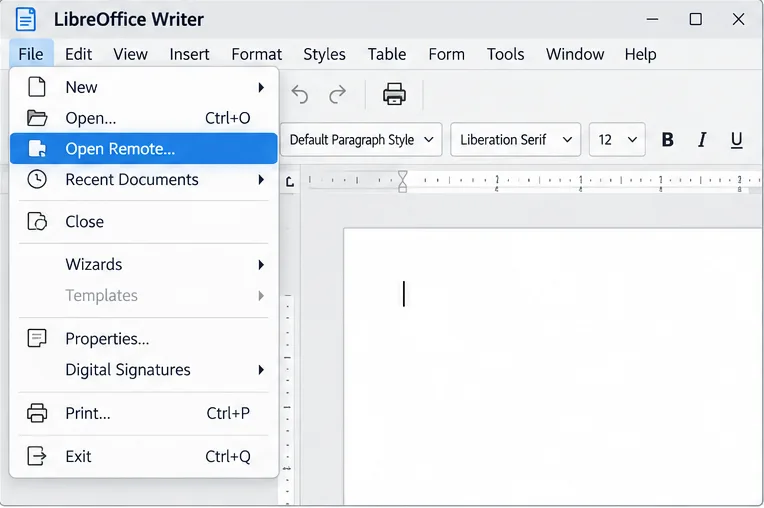
Connect LibreOffice to Nextcloud over WebDAV, save the server copy with Ctrl+S, and understand how AutoRecovery differs from cloud syncing.
Find out whether Pardus 23 is blocking Bluetooth, missing BlueZ, or failing to detect adapter firmware, then confirm the controller works.
Learn how Gooroom separates trusted and untrusted browsing, what users can change, and how an administrator can safely update site policies.